Can I Add Bluetooth To My Pc And Get Wireless Freedom
Yes, you can add Bluetooth to your PC and unlock a world of wireless freedom. Whether your computer lacks built-in support or you need an upgrade, a Bluetooth adapter makes it simple. This guide walks you through every step, from picking the right dongle to pairing your favorite devices.
This is a comprehensive guide about Can I Add Bluetooth To My Pc.
Key Takeaways
- Adding Bluetooth is easy: A USB Bluetooth adapter is the fastest and most affordable way to get wireless connectivity on any PC.
- Check first: Many modern laptops already have Bluetooth built in, so you may not need extra hardware at all.
- Driver updates matter: Outdated drivers are the #1 cause of Bluetooth problems on Windows PCs.
- Range and version count: Bluetooth 5.0 offers better range and speed than older versions, so choose wisely.
- Pairing is simple: Once set up, connecting wireless headphones, keyboards, and speakers takes just seconds.
- Troubleshooting is straightforward: Most Bluetooth issues can be fixed with a few simple steps at home.
[FEATURED_IMAGE_PLACEHOLDER]
Can I Add Bluetooth To My PC And Get Wireless Freedom?
Let us get one thing straight. If you are tired of tangled cords and limited mobility, adding Bluetooth to your PC is one of the best upgrades you can make. The process is simpler than most people think, and the payoff is huge. You can connect wireless headphones, speakers, keyboards, mice, and even your phone without reaching for a cable.
Many folks assume they need a brand new computer to enjoy wireless freedom. That is simply not true. Whether you have a desktop tower gathering dust or an older laptop, you can bring Bluetooth capability into your setup without breaking the bank. A small USB adapter does the trick in minutes.
This guide covers everything you need to know. We will walk you through checking if your PC already has Bluetooth, choosing the right adapter, installing drivers, pairing devices, and fixing common issues. By the end, you will be fully equipped to go wireless.
So grab a cup of coffee and let us dive in. Your wireless PC experience is closer than you think.
Does Your PC Already Have Bluetooth?
Before you buy anything, it is smart to check whether your computer already supports Bluetooth connectivity. Many modern laptops come with it built right in. Desktop PCs, on the other hand, often do not. Here is how to find out quickly.
Check Your Device Manager
Open the Device Manager on your Windows PC. Look for a section called “Bluetooth.” If you see entries there, your computer already has Bluetooth hardware installed. You may just need to turn it on or update the driver.
Look for Bluetooth in Settings
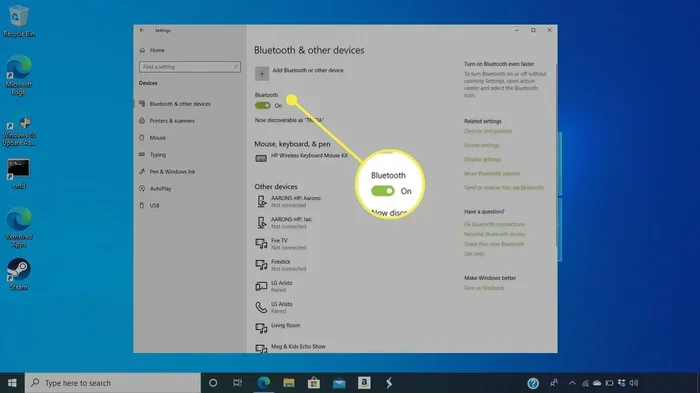
Go to Settings, then Devices, and click on “Bluetooth & other devices.” If you see a toggle switch for Bluetooth, your PC supports it. You can flip it on and start pairing devices right away.
Check Your Taskbar
Look at the bottom-right corner of your screen near the clock. If you see a Bluetooth icon, you are good to go. No icon does not always mean it is missing, but it is a good first clue.
If your PC does not have Bluetooth, do not worry. That is exactly what the next section is for. And while you are at it, you might want to explore 10 gadgets that make life easier while you are setting up your wireless workspace.
How to Add Bluetooth to Any PC
Adding Bluetooth to your PC is straightforward and affordable. You have a few options depending on your budget and needs. Let us break them down so you can pick the best one for your situation.
Option 1: USB Bluetooth Adapter (The Easiest Method)
A USB Bluetooth adapter, also called a dongle, is the most popular way to add wireless capability to any PC. You simply plug it into a USB port, install the driver, and you are done. It takes less than five minutes in most cases.
These adapters come in different versions. Bluetooth 4.0 works fine for basic tasks. But if you want faster speeds and better range, look for a Bluetooth 5.0 or 5.3 adapter. The difference is noticeable, especially with audio devices.
Here are some popular types of USB adapters:
- Basic USB dongles: Small, affordable, and perfect for everyday use. Great for wireless keyboards and mice.
- High-power adapters: Offer stronger signal and longer range. Ideal if you move around the room while connected.
- Adapters with built-in antennas: Provide more stable connections, especially for audio streaming.
Brands like TP-Link, ASUS, and Avantree make reliable options at various price points. You can find a solid adapter for under $15, which is a small price for wireless freedom.
Option 2: Internal Bluetooth Card
If you have a desktop PC and prefer a cleaner setup, an internal Bluetooth card is a great choice. You install it into a PCIe slot on your motherboard. It works just as well as a USB adapter but stays hidden inside your case.
This option is slightly more technical. You need to open your PC tower and know which slot to use. But once installed, it provides a permanent wireless connection solution. Many gamers and professionals prefer this route because it keeps the desk clutter-free.
Option 3: Bluetooth via a USB Hub
If you are running low on USB ports, a USB hub with built-in Bluetooth can be a smart move. It gives you extra ports and wireless capability in one device. This is especially handy for users with lots of peripherals already plugged in.
Some hubs even include card readers or extra charging ports. It is a two-for-one deal that saves space and adds wireless connectivity at the same time.
No matter which option you choose, make sure your adapter is compatible with your version of Windows. Most adapters work with Windows 10 and 11, but it is always worth checking before you buy.
Setting Up Your Bluetooth Adapter
Once you have your adapter, the setup process is quick. Here is a step-by-step walkthrough to get you connected.
Step 1: Plug In the Adapter
Insert your USB Bluetooth adapter into an available port. Windows usually detects new hardware automatically. You may see a notification saying “New device found.”
Step 2: Install the Driver
Most adapters come with a driver CD or a download link. Even if Windows installs a generic driver, it is better to use the manufacturer’s official driver. Go to the brand’s website, download the latest version, and run the installer.
Updating your Bluetooth driver regularly keeps things running smoothly. Outdated drivers cause most connection problems, so make this a habit.
Step 3: Turn on Bluetooth
Go to Settings, then Devices, then Bluetooth & other devices. Toggle Bluetooth to On. Your PC is now searching for nearby devices.
Step 4: Pair Your Device
Put your wireless device into pairing mode. This usually means holding down a button until a light flashes. Then click “Add Bluetooth or other device” on your PC and select the device from the list.
That is it. You are now wirelessly connected. The whole process takes less than ten minutes once you have the adapter in hand.
Best Devices to Connect Wirelessly to Your PC
One of the best parts about adding Bluetooth to your PC is the sheer number of devices you can connect. Here are some of the most popular wireless accessories that make your computing experience better.
Wireless Headphones and Earbuds
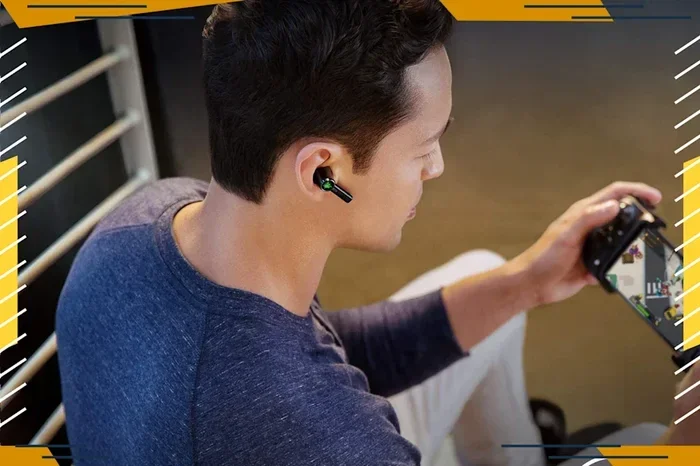
Say goodbye to cable tangles during your workday or gaming sessions. Bluetooth headphones let you move freely while listening to music, podcasts, or video calls. Popular choices include brands like Sony, Jabra, and Apple AirPods. Most modern earbuds connect seamlessly to any Bluetooth-enabled PC.
Wireless Keyboards and Mice
A wireless keyboard and mouse combo frees up desk space and looks cleaner. You no longer need to worry about mouse cord length or keyboard cable placement. Logitech and Microsoft offer excellent wireless peripherals that pair easily with any PC.
Speakers and Audio Systems
Want to play music from your PC through a Bluetooth speaker? It is incredibly simple. Just pair the speaker and start streaming. Portable speakers are great for casual listening, while larger Bluetooth audio systems deliver richer sound for your home office.
Game Controllers
Many modern game controllers support Bluetooth connectivity. Xbox and PlayStation controllers can connect wirelessly to your PC, giving you a console-like gaming experience without the extra hardware.
Phone and File Transfer
Bluetooth also lets you transfer files between your phone and PC. You can share photos, documents, and videos without using a cable or cloud service. It is a handy feature many people forget about.
If you are looking for more ways to upgrade your setup, check out these great gadgets for simplifying tech life. Many of them work perfectly with a wireless PC setup.
Bluetooth Versions: What You Need to Know
Not all Bluetooth versions are created equal. The version number affects speed, range, and power consumption. Here is a quick breakdown of what each version means for your experience.
| Version | Max Range | Max Speed | Best For |
|---|---|---|---|
| Bluetooth 4.0 | 30 feet | 25 Mbps | Basic peripherals, keyboards, mice |
| Bluetooth 4.2 | 50 feet | 25 Mbps | Improved battery efficiency |
| Bluetooth 5.0 | 80 feet | 50 Mbps | Audio streaming, better range |
| Bluetooth 5.3 | 80+ feet | 50+ Mbps | Latest features, lowest latency |
For most users, Bluetooth 5.0 or higher is the sweet spot. It offers excellent range, fast data transfer, and strong audio quality. If you plan to stream music or video, go with the latest version you can afford.
Older versions still work fine for basic tasks like typing on a wireless keyboard or clicking with a wireless mouse. But for wireless audio and high-quality transfers, newer is definitely better.
Common Bluetooth Problems and How to Fix Them
Even with the best setup, you might run into hiccups. Bluetooth troubleshooting is usually simple. Here are the most common issues and how to solve them.
Device Not Showing Up in the Pairing List
Make sure your device is in pairing mode. Most accessories have a dedicated button or need you to hold the power button for a few seconds. Also, move the device closer to your PC. Bluetooth range can be limited by walls and furniture.
Connection Keeps Dropping
Interference from other wireless devices can cause dropouts. USB 3.0 ports sometimes interfere with Bluetooth signals. Try plugging your adapter into a USB 2.0 port instead. Also, make sure your Bluetooth driver is up to date.
Audio Lag or Stuttering
If your wireless headphones sound choppy, the adapter might be too old. Upgrading to a Bluetooth 5.0 adapter often fixes this issue. Also, check that no other devices are hogging the wireless bandwidth in your home.
Driver Issues
Windows sometimes fails to install the right driver automatically. Visit the adapter manufacturer’s website and download the latest driver manually. This one step solves the majority of Bluetooth connectivity problems.
PC Does Not Detect Bluetooth at All
Restart your PC and try again. Sometimes a simple reboot refreshes the Bluetooth settings. If that does not work, go to Device Manager, find the Bluetooth adapter, right-click it, and select “Update driver.”
Most Bluetooth issues are quick fixes. You do not need to be a tech expert to solve them. A little patience goes a long way toward wireless freedom.
Expert Tips for the Best Wireless Experience
Here are some pro tips that make a real difference in your wireless PC setup:
- Keep your adapter away from other USB devices: This reduces signal interference and improves stability.
- Place your adapter on a USB extension cable: Moving it closer to your wireless devices strengthens the connection.
- Turn off Bluetooth when not in use: This saves battery life on laptops and reduces background interference.
- Update drivers monthly: Set a calendar reminder to check for Bluetooth driver updates regularly.
- Use Bluetooth 5.0 for audio devices: The improved bandwidth makes a noticeable difference in sound quality.
- Limit the number of paired devices: Too many connected devices can slow down your wireless connection.
These small habits keep your wireless peripherals running smoothly day after day. They take only a few seconds but save you from frustration down the road.
Setting up wireless connectivity also opens the door to a cleaner, more organized workspace. You will wonder how you ever worked with cables everywhere. And if you want more ideas for tech upgrades, explore these gadgets designed to simplify your life while you enjoy your new wireless setup.
Is It Worth Adding Bluetooth to Your PC?
The short answer is absolutely yes. A USB Bluetooth adapter costs less than a meal at most restaurants. Yet it transforms how you use your computer. You get wireless freedom at your desk, in your living room, or anywhere within range.
Think about how many devices you use daily. Your wireless keyboard, your headphones, your mouse, maybe a speaker for background music. Without Bluetooth connectivity, each one needs a cable. With it, your desk becomes clean and your movement becomes unrestricted.
The setup takes minutes. The benefits last years. Whether you are a student, a remote worker, a gamer, or someone who just wants a tidier desk, adding Bluetooth to your PC is one of the smartest small upgrades you can make.
Do not let an older computer hold you back from modern wireless convenience. A simple adapter bridges the gap between your older machine and today’s wireless accessories. You will enjoy the same seamless wireless experience that new computers offer.
Start today. Plug in an adapter, pair your favorite device, and feel the difference. Wireless freedom is just a few minutes away.
Frequently Asked Questions
Can I add Bluetooth to any PC?
Yes, you can add Bluetooth to virtually any PC. A USB Bluetooth adapter works with both desktops and laptops. As long as your PC has a USB port, you can get wireless connectivity in minutes. The adapter handles all the heavy lifting for you.
How much does a Bluetooth adapter cost?
Most USB Bluetooth adapters cost between $5 and $25. Basic models for simple tasks are very affordable. Higher-end adapters with Bluetooth 5.0 or 5.3 cost a bit more but offer better speed and range. It is one of the cheapest PC upgrades you can make.
Do I need to install drivers for a Bluetooth adapter?
Windows often installs a generic driver automatically. But for the best performance, download the official driver from the manufacturer’s website. Updated Bluetooth drivers improve connection stability and fix most common issues.
What is the range of a Bluetooth connection?
Most Bluetooth connections work within 30 to 80 feet, depending on the version. Bluetooth 5.0 and newer offer the best range. Walls and furniture can reduce the effective distance, so keep your adapter close to your devices for the strongest signal.
Can I connect multiple Bluetooth devices at once?
Yes, you can pair multiple devices with your PC. Most computers support several Bluetooth connections simultaneously. Just make sure your adapter can handle the bandwidth, especially if you are streaming audio while using a wireless keyboard and mouse.
Why does my Bluetooth keep disconnecting?
Interference, outdated drivers, or distance from the adapter are the most common causes. Try moving closer to the adapter, updating your Bluetooth driver, or switching to a USB 2.0 port. These steps fix the issue in most cases.
Conclusion
Can I add Bluetooth to my PC? The answer is a resounding yes. Whether you use a USB adapter, an internal card, or a Bluetooth-enabled hub, getting wireless freedom on your computer is easy and affordable. You do not need technical skills or expensive equipment. A simple Bluetooth adapter transforms your PC into a wireless powerhouse.
We covered how to check if your PC already has Bluetooth, how to choose the right adapter, how to set it up, and how to fix common problems. You also learned about different Bluetooth versions, the best wireless devices to connect, and expert tips for a smooth experience.
Now it is your turn. Pick an adapter, follow the steps, and enjoy a cleaner, more flexible workspace. Wireless connectivity is not just a luxury anymore. It is a simple upgrade that makes everyday computing better. Go ahead and make the switch today. Your wireless future starts now.
Frequently Asked Questions
What is Can I Add Bluetooth To My Pc?
Can I Add Bluetooth To My Pc is an important topic with many practical applications.