How Do I Connect My Denon Receiver To My Audio Gear
Setting up your Denon receiver is easier than you think. This guide walks you through every connection method, from HDMI to optical cables, so you can enjoy rich, clear audio from any source. You will learn how to hook up speakers, TVs, and audio devices the right way.
So you just got a Denon receiver and you are ready to bring your audio setup to life. But looking at all those inputs and cables can feel overwhelming. You are not alone. Many people wonder how to connect their Denon receiver to their audio gear without pulling their hair out.
The good news is that connecting a Denon receiver is straightforward once you know the basics. Whether you want to set up a home theater system or just improve your stereo sound, this guide has you covered. We will walk through every connection method step by step. By the end, you will feel confident and ready to enjoy amazing sound.
Denon receivers are known for their quality audio performance and versatility. They support many types of connections, which makes them a popular choice for both beginners and audio enthusiasts. But with that versatility comes a few decisions you need to make. Which cables do you need? Which inputs should you use? Do not worry. We will answer all of these questions in this article.
Key Takeaways
- HDMI is the best all-in-one connection for both audio and video through your Denon receiver.
- Optical and RCA cables work great for older devices or simpler setups.
- Bluetooth and USB options give you wireless flexibility for modern audio sources.
- Proper speaker pairing matters for the best sound quality in your room.
- Common mistakes can be avoided with the right troubleshooting tips.
📑 Table of Contents
Understanding Your Denon Receiver
Before you plug in any cables, it helps to understand what your Denon receiver can do. Most Denon models come with a range of input and output options. These allow you to connect different audio and video sources. Let us look at the common types of connections you will find on your receiver.
Types of Inputs on a Denon Receiver
Denon receivers typically include several types of inputs. Here are the most common ones you will see:
- HDMI inputs – These handle both audio and video in one cable. They are the most convenient option for modern setups.
- Optical digital inputs – These carry high-quality digital audio. They work well with TVs and gaming consoles.
- RCA analog inputs – These are the classic red and white cables. They are simple and widely compatible.
- USB ports – These let you connect USB drives or other digital audio sources directly.
- Bluetooth and Wi-Fi – These allow wireless audio streaming from your phone or computer.
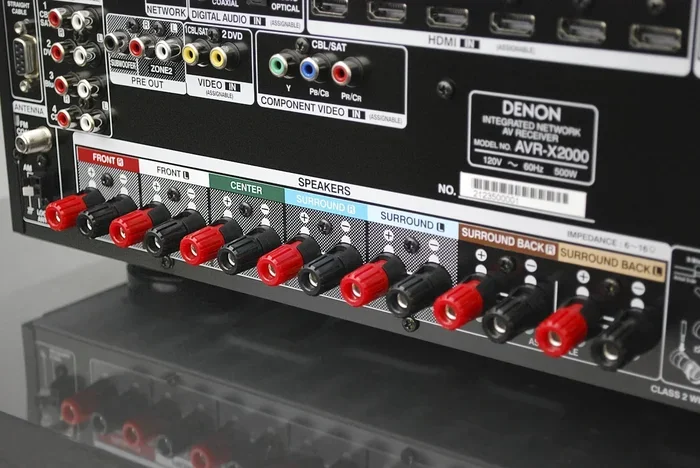
Knowing which inputs your receiver has helps you plan your setup. Check the back panel of your Denon unit or look at the manual for a full list of available connections.
Connecting Your Denon Receiver to a TV
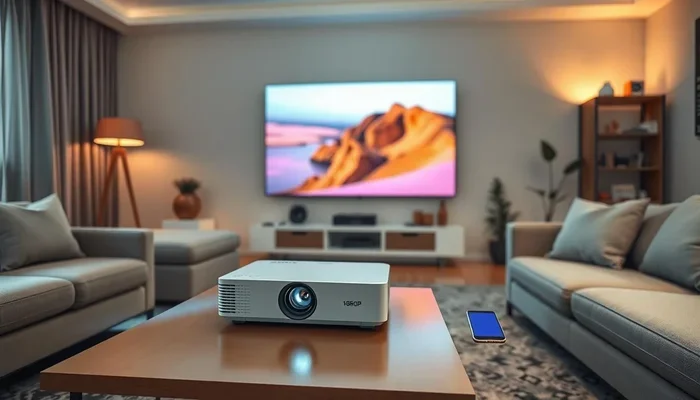
The most common setup involves connecting your Denon receiver to a television. This lets you watch shows and movies with improved sound. The HDMI connection is the easiest and best method for this.
Step-by-Step HDMI Connection
Here is how to connect your Denon receiver to your TV using HDMI:
- Grab an HDMI cable. Make sure it is a high-speed cable that supports audio and video.
- Plug one end of the HDMI cable into the HDMI output on your TV.
- Plug the other end into one of the HDMI inputs on your Denon receiver. Use an input labeled “TV” or “BD” if available.
- Turn on your TV and go to the input settings. Select the HDMI port that is connected to your receiver.
- Power on your Denon receiver and set it to the correct input source.
Once connected, your TV audio will route through the Denon receiver. This gives you richer, louder sound through your speakers. If you want to learn more about getting audio from HDMI connections, you can explore whether you can get audio out from HDMI for additional tips.
Using HDMI ARC for Simpler Control
Many modern Denon receivers support HDMI ARC (Audio Return Channel). This feature lets your TV send audio back through the same HDMI cable. It simplifies your setup and reduces cable clutter. To use ARC, connect the HDMI cable to the ARC-labeled port on both your TV and receiver. Then enable ARC in your TV settings.
Connecting External Audio Devices
Your Denon receiver can do more than just work with a TV. You can connect all kinds of external audio devices. This includes gaming consoles, music players, and streaming boxes. Each device may need a different type of cable, but the process is similar.
Connecting a Gaming Console
Gaming consoles like PlayStation and Xbox sound great through a Denon receiver. Use an HDMI cable to connect the console to one of the receiver’s HDMI inputs. This delivers both high-definition video and multi-channel audio. Your receiver will then send the audio to your speakers while passing the video to your TV.
If you are using an older console that does not have HDMI, you can use RCA cables or an adapter. Some older devices use composite or component cables. You can connect these to the corresponding inputs on your Denon unit.
Connecting a Turntable or Vinyl Player
For vinyl lovers, connecting a turntable is a special case. Most Denon receivers have a dedicated phono input. This input is designed specifically for turntables. Here is how to do it:
- Locate the phono input on the back of your receiver. It is usually labeled “PHONO.”
- Connect the RCA cables from your turntable to the phono input.
- Make sure the red cable goes to the red port and the white cable goes to the white port.
- Turn the receiver on and select the PHONO input source.
If your turntable does not have a built-in preamp, you will need an external one. Some Denon models have a switch that lets you bypass the internal preamp. Check your receiver’s manual for details.
Connecting a Streaming Device
Streaming devices like Apple TV, Roku, or Chromecast work perfectly with Denon receivers. Use an HDMI cable to connect the streaming device to any available HDMI input on your receiver. This gives you access to all your favorite music and podcasts through your speakers.
For devices that use USB-C or other modern connectors, you may need an adapter. You can find out more about converting USB-C connections for audio use in our guide on converting USB-C to HDMI if you need help with adapters.
Speaker Connections and Setup
Now that your audio sources are connected, it is time to set up your speakers. This is where the magic happens. Proper speaker connections make a huge difference in sound quality.
Connecting Standard Speakers
Most Denon receivers use speaker wire connections. Here is how to do it correctly:
- Locate the speaker terminals on the back of your receiver. They are labeled for each channel (Front Left, Front Right, Center, Surround Left, Surround Right, and Subwoofer).
- Strip about half an inch of insulation from the end of each speaker wire.
- Insert the wire into the correct terminal. Make sure the positive (+) and negative (-) markings match.
- Tighten the terminal screws to secure the wire firmly.
- Repeat for each speaker in your setup.
Take your time with this step. Loose or reversed connections can cause poor sound quality or no sound at all. Always double-check your work before powering on.
Connecting a Subwoofer
A subwoofer adds deep bass that makes movies and music feel more immersive. Most Denon receivers have a dedicated subwoofer output. Here is how to connect one:
- Use an RCA cable to connect the subwoofer output on your receiver to the line input on your subwoofer.
- Some subwoofers use speaker wire connections instead. Check your subwoofer manual for the correct method.
- Once connected, go to your receiver’s setup menu and configure the subwoofer settings.
- Set the crossover frequency based on your subwoofer’s capabilities. A starting point of 80 Hz works for most setups.
Wireless and Bluetooth Options
Not everything needs a cable. Denon receivers offer wireless options that make your setup cleaner and more flexible. Bluetooth is the most common wireless connection method.
Using Bluetooth Audio
Many Denon receivers have built-in Bluetooth. This lets you stream music from your phone or tablet without any wires. To use Bluetooth:
- Go to the Bluetooth settings on your Denon receiver.
- Put your phone or tablet into pairing mode.
- Select your Denon receiver from the list of available devices.
- Once paired, any audio from your device will stream wirelessly through your speakers.
Bluetooth is great for casual listening. But if you want the best audio quality, a wired connection is still the way to go. Bluetooth compresses audio slightly, which can affect sound fidelity.
Some users also ask about using Bluetooth for both video and audio separately. You can explore more about using HDMI for video while keeping audio wireless through Bluetooth in our article on using HDMI for video and Bluetooth for audio.
Wi-Fi and Network Audio
Higher-end Denon models support Wi-Fi and network audio streaming. This lets you access music services like Spotify, Tidal, and Amazon Music directly through your receiver. You can also stream music from your computer or NAS device over your home network. This feature is perfect for whole-home audio setups.
Troubleshooting Common Connection Issues
Even with the best setup, you might run into some issues. Do not worry. Most problems are easy to fix. Here are the most common issues and how to solve them.
No Sound from Speakers
If you have no sound, try these steps:
- Check that all speaker wires are securely connected to the correct terminals.
- Make sure your receiver is powered on and set to the correct input source.
- Verify that the volume is not muted or turned all the way down.
- Check that your TV or source device is set to output audio through the receiver, not its own speakers.
HDMI Connection Not Working
HDMI issues are common but usually easy to fix. Try unplugging the HDMI cable and plugging it back in. Try a different HDMI port on either your TV or receiver. If the problem persists, the cable itself may be faulty. Replace it with a new high-speed HDMI cable.
Poor Sound Quality
If your sound seems muffled or distorted, check a few things. Make sure speaker wires are not touching each other. Check that positive and negative terminals are matched correctly. Also, verify that your receiver’s audio settings match your speaker configuration. Running the auto-calibration feature on your Denon receiver can also help optimize sound quality.
For more help with audio troubleshooting, especially when dealing with HDMI connections, check out our guide on getting audio out from HDMI for additional solutions.
Quick Tips for the Best Audio Experience
Here are some extra tips to help you get the most out of your Denon receiver and audio gear:
- Use high-quality cables. Cheap cables can introduce noise and signal loss. Invest in good cables for the best results.
- Keep cables organized. Use cable ties or sleeves to keep your setup clean. This also prevents accidental disconnections.
- Run the auto-setup feature. Most Denon receivers include Audyssey or a similar room calibration tool. Use it to automatically optimize your sound for your room.
- Update your firmware. Check for firmware updates for your Denon receiver. These updates often improve performance and add new features.
- Place speakers properly. Position your front speakers at ear level and angle them toward your listening position for the best stereo image.
Taking a few extra minutes to set things up correctly makes a big difference. Your ears will thank you every time you turn on your system.
Common Mistakes to Avoid
Avoid these common mistakes when setting up your Denon receiver:
- Mixing up positive and negative speaker wires. This can cause phase issues and weaken your sound.
- Using the wrong HDMI port. Not all HDMI ports on a TV support ARC or audio return. Always use the ARC port if available.
- Overloading the receiver. Do not connect more speakers than your receiver supports. Check your manual for the maximum number of channels.
- Ignoring the subwoofer setup. A subwoofer that is not configured properly can cause muddy bass. Take time to set the crossover and level correctly.
- Forgetting to turn on the right input. Always double-check that your receiver is set to the input where your source device is connected.
Final Thoughts
Connecting your Denon receiver to your audio gear does not have to be complicated. With the right cables and a little patience, you can have a fantastic setup that delivers amazing sound. Start with the HDMI connection for your TV and gaming devices. Then add your speakers, subwoofer, and any other audio sources one at a time.
Remember that every setup is a little different. Your room, your speakers, and your audio sources all play a role in how your system sounds. Do not be afraid to experiment and adjust settings until you find what works best for you. The most important thing is that you enjoy the process and the incredible audio experience that comes with it.
Now that you know how to connect everything, go ahead and set up your Denon receiver. You will be amazed at the difference a proper connection makes. Happy listening!
Frequently Asked Questions
Can I connect my Denon receiver to a TV without HDMI?
Yes, you can use optical digital cables or RCA analog cables to connect your Denon receiver to a TV without HDMI. Optical cables carry high-quality digital audio, while RCA cables work for analog connections. Check your TV and receiver for available ports and choose the best option for your setup.
What is the best cable for connecting a Denon receiver to speakers?
Standard speaker wire with 14 or 16 gauge thickness works best for most setups. Make sure the wire is rated for speaker use and has clear positive and negative markings. Copper wire offers the best conductivity and sound quality for home audio systems.
Can I connect a Bluetooth device to my Denon receiver?
Yes, most modern Denon receivers have built-in Bluetooth support. You can pair your phone, tablet, or laptop wirelessly and stream music directly through your speakers. Check your receiver’s manual to confirm Bluetooth compatibility and follow the pairing steps in your settings menu.
Why is there no sound coming from my Denon receiver?
No sound usually means a loose connection, wrong input selection, or muted volume. Check all speaker wire connections, make sure the receiver is set to the correct input, and verify that the volume is turned up. Also confirm that your source device is set to output audio through the receiver.
How do I set up a subwoofer with my Denon receiver?
Connect an RCA cable from the subwoofer output on your Denon receiver to the line input on your subwoofer. Then go to your receiver’s setup menu and configure the subwoofer settings including crossover frequency and level. Running the auto-calibration feature can also help optimize your subwoofer performance.
Can I connect multiple audio sources to my Denon receiver at once?
Yes, Denon receivers have multiple inputs that allow you to connect several audio sources simultaneously. You can have a TV on one HDMI input, a gaming console on another, and a streaming device on a third. Simply switch between inputs using your remote control to select the active source.