How Do I Connect My Amazon Fire Stick to Your Smart TV
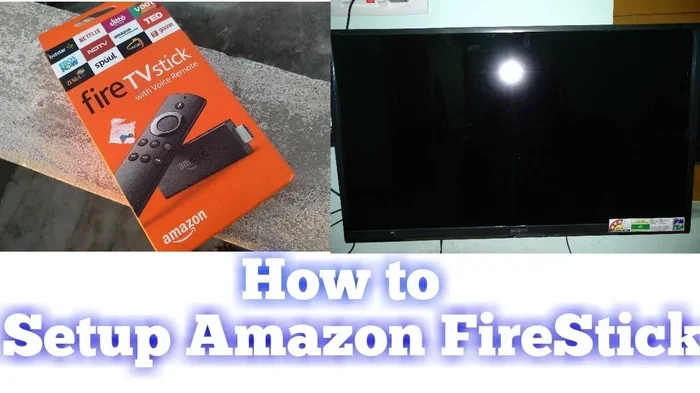
Connecting your Amazon Fire Stick to a smart TV is a simple plug-and-play process that takes just minutes. You need an available HDMI port, a Wi-Fi connection, and your Fire Stick remote. This guide walks you through every step, from initial setup to optimizing your streaming settings, so you can start watching your favorite shows right away.
Setting up a streaming device should feel easy. And that is exactly what the Amazon Fire Stick delivers. Whether you are new to streaming or just got a new TV, this guide will show you exactly how to get started. You do not need any special skills. Just a few minutes and a willingness to follow along.
The Amazon Fire Stick is one of the most popular streaming devices on the market today. It turns any TV with an HDMI port into a smart TV. You get access to Netflix, YouTube, Hulu, Disney+, and thousands of other apps. The best part? It is affordable and incredibly simple to use. In this article, we will walk you through every single step of the process.
We will also cover common problems you might face. And we will share tips to make your streaming experience even better. By the end, you will feel confident setting up your device on your own. So grab your Fire Stick, and let us get started.
Key Takeaways
- Easy Setup: Plugging in your Amazon Fire Stick requires only an HDMI port and a power source.
- Wi-Fi is Essential: A stable wireless connection ensures smooth streaming without buffering.
- Remote Pairing is Simple: The Fire Stick remote pairs automatically in most cases.
- Troubleshooting Helps: Common issues like no signal or lag have quick fixes.
- Extra Accessories Help: HDMI extenders and power adapters can improve your experience.
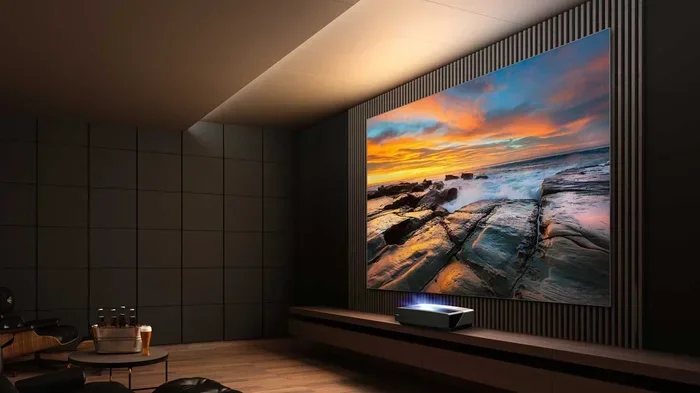
- Fire Stick Works on Projectors Too: You can use a Fire Stick on a projector for big-screen viewing.
📑 Table of Contents
- What You Need Before You Begin
- Step-by-Step Guide to Connect Your Amazon Fire Stick
- Optimizing Your Fire Stick for the Best Experience
- Common Problems and How to Fix Them
- Tips to Keep Your Fire Stick Running Smoothly
- Can You Connect an Amazon Fire Stick Without HDMI?
- Frequently Asked Questions
- Conclusion
What You Need Before You Begin
Before you plug anything in, make sure you have everything ready. Gathering your items ahead of time saves you frustration later. Here is what you need:
- An Amazon Fire Stick unit (any model works)
- A TV with at least one free HDMI port
- A stable Wi-Fi network with a strong signal
- The Fire Stick remote (with batteries installed)
- A power outlet near your TV for the USB power adapter
- Your Amazon account login details
That is it. You do not need any special cables or tools. The Fire Stick comes with everything you need in the box. If you are wondering whether you can use a Fire Stick on a projector instead, the answer is yes. Check out our guide on Can I Use a Fire Stick on a Projector for more details.
Step-by-Step Guide to Connect Your Amazon Fire Stick
Step 1: Find the Right HDMI Port on Your TV
Look at the back or side of your TV. You should see several HDMI ports. They look like small, rectangular slots. Pick one that is not already in use by another device. If all ports are taken, you may need to unplug another device temporarily.
Once you find a free port, note the port number. Many TVs label their HDMI ports (like HDMI 1, HDMI 2, and so on). You will need this number later when switching your TV input. Write it down if it helps.
Step 2: Plug the Fire Stick into the HDMI Port
Take your Amazon Fire Stick out of the box. You will see a small HDMI connector on one end. This is the part that plugs directly into your TV. Gently push it into the HDMI port at a slight angle. Then press it in firmly until it clicks into place.
Make sure the connection feels secure. A loose connection can cause signal issues later. The Fire Stick should sit snugly against the TV. Do not force it. If it does not fit easily, try a different HDMI port.
Step 3: Connect the Power Adapter
Plug the USB power cable into the Fire Stick. Then connect the other end to the power adapter. Finally, plug the adapter into a wall outlet. Some TVs have USB ports on the back that can power the Fire Stick. But a wall outlet provides the most reliable power.
Once you plug everything in, the Fire Stick should light up. You will see the Amazon logo appear on your TV screen. This means the device is receiving power and is ready to go.
Step 4: Switch Your TV to the Correct Input
Now you need to tell your TV to look at the Fire Stick. Grab your TV remote and press the “Input” or “Source” button. A menu will appear showing all available ports. Select the HDMI port number where you plugged in the Fire Stick.
For example, if you used HDMI 2, choose HDMI 2. The Amazon Fire Stick home screen should appear. If you see a blank screen, double-check that the cable is firmly connected. You can also try a different HDMI port.
Step 5: Pair the Fire Stick Remote
The Fire Stick remote should pair automatically in most cases. Just point the remote at the Fire Stick and press and hold the Home button for about 10 seconds. You will see a message on screen confirming the pairing.
If the remote does not pair automatically, do not worry. Go to Settings on the Fire Stick home screen. Select “Controllers & Bluetooth Devices.” Then choose “Add New Remote.” Follow the on-screen prompts. The remote should pair within a few seconds.
Step 6: Connect to Wi-Fi
A wireless internet connection is essential for streaming. The Fire Stick will prompt you to select your Wi-Fi network. Choose your network from the list and enter your password using the on-screen keyboard.
Make sure your Wi-Fi signal is strong in the room where your TV sits. A weak signal causes buffering and poor video quality. If your router is far away, consider moving it closer or using a Wi-Fi extender. A strong connection makes all the difference when you are streaming in HD or 4K.
Step 7: Sign In to Your Amazon Account
After connecting to Wi-Fi, you will be asked to sign in to your Amazon account. Enter your email address and password. If you do not have an account, you can create one for free during setup.
Once signed in, the Fire Stick will update any available software. This may take a few minutes. The device will restart automatically when the update is complete. After that, you are ready to start streaming.
Optimizing Your Fire Stick for the Best Experience
Adjust Display and Sound Settings
Once your Amazon Fire Stick is connected, take a few minutes to adjust the settings. Go to Settings and then select “Display & Sounds.” Here you can change the resolution to match your TV. If you have a 4K TV, set the resolution to 4K for the sharpest picture.
You can also adjust the audio settings here. Choose the best sound output for your setup. If you have a soundbar or external speakers, select the appropriate output. This ensures you get the best audio quality while watching your favorite shows.
Install Your Favorite Streaming Apps
The Fire Stick comes with several apps pre-installed. But you can add many more from the Amazon Appstore. Simply go to the home screen and select “Find.” Use the search bar to look up any app you want. Popular options include Netflix, Disney+, HBO Max, and Spotify.
To install an app, select it from the search results and click “Download.” The app will appear on your home screen once it is ready. You can organize your apps by selecting “Favorites” to keep your most-used ones at the top.
Use Screen Mirroring from Your Phone
One great feature of the Fire Stick is screen mirroring. This lets you display what is on your phone directly on your TV. It works with both Android and iOS devices. To use it, make sure your phone and Fire Stick are on the same Wi-Fi network.
On Android, pull down your notification panel and tap “Cast.” On iPhone, use the screen mirroring feature in Control Center. Select your Fire Stick from the list. Your phone screen will now appear on your TV. This is perfect for sharing photos, videos, or even browsing the web on a big screen.
Common Problems and How to Fix Them
No Signal or Blank Screen
If your TV shows a blank screen after plugging in the Fire Stick, do not panic. First, check that the HDMI cable is firmly connected. Unplug it and plug it back in. Then switch your TV to the correct input source.
Sometimes the Fire Stick needs a moment to boot up. Wait about 30 seconds and check again. If you still see nothing, try a different HDMI port. You can also try a different HDMI cable if you have one available. In rare cases, the Fire Stick itself may need a restart. Unplug the power, wait 30 seconds, and plug it back in.
Buffering or Slow Streaming
Buffering happens when your internet connection is too slow. The first thing to check is your Wi-Fi speed. Run a speed test on another device connected to the same network. For HD streaming, you need at least 5 Mbps. For 4K streaming, you need at least 25 Mbps.
If your speed is too low, try moving your router closer to your TV. You can also reduce the streaming quality in the Fire Stick settings. Go to Settings, then “Preferences,” and then “Data Monitoring.” Turn it on to see which apps are using the most data. This helps you identify and fix the problem.
Remote Not Working
If your Fire Stick remote stops responding, the first step is to check the batteries. Replace them with fresh ones if they are low. Next, make sure the remote is pointed directly at the Fire Stick. Obstacles between the remote and the device can block the signal.
You can also use the Fire Stick app on your phone as a temporary remote. Download the “Amazon Fire TV” app from the App Store or Google Play. Connect it to the same Wi-Fi network as your Fire Stick. The app works just like the physical remote and can help you navigate until you fix the original remote.
Tips to Keep Your Fire Stick Running Smoothly
Taking care of your Amazon Fire Stick helps it last longer and perform better. Here are some simple tips:
- Keep your device updated. Software updates fix bugs and improve performance. Check for updates regularly in Settings.
- Restart your Fire Stick weekly. A simple restart clears cached data and keeps things running fast.
- Use a quality Wi-Fi connection. Avoid streaming on weak signals. Consider a mesh Wi-Fi system for better coverage.
- Clear unused apps. Deleting apps you no longer use frees up storage and improves speed.
- Keep the Fire Stick cool. Do not block the ventilation. Overheating can cause performance issues.
These small habits make a big difference over time. Your Fire Stick will stay fast and responsive for years.
Can You Connect an Amazon Fire Stick Without HDMI?
The Amazon Fire Stick requires an HDMI connection to work with your TV. However, if your TV does not have an HDMI port, there are workarounds. You can use an HDMI to composite converter box. This device converts the HDMI signal to older-style RCA connections.
Another option is to use an HDMI to VGA adapter. This works if your TV has a VGA port. Keep in mind that these adapters may reduce video quality. The best solution is always to use a TV with a native HDMI port. If you are trying to connect an HDMI cable through a USB port, that is a different scenario entirely. Check out our article on Can I Connect HDMI Through USB for more on that topic.
Some people also ask about connecting their phone to the TV using HDMI. While the Fire Stick itself is the streaming device, you can also mirror your phone screen using an HDMI cable. Our guide on Can I Connect My Phone to TV with HDMI Cable covers this in detail.
Frequently Asked Questions
How long does it take to set up an Amazon Fire Stick?
Most people can set up their Fire Stick in under 10 minutes. The process is straightforward and requires no technical expertise. You just need an HDMI port, a Wi-Fi connection, and your Amazon login. Once plugged in, the on-screen instructions guide you through everything step by step.
Can I use the Fire Stick on any TV?
The Fire Stick works on any TV that has an available HDMI port. Nearly all modern TVs manufactured after 2010 include HDMI ports. If your TV is older and lacks HDMI, you can use an HDMI converter. However, a TV with a native HDMI port will give you the best experience.
Do I need Wi-Fi to use the Amazon Fire Stick?
Yes, Wi-Fi is essential for streaming content on the Fire Stick. The device connects to the internet wirelessly and pulls content from streaming services. Without Wi-Fi, you cannot access Netflix, YouTube, or any other streaming app. A strong and stable connection ensures smooth, buffer-free viewing.
Can I use a Fire Stick on more than one TV?
Absolutely. The Fire Stick is portable and easy to move between TVs. Simply unplug it from one TV and plug it into another. Make sure each TV has an available HDMI port and a Wi-Fi connection. Your apps and settings stay saved to your Amazon account, so everything transfers automatically.
What should I do if my Fire Stick keeps freezing?
Freezing usually happens when the device is low on storage or has a weak internet connection. Try restarting the Fire Stick by unplugging it from power for 30 seconds. You can also clear cache data from Settings. If the problem persists, check your Wi-Fi speed and consider moving your router closer to the TV.
Is the Amazon Fire Stick worth buying?
For most people, the Fire Stick is an excellent value. It costs much less than other streaming devices while offering a wide range of apps and features. It supports HD and 4K streaming on higher-end models. The compact size and easy setup make it a great choice for anyone wanting to turn a regular TV into a smart TV.
Conclusion
Connecting your Amazon Fire Stick to your smart TV is easier than you might think. In just a few simple steps, you can turn any TV with an HDMI port into a powerful streaming hub. From plugging in the device to pairing the remote and connecting to Wi-Fi, the entire process takes less than 10 minutes.
Once set up, you unlock a world of entertainment. Netflix, YouTube, Disney+, and hundreds of other apps are at your fingertips. You can mirror your phone screen, adjust display settings, and customize your experience to your liking. The Amazon Fire Stick is a compact, affordable, and powerful device that delivers incredible value.
Remember to keep your device updated and maintain a strong Wi-Fi connection for the best performance. If you run into issues, the troubleshooting tips in this guide should help you resolve them quickly. Now that you know exactly how to set up your Fire Stick, grab yours and start streaming today. Your next favorite show is just a few clicks away.