How Do I Choose A Bluetooth Dongle For My Wireless Device
Choosing the right Bluetooth dongle can transform how you connect wireless devices. Whether you need audio streaming, file transfers, or gaming peripherals, a small USB adapter makes it all possible. This guide breaks down everything you need to know, from Bluetooth versions and codecs to range and compatibility. You’ll learn how to match a dongle to your specific device and avoid common pitfalls. By the end, you’ll feel confident picking the perfect Bluetooth dongle for your setup.
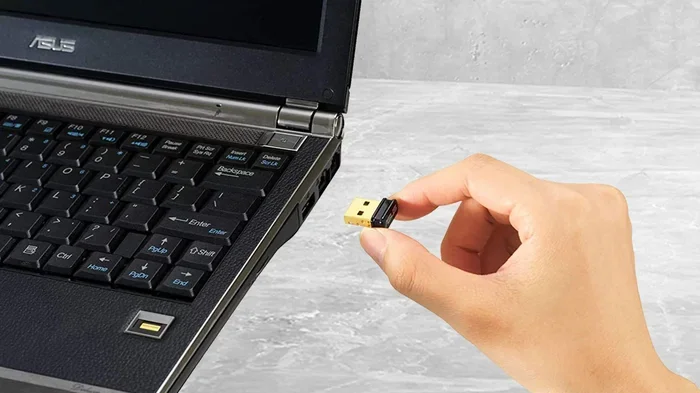
A Bluetooth dongle is a small USB adapter that adds wireless connectivity to devices that lack built-in Bluetooth. Think of it as a tiny bridge that lets your laptop, desktop, or tablet talk to headphones, speakers, keyboards, and game controllers without any cables. For many users, this little stick is the simplest way to upgrade an older machine or add a dedicated wireless connection for better performance.
If you want to turn regular speakers into Bluetooth, you can use a dongle similar to what you’d find in turning regular speakers into Bluetooth. The same concept applies when you need a reliable wireless link for audio, data, or peripherals. A good dongle removes the hassle of cables and gives you freedom of movement around your workspace or living room.
Not all dongles are the same, though. Some focus on audio quality, others on low-latency gaming, and a few handle bulk file transfers. The key is knowing what you need before you buy. This guide walks you through every factor that matters, so you can pick the right Bluetooth dongle with confidence.
Key Takeaways
- Match the Bluetooth version: Bluetooth 5.0 or newer gives you better range and lower power consumption.
- Check codec support: aptX and LDAC deliver high-quality audio for music and gaming.
- Consider your use case: Gaming needs low latency, while streaming needs stable bandwidth.
- Verify compatibility: Ensure the dongle works with your operating system and device ports.
- Don’t overlook driver support: Some dongles need drivers that may not be available for all systems.
- Size matters: A compact dongle stays secure in your port and is easy to carry.
📑 Table of Contents
What Is a Bluetooth Dongle and Why Do You Need One
A Bluetooth dongle is a compact USB device that transmits and receives Bluetooth signals. It acts as a wireless adapter, letting your computer or tablet connect to Bluetooth accessories. Many modern laptops come with Bluetooth built in, but desktops, older machines, and some tablets often lack this feature. A dongle fills that gap quickly and cheaply.
You might need one for several reasons. Maybe your built-in Bluetooth is broken, or you want a dedicated connection for a specific task. A dongle can also improve range and stability compared to a weak internal antenna. Here are common situations where a Bluetooth dongle shines:
- You own a desktop PC with no wireless capability.
- Your laptop’s Bluetooth is outdated or malfunctioning.
- You want to connect multiple Bluetooth devices without swapping cables.
- You need a dedicated adapter for gaming or high-quality audio.
- You travel frequently and want a portable wireless solution.
Most dongles plug straight into a USB port and install automatically. You don’t need to open your computer or buy extra cables. Within seconds, your device can discover and pair with headphones, speakers, keyboards, and more. This plug-and-play simplicity is why so many people choose a Bluetooth dongle as their go-to wireless solution.
Key Features to Look For in a Bluetooth Dongle
Not every dongle offers the same features. Before you buy, check these core areas to make sure the adapter meets your needs. A Bluetooth dongle that checks all the right boxes will deliver a smooth, reliable wireless experience.
Range and Signal Strength
Range tells you how far the dongle can maintain a stable connection. Most consumer dongles offer 10 to 30 meters of range in open space. Walls, furniture, and other electronics can reduce that distance. If you plan to use your dongle across a large room or in a different room, look for one rated for longer range.
Signal strength matters just as much. A dongle with a strong antenna reduces dropouts and interference. Bluetooth 5.0 and newer versions generally offer better signal stability than older versions. If you need a reliable connection for a wireless mouse or keyboard, prioritize a dongle with excellent range and signal strength.
Audio Codec Support
If you plan to use the dongle for music or gaming audio, codec support is critical. A codec is the technology that compresses and sends audio over a Bluetooth link. The best Bluetooth dongle options support advanced codecs like aptX, aptX HD, and LDAC. These codecs deliver richer sound with less compression than standard SBC.
For gamers, a dongle that supports low-latency codecs makes a big difference. You’ll notice faster audio response when you’re in a fast-paced shooter or racing game. Audiophiles should look for LDAC support, which can stream near-lossless quality over Bluetooth. Always check the product specs to confirm which codecs the dongle handles.
Form Factor and Port Type
Dongles come in different shapes and sizes. Some are tiny nubs that stay flush with your port, while others have a bulky housing that sticks out. A compact dongle is less likely to bump into things and stays secure in your laptop bag. If you use a USB-C port, make sure the dongle matches that port type or comes with a USB-C to USB-A adapter.
USB-A dongles are the most common and work with nearly any computer. USB-C dongles are ideal for modern laptops and tablets. Some dongles even offer both port types in a single package. Choose the form factor that fits your device and your lifestyle. A Bluetooth dongle that stays small and sturdy will serve you well for years.
For example, if you need to send audio over Bluetooth while using HDMI for video, check out using HDMI for video and Bluetooth for audio. A good dongle handles both tasks without compromising either connection.
Bluetooth Versions and What They Mean
The Bluetooth version inside your dongle determines its speed, range, and power efficiency. Newer versions are backward compatible, so a Bluetooth 5.3 dongle can still connect to older devices. However, you only get the full benefits when both the dongle and the accessory support the same version.
Bluetooth 5.0 and 5.2
Bluetooth 5.0 brought major improvements in range and speed. It can reach up to 240 meters in ideal conditions and offers double the speed of Bluetooth 4.2. Bluetooth 5.2 added features like LE Audio and the LC3 codec, which improves audio quality and reduces power use. Most modern Bluetooth dongle products on the market today use version 5.0 or 5.2.
If you buy a dongle with Bluetooth 5.0 or 5.2, you’ll enjoy stable connections and good battery life on your accessories. These versions handle music streaming, file transfers, and everyday peripherals with ease. They’re a solid choice for most users.
Bluetooth 5.3 and Low Energy
Bluetooth 5.3 is the latest version available in consumer dongles. It improves connection stability and reduces power consumption even further. The low energy (LE) mode lets accessories like keyboards and mice run longer on a single battery. Bluetooth 5.3 also offers better coexistence with Wi-Fi, reducing interference in crowded wireless environments.
If you want the best future-proof option, choose a Bluetooth dongle with version 5.3. It gives you the latest features and the longest battery life for your wireless devices. Even if your current accessories don’t support 5.3, the dongle will still work perfectly with older gear.
Best Use Cases: Gaming, Audio, and Data Transfer
Different users need different things from a Bluetooth dongle. Understanding your primary use case helps you narrow down the right model. Here are the three most common scenarios and what to look for in each.
Gaming with Low Latency
Gamers need a dongle that delivers instant response. Even a small delay can make a game feel sluggish or unresponsive. Look for a dongle that specifically advertises low-latency gaming mode. Many gaming adapters use proprietary 2.4 GHz wireless technology alongside Bluetooth, giving you the fastest possible connection.
Some dongles come with a USB charging cable and a dongle that stays plugged into your PC. You pair your gaming headset or controller with the dongle, and the connection remains stable even in intense multiplayer matches. If you’re choosing a dongle for gaming, prioritize latency over audio codecs. A Bluetooth dongle with a dedicated gaming profile is worth the extra cost.
Streaming High-Resolution Audio
For music lovers, audio quality is the top priority. A dongle that supports LDAC or aptX HD can stream lossless or near-lossless audio from your phone or computer to your headphones or speakers. This is perfect for listening to high-resolution tracks or watching movies with rich soundtracks.
Look for a dongle that clearly lists its codec support in the product description. Some adapters focus solely on audio and don’t support file transfer or peripherals, which is fine if that’s all you need. A dedicated audio Bluetooth dongle gives you a premium listening experience without the clutter of cables.
File Transfer and General Connectivity
If you need to send files between devices or connect a variety of peripherals, choose a versatile dongle. Most standard Bluetooth dongle adapters handle file transfer, keyboards, mice, and printers without any issues. They use the basic Bluetooth profile and work reliably across Windows, Mac, and Linux systems.
For this use case, range and stability matter more than fancy codecs. A dongle with a strong antenna and Bluetooth 5.0 or newer will handle everyday tasks smoothly. You can also use a dongle like this to connect your phone to a car stereo or to share files between a tablet and a laptop. If you’re considering adding a Bluetooth radio to your vehicle, a general-purpose dongle can often handle that task as well.
Some users ask whether they can remove Intel wireless Bluetooth and replace it with a USB dongle. The answer is yes, and doing so can sometimes improve performance if your internal Bluetooth chip is weak or outdated.
Compatibility and Setup Tips
A Bluetooth dongle is only useful if it works with your devices. Compatibility depends on your operating system, your hardware ports, and the Bluetooth profiles the dongle supports. Taking a few minutes to check these details before you buy saves time and frustration later.
Windows, Mac, and Linux Support
Most Bluetooth dongles work with Windows 10 and 11 out of the box. They use built-in drivers and require no extra software. Mac compatibility varies more. Some dongles work perfectly with macOS, while others need third-party drivers or don’t support all features. If you use a Mac, check the manufacturer’s website for a macOS driver before purchasing.
Linux users should look for dongles that use widely supported chipsets like Broadcom or Realtek. These chipsets often have open-source drivers available. A Bluetooth dongle that lists Linux support in its specs will save you the hassle of hunting for drivers. Always double-check the official product page for compatibility details.
Pairing and Driver Installation
Pairing a dongle is usually simple. Plug it into a USB port, wait for the LED light to blink, and search for new devices on your computer or phone. Some dongles come with a dedicated pairing button that makes the process even faster. If the dongle doesn’t install automatically, visit the manufacturer’s website and download the latest driver.
Drivers are small programs that help your operating system communicate with the dongle. Outdated drivers can cause connection drops or slow performance. Set a reminder to check for driver updates every few months. A well-maintained Bluetooth dongle stays fast and stable over time.
USB Port Considerations
Not all USB ports are the same. USB 2.0 ports are older and slower, while USB 3.0 and USB-C ports offer faster data transfer and better power delivery. A Bluetooth dongle can work in a USB 2.0 port, but you may experience slower file transfers or reduced range. For the best performance, plug your dongle into a USB 3.0 or USB-C port whenever possible.
If your laptop only has USB-C ports, buy a dongle that matches that port type. Some adapters come with a USB-C cable that lets you use them in any port. Avoid using cheap USB hubs unless the dongle is specifically designed to work with them. A direct connection to your computer’s port gives the strongest signal and the most reliable performance.
Common Mistakes to Avoid When Choosing a Dongle
Even experienced buyers can make poor choices when picking a Bluetooth dongle. Knowing the common pitfalls helps you avoid them and find the right adapter the first time.
Ignoring Driver Support
Some dongles rely on drivers that the manufacturer stops updating after a year. If you buy a dongle from a no-name brand, you might find that it stops working after a Windows update. Always choose a reputable brand that offers ongoing driver support. Check the product page for information about driver updates and operating system compatibility.
Buying Based on Price Alone
A cheap dongle might seem like a great deal, but it often lacks the features you need. Low-cost adapters may only support older Bluetooth versions, have weak antennas, or skip audio codecs entirely. Spending a little more on a quality Bluetooth dongle pays off in better range, faster transfers, and a longer lifespan.
Overlooking Range Requirements
If you buy a dongle for a smart speaker in the living room but your router is in the office, you might run into range issues. Measure the distance between your devices and choose a dongle rated for that range. Keep in mind that walls and electronic devices can weaken the signal. When in doubt, pick a dongle with a longer range than you think you’ll need.
Conclusion
Picking the right Bluetooth dongle comes down to understanding your needs and matching them to the right features. Check the Bluetooth version, codec support, range, and compatibility before you spend a dollar. Whether you’re a gamer, a music lover, or someone who just wants to cut the cord, the perfect dongle is out there waiting for you. Use the tips in this guide to make a confident choice and enjoy a seamless wireless experience every day.
Frequently Asked Questions
Can I use a Bluetooth dongle with any device?
Most dongles work with any device that has a USB port and supports Bluetooth. However, you should check the operating system compatibility before buying. Some dongles work best with Windows, while others may need extra drivers for Mac or Linux.
Does a Bluetooth dongle slow down my computer?
No, a dongle uses very little processing power. It handles all the Bluetooth work on its own chip. You might notice a tiny delay when first pairing a device, but everyday use has no impact on your computer’s speed.
What is the difference between a Bluetooth dongle and a Bluetooth adapter?
There is no real difference. Both terms refer to the same small USB device that adds Bluetooth capability. Some brands call it a dongle, while others use the word adapter. They do the same job and work the same way.
Can I use a Bluetooth dongle for gaming?
Yes, many dongles are designed specifically for gaming. They offer low latency and stable connections for wireless headsets and controllers. Look for a dongle that advertises a gaming mode or low-latency technology for the best experience.
How far can a Bluetooth dongle reach?
Most dongles have a range of 10 to 30 meters in open space. Bluetooth 5.0 and newer versions can reach farther, up to 240 meters under ideal conditions. Walls and other electronics will reduce the actual range you experience.
Do I need to install drivers for a Bluetooth dongle?
Many dongles install automatically on Windows and macOS. However, some models require a driver download for full functionality. Always check the manufacturer’s website for the latest driver, especially if you use Linux or an older operating system.