How Do I Add Storage To My Ps5 And Get More Games Now
Adding storage to your PS5 is one of the smartest moves you can make as a gamer. With only 825GB of built-in space, you will run out fast. This guide covers both internal NVMe SSD upgrades and external USB storage options. You will learn the exact steps, compatible drives, and pro tips to expand your PS5 storage safely.
This is a comprehensive guide about How Do I Add Storage To My Ps5.
Key Takeaways
- Internal NVMe SSD Upgrade: The fastest way to add storage is by installing a compatible M.2 NVMe SSD directly into your PS5.
- External USB Storage: You can use a USB external HDD or SSD to store and play PS4 games, and save PS5 games for later transfer.
- Compatible Drives Matter: Not all SSDs work with the PS5. You need a drive that meets Sony’s specific speed and size requirements.
- Easy Installation Process: Adding an internal SSD takes about 15 minutes with basic tools like a Phillips screwdriver.
- Storage Management: Regularly deleting unused games and moving files keeps your PS5 running smoothly after expansion.
[FEATURED_IMAGE_PLACEHOLDER]
Why Your PS5 Needs More Storage
Modern video games are huge. A single AAA title can take up 100GB or more. When you consider that PS5 storage starts at just 825GB, you can see the problem fast. After installing two or three big games, you might already be running low.
Sony designed the PS5 with enough room for the operating system and a few titles. But serious gamers quickly fill that space. Downloading new releases becomes stressful when you constantly need to delete old favorites.
The good news is that how do I add storage to my PS5 is a question with a clear answer. You have two solid options. You can upgrade the internal drive with an NVMe SSD, or you can connect external storage through USB. Both methods work well, and each has its own benefits.
Many players wonder if taking your PS5 to be cleaned helps with storage issues. While cleaning keeps your console in good shape, it does not add space. For real storage gains, you need a hardware upgrade or external drive.
Understanding PS5 Storage Options
Internal NVMe SSD Upgrade
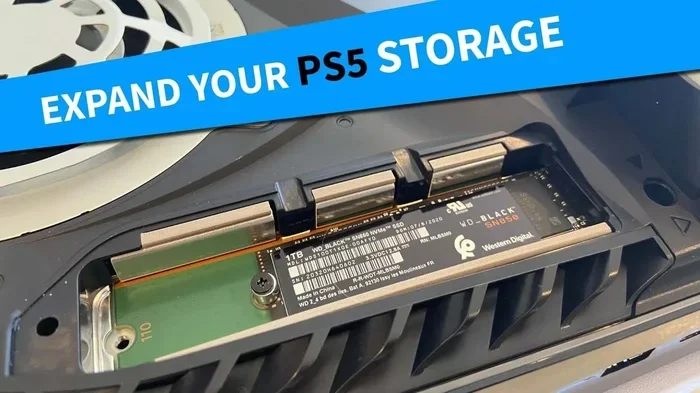
The PS5 has a dedicated M.2 NVMe SSD slot. This slot lets you add a solid-state drive directly inside the console. Once installed, the new drive works seamlessly with your PS5 interface. Games install and run just like they do on the built-in storage.
This is the best option if you want maximum speed. NVMe SSDs offer fast read and write speeds. That means shorter load times and smoother gameplay. Sony specifies that the SSD must meet certain performance standards to work properly.
Here are the key requirements for an internal PS5 SSD:
- Form Factor: M.2 2230, 2242, 2260, or 2280 size
- Interface: NVMe PCIe Gen 4 x 4
- Capacity: Between 250GB and 4TB
- Sequential Read Speed: 5,500MB/s or faster
- Heatsink: Recommended but not required
Popular choices include the Samsung 980 Pro, WD Black SN850, and Crucial P5 Plus. These drives meet or exceed Sony’s speed requirements. They also come in sizes ranging from 500GB to 2TB, giving you plenty of room for new releases.
External USB Storage
External storage is a simpler option. You plug a USB hard drive or SSD into your PS5 and use it to store games. This method is great if you do not want to open your console.
However, there is an important limitation. You can only play PS4 games directly from an external drive. PS5 games must be moved back to the internal SSD before you can play them. This might feel inconvenient, but it still gives you a lot of extra space.
For external storage, you need a few things:
- Connection: USB 3.0 or higher (USB 3.1 or USB 3.2)
- Capacity: At least 250GB, up to 8TB
- Speed: SSD is faster than HDD, but both work
- Format: Must be formatted as exFAT or FAT32
A portable SSD like the Samsung T7 or SanDisk Extreme is a great pick. They are compact, fast, and easy to carry around.
How To Install An NVMe SSD In Your PS5
Adding an internal SSD to your PS5 is easier than you might think. You do not need to be a tech expert. With a few simple tools and about 15 minutes, you can have your new drive up and running.
What You Will Need
Before you start, gather these items:
- A compatible M.2 NVMe SSD
- A Phillips head screwdriver (small size)
- A heatsink for the SSD (optional but recommended)
- A clean, flat workspace
- Your PS5 and its base stand
Make sure your SSD meets the speed requirements mentioned earlier. A slower drive will not work with the PS5. Check the product specifications before you buy.
Step By Step Installation
Step 1: Turn off your PS5 completely. Do not put it in rest mode. Unplug the power cable from the back of the console. Wait a few minutes to let everything cool down.
Step 2: Remove the side panel. The PS5 has a removable panel on the left side when facing the front. Gently pull it outward to release it. Set it aside safely.
Step 3: Locate the M.2 slot. You will see a small covered slot on the bottom of the console. Remove the screw that holds the heat sink cover in place. Take off the cover carefully.
Step 4: Insert the SSD. Hold the M.2 drive at a slight angle. Slide it into the slot with the notched end facing down. Press it gently until it seats properly.
Step 5: Secure the drive. Place the heat sink cover back over the SSD. Screw it in gently. Do not overtighten, as this can damage the drive.
Step 6: Replace the side panel. Put the side panel back on and push it until it clicks into place. Reconnect the power cable.
Step 7: Initialize the drive. Turn on your PS5. Go to Settings, then Storage, and select the new SSD. The console will format it automatically. Once done, you can start installing games onto the new drive.
Some players also enjoy exploring using Airpods with PS5 for wireless audio while gaming after their storage upgrade. It is a nice way to enhance your overall setup.
Using External Storage With Your PS5
If opening your console feels intimidating, external storage is a great alternative. It requires no tools and no internal work. You simply connect a drive to one of the USB ports on your PS5.
Setting Up External Storage
Here is how to get started with an external drive:
- Plug your USB drive into the PS5 USB port.
- Go to Settings on your PS5 home screen.
- Select Storage, then Extended Storage.
- The console will detect the drive automatically.
- Format the drive when prompted.
- Your external storage is now ready to use.
Once set up, you can download PS4 games directly to the external drive. They will appear in your game library just like any other title. When you want to play, the PS5 copies the game back to the internal SSD temporarily, then runs it from there.
Best External Drives For PS5
Not all USB drives are created equal. Here are some top picks for PS5 external storage:
| Drive | Type | Capacity | Speed | Price Range |
|---|---|---|---|---|
| Samsung T7 Portable | SSD | 1TB | 1,050MB/s | $80-$100 |
| WD Elements Portable | HDD | 2TB | 120MB/s | $60-$75 |
| SanDisk Extreme Portable | SSD | 1TB | 1,050MB/s | $85-$110 |
| Seagate Expansion Portable | HDD | 4TB | 120MB/s | $90-$110 |
SSDs are faster and more durable because they have no moving parts. HDDs offer more storage for less money. Choose based on your budget and needs.
Managing Your PS5 Storage After Expansion
Adding storage is only half the battle. You also need to manage it wisely. A full drive slows down your console and makes it harder to find the games you want to play.
Tips For Keeping Your Storage Organized
- Delete games you no longer play. You can always reinstall them later from your library.
- Move PS4 games to external storage. This frees up space on your internal SSD for PS5 titles.
- Check storage usage regularly. Go to Settings, Storage, and review what is taking up the most space.
- Use game presets to save space. Some games let you choose which install options to keep.
- Clear cache and temporary files. The PS5 builds up temporary data over time that can be safely removed.
For more tips on keeping your console in top shape, you might also enjoy learning about using Airpods on PS5 for a complete upgraded gaming experience.
How Much Storage Do You Really Need
The answer depends on how many games you keep installed at once. Here is a quick guide:
- Casual gamer (1-2 games): 500GB SSD is enough
- Regular gamer (5-8 games): 1TB SSD recommended
- Hardcore gamer (10+ games): 2TB SSD or larger
Keep in mind that PS5 games are getting bigger every year. A 1TB drive fills up faster than you might expect. When in doubt, go bigger.
Common Mistakes To Avoid When Adding Storage
Even with a clear guide, mistakes can happen. Here are some pitfalls to watch out for:
Buying The Wrong SSD
The most common error is purchasing an SSD that does not meet the PS5 speed requirements. If the sequential read speed is below 5,500MB/s, the console will reject it. Always double-check the specs before buying.
Forgetting The Heatsink
While not required, a heatsink helps your SSD run cooler. SSDs can generate heat during long gaming sessions. Over time, heat can reduce performance. A small heatsink is a cheap insurance policy.
Overtightening Screws
When securing the M.2 drive or heat sink cover, gentle pressure is enough. Overtightening can strip the threads or damage the slot. Hand-tighten and then give it a quarter turn with the screwdriver.
Using External Storage For PS5 Games
Remember that PS5 games cannot be played from an external drive. If you try to run a PS5 game from USB, it will not work. Always move PS5 games back to the internal SSD before playing.
Skipping The Format Step
Never skip formatting your new drive through the PS5 settings. Plugging in an unformatted drive can cause errors. Let the console handle the formatting process for a smooth experience.
Final Thoughts On Expanding Your PS5 Storage
So, how do I add storage to my PS5? The answer is simpler than most people think. You have two great paths. You can install an NVMe SSD inside the console for fast, seamless storage. Or you can connect an external USB drive for a plug-and-play solution.
Both methods give you the room you need to download and keep more games. The internal upgrade is the best choice for performance and convenience. The external drive is perfect for those who want a no-hassle option.
Take your time choosing the right drive. Check compatibility, read reviews, and pick a size that fits your gaming habits. Once your new storage is in place, you will never worry about running out of space again.
Expanding your PS5 storage is one of the best investments you can make. It opens up your library, reduces deletion stress, and lets you keep all your favorite titles ready to play. Follow the steps in this guide, and you will be up and running in no time.
Frequently Asked Questions
Can I Use Any M.2 SSD With My PS5?
No, not every M.2 SSD works with the PS5. The drive must use the NVMe protocol and support PCIe Gen 4 with a read speed of at least 5,500MB/s. Check the specifications before purchasing to avoid compatibility issues.
How Much Does A PS5 Storage Upgrade Cost?
Prices vary based on the drive you choose. A 1TB NVMe SSD typically costs between $70 and $120. External drives range from $50 for a basic HDD to $100 for a portable SSD. The investment is well worth the extra gaming space.
Can I Play PS5 Games From An External Hard Drive?
No, PS5 games must be installed on the internal SSD to be played. You can store them on an external drive, but you need to move them back to the internal storage before launching. PS4 games can be played directly from external storage, though.
Do I Need A Heatsink For My PS5 M.2 SSD?
A heatsink is not required, but it is highly recommended. The PS5 has a built-in heatsink plate, but adding a dedicated one helps keep the SSD cooler during long gaming sessions. Better temperature means better long-term performance.
Will Adding Storage Void My PS5 Warranty?
Sony allows users to install M.2 SSDs without voiding the warranty. The M.2 slot is designed for user upgrades. However, if you damage the console during installation, that damage may not be covered. Follow the instructions carefully.
How Long Does The PS5 Storage Installation Take?
The physical installation takes about 10 to 15 minutes. Formatting the new drive through the PS5 settings adds another few minutes. Overall, you can expect the entire process to take around 20 minutes from start to finish.