How Do I Connect My Jbl Speaker To Bluetooth Quickly
Connecting your JBL speaker to Bluetooth is fast and easy once you know the right steps. This guide walks you through powering on your speaker, enabling Bluetooth on your device, and pairing them in under a minute. We also share troubleshooting tips and expert advice to keep your wireless audio running smoothly.
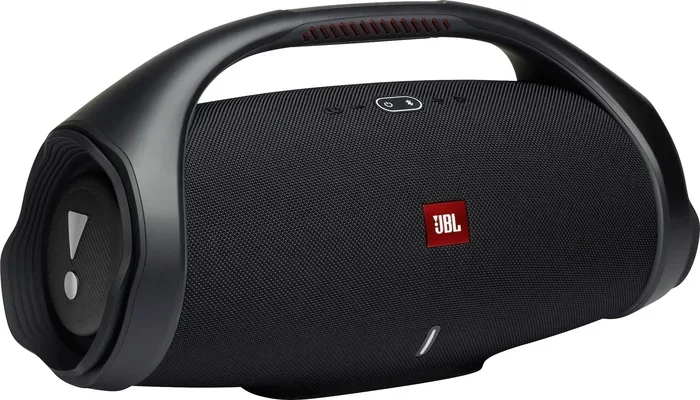
You just got a new JBL speaker, and you are ready to fill your room with amazing sound. But first, you need to get it connected. The good news is that connecting a JBL speaker to Bluetooth is one of the easiest things you can do with any modern device. Whether you have a JBL Flip, JBL Charge, or one of the bigger JBL PartyBox models, the process is nearly the same.
In this guide, we will walk you through every step from start to finish. You will learn how to put your speaker in pairing mode, how to find it on your phone or laptop, and how to fix common problems if the connection does not work right away. We have also included some pro tips that will make your wireless audio experience even better.
So grab your JBL speaker, and let us get it connected. By the time you finish reading, you will be streaming your favorite music wirelessly in no time.
Key Takeaways
- Quick Pairing: Most JBL speakers enter pairing mode with just a few button presses.
- Wide Compatibility: JBL speakers connect to phones, tablets, laptops, and more via Bluetooth.
- Stable Connection: Keeping your devices close and updated ensures the best Bluetooth range and audio quality.
- Easy Troubleshooting: Simple resets and re-pairing steps fix most connection issues fast.
- Multiple Device Support: Many JBL models let you switch between paired devices effortlessly.
- Prolong Battery Life: Managing Bluetooth settings helps your speaker last longer on a single charge.
📑 Table of Contents
- What You Need Before You Start
- How to Connect Your JBL Speaker to Bluetooth
- How to Connect JBL Speaker to Bluetooth on Different Devices
- Troubleshooting Common Bluetooth Connection Issues
- Pro Tips for the Best Bluetooth Experience with Your JBL Speaker
- Can I Connect Multiple JBL Speakers Together via Bluetooth?
- Frequently Asked Questions
- Conclusion
What You Need Before You Start
Before you try to pair your JBL speaker, make sure you have a few things ready. This short checklist saves time and prevents frustration. Here is what you need:
- A JBL Bluetooth speaker that is fully or partially charged.
- A Bluetooth-enabled device like a smartphone, tablet, or laptop.
- Bluetooth turned on in your device settings.
- A quiet moment to focus on the setup process.
Most JBL speakers work with any device that supports Bluetooth 4.0 or higher. If your phone or computer is less than ten years old, it almost certainly qualifies. Bluetooth connectivity has become a standard feature across all major operating systems, including iOS, Android, Windows, and macOS.
One thing many people overlook is battery level. If your speaker battery is too low, it may not enter pairing mode properly. Plug it in for at least ten minutes before you begin if the battery is nearly dead.
How to Connect Your JBL Speaker to Bluetooth
Now for the fun part. The actual JBL Bluetooth pairing process takes less than sixty seconds once you know where to look. Follow these steps carefully, and you will be listening to music in no time.
Step 1: Power On Your JBL Speaker
Press and hold the power button on your JBL speaker until you hear a startup sound or see a light turn on. Most JBL models have a clear power indicator. On the JBL Flip series, you will see a small LED light glow. On the JBL Charge series, the light bar at the bottom lights up.
Make sure your speaker is fully on before moving to the next step. A quick blink of the power light means it is ready.
Step 2: Enter Pairing Mode
This is the step where many people get stuck. To enter pairing mode, press and hold the Bluetooth button on your speaker. On most JBL models, this button has the Bluetooth symbol, which looks like a stylized “B.” Hold it for about three to five seconds.
You will know the speaker is in pairing mode when:
- The Bluetooth light starts flashing rapidly.
- You hear a voice prompt saying “Pairing” or “Ready to pair.”
- The speaker appears in your device’s list of available Bluetooth devices.
Once the flashing light starts, your speaker is ready to be found by other devices. This is a key step because many users skip it and wonder why their phone cannot find the speaker.
Step 3: Enable Bluetooth on Your Device
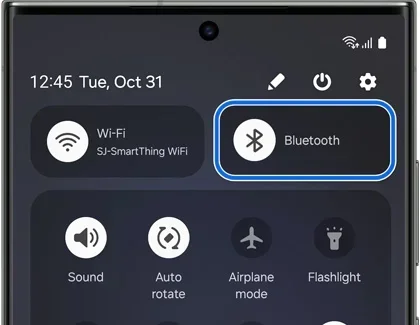
On your phone or tablet, go to Settings and then tap Bluetooth. Make sure the toggle switch is turned on. Your device will start scanning for nearby Bluetooth devices automatically.
On iPhone, you can also swipe down from the top right corner to access Control Center and tap the Bluetooth icon. On Android, you can swipe down from the top of the screen and tap the Bluetooth quick-settings tile.
Step 4: Find and Select Your JBL Speaker
Look through the list of available devices on your phone or computer. Your JBL speaker should appear with a name like “JBL Flip 5,” “JBL Charge 4,” or “JBL Xtreme.” Tap on the name to select it.
Within a few seconds, you should see a confirmation message. The Bluetooth light on your speaker will usually stop flashing and stay solid. That means the wireless connection is established. You are now ready to play music.
Step 5: Start Playing Music
Open your favorite music app, Spotify, Apple Music, YouTube, or any other audio source. Press play, and the sound should come through your JBL speaker immediately. If you do not hear anything, check the volume on both your device and your speaker.
Congratulations, you are now wirelessly streaming audio from your device to your JBL speaker. It really is that simple.
How to Connect JBL Speaker to Bluetooth on Different Devices
While the basic process is the same across all devices, there are a few small differences depending on what you are using. Here is a quick breakdown for the most common devices.
Connecting from an iPhone or iPad
On iPhone and iPad, the process is very straightforward. Open Settings, tap Bluetooth, and make sure it is turned on. Your JBL speaker should appear under “Other Devices.” Tap the name, and the connection happens automatically.
One nice feature on iOS is that your iPhone often remembers previously paired JBL speakers. If you have connected before, the speaker may appear at the top of the Bluetooth menu under “My Devices,” making reconnection even faster.
Connecting from an Android Phone
Android phones follow a similar process. Go to Settings, then Connected Devices or Bluetooth. Toggle Bluetooth on, and your JBL speaker will appear in the list of available devices. Tap it to pair.
Some Android phones also support fast pairing, which lets you connect without going into the Bluetooth settings menu. You may see a pop-up notification when the speaker is detected, allowing you to connect with one tap.
Connecting from a Windows Laptop
On a Windows laptop, click the Action Center icon in the bottom right corner of your taskbar. Click the Bluetooth tile to turn it on. Then click the “Connect” tile and select your JBL speaker from the list.
Alternatively, go to Settings, then Devices, then Bluetooth & other devices. Click “Add Bluetooth or other device” and select your JBL speaker from the list.
Connecting from a Mac
On a Mac, click the Bluetooth icon in the menu bar at the top of the screen. If you do not see it, go to System Preferences, then Bluetooth, and make sure it is turned on. Your JBL speaker will appear in the list. Click “Connect” next to its name.
Troubleshooting Common Bluetooth Connection Issues
Even though connecting a JBL speaker to Bluetooth is usually trouble-free, you may run into problems occasionally. Do not worry. Most issues are easy to fix. Here are the most common problems and how to solve them.
The Speaker Does Not Show Up on My Device
This is the most common issue, and it almost always has a simple fix. First, make sure your speaker is in pairing mode with the Bluetooth light flashing. If it is not, press and hold the Bluetooth button again.
Next, check that Bluetooth is turned on and actively scanning on your device. Sometimes turning Bluetooth off and back on forces a fresh scan. On iPhone, you can toggle Bluetooth off and on from the Control Center. On Android, try toggling Airplane Mode on and off, which resets all wireless connections including Bluetooth.
If the speaker still does not appear, try moving closer to your device. Bluetooth range is typically about 30 feet, but walls and other electronics can reduce that distance significantly.
The Speaker Connects but There Is No Sound
If your JBL speaker shows as connected but you cannot hear any audio, check a few things. First, make sure your device is not connected to a different audio output, like a smart TV or another speaker. On your phone, check which device is set as the audio output in your music app.
Also, check the volume on both your device and your speaker. Sometimes the speaker volume is turned all the way down after a reset or power cycle. Press the volume up button on the speaker itself to raise the volume.
The Connection Keeps Dropping
An unstable connection is frustrating but fixable. The most common cause is distance. Stay within 10 to 15 feet of your speaker for the most stable wireless audio experience. Walls, microwaves, and other Bluetooth devices can also interfere with the signal.
Try turning off other Bluetooth devices temporarily to see if that helps. If you have many wireless devices in the same area, they can create signal congestion that weakens your connection.
My JBL Speaker Will Not Pair at All
If none of the above works, try resetting your speaker. Most JBL models have a reset procedure. For the JBL Flip series, press and hold the Volume Up and Play/Pause buttons together for about five seconds. For the JBL Charge series, hold the Volume Down and Play/Pause buttons simultaneously.
After resetting, turn the speaker off and back on, then enter pairing mode again. This clears any old connection data and often resolves stubborn pairing problems.
Pro Tips for the Best Bluetooth Experience with Your JBL Speaker
Once you have your JBL speaker connected, a few simple habits will keep everything running smoothly. These tips come from years of experience with wireless speaker technology and will help you get the most out of your device.
Keep Your Devices Updated
Software updates often include improvements to Bluetooth connectivity and audio performance. Keep your phone, tablet, and laptop updated to ensure the best compatibility with your JBL speaker. On iPhone, go to Settings, then General, then Software Update. On Android, check under Settings, then System, then Software Update.
Manage Your Paired Devices
Most JBL speakers can remember multiple paired devices. This is great when you switch between your phone and tablet often. However, having too many devices paired can sometimes cause confusion. If your speaker is connecting to the wrong device, go into your speaker’s Bluetooth settings and remove old or unused pairings.
Use the JBL Portable App
If you have a newer JBL model, download the JBL Portable app on your phone. This free app lets you manage your speaker settings, update firmware, and even adjust the equalizer for better sound. It also gives you quick access to Bluetooth settings right from the app interface.
Turn Off Bluetooth When Not in Use
Leaving Bluetooth on when you are not actively using your speaker drains both your phone and speaker battery. Make it a habit to turn off Bluetooth when you are done listening. This simple step extends the battery life of both devices and keeps everything running smoothly.
Place Your Speaker on a Flat Surface
For the best audio quality and stable Bluetooth connection, place your JBL speaker on a flat, hard surface. Soft surfaces like beds or couches can absorb sound and sometimes interfere with the Bluetooth signal. A table or shelf works perfectly.
Can I Connect Multiple JBL Speakers Together via Bluetooth?
Yes, many JBL speakers support Bluetooth PartyBoost or JBL Connect technology, which lets you pair two or more JBL speakers together for louder, more immersive sound. This feature is available on newer models like the JBL Flip 5, JBL Charge 4, and JBL Xtreme 3.
To use this feature, make sure all your JBL speakers are fully charged and within range of each other. Press the PartyBoost button on each speaker, and they will connect wirelessly. You can then play music from a single source, and it will stream to all connected speakers simultaneously.
This is a fantastic way to amplify your wireless audio for outdoor parties or large gatherings. You do not need any cables or extra equipment. Just a few taps, and your JBL speakers work together as a unified sound system.
If you are curious about using a Bluetooth speaker for other purposes, you might wonder whether you can use a Bluetooth speaker to amplify your voice for presentations or calls. That is a common question, and the answer depends on your specific speaker model and use case.
Frequently Asked Questions
How long does it take to connect a JBL speaker to Bluetooth?
The entire process takes less than one minute once your speaker is in pairing mode. Power on the speaker, hold the Bluetooth button, and select the speaker from your device’s Bluetooth list. Most people are listening to music within 30 seconds.
Why is my JBL speaker not showing up in the Bluetooth list?
The most common reason is that the speaker is not in pairing mode. Make sure the Bluetooth light is flashing. Also, check that your device’s Bluetooth is turned on and actively scanning. Moving closer to the speaker can help as well.
Can I connect my JBL speaker to more than one device at a time?
Most JBL speakers can remember multiple paired devices but can only stream audio from one device at a time. To switch devices, pause the audio on the current device and start playing on the new one. The speaker will typically connect to the new source automatically.
What is the Bluetooth range of a JBL speaker?
Most JBL speakers have a Bluetooth range of about 30 feet (10 meters) in open space. Walls, furniture, and other electronic devices can reduce this range. For the best connection, stay within 15 feet of your speaker.
Do I need any special app to connect my JBL speaker to Bluetooth?
No, you do not need any special app for basic Bluetooth pairing. Your device’s built-in Bluetooth settings handle everything. However, the JBL Portable app offers extra features like firmware updates and equalizer adjustments for a better experience.
How do I disconnect my JBL speaker from Bluetooth?
You can disconnect by turning off Bluetooth on your device, or by going into your device’s Bluetooth settings and selecting “Forget This Device” next to your JBL speaker name. On the speaker side, simply turning it off also ends the connection.
Conclusion
Connecting your JBL speaker to Bluetooth is a simple process that anyone can do in under a minute. Whether you are setting up a JBL Flip for a quick shower playlist or a JBL Charge for a backyard gathering, the steps are the same: power on, enter pairing mode, and connect from your device.
Remember to keep your devices updated, manage your paired devices, and use the pro tips we shared to get the best performance. If you run into any issues, the troubleshooting steps in this guide should help you resolve them quickly.
Now that you know how to connect your JBL speaker to Bluetooth, go ahead and enjoy your music wirelessly. The freedom of wireless audio is incredible, and your JBL speaker is built to deliver an amazing experience every time you press play.