How Do I Add Bluetooth To My Mac Menu Bar Quick Guide
Adding Bluetooth to your Mac menu bar is quick and easy once you know the right steps. You can enable it through System Settings, pin the icon, and start connecting wireless devices in seconds. This guide walks you through every method, common fixes, and pro tips to keep your Bluetooth connection running smoothly.
Have you ever wanted to connect a Bluetooth device to your Mac but couldn’t find the option? You’re not alone. Many Mac users struggle to locate the Bluetooth controls, especially after macOS updates change the layout. The good news is that adding Bluetooth to your Mac menu bar is a simple process that saves you time and frustration every single day.
Once you know how, you’ll wonder how you ever lived without it. Whether you want to pair AirPods, connect a wireless keyboard, or share audio between devices, having Bluetooth right in your menu bar makes everything faster. This guide shows you exactly how to do it, step by step, with no technical jargon.
We’ll cover everything from the basic setup to advanced troubleshooting. You’ll also learn helpful tips that keep your Bluetooth connectivity strong and reliable. By the end, you’ll have full control over your wireless connections right from the top of your screen.
Key Takeaways
- Easy Access: Pinning Bluetooth to your Mac menu bar gives you instant control over wireless connections without digging through menus.
- Simple Process: You can add the Bluetooth icon through System Settings in just a few clicks, making it accessible for all Mac users.
- Troubleshooting Is Common: Many users face Bluetooth issues, but most can be fixed with basic resets and updates.
- Multiple Devices: Your Mac can connect to several Bluetooth devices at once, including headphones, keyboards, and speakers.
- Pro Tips Help: Small habits like keeping Bluetooth on and updating your Mac can prevent most connectivity problems.
📑 Table of Contents
Why Add Bluetooth to Your Mac Menu Bar
Your Mac has Bluetooth built right in, but finding the settings isn’t always obvious. The menu bar is the fastest place to access wireless connections. Without it, you have to open System Settings every time you want to pair a new device or check your connection status.
Having the Bluetooth icon in your menu bar gives you several key advantages:
- Quick Access: Turn Bluetooth on or off with a single click from anywhere on your screen.
- Device Switching: Easily jump between connected devices like your Bluetooth headphones and wireless mouse.
- Visibility: See at a glance whether Bluetooth is active and which devices are connected.
- Time Saving: No need to navigate through multiple menus just to pair a new accessory.
- Better Workflow: Keep your wireless peripherals connected and managed without interrupting your work.
Think of it as your personal control center for all things wireless. Once the icon is there, you’ll use it constantly throughout your day.
How to Add Bluetooth to Your Mac Menu Bar
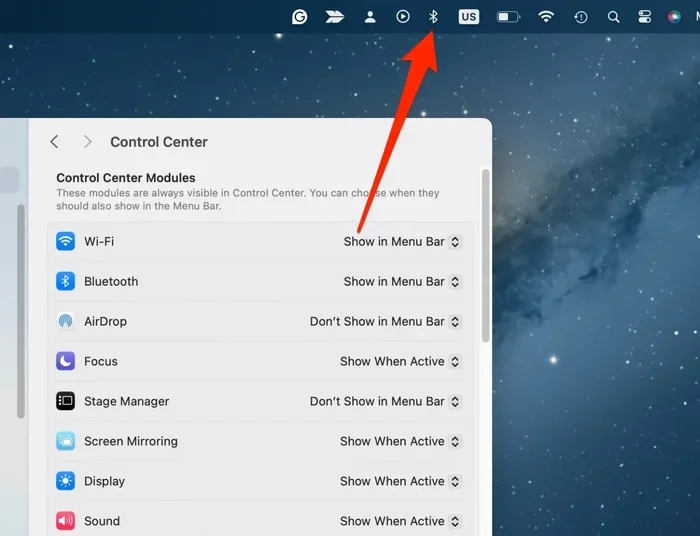
Adding the Bluetooth icon to your Mac menu bar takes less than a minute. The process is slightly different depending on your macOS version, but the steps are straightforward. Follow along with the guide below for your specific system.
For macOS Ventura and Newer
Apple redesigned System Settings in Ventura, so the path is a bit different from older versions. Here is how you add Bluetooth to your menu bar on the latest macOS:
- Click the Apple logo in the top-left corner of your screen.
- Select System Settings from the dropdown menu.
- In the left sidebar, click on Bluetooth.
- Look for the toggle that says Show Bluetooth in menu bar.
- Switch it on, and you will see the Bluetooth icon appear at the top right of your screen.
That is it. You are now ready to connect any Bluetooth device without opening settings again. The icon will show your connection status at a glance.
For macOS Monterey and Older
If your Mac is running an older version of macOS, the steps are slightly different. Here is what you need to do:
- Click the Apple menu in the top-left corner.
- Choose System Preferences (not System Settings).
- Click on Bluetooth.
- Check the box that says Show Bluetooth in menu bar.
- The Bluetooth icon will now appear in your menu bar.
Both methods give you the same result. You get quick access to your wireless connections right from the menu bar. If you ever want to remove the icon, you can uncheck the same box.
Quick Tips for Menu Bar Setup
Here are a few small tips that make a big difference when setting up your Bluetooth menu bar:
- Keep Bluetooth on by default: Leaving it always on means your devices reconnect automatically when in range.
- Pin the icon to the left: Drag the Bluetooth icon to the left side of the menu bar for easier access.
- Use keyboard shortcuts: Press F12 (or the function key with the Bluetooth symbol) to quickly toggle Bluetooth on and off.
- Check battery levels: The menu bar icon also shows the battery level of connected Bluetooth accessories.
These small habits keep your wireless connection running smoothly and help you avoid common issues later on.
Pairing Your First Bluetooth Device
Now that Bluetooth is in your menu bar, let us connect a device. Whether it is a pair of headphones, a keyboard, or a speaker, the pairing process is similar for all accessories.
Step-by-Step Pairing Process
- Click the Bluetooth icon in your menu bar.
- Make sure Bluetooth is turned on.
- Put your Bluetooth device in pairing mode. Most devices have a dedicated button or blinking light that signals they are ready.
- Your Mac will automatically detect available devices. Click on the device name you want to connect.
- Wait for the connection to complete. You will see a status message and the device will appear under “My Devices.”
Once paired, your device connects automatically every time it is within range. You do not need to repeat the pairing process unless you remove the device from your Mac’s memory.
What If Your Device Does Not Show Up
Sometimes a Bluetooth device does not appear in the list. This is more common than you might think. Try these quick fixes before giving up:
- Restart Bluetooth: Turn Bluetooth off and back on from the menu bar.
- Move closer: Bluetooth has a limited range. Get within 10 feet of your Mac.
- Check battery: Low battery on your accessory can prevent it from being discovered.
- Remove old pairings: Go to Bluetooth settings and remove any previously paired devices that are no longer in use.
If you are using a Bluetooth headset as a microphone, you may need to check your audio input settings separately. The device might connect but not transmit audio unless you set it as the default input in your sound settings.
Managing Multiple Bluetooth Devices
One of the best things about having Bluetooth in your menu bar is managing multiple devices at once. Your Mac can remember and connect to several accessories simultaneously. This is especially useful if you switch between a keyboard, mouse, headphones, and speakers throughout the day.
Switching Between Devices
Switching between connected devices is simple. Just click the Bluetooth icon in your menu bar and select the device you want to use. Your Mac handles the rest.
Here are some common multi-device scenarios:
- Work and personal headphones: Connect your work headphones during the day and switch to personal ones in the evening.
- Keyboard and mouse: Use a wireless keyboard and mouse together without any interference.
- Speakers and headphones: Change your audio output between speakers and headphones with one click.
You can also check the battery level of each connected device right from the menu bar. This helps you know when to charge your accessories before they die mid-use.
Expanding Your Bluetooth Setup
Want to get more out of your wireless setup? There are several accessories that can enhance your Bluetooth experience on a Mac. For example, if you want to connect your old stereo to your Mac wirelessly, you can add a Bluetooth adapter to give it wireless capability. This lets you stream music and audio from your Mac to any speaker system in your home.
Similarly, if you are working in a space where you need to amplify your voice or use audio output differently, having a Bluetooth speaker connected gives you flexibility. You can move around your workspace while staying connected. Just remember that some Bluetooth speakers work without a traditional Bluetooth connection, so you have options even if your Mac settings change.
For those who use a headset for calls or gaming, you can also check whether your headset works as a microphone. This is especially helpful if you switch between music and calls throughout the day. Having a headset that doubles as a mic saves you from buying separate accessories.
Troubleshooting Common Bluetooth Issues
Even with the best setup, Bluetooth problems can happen. The good news is that most issues have simple solutions. Here are the most common problems and how to fix them.
Bluetooth Keeps Disconnecting
If your Bluetooth connection drops frequently, try these steps:
- Move closer to your Mac. Walls and furniture can weaken the signal.
- Turn Bluetooth off and back on from the menu bar.
- Restart your Mac to refresh the Bluetooth module.
- Check for macOS updates. Apple often fixes Bluetooth bugs in system updates.
- Remove the device from your Bluetooth list and pair it again.
Sometimes the issue is with the accessory itself. Make sure the device is fully charged and within range. If you have many Bluetooth devices competing for connection, try disconnecting the ones you are not using.
Audio Quality Issues
Poor audio quality over Bluetooth is frustrating. Here is what you can do:
- Check the audio output: Make sure your Mac is sending audio to the correct Bluetooth device.
- Reduce interference: Other wireless devices like Wi-Fi routers can interfere with Bluetooth signals.
- Update your drivers: Keep your Mac operating system up to date for the best performance.
- Reset Bluetooth: Hold Shift and Option, click the Bluetooth icon, and select “Reset the Bluetooth module.”
If you are using Bluetooth headphones for gaming or calls, the audio delay can be an issue. Some Bluetooth headphones work better for gaming than others, so check compatibility before purchasing.
Device Not Found During Pairing
When your Mac cannot find a Bluetooth device, try this sequence:
- Make sure the accessory is in pairing mode.
- Restart Bluetooth on your Mac.
- Restart the Bluetooth device itself.
- Forget the device in Bluetooth settings and try again.
- If nothing works, reset your Mac’s Bluetooth module using the Shift + Option method.
These steps solve the problem in most cases. Patience and a systematic approach go a long way with Bluetooth troubleshooting.
Expert Insights on Bluetooth Management
Managing Bluetooth on a Mac is about more than just connecting devices. It is about creating a seamless wireless ecosystem that works for you. Here are some expert-level tips that power users swear by.
Keep your Mac updated. Apple regularly improves Bluetooth performance through macOS updates. Running the latest version ensures you get the best stability and range.
Limit the number of connected devices. While your Mac can handle multiple connections, too many active devices can slow things down. Disconnect devices you are not actively using.
Use the Bluetooth menu bar icon wisely. The menu bar icon gives you more than just on/off control. You can check signal strength, view battery levels, and quickly switch audio output devices.
Consider your environment. Bluetooth uses the 2.4 GHz frequency band, which is shared with Wi-Fi and other wireless devices. If you experience interference, try moving your router or changing your Wi-Fi channel.
Reset before you replace. Before assuming a device is broken, always try resetting the Bluetooth connection. Most issues are software-related, not hardware-related.
Key Takeaways
- Easy Access: Pinning Bluetooth to your Mac menu bar gives you instant control over wireless connections without digging through menus.
- Simple Process: You can add the Bluetooth icon through System Settings in just a few clicks, making it accessible for all Mac users.
- Troubleshooting Is Common: Many users face Bluetooth issues, but most can be fixed with basic resets and updates.
- Multiple Devices: Your Mac can connect to several Bluetooth devices at once, including headphones, keyboards, and speakers.
- Pro Tips Help: Small habits like keeping Bluetooth on and updating your Mac can prevent most connectivity problems.
Frequently Asked Questions
Why is the Bluetooth icon missing from my Mac menu bar?
The Bluetooth icon is hidden by default on some Mac models. You can add it by going to System Settings, clicking Bluetooth, and toggling on “Show Bluetooth in menu bar.” If the option is grayed out, restart your Mac and try again.
Can I connect a Bluetooth headset as a mic on my Mac?
Yes, you can use a Bluetooth headset as a microphone on your Mac. After pairing, go to Sound Settings and select the headset as your input device. This works for calls, recordings, and voice chats.
How many Bluetooth devices can my Mac connect to at once?
Most Macs can connect to multiple Bluetooth devices simultaneously. However, performance may decrease with too many active connections. For the best experience, keep your essential devices connected and disconnect the rest.
What should I do if my Bluetooth device keeps disconnecting?
Start by moving closer to your Mac and restarting Bluetooth. If the problem persists, forget the device in Bluetooth settings and pair it again. Updating your macOS can also fix frequent disconnection issues.
Can I add Bluetooth to an older Mac that does not have built-in support?
Yes, you can add Bluetooth to an older Mac using a USB Bluetooth adapter. Simply plug it in, and your Mac should recognize it automatically. You can then follow the same steps to add the Bluetooth icon to your menu bar.
Is it safe to keep Bluetooth on all the time on my Mac?
Yes, keeping Bluetooth on is generally safe. It does use a small amount of battery, but modern Macs are designed to handle this efficiently. Turning it off when not in use can save a bit of battery life, but it is not necessary for most users.
Adding Bluetooth to your Mac menu bar transforms how you interact with wireless devices every day. It is fast, convenient, and gives you control at a glance. Follow the steps in this guide, and you will be connected in minutes. Once you experience the ease of managing your wireless connections from the menu bar, you will never go back to digging through settings menus. Start today and enjoy the freedom of seamless Bluetooth connectivity on your Mac.