How Do I Add A Bluetooth Speaker To Your Home System
Adding a bluetooth speaker to your home system is easier than you think. This guide walks you through every step, from choosing the right speaker to pairing it with your devices. You will learn proven setup methods, troubleshooting tips, and ways to boost your sound quality.
Key Takeaways
- Bluetooth speakers offer wireless freedom: You can stream music from any device without cables or complicated setups.
- Pairing is simple and fast: Most speakers connect in under a minute using basic steps we outline below.
- Multiple connection options exist: You can pair via Bluetooth, aux cable, or even use your phone as a bridge.
- Placement matters for sound quality: Where you put your speaker affects volume, bass, and overall performance.
- Troubleshooting is straightforward: Most connection issues have quick fixes you can do at home.
- Regular speakers can be upgraded: You can add Bluetooth capability to existing speaker systems with simple adapters.
📑 Table of Contents
- How Do I Add A Bluetooth Speaker To Your Home System
- Why Add A Bluetooth Speaker To Your Home?
- How To Choose The Right Bluetooth Speaker
- Step-By-Step Setup Guide
- Connecting Multiple Devices To One Speaker
- Troubleshooting Common Bluetooth Speaker Problems
- Tips To Get The Best Sound From Your Bluetooth Speaker
- Adding Bluetooth To Existing Speaker Systems
- Common Mistakes To Avoid When Setting Up Your Bluetooth Speaker
- Final Thoughts
How Do I Add A Bluetooth Speaker To Your Home System
Adding a bluetooth speaker to your home system can change the way you listen to music, podcasts, and movies. Whether you want portable sound for the kitchen or full-room audio for your living room, a wireless speaker makes it happen. The process is simpler than most people think, and you do not need any special skills. In this guide, we walk you through every step from start to finish. You will learn how to choose the right speaker, pair it with your devices, and get the best sound possible.
Many folks worry that setting up a wireless speaker will be complicated. That is not the case at all. Modern bluetooth technology has made the process nearly automatic. Within minutes, you can be streaming your favorite tunes from your phone, tablet, or laptop. We will also cover common problems and how to fix them. By the end of this article, you will feel confident setting up your own home audio system with a bluetooth speaker.
Why Add A Bluetooth Speaker To Your Home?
There are many reasons to add a bluetooth speaker to your home setup. First, wireless speakers give you freedom. You are not tied to one spot by a cable. You can move your speaker from room to room and keep listening. Second, most modern speakers deliver surprisingly good sound quality for their size. Some even rival traditional stereo systems.
Third, bluetooth connectivity means you can connect almost any device. Your phone, tablet, laptop, and even some smart TVs support Bluetooth. This makes sharing music with family and friends effortless. Fourth, many portable speakers are battery-powered. This means you can take them outside for a backyard party or use them during a power outage.
Types Of Bluetooth Speakers For Home Use
Not all wireless speakers are the same. Here are the main types you will encounter when shopping:
- Portable Bluetooth Speakers: Small, lightweight, and battery-powered. Great for casual listening and moving around the house.
- Home Theater Speakers: Larger units designed for serious audio. These often include subwoofers for deep bass.
- Smart Speakers: Devices like Alexa or Google Home that double as voice assistants and audio players.
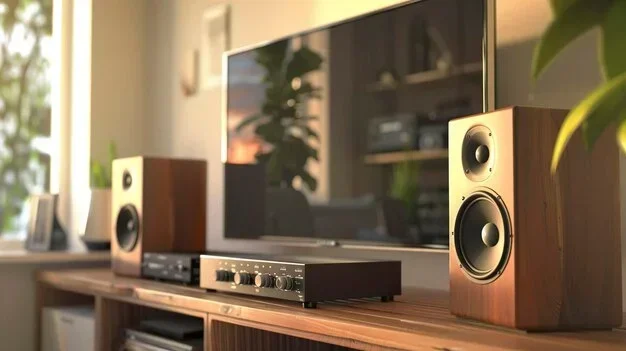
- Bookshelf Speakers: Medium-sized speakers that sit on shelves and deliver rich, full sound for a room.
Each type has its own strengths. Think about where you plan to use the speaker and what kind of sound you want. This will help you pick the right one for your home entertainment needs.
How To Choose The Right Bluetooth Speaker
Before you dive into setup, you need the right speaker. Choosing wisely saves you time and frustration later. Here are the key factors to consider.
Sound Quality And Power
Sound quality should be your top priority. Look at the speaker’s wattage and driver size. Higher wattage usually means louder volume. Larger drivers produce richer bass. If you care about audio output, read reviews before buying. Some speakers sound surprisingly good for their price, while others disappoint.
Battery Life And Portability
If you want a speaker you can carry around, battery life matters a lot. Most portable speakers last between 8 and 20 hours on a single charge. Think about how you will use it. A speaker for the kitchen does not need the longest battery. But one for outdoor use should last all day. Also check if the speaker is waterproof or at least water-resistant. This adds durability for spills and outdoor use.
Connectivity Options
Check what connection options the speaker supports. Most modern speakers use Bluetooth 5.0 or higher, which gives a stronger signal and longer range. Some also offer aux input, USB-C charging, and even Wi-Fi streaming. The more options you have, the more flexible your setup becomes. If you want to connect your phone to a speaker, make sure both devices support the same Bluetooth version.
Size And Design
Consider where the speaker will live in your home. A large speaker takes up more space but usually sounds better. A small speaker fits on a shelf or countertop easily. Think about the style too. You want something that looks good in your living space. Many brands now make speakers that double as home decor pieces.
Step-By-Step Setup Guide
Now let us get into the actual setup. This section covers everything you need to do to add a bluetooth speaker to your home system. Follow these steps carefully and you will be listening to music in no time.
Step 1: Unbox And Charge Your Speaker
When you first get your speaker, unbox it carefully. Check that all parts are included. Most speakers come with a charging cable, a quick-start guide, and sometimes an aux cable. Before you try to pair anything, fully charge the speaker. This usually takes 2 to 4 hours. A full charge ensures stable performance during setup and first use.
Turn on the speaker and look for a light indicator. Most speakers show a blinking light when they are ready to pair. This is called pairing mode. If your speaker does not enter pairing mode automatically, check the manual. Usually, you hold down the Bluetooth button for a few seconds until the light flashes.
Step 2: Enable Bluetooth On Your Device
Next, go to the device you want to connect. This could be your phone, tablet, or laptop. Open the Bluetooth settings and turn Bluetooth on. Your device will start scanning for nearby devices. You should see your speaker appear in the list of available devices.
If you are using an iPhone, swipe down from the top right corner to open Control Center. Tap the Bluetooth icon. On Android, go to Settings, then Connections, then Bluetooth. For Windows laptops, click the Start menu, then Settings, then Devices, and then Bluetooth. Each device follows a similar process. Once you find your speaker in the list, tap on it to connect.
Step 3: Pair The Speaker With Your Device
Tap your speaker name on the device list. You may see a pairing request pop up on your screen. Accept it. The connection usually takes a few seconds. Once paired, the blinking light on your speaker will stop. It may turn solid or change color. This means the bluetooth connection is established.
Now play some music on your device. The sound should come through the speaker. If you hear nothing, do not panic. Move to the troubleshooting section below. Most issues are easy to fix.
Step 4: Adjust Settings For Best Performance
Once connected, you can fine-tune your experience. Use your device’s volume controls to set the right level. Some speakers have their own volume buttons too. If your speaker has an app, download it. The app lets you adjust equalizer settings, which control bass, midrange, and treble. This is a great way to customize the sound to your liking.
Also check the bluetooth range. Most speakers work well within 30 feet of your device. Walls and obstacles can reduce this range. If you notice dropouts, move closer to the speaker. For the best wireless audio experience, keep your devices in the same room.
Connecting Multiple Devices To One Speaker
One of the great things about a bluetooth speaker is that multiple people can take turns connecting. Most speakers remember a few paired devices. When someone new wants to play music, they just need to pair their device the same way you did in Step 2 above.
Some speakers support dual pairing. This means two devices can connect at the same time. This is perfect for sharing music at a gathering. Check your speaker’s manual to see if this feature is available. If it is, follow the pairing instructions for multi-device mode.
Using An Aux Cable As A Backup
Not everything has Bluetooth. Some older devices only support wired connections. In this case, you can use an aux cable. Most bluetooth speakers have a 3.5mm aux input. Simply plug one end into your device and the other into the speaker. This gives you a reliable wired connection when wireless is not an option. It also works well if you want to use a speaker without bluetooth in certain situations.
If you already have regular speakers at home, you can add Bluetooth capability using an adapter. Just plug the adapter into your speaker’s aux port, and the adapter handles the wireless connection. This is a great budget-friendly option. You can also check out our guide on how to turn regular speakers into Bluetooth for more details on this approach.
Troubleshooting Common Bluetooth Speaker Problems
Even with the best setup, you might run into issues. Do not worry. Most problems are easy to solve. Here are the most common ones and how to fix them.
Speaker Not Showing Up In Device List
If your device cannot find the speaker, try these steps. First, make sure the speaker is in pairing mode. The light should be flashing. Second, turn Bluetooth off and back on your device. Third, move closer to the speaker. Bluetooth has a limited range, and walls can block the signal. Fourth, restart both devices. This clears temporary glitches. If none of this works, try resetting the speaker. Most speakers have a reset button or a specific button combination for this.
Sound Keeps Cutting Out
Intermittent sound is frustrating. The most common cause is distance. Stay within 30 feet of the speaker for a stable connection. Other devices can also interfere. Microwaves, baby monitors, and even Wi-Fi routers can cause wireless interference. Move away from these devices and see if the problem improves. Also check if your speaker firmware needs updating. Some speakers support firmware updates through their companion app.
Paired But No Sound
If the speaker connects but you hear nothing, check a few things. First, make sure the speaker is not muted. Many speakers have a mute button. Second, check your device’s volume. Third, make sure the audio is not playing on a different device. Sometimes your phone connects to a speaker in another room by accident. Go into your Bluetooth settings and disconnect from the wrong device. Finally, try pausing and resuming the music. This sometimes kicks the audio back through the speaker.
Speaker Will Not Turn On
If your speaker will not turn on, the battery might be dead. Plug it in and charge it for at least 30 minutes before trying again. Check the charging cable too. A damaged cable will not deliver power. If the speaker still does not turn on after a full charge, contact the manufacturer. Most speakers come with a warranty that covers hardware issues.
Tips To Get The Best Sound From Your Bluetooth Speaker
Once your speaker is set up, you want to get the best possible sound. Here are some tips that make a real difference.
Place The Speaker Correctly
Where you put your speaker matters. Place it on a flat, hard surface for the best sound. Avoid soft surfaces like beds or couches. These absorb sound and reduce volume. Corners can make bass sound louder, but they can also cause muddiness. Try different spots in your room and listen for the best balance. If you want a richer sound, check out our article on using different speakers for audio projects for placement inspiration.
Keep Your Devices Updated
Software updates improve bluetooth performance. Make sure both your speaker and your phone or laptop have the latest updates. Updates often fix connection bugs and improve audio quality. Check for updates regularly, especially if you notice problems.
Use High-Quality Audio Files
The quality of your music files affects what you hear. Streaming services like Spotify and Apple Music offer different quality levels. Choose the highest quality available. If you have music stored on your device, use lossless formats like FLAC or WAV. These files contain more detail than compressed formats like MP3. Better source files mean better sound through your speaker.
Experiment With Equalizer Settings
Most devices have built-in equalizer settings. On iPhone, go to Settings, then Music, then EQ. On Android, check your music app’s audio settings. On Windows, right-click the speaker icon and go to Sound Settings. Adjusting the EQ lets you boost bass, sharpen vocals, or smooth out harsh highs. Play around with the presets to find what sounds best to you.
Consider Speaker Placement For Room Size
The size of your room affects how your speaker sounds. Small rooms work well with compact speakers. Large rooms need more powerful speakers to fill the space. If you have a big room, consider placing two speakers in different corners. This creates a stereo effect that sounds much fuller. For tips on using speakers in different environments, our guide on using a bluetooth speaker to amplify your voice offers helpful insights.
Adding Bluetooth To Existing Speaker Systems
You do not always need to buy a new speaker. If you already have a good speaker system, you can add Bluetooth to it. This is a smart way to upgrade without spending a lot of money.
Bluetooth Adapters
A Bluetooth adapter is a small device that plugs into your speaker’s aux input. It receives the wireless signal from your phone and sends it to the speaker through the cable. These adapters are affordable and easy to use. Look for one that supports Bluetooth 5.0 for the best range and stability. Some adapters also have a built-in battery, so you do not need to keep them plugged into a wall outlet.
Bluetooth Receiver Modules
For a more permanent setup, consider a bluetooth receiver module. These are similar to adapters but often offer better sound quality. They connect directly to your speaker system and stay put. You just pair your phone once, and the connection is automatic every time you turn it on. This is ideal for a dedicated home audio system where you want a clean, permanent setup.
Smart Speaker Integration
If you are building a smart home, consider a smart speaker as your central audio hub. Devices like Amazon Echo and Google Nest work as both speakers and voice assistants. You can control them with your voice, set timers, check the weather, and stream music. They also support multi-room audio, which means you can sync speakers in different rooms and play the same music everywhere. Check out our guide on using Alexa as a Bluetooth speaker for more on this topic.
Common Mistakes To Avoid When Setting Up Your Bluetooth Speaker
Even simple setups can go wrong if you make avoidable mistakes. Here are some pitfalls to watch out for.
- Skipping the full charge: Always charge your speaker fully before first use. A partially charged battery can cause connection problems and poor sound.
- Ignoring firmware updates: Old firmware can cause bugs. Always update your speaker’s software when prompted.
- Pairing in a crowded area: Too many Bluetooth devices in one place can cause interference. Pair your speaker in a quiet environment first.
- Placing the speaker too far from your device: Stay within the recommended range. Going too far causes dropouts.
- Forgetting to disconnect old pairings: If your speaker is connected to a device you no longer use, it may not connect to your new device. Clear old pairings regularly.
- Using low-quality audio files: Compressed files sound thin. Use high-quality files for the best experience.
Avoiding these mistakes saves you time and keeps your wireless connectivity running smoothly. A little care during setup goes a long way.
Final Thoughts
Adding a bluetooth speaker to your home system is one of the easiest upgrades you can make. It brings wireless freedom, better sound, and more flexibility to your daily routine. Whether you are streaming music in the kitchen, hosting a backyard party, or setting up a full home theater, a wireless speaker fits right in. Follow the steps in this guide and you will have your speaker connected and playing in minutes.
Remember, the key to great sound is choosing the right speaker, placing it well, and keeping your devices updated. If you run into problems, the troubleshooting tips above will help you get back on track. Do not be afraid to experiment with settings and placement. The best setup is the one that sounds good to you. Enjoy your new home audio system and the freedom that comes with wireless listening.
For more tips on using your devices in creative ways, check out our article on turning your phone into a Bluetooth speaker. It covers some handy tricks that complement your new setup perfectly.
Frequently Asked Questions
Can I connect a bluetooth speaker to my TV?
Yes, most modern TVs support Bluetooth. Go to your TV’s settings, turn on Bluetooth, and pair it with your speaker. If your TV does not have Bluetooth, you can use a Bluetooth transmitter that plugs into the TV’s audio output.
How far can I go from my bluetooth speaker before the connection drops?
Most bluetooth speakers work within 30 feet of the connected device. Walls and obstacles can reduce this range. Bluetooth 5.0 speakers offer a longer range, sometimes up to 80 feet in open spaces.
Can I connect more than one phone to the same bluetooth speaker?
Yes, most speakers remember multiple paired devices. Any paired phone can connect and play music. Some speakers also support dual pairing, allowing two phones to connect at the same time.
Do I need an internet connection to use a bluetooth speaker?
No, Bluetooth does not need the internet. The connection is direct between your device and the speaker. You can play downloaded music or offline content without any Wi-Fi or data connection.
Can I use my bluetooth speaker for phone calls?
Yes, most bluetooth speakers have a built-in microphone. You can answer calls directly through the speaker. The sound quality for calls may not be as clear as a dedicated headset, but it works well for casual conversations.
How do I reset my bluetooth speaker if it will not connect?
Most speakers have a reset function. Check your manual for the specific button combination. Usually, you hold down the power button and the Bluetooth button together for 10 seconds. This clears old pairings and restores factory settings.