How Can I Watch Netflix On My Projector Without Hassle
Watching Netflix on a projector is simpler than you think. You can use an HDMI cable, a streaming stick, or go wireless to stream your favorite shows on a big screen. This guide walks you through every method, so you can pick what works best for your setup and start enjoying cinema-quality viewing at home.
Key Takeaways
- Multiple Methods Available: You can watch Netflix on a projector using HDMI, streaming sticks, wireless casting, or built-in apps.
- HDMI Is the Simplest: A direct HDMI connection from a laptop or streaming device gives you reliable, high-quality playback.
- Wireless Streaming Is Convenient: Making your projector wireless lets you cast Netflix without any cables at all.
- Streaming Sticks Are Affordable: Devices like a Fire Stick transform any projector into a smart streaming machine.
- Audio Matters: Good sound completes the experience, so consider external speakers or a soundbar for the best results.
- Projector Placement Is Key: Setting up your projector correctly affects picture quality and overall enjoyment.
📑 Table of Contents
How Can I Watch Netflix On My Projector Without Hassle
There is nothing quite like watching your favorite Netflix show on a big screen. A projector turns any room into a home theater. But if you have never set it up before, the process can feel a little confusing. The good news is that watching Netflix on a projector is much easier than most people think.
You do not need expensive equipment or technical skills. Whether you have a basic projector or a high-end model, there is a method that fits your needs. Some people use a simple HDMI cable. Others prefer wireless casting or a streaming stick. Each approach has its own benefits, and this guide covers them all.
By the end of this article, you will know exactly how to set up Netflix on your projector. You will also learn tips to improve picture quality, sound, and overall viewing comfort. Let us dive in and get your movie night started.
Why Watch Netflix on a Projector
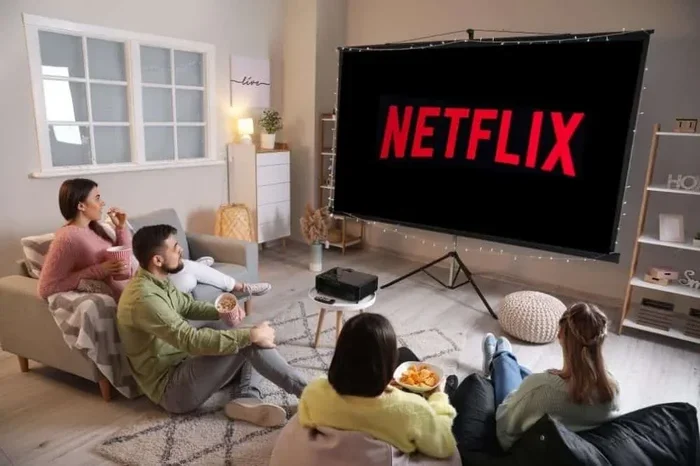
People choose projectors over TVs for many reasons. The big screen creates an immersive experience that a regular TV simply cannot match. A projector screen size can range from 80 inches to over 150 inches. That is a massive viewing area that makes every scene feel cinematic.
Projectors are also great for group viewing. If you host movie nights or watch parties, a projector lets everyone see the screen clearly. You do not need to crowd around a small TV. Plus, projectors are often more affordable than large-screen TVs with similar picture quality.
Another benefit is flexibility. Many modern projectors are portable. You can set one up in your living room, bedroom, or even outdoors. This makes streaming projector setups ideal for people who like to change their viewing environment.
Projector vs. TV for Netflix
When deciding between a projector and a TV for Netflix, consider what matters most to you. A TV offers brighter pictures in well-lit rooms. A projector gives you a much larger screen and a more theater-like feel. For late-night movie sessions, a projector is hard to beat.
If you are still unsure, think about how often you watch Netflix. If it is a daily habit, a TV might be more practical. But if you want a special experience for weekends or gatherings, a projector is the way to go. And the good news is that using a projector as a TV is completely doable for Netflix streaming.
Methods to Watch Netflix on a Projector
There are several ways to get Netflix playing on your projector. Each method has its own setup requirements and advantages. Below, we break down the most popular options so you can choose the one that fits your gear and preferences.
Method 1: HDMI Cable from a Laptop
This is the most straightforward method. You connect your laptop to the projector using an HDMI cable. Then you open Netflix in your browser or app and play it full screen. The projector mirrors what is on your laptop.
First, check both your laptop and projector for HDMI ports. Most modern devices have them. If your laptop only has USB-C, you can use a USB-C to HDMI adapter. Plug one end into your laptop and the other into the projector. Switch the projector to the correct input source.
Once connected, open Netflix on your laptop. Adjust the screen resolution to match your projector’s native resolution for the best picture. This method works reliably and gives you full control over playback. You can also use your laptop keyboard to pause, rewind, or adjust volume.
One thing to keep in mind is that some laptops have display settings that need adjusting. You may need to press a function key to toggle between duplicate and extended display modes. Setting it to duplicate ensures the projector shows the same image as your laptop screen.
Method 2: Using a Streaming Stick
A streaming stick is a small device that plugs directly into your projector’s HDMI port. It turns any projector into a smart streaming device. The most popular options include the Amazon Fire Stick, Google Chromecast, and Roku Streaming Stick.
If you have ever wondered, can I use a Fire Stick on a projector, the answer is yes. A Fire Stick connects to any HDMI port and runs the Netflix app directly. You do not need a laptop or phone. Just plug it in, connect to WiFi, and start streaming.
Streaming sticks are affordable and easy to set up. Most come with a remote control, so you can navigate Netflix without a keyboard. They also support 1080p and even 4K resolution on compatible projectors. This makes them a great budget-friendly option for anyone who wants a simple Netflix projector setup.
When choosing a streaming stick, check your projector’s HDMI version. Older projectors may only support HDMI 1.4, which limits resolution. Newer projectors with HDMI 2.0 or 2.1 can handle higher quality streams. A streaming stick is hands-down one of the easiest ways to enjoy Netflix on a big screen.
Method 3: Wireless Casting from a Phone or Tablet
If you want to avoid cables entirely, wireless casting is a great option. Many projectors support WiFi or Bluetooth connectivity. You can cast Netflix from your phone or tablet directly to the projector.
If your projector does not have built-in wireless capabilities, you can make your projector wireless using a WiFi adapter or a casting device. Once wireless, you can mirror your phone screen or use built-in casting features like Chromecast or AirPlay.
To cast Netflix from your phone, open the Netflix app and look for the cast icon. Tap it and select your projector from the list of available devices. The video will play on the projector while your phone acts as a remote control. This method is perfect for people who prefer using their phone as a hub.
Keep in mind that wireless casting depends on a strong WiFi connection. If your WiFi signal is weak, the stream may buffer or lag. For the best experience, make sure your router is close to the projector or use a WiFi extender.
Method 4: Connecting Your Phone to the Projector with HDMI
Some phones support HDMI output through a USB-C or Lightning adapter. This lets you connect your phone directly to the projector for a wired connection. It is more stable than wireless casting and often delivers better picture quality.
You will need the right adapter for your phone model. For Android phones with USB-C, a USB-C to HDMI adapter works well. For iPhones, you need a Lightning to HDMI adapter. Plug the adapter into your phone, connect an HDMI cable, and run it to the projector.
Once connected, switch the projector to the correct HDMI input. Your phone screen should appear on the projector. Open Netflix and start playing. The video will display on the big screen while your phone handles controls.
If you want more details on this approach, you can read about connecting your phone to a projector with HDMI. This method is especially useful when you have a stable setup in one room and do not want to worry about WiFi interruptions.
Method 5: Using a Projector with Built-In Netflix
Some modern projectors come with smart features built in. These projectors have apps pre-installed, including Netflix. You simply connect the projector to WiFi, open the Netflix app, and start watching. No extra devices are needed.
To find a projector with built-in Netflix, look for models labeled as “smart projectors.” Brands like Epson, BenQ, and Anker make several models with integrated streaming apps. These projectors often run on simple operating systems similar to smart TVs.
The biggest advantage of a smart projector is simplicity. There are no extra cables, adapters, or devices to manage. Everything is built into one unit. However, smart projectors can be more expensive than basic models. They also may have limited app stores, so not every streaming service may be available.
Setting Up Your Projector for the Best Netflix Experience
Once you have chosen your method, a few setup steps can make a big difference. Proper placement, focus, and audio settings transform a good viewing experience into a great one.
Projector Placement and Screen Setup
Where you place your projector affects the picture quality significantly. Ideally, the projector should be centered with the screen or wall. This ensures the image is not distorted or skewed. Most projectors work best when placed on a stable surface or ceiling-mounted.
The distance between the projector and the screen depends on the model. Check your projector’s manual for the recommended throw distance. A short-throw projector can create a large image from a short distance. A standard-throw projector needs more space.
For the best results, use a proper projector screen instead of a plain wall. A dedicated screen enhances brightness and color accuracy. If you are on a budget, a white sheet can work in a pinch, but a proper screen will always look better.
Adjusting Focus and Keystone
Most projectors have manual or digital focus rings. Turn the focus ring until the image looks sharp and clear. If the image appears tilted or trapezoidal, use the keystone correction feature to straighten it out.
Digital keystone correction can slightly reduce image quality. For the sharpest picture, try to position the projector so the lens is perfectly perpendicular to the screen. This avoids the need for heavy keystone adjustment and keeps the resolution intact.
Audio Setup for Netflix on a Projector
One thing many people overlook is sound. Most projectors have small built-in speakers that sound mediocre at best. For a true cinema experience, you need better audio. The good news is that improving projector sound is easy and affordable.
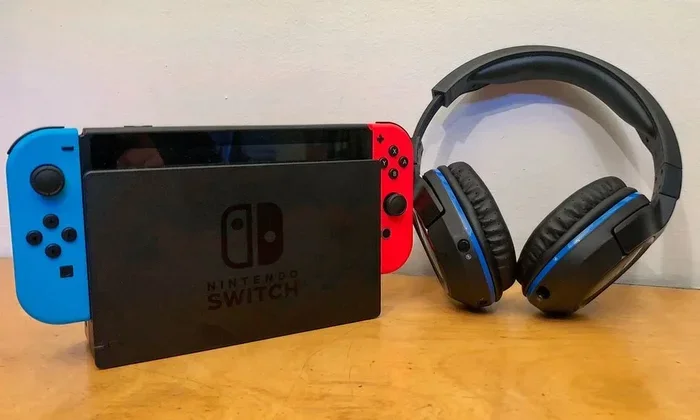
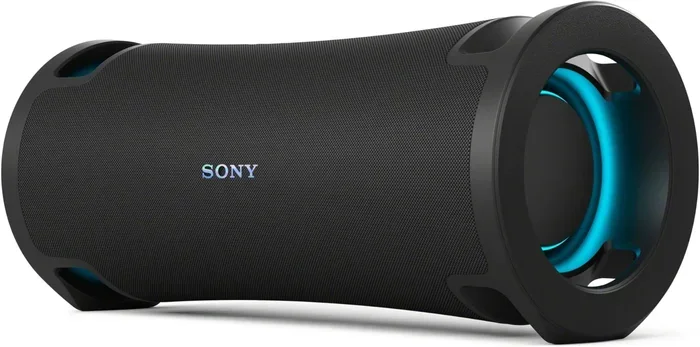
You can connect external speakers using Bluetooth or an audio cable. A simple Bluetooth speaker works well for casual viewing. For a more immersive setup, consider a soundbar or a surround sound system. Many projectors have a 3.5mm audio output or an RCA port for connecting speakers.
If you already own a Bluetooth speaker or soundbar, pairing it with your projector takes seconds. Go to the projector’s audio settings, switch the output to Bluetooth, and connect your speaker. Now you have rich, clear sound to go with your big-screen Netflix experience.
Troubleshooting Common Netflix Projector Issues
Even with the best setup, you may run into occasional problems. Here are the most common issues and how to fix them quickly.
Netflix Buffering or Lagging
Buffering is the most common frustration when streaming on a projector. It usually happens when the WiFi signal is weak or the internet speed is too slow. To fix this, move your router closer to the projector or use a WiFi extender.
You can also lower the Netflix streaming quality in the app settings. This reduces the amount of data needed and can help with buffering. If you are using an HDMI connection from a laptop, the issue is less likely to be WiFi-related. Check your laptop’s internet speed instead.
No Sound from the Projector
If the picture is clear but there is no sound, check the projector’s audio settings first. Make sure the volume is turned up and the audio output is set to the correct source. If you are using external speakers, ensure they are paired and powered on.
Sometimes the issue is with the Netflix app itself. Try pausing and resuming playback. If that does not work, restart the projector and the streaming device. A simple reboot fixes most audio problems.
Image Not Filling the Entire Screen
If the Netflix image appears too small or does not fill the screen, adjust the projector’s zoom or focus settings. You can also change the aspect ratio in the Netflix app to match your projector’s native resolution.
Most projectors display content in a 16:9 aspect ratio, which matches Netflix’s standard format. If the image still does not fit, check your laptop’s display settings when using the HDMI method. Set the scaling to 100% for the best fit.
Tips for the Ultimate Netflix Projector Setup
Want to take your projector Netflix experience to the next level? Here are some expert tips that make a real difference.
Control Room Lighting
Projectors work best in dim or dark rooms. Ambient light washes out the image and reduces contrast. Close your curtains or blinds before starting a movie. If you need some light, use soft, indirect lighting like LED strips behind the screen.
Use a High-Quality HDMI Cable
Not all HDMI cables are created equal. A cheap or old cable can limit resolution and cause signal issues. Invest in a high-speed HDMI cable that supports 1080p or 4K. This ensures you get the best possible picture from your Netflix streams.
Keep Your Projector Clean
Dust can build up on the projector lens over time. This reduces image clarity and brightness. Wipe the lens gently with a microfiber cloth before each use. If your projector has a filter, clean or replace it regularly to prevent overheating.
Use a VPN for Better Streaming
If you travel frequently or want access to Netflix libraries from other regions, a VPN can help. A VPN encrypts your internet connection and lets you appear as if you are in a different location. This is useful for accessing content that might not be available in your region.
Create a Dedicated Streaming Station
For the most convenient setup, create a dedicated streaming station. Mount the projector on the ceiling or place it on a stable shelf. Keep the streaming stick or laptop nearby. Run the HDMI cable along the wall or use a cable cover to keep things tidy. This setup makes it easy to watch Netflix anytime with minimal effort.
Final Thoughts
Watching Netflix on a projector is one of the best ways to enjoy your favorite shows and movies. The big screen brings every detail to life and turns ordinary viewing into a cinematic experience. Whether you use an HDMI cable, a streaming stick, or wireless casting, the setup process is straightforward and rewarding.
Start with the method that matches your equipment and comfort level. You can always upgrade or switch methods as you get more familiar with your projector. The most important thing is to just get started. Once you see Netflix playing on a large projector screen, you will wonder why you ever watched on a small TV.
With the right setup, a little patience, and these tips, you are ready for countless hours of entertainment. Grab some popcorn, dim the lights, and enjoy your movie night on the big screen. Watching Netflix on a projector is not just possible, it is incredibly easy and totally worth it.
FAQs
Can I watch Netflix on a projector without a smart feature?
Yes, you can. You just need an external device like a streaming stick, a laptop connected via HDMI, or a phone with an adapter. The projector does not need to be smart as long as it has an HDMI port or supports wireless casting.
What is the best streaming stick for a projector?
The Amazon Fire Stick is one of the most popular and affordable options. It works with most projectors that have an HDMI port. The Google Chromecast and Roku Streaming Stick are also excellent choices. Pick the one that matches your ecosystem and budget.
Why is my Netflix picture blurry on the projector?
A blurry picture is usually caused by incorrect resolution settings or a dirty lens. Make sure your laptop or streaming device is set to output the same resolution as your projector’s native resolution. Also, clean the projector lens with a microfiber cloth to remove dust and smudges.
Can I use Netflix offline on a projector?
Netflix offline downloads work on phones, tablets, and laptops. If you download a show on your device and then connect that device to the projector, you can watch it offline. This is great for situations where you do not have reliable WiFi access.
Do I need a special Netflix account to watch on a projector?
No, you use the same Netflix account you already have. You can watch on multiple devices at the same time depending on your subscription plan. A standard plan allows two screens at once, while the premium plan supports four screens.
Is it safe to leave my projector on while watching Netflix?
Yes, it is safe for short to medium viewing sessions. Most modern projectors are designed for extended use. However, if you plan to watch for several hours straight, make sure the projector has proper ventilation to prevent overheating. Taking breaks also helps extend the projector’s lifespan.