Can You Use Bluetooth Headphones With Nintendo Switch
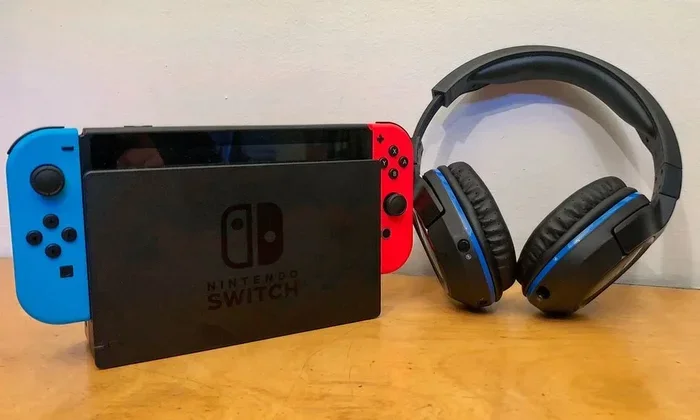
Yes, you can use Bluetooth headphones with Nintendo Switch, but not directly through the console itself. The Switch lacks built-in Bluetooth audio support, so you need a Bluetooth adapter or a compatible dock to connect wireless headphones. This guide walks you through every method, limitation, and pro tip to get your wireless audio working perfectly with your Switch.
If you love playing games on your Nintendo Switch but hate the idea of being tethered to your TV by a cable, you have probably wondered about wireless audio. The good news is that you absolutely can enjoy Bluetooth headphones with Nintendo Switch. The not-so-good news is that it is not as simple as flipping a switch.
The Nintendo Switch does not come with built-in Bluetooth audio functionality. This surprises a lot of people, especially since the console supports Bluetooth for controllers and other accessories. But when it comes to audio output, Nintendo chose a different path. Instead of wireless streaming, the Switch relies on a 3.5mm headphone jack or wired USB connections for audio.
So how do you bridge the gap? The answer lies in a few clever workarounds. Whether you want to play late at night without waking anyone or just prefer the freedom of wireless sound, this guide has you covered. We will walk you through every method, every limitation, and every pro tip you need to know.
Key Takeaways
- The Nintendo Switch does not have native Bluetooth audio support: You need an external adapter or modified dock to connect wireless headphones.
- A Bluetooth 5.0 adapter is the most reliable option: It offers low latency and stable connectivity for gaming and watching movies.
- You can pair most major headphone brands: Sony, JBL, Apple AirPods, and other Bluetooth headphones work with the right setup.
- Latency is a real concern for gaming: Choose a low-latency adapter to avoid audio delays during fast-paced gameplay.
- The Switch Lite and OLED models have the same limitation: None of the Switch versions support Bluetooth audio out of the box.
- Using a 3.5mm cable is the simplest fallback: If Bluetooth feels too complicated, a wired connection always works.
📑 Table of Contents
- Why Does the Nintendo Switch Not Support Bluetooth Audio?
- How to Connect Bluetooth Headphones to Nintendo Switch
- Best Bluetooth Headphones for Nintendo Switch
- Common Problems and How to Fix Them
- Does This Work with Switch Lite and Switch OLED?
- Alternatives to Bluetooth Headphones for Switch
- Expert Tips for the Best Bluetooth Audio Experience on Switch
- Final Thoughts
Why Does the Nintendo Switch Not Support Bluetooth Audio?
Nintendo designed the Switch with a specific philosophy in mind. The console prioritizes low-latency, lag-free gaming experiences. Bluetooth audio, while convenient, introduces a slight delay between the audio source and what you hear. This delay, called audio latency, can be a problem for competitive gaming where timing matters.
By sticking with wired audio output, Nintendo ensures that every sound effect, voice line, and musical cue arrives at your ears in perfect sync. This is especially important for games like Super Smash Bros. or Mario Kart, where hearing an opponent before you see them can make all the difference.
However, for casual gamers, movie watchers, and anyone who values quiet evenings, this limitation feels unnecessary. That is why the community has found creative solutions to add Bluetooth connectivity to the Switch.
How to Connect Bluetooth Headphones to Nintendo Switch
There are several ways to get your wireless headphones working with the Switch. Each method has its own pros and cons, so let us break them down one by one.
Method 1: Use a Bluetooth Audio Adapter
The most popular and reliable method is using a Bluetooth audio adapter. This small device plugs into the Switch dock’s USB port and creates a Bluetooth bridge between your console and your headphones.
Here is how it works:
- Plug the Bluetooth adapter into the USB port on your Nintendo Switch dock.
- Put your headphones into pairing mode.
- Select your headphones from the adapter’s connection list.
- Once paired, audio streams wirelessly from your Switch to your headphones.
Look for a Bluetooth 5.0 adapter with low-latency support. Brands like 1Mii, Avantree, and Creative make adapters specifically designed for gaming. These adapters handle audio codecs like aptX and AAC, which improve sound quality and reduce delay.
The adapter method works with every Nintendo Switch model, including the original Switch, Switch Lite, and Switch OLED. It also works whether you are playing in handheld mode or docked mode.
Method 2: Modify the Dock with a Bluetooth Module
For tech-savvy users, another option is to modify the Switch dock by soldering a Bluetooth module directly into it. This is a more permanent solution that eliminates the need for an external adapter hanging off your setup.
This method requires some technical skill. You need to open the dock, identify the correct audio solder points, and connect a Bluetooth audio module like the CSR8645 or similar chip. The result is a dock that natively streams audio to your wireless headphones.
Be aware that modifying your dock voids the warranty. If something goes wrong during the soldering process, you could damage the dock or even the console. Only attempt this method if you are comfortable with electronics work.
Method 3: Use the 3.5mm Jack with a Bluetooth Transmitter
If you do not want to mess with USB adapters, you can use a Bluetooth transmitter that plugs into the Switch’s 3.5mm headphone jack. This small device receives the audio signal from the Switch and transmits it wirelessly to your Bluetooth headphones.
This method has one major drawback: the Switch must be in handheld mode or the transmitter must be connected to the dock’s audio out port. In practice, this means you cannot easily switch between docked and handheld play without unplugging and replugging the transmitter.
Still, for a quick and inexpensive solution, a 3.5mm Bluetooth transmitter works well. You can find them for under $20 on most online retailers.
Best Bluetooth Headphones for Nintendo Switch
Not all wireless headphones are created equal when it comes to gaming. Here are some factors to consider and a few recommendations.
What to Look For
- Low latency: This is the most important factor. Look for headphones that support low-latency Bluetooth codecs like aptX LL (Low Latency).
- Battery life: Long gaming sessions demand long battery life. Aim for headphones that last at least 20 hours on a single charge.
- Comfort: If you play for hours, comfort matters. Over-ear headphones with soft cushions are ideal.
- Microphone quality: If you play multiplayer games, a good built-in microphone lets you chat with friends without a separate headset.
- Multipoint connectivity: Some headphones can connect to two devices at once. This lets you switch between your Switch and phone seamlessly.
Top Picks
Sony WH-1000XM5: These headphones offer excellent noise cancellation and superb sound quality. They connect easily to a Bluetooth adapter and have a comfortable fit for long sessions.
JBL Quantum 800: Designed specifically for gaming, these headphones feature low-latency Bluetooth and a retractable microphone. They are a great choice for competitive Switch players.
Apple AirPods Pro (2nd Generation): If you are in the Apple ecosystem, these work well with a Bluetooth adapter and offer solid sound with a comfortable in-ear design.
Beats Solo 4: Affordable, lightweight, and with surprisingly good battery life. These are a solid budget option for casual Switch gaming.
For a deeper look at connecting wireless audio to gaming consoles, check out our guide on can I use Bluetooth headphones for gaming for more detailed recommendations.
Common Problems and How to Fix Them
Using Bluetooth headphones with the Switch is not always seamless. Here are the most common issues and their solutions.
Audio Delay or Lag
This is the number one complaint among Switch users who go wireless. If you notice that the audio does not match the on-screen action, your Bluetooth adapter may not support low-latency mode.
To fix this:
- Make sure your adapter supports aptX Low Latency or a similar codec.
- Keep your headphones within 10 feet of the adapter for the strongest signal.
- Close any other Bluetooth devices that might interfere with the connection.
- Try switching to a different USB port on your dock.
If you are interested in how Bluetooth audio compares to wired connections, our article on using HDMI for video and Bluetooth for audio explains the trade-offs in detail.
Connection Drops
Wireless connections can be unstable, especially in crowded Wi-Fi environments. If your headphones keep disconnecting mid-game, try these fixes:
- Move closer to the Bluetooth adapter.
- Reduce the number of active Bluetooth devices in your area.
- Update the firmware on your Bluetooth adapter.
- Switch to a less congested Bluetooth channel if your adapter supports it.
Poor Sound Quality
If your audio sounds muffled or tinny, the issue may be with the Bluetooth codec. Standard SBC codec provides basic audio quality, but codecs like aptX and AAC deliver much richer sound.
Check your adapter’s settings and make sure it is configured to use the best available codec. Also, make sure your headphones support the same codec for optimal results.
Can Only Hear Audio in One Ear
This usually happens when the headphones are not properly paired or when the audio output is set to mono instead of stereo. Go to your Bluetooth adapter’s settings and ensure stereo output is enabled. Also, check that both earpieces are fully charged and within range of the adapter.
Does This Work with Switch Lite and Switch OLED?
The short answer is yes. The Nintendo Switch Lite and Nintendo Switch OLED have the same Bluetooth audio limitation as the original Switch. None of the three Switch models support Bluetooth audio natively.
The good news is that all the methods described above work with every Switch variant. Whether you play on the go with a Switch Lite or enjoy the vibrant screen of the OLED model, a Bluetooth adapter or transmitter will get your wireless headphones connected.
The Switch Lite, being a handheld-only device, might feel even more limited without a headphone jack option that feels built-in. But with a Bluetooth adapter, the experience is nearly identical to the docked models. For the OLED model, the premium audio experience of a good Bluetooth adapter actually complements the enhanced speakers beautifully.
Alternatives to Bluetooth Headphones for Switch
If Bluetooth audio feels like too much hassle, there are other options worth considering.
Wired Headsets with a 3.5mm Jack
The simplest solution is a good old-fashioned wired headset. Plug it into the Switch’s headphone jack and you are ready to go. No pairing, no delays, no connection drops. Many gaming headsets designed for PC or mobile work perfectly with the Switch.
If you want to use regular speakers but make them wireless, check out our guide on turning regular speakers into Bluetooth for some creative ideas.
USB Audio DACs
A USB Digital-to-Analog Converter (DAC) can improve audio quality when connected to the Switch dock. While not wireless, a good DAC provides cleaner, richer sound than the Switch’s built-in audio chip. Some DACs also come with their own headphone amplifiers for louder, clearer audio.
Wireless Gaming Headsets with USB Dongles
Some wireless gaming headsets come with their own USB dongle instead of relying on Bluetooth. These dongles often provide lower latency than standard Bluetooth connections. However, the Switch’s USB ports may not support all dongles, so check compatibility before purchasing.
Expert Tips for the Best Bluetooth Audio Experience on Switch
Here are some pro tips to get the most out of your wireless setup:
- Keep your firmware updated. Both your Bluetooth adapter and your headphones benefit from firmware updates that improve stability and reduce latency.
- Use a powered USB hub. If you have multiple USB devices connected to your Switch dock, a powered hub ensures stable power delivery to your Bluetooth adapter.
- Pair in a quiet environment. Bluetooth pairing works best when there is minimal wireless interference. Turn off nearby Bluetooth devices during the initial pairing process.
- Experiment with codec settings. Different codecs offer different balances of quality and latency. Try aptX, AAC, and SBC to find what works best for your setup.
- Charge your headphones fully before long sessions. Nothing kills the mood faster than dying headphones mid-game.
For those who also use their Bluetooth headphones with other gaming consoles, our guide on pairing Bluetooth headphones to Xbox One covers similar setup techniques that may help you troubleshoot Switch issues too.
Final Thoughts
The Nintendo Switch does not make it easy to go wireless with your audio, but it is absolutely possible. With the right Bluetooth adapter or transmitter, you can enjoy wireless headphones while playing your favorite Switch games. The key is choosing a low-latency adapter and pairing it with headphones that support quality Bluetooth codecs.
Remember that the best setup depends on your needs. If you play competitively, prioritize low latency above all else. If you mainly watch movies or play casual games, almost any Bluetooth adapter will do the job. And if you want the simplest solution, a wired headset never lets you down.
The world of wireless gaming audio has come a long way. With the right equipment and a little patience, your Nintendo Switch can deliver the kind of immersive, cable-free experience you deserve. Happy gaming!
Frequently Asked Questions
Can I connect AirPods to Nintendo Switch?
Yes, but not directly. The Switch does not support Apple’s native Bluetooth audio protocols. You need a Bluetooth adapter connected to your Switch dock or a 3.5mm Bluetooth transmitter to pair your AirPods with the console. Once paired, your AirPods will work just like any other Bluetooth headphones.
Why is there a delay when I use Bluetooth headphones with Switch?
The delay, known as audio latency, happens because Bluetooth takes time to encode and transmit audio data. Standard Bluetooth codecs like SBC have higher latency than advanced codecs like aptX Low Latency. Using a low-latency Bluetooth adapter significantly reduces or eliminates this delay.
Can I use Bluetooth headphones with Nintendo Switch in handheld mode?
Yes, you can. A Bluetooth adapter plugged into the Switch dock works in both docked and handheld modes. In handheld mode, the audio output routes through the adapter wirelessly to your headphones, giving you the freedom to play without cables.
Do Bluetooth headphones work with all Nintendo Switch games?
Yes, Bluetooth headphones work with all Switch games. Since the audio is streamed from the console’s output, every game, app, and media player on the Switch sends audio through the same Bluetooth connection. The game itself does not need to support Bluetooth.
Is a Bluetooth adapter safe to use with Nintendo Switch?
Yes, using a Bluetooth adapter is completely safe. It does not modify your console or void your warranty. The adapter simply sits in a USB port and handles the Bluetooth connection independently. Just make sure you buy a reputable adapter from a trusted brand.
What is the best Bluetooth adapter for Nintendo Switch?
The best adapters support Bluetooth 5.0 with aptX Low Latency codec. Popular choices include the 1Mii B06 adapter and the Avantree DG40S. These adapters offer stable connections, low audio delay, and good range. They plug directly into the USB port on your Switch dock.