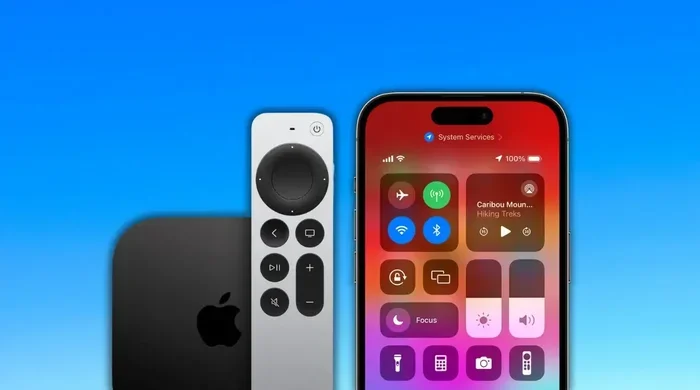
How Can I Use My iPhone As A TV Remote Simple Steps
You can easily turn your iPhone into a TV remote using smart TV remote apps, HDMI connections, or screen mirroring. Whether you have a smart TV or a traditional set, there are multiple ways to control your TV with your iPhone. This guide covers simple setups, free apps, and pro tips to get you watching faster.
Have you ever misplaced your TV remote right when you want to watch something? It happens to all of us. The good news is that your iPhone can step in as a full replacement. You do not need any fancy equipment or technical know-how. With just a few taps, you can turn your phone into a powerful iPhone TV remote. This guide walks you through every method in simple, easy-to-follow steps.
People love the convenience of controlling their TV from their phone. Whether you are lounging on the couch or across the room, your iPhone as a TV remote works beautifully. You can change channels, adjust volume, search for shows, and even power your TV on or off. Let us dive into the different ways you can make this work.
Key Takeaways
- Use a Smart TV Remote App: Free apps like AnyMote and Peel let you control your TV right from your iPhone.
- Connect via HDMI: You can plug your iPhone directly into your TV using the right cable and adapter.
- Mirror Your Screen Wirelessly: Screen mirroring lets you cast your iPhone display to your TV without any cables.
- No IR Blaster? No Problem: Most modern smart TVs connect to your iPhone through Wi-Fi or apps, not infrared.
- Set Up Takes Minutes: You do not need technical skills to get your iPhone working as a TV remote.
📑 Table of Contents
- Why Use Your iPhone as a TV Remote?
- Method 1: Use a Smart TV Remote App
- Method 2: Connect Your iPhone to Your TV with HDMI
- Method 3: Mirror Your iPhone Screen to Your TV
- Method 4: Use Your iPhone with Streaming Devices
- Troubleshooting Common Issues
- Pro Tips for Using Your iPhone as a TV Remote
- Can You Use Any iPhone Model as a TV Remote?
- Final Thoughts
Why Use Your iPhone as a TV Remote?
Using your iPhone as a wireless TV remote comes with several big advantages. First, you always have your phone on you. You never need to hunt for a lost remote again. Second, smartphone remotes offer more features than the basic original remote. You can use voice search, keyboards for typing, and even trackpad-style controls.
Third, most remote apps are completely free. You do not need to spend money on a replacement remote. Fourth, controlling your TV through your phone feels modern and sleek. It is one of those small upgrades that makes your daily routine smoother. And finally, many universal remote apps work with multiple devices. You can control your TV, soundbar, streaming stick, and cable box all from one place.
Method 1: Use a Smart TV Remote App
The easiest way to turn your iPhone into a TV remote is by downloading a remote app. These apps connect to your TV through Wi-Fi or Bluetooth. They send signals just like a normal remote would. Here is how to get started.
Step-by-Step Guide to Setting Up a Remote App
- Open the App Store on your iPhone and search for a TV remote app.
- Download a free app like AnyMote, Peel Smart Remote, or the built-in Apple TV Remote app.
- Open the app and follow the on-screen setup instructions.
- Select your TV brand from the list of supported devices.
- Connect your iPhone to the same Wi-Fi network as your TV.
- Test the controls by trying volume up, volume down, and power.
Most apps work instantly with smart TVs from brands like Samsung, LG, Sony, and TCL. If your TV is on the supported list, setup takes less than two minutes. You will see a virtual remote on your screen with all the same buttons as your physical remote.
Best Free Remote Apps for iPhone
Not all remote apps are created equal. Here are some of the best free options you can try right now.
- AnyMote: Works with hundreds of TV brands and streaming devices. It also supports keyboard input for easy searching.
- Peel Smart Remote: Great for cable TV users. It shows program guides and lets you set recordings.
- Apple TV Remote: Built right into your iPhone. Works perfectly if you own an Apple TV or a compatible smart TV.
- Sure Universal Remote: Simple interface with a clean design. Good for beginners who want something straightforward.
Each app has its strengths. AnyMote is the most versatile for different TV brands. Peel shines if you have cable TV. Apple TV Remote is the go-to if you are in the Apple ecosystem. Pick the one that fits your setup best.
Method 2: Connect Your iPhone to Your TV with HDMI
Another great way to use your iPhone with your TV is through a direct HDMI connection. This method is perfect if you want to display your iPhone screen on a larger display. It also gives you a reliable way to control content on your TV.
You will need a Lightning to HDMI adapter or a USB-C to HDMI adapter depending on your iPhone model. Apple makes these adapters, and they work with most TVs that have an HDMI input. Plug one end into your iPhone, the other into your TV, and switch your TV to the correct HDMI input.
Once connected, your iPhone screen appears on your TV. You can now play videos, browse photos, or use apps on the big screen. While this method does not turn your iPhone into a traditional remote, it gives you full control over what displays on your TV.
If you want to learn more about connecting your iPhone to your TV, check out our guide on Can I Connect My iPhone To My TV With HDMI. It covers every adapter option and troubleshooting tip you might need.
What You Need for an HDMI Connection
- Lightning to HDMI Adapter (for older iPhone models)
- USB-C to HDMI Adapter (for iPhone 15 and newer)
- A standard HDMI cable
- A TV with an available HDMI port
The whole setup costs under fifteen dollars in most cases. It is one of the most affordable ways to get your iPhone content on your TV screen. This method also works great for presentations, sharing photos, or watching videos with a group.
Method 3: Mirror Your iPhone Screen to Your TV
Screen mirroring is one of the most popular ways to use your iPhone with a TV. It sends your iPhone display wirelessly to your smart TV. You can control everything right from your phone. This is different from using a remote app because you see your entire screen on the TV.
How to Mirror Your iPhone to a Smart TV
Mirroring works through AirPlay if you have an Apple TV or a compatible smart TV. Here is how to do it.
- Make sure your iPhone and TV are on the same Wi-Fi network.
- Open the Control Center by swiping down from the top-right corner of your screen.
- Tap the Screen Mirroring icon. It looks like two overlapping rectangles.
- Select your TV from the list.
- Your iPhone screen now appears on your TV.
That is it. You can now open any app, play any video, or browse any content on your TV. Your iPhone acts as both the display source and the remote control. You use your phone’s touchscreen to navigate everything.
If you want to mirror without Wi-Fi, you can also use peer-to-peer AirPlay or check out our article on Can I Mirror My Phone To My Smart TV Without Wifi for step-by-step instructions.
Mirroring vs. Remote Apps: Which Is Better?
Both methods have their place. Remote apps are lightweight and focused on TV controls. They use very little battery and work fast. Screen mirroring gives you a full-screen experience but uses more battery and bandwidth. Here is a quick comparison.
- Remote Apps: Best for basic TV controls like volume and channel changes. Low battery usage. Fast and simple.
- Screen Mirroring: Best for watching videos, browsing photos, and sharing content. Higher battery usage. Full-screen experience.
Most people use both methods depending on the situation. Use a remote app for quick TV adjustments. Use screen mirroring when you want to watch something on the big screen.
Method 4: Use Your iPhone with Streaming Devices
If you use a streaming device like a Roku, Fire Stick, or Chromecast, your iPhone can control it too. Many of these devices have companion apps that turn your phone into a remote. The experience is smooth and often better than the original remote that comes in the box.
Streaming Device Remote Apps
- Roku App: Lets you control your Roku player or Roku TV. It also has a voice search feature and a headphone jack for private listening.
- Amazon Fire TV App: Works with Fire TV Stick and Fire TV Edition smart TVs. You can navigate menus, search, and launch apps.
- Google Home App: Controls Chromecast devices. You can cast content from your iPhone directly to your TV.
These apps are free to download and easy to set up. They connect to your streaming device through your home Wi-Fi network. Once paired, your iPhone becomes a powerful streaming device remote with more features than the original handheld remote.
For users who also want to use a projector instead of a TV, you can check out Can I Use A Fire Stick On A Projector to see how streaming devices work with projectors too.
Troubleshooting Common Issues
Sometimes things do not work the first time. That is completely normal. Here are the most common problems and how to fix them.
Your iPhone Cannot Find Your TV
This usually happens when your phone and TV are on different Wi-Fi networks. Check both devices and make sure they are connected to the same network. Restarting your router can also help. On your iPhone, try turning Wi-Fi off and back on.
The Remote App Is Lagging or Slow
Lag often comes from a weak Wi-Fi signal. Move closer to your router or restart your router. You can also try closing other apps that use bandwidth. Streaming video on another device can slow down your remote app. Close those apps and the lag should stop.
HDMI Connection Shows No Signal
If your TV shows no signal after plugging in your iPhone, try these steps. First, check that the adapter is firmly connected. Second, make sure your TV is set to the correct HDMI input. Third, try a different HDMI cable. Fourth, restart your iPhone and try again. Most signal issues are solved by one of these simple fixes.
The Remote App Does Not Support My TV Brand
Some older or less common TV brands are not supported by popular remote apps. In this case, try a different app. AnyMote supports the widest range of brands. You can also use screen mirroring as a backup option. It works with almost any smart TV regardless of brand.
Pro Tips for Using Your iPhone as a TV Remote
Here are some expert tips that will make your experience even better. These small tricks save time and make everything smoother.
- Keep your iPhone charged: Using remote apps drains your battery faster than normal use. Keep your phone plugged in during long viewing sessions.
- Use a Bluetooth remote app: Bluetooth connections are more stable than Wi-Fi for remote control. Check if your TV supports Bluetooth remote input.
- Create a home screen shortcut: Some remote apps let you add a widget to your iPhone home screen. This gives you instant access without opening the app first.
- Use your iPhone keyboard: Typing search queries on your phone keyboard is much faster than using the TV remote’s on-screen keyboard.
- Set up for multiple rooms: Some apps let you save profiles for different TVs. You can switch between your living room TV and bedroom TV with one app.
These tips make a real difference in your daily use. Once you set up your iPhone as a TV remote, you will wonder how you ever lived without it.
Can You Use Any iPhone Model as a TV Remote?
Yes, you can use almost any iPhone model as a TV remote. Remote apps work on older iPhones running recent iOS versions. Screen mirroring through AirPlay requires an iPhone 4s or newer. HDMI connections work with any iPhone that has the right adapter. Even older iPhones can serve as a reliable TV remote control with the right app.
The only limitation is that very old iPhones may not support the latest app versions. Check the app requirements in the App Store before downloading. In most cases, any iPhone from the last five years works perfectly as a TV remote.
Final Thoughts
Using your iPhone as a TV remote is simple, free, and incredibly convenient. You have several methods to choose from. You can use a remote app for quick controls, connect via HDMI for screen sharing, or mirror your display wirelessly. Each method has its own strengths, and you can even use them together.
Start by downloading a free remote app. It takes less than five minutes and works immediately. Then explore screen mirroring for a bigger viewing experience. Before long, you will not even remember where your old TV remote went. Your iPhone has everything you need to control your entertainment setup with ease.
Try these methods today and enjoy the convenience of having your TV remote always in your pocket. Once you start using your iPhone as a TV remote, you will never go back to searching for that tiny plastic remote again.
Frequently Asked Questions
Can I use my iPhone as a TV remote without Wi-Fi?
Most remote apps need Wi-Fi to communicate with your smart TV. However, some apps use Bluetooth, which works without Wi-Fi. You can also use an HDMI cable connection, which does not need any wireless connection at all. Check your specific app to see what connection method it uses.
Do I need a special adapter to connect my iPhone to my TV?
Yes, if you want to use an HDMI connection, you need either a Lightning to HDMI adapter or a USB-C to HDMI adapter. These adapters cost between ten and twenty dollars. You also need a standard HDMI cable. For wireless options, no adapter is needed as long as both devices are on the same Wi-Fi network.
Will using my iPhone as a TV remote drain my battery quickly?
Remote apps use very little battery because they only send small signals. Screen mirroring uses more battery because it sends your entire display to the TV. To save battery, use a remote app for quick controls and turn off mirroring when you are not watching. Keeping your phone plugged in during long sessions also helps.
Can I control multiple TVs with one iPhone remote app?
Yes, many universal remote apps support multiple devices. You can add your living room TV, bedroom TV, and soundbar to the same app. Each device gets its own profile within the app. You simply switch between them using a dropdown menu or tab selector.
Are iPhone TV remote apps safe to use?
Yes, the popular remote apps available in the App Store are safe. They are reviewed by Apple before being listed. Always download apps from the official App Store and check the ratings and reviews before installing. Avoid downloading unknown apps from unfamiliar websites.
What should I do if my remote app is not working?
First, make sure your iPhone and TV are on the same Wi-Fi network. Restart both devices and try again. Update the app to the latest version. If the problem continues, try a different remote app. Most issues are solved by checking your Wi-Fi connection or restarting your devices.