Does Screen Flickering Cause Damage to Your Eyes and Health
Screen flickering can indeed cause eye strain, headaches, and fatigue over time. Prolonged exposure to a flickering monitor may lead to digital eye strain and disrupted sleep patterns. Understanding the root causes and taking simple protective steps can significantly reduce the risk of long-term eye health problems.
You sit in front of your screen for hours every day. Maybe it is a laptop, a desktop monitor, or a TV. You might not even notice it at first. But slowly, your eyes start to feel dry. Your head begins to throb. And you wonder, does this screen flickering actually cause damage?
The short answer is yes. Screen flickering can harm your eyes and your overall health if you ignore it long enough. Many people underestimate how much a flickering display affects their body. The good news is that understanding the problem is the first step toward fixing it. In this article, we will break down everything you need to know about screen flickering and its effects on your eye health.
We will cover what causes it, how it damages your eyes, what other health problems it creates, and most importantly, how you can stop it. Whether you are a student, a remote worker, or just someone who loves binge-watching shows, this guide is for you. Let us dive in.
Key Takeaways
- Screen flickering can strain your eyes: Continuous exposure to a flickering display causes visual fatigue and discomfort.
- Headaches and migraines are common side effects: Flicker frequency often triggers neurological responses like headaches.
- Blue light from screens adds to the problem: Combined flicker and blue light exposure worsens eye damage risk.
- Simple fixes can reduce flickering: Adjusting refresh rate, brightness, and distance helps protect your eyes.
- Long-term exposure may cause lasting harm: Ignoring chronic flicker can lead to persistent eye and health issues.
- Children and sensitive individuals are more vulnerable: Kids and those with existing eye conditions face higher risks.
- Professional help matters when symptoms persist: An eye doctor can diagnose and treat flicker-related damage early.
📑 Table of Contents
What Is Screen Flickering and Why Does It Happen?
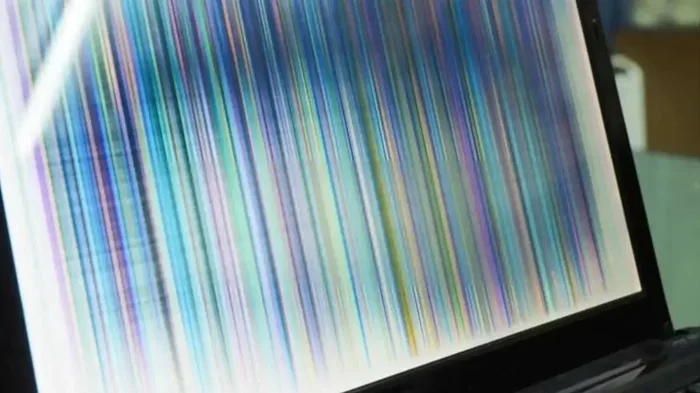
Before we talk about damage, let us understand what screen flickering actually is. A flickering screen is when your display rapidly changes brightness or color. Sometimes you can see it with your naked eye. Other times, it happens so fast that you do not notice it at all. But your eyes and brain still register it.
Every screen has a refresh rate, which is how many times per second the image on your screen updates. A low refresh rate, like 60Hz, can cause noticeable flicker. Higher refresh rates, like 120Hz or 144Hz, reduce this effect significantly. But even high-end screens can flicker under certain conditions.
PWM vs. DC Dimming
One of the biggest culprits behind LED screen flickering is something called PWM, or Pulse Width Modulation. This is a method screens use to control brightness. Instead of reducing the actual light output steadily, the screen turns on and off very quickly. At lower brightness levels, the off periods get longer. Your eyes may not see the blinking, but your brain does.
Some newer screens use DC dimming instead, which reduces brightness more smoothly. This method produces less flicker and is generally easier on your eyes. If you are shopping for a new monitor or laptop, look for displays that use DC dimming or have a high flicker-free certification.
Another common cause of flicker is a loose or damaged cable connection. A faulty HDMI or DisplayPort cable can introduce intermittent flickering that seems random but is actually a signal problem. Similarly, if your laptop screen is connected to an external monitor, the cable quality and connection type matter a lot. You can learn more about connecting devices to screens in our guide on Can I Connect My PC To Laptop Screen.
Can Screen Flickering Damage Your Eyes?
This is the question most people want answered. And the honest answer is that it depends on the severity and duration of the flicker. Short-term exposure to a mildly flickering screen usually does not cause permanent damage. But long-term, chronic exposure can lead to real problems.
Digital Eye Strain
The most common issue caused by screen flickering is digital eye strain, also known as computer vision syndrome. Symptoms include dry eyes, blurred vision, itching, and a burning sensation. When your eyes constantly adjust to a flickering display, the muscles around your eyes work harder than they should. Over time, this leads to fatigue and discomfort.
Studies have shown that people who spend more than six hours a day in front of a screen are at higher risk. The flicker effect is amplified in dark rooms because your pupils dilate, letting in more of the fluctuating light. This is why many people experience worse eye strain when using their devices at night.
Retinal Stress and Long-Term Damage
Some research suggests that prolonged exposure to high-frequency flicker may stress the retina. The retina is the light-sensitive tissue at the back of your eye. While the evidence is not yet conclusive, some ophthalmologists believe that chronic LED flicker could contribute to long-term retinal damage. This is especially true for people who already have existing eye conditions.
The flicker rate matters here. Screens that flicker at rates below 200Hz are considered more likely to cause strain. Many budget monitors and older laptops still use these lower rates. If your screen flickers visibly, that is a strong sign it may be operating at a problematic frequency.
If you use a laptop with a removable screen setup, you should also be aware that using external displays for extended periods can introduce different flicker patterns. Check out our article on Can I Remove Laptop Screen And Just Use External Monitor for tips on setting up a safer viewing experience.
How Flicker Affects Different Age Groups
Children are more susceptible to screen flickering damage than adults. Their eyes are still developing, and their lenses are clearer, allowing more light to reach the retina. This means the flicker effect is amplified for younger users. Parents should monitor screen time and ensure children use devices with flicker-free displays.
Older adults, especially those with cataracts or macular degeneration, also face higher risks. Their eyes are less capable of handling rapid light changes. For this group, even subtle flicker can cause significant discomfort and accelerate existing conditions.
Health Effects Beyond Your Eyes
Most people think screen flickering only affects the eyes. But the truth is, it can impact your entire body. The effects go far beyond blurry vision and dry eyes.
Headaches and Migraines
One of the most reported symptoms of prolonged screen flicker is headaches. The rapid brightness changes confuse the visual cortex in your brain, leading to tension headaches or full-blown migraines. People who are prone to migraines are especially sensitive to flicker rates. Even a flicker you cannot consciously see can trigger a migraine episode.
If you have ever felt a headache coming on after a long day of screen work, the flicker might be a contributing factor. Reducing screen brightness, taking breaks, and using flicker-free monitors can make a big difference.
Fatigue and Reduced Productivity
Your brain works hard to process the constantly changing images on a flickering screen. This extra mental effort leads to fatigue. You might feel tired even after a full night of sleep. Your concentration drops, your reaction time slows, and your productivity suffers. Many people do not connect their daily fatigue to their screen setup.
Studies have found that workers using flicker-free displays report higher energy levels and better focus throughout the day. This is a simple but powerful reason to address screen flicker in your workspace.
Sleep Disruption
Screen flicker can also mess with your sleep cycle. The flickering light confuses your brain’s internal clock, making it harder to fall asleep. This is especially true when you use screens late at night. The blue light emitted by most displays compounds the problem, suppressing melatonin production and delaying sleep onset.
If you use your phone or laptop before bed, consider enabling night mode and reducing brightness. The combination of blue light and flickering display is a double hit to your sleep quality. Want to learn more about how your phone settings affect your eyes? Check out our article on Does Iphone Save Wi Fi Passwords for tips on managing your phone’s display and connectivity settings.
Common Causes of Screen Flickering
Understanding what causes screen flickering helps you fix it faster. Here are the most common reasons your display might be flickering.
Low Refresh Rate
A low refresh rate is one of the most common causes. If your monitor runs at 60Hz, it refreshes the image 60 times per second. Some people are sensitive to this rate and perceive it as flicker. Upgrading to a 120Hz or 144Hz display can eliminate this issue for most users.
Faulty Cables and Connections
A damaged or low-quality cable can introduce flicker that has nothing to do with the screen itself. HDMI cables, especially cheaper ones, can fail to maintain a stable signal. If you notice flicker that comes and goes, try swapping the cable first before assuming the worst.
Graphics Card Issues
Your graphics card drives the image on your screen. If it is outdated, overheating, or malfunctioning, it can cause irregular flickering. Updating your graphics drivers or checking for hardware issues can often resolve this. Sometimes a simple driver update is all it takes.
Software and Settings
Believe it or not, your operating system settings can cause flicker too. Auto-brightness features, adaptive sync settings, and color calibration can all introduce flickering behavior. Check your display settings and disable any features you do not need. Some users have reported that turning off adaptive brightness completely eliminated their flicker issues.
For those who use projector setups, screen quality and material can also affect flicker perception. You can learn more about optimizing screen materials in our guide on Can I Use A Black Sheet For Projector Screen.
How to Fix and Prevent Screen Flickering
The good news is that you can take several steps to reduce or eliminate screen flickering. Here are practical solutions you can start using today.
1. Increase Your Refresh Rate
Go into your display settings and check your current refresh rate. If it is set to 60Hz, try increasing it to 120Hz or higher. Not all monitors support higher rates, but most modern displays do. A higher refresh rate means smoother visuals and less perceptible flicker.
2. Enable Flicker-Free Mode
Many modern monitors and laptops have a flicker-free mode in their settings. This mode adjusts the dimming method to reduce or eliminate PWM flicker. Look for it in your display or monitor settings panel. Some brands even market their screens specifically as “flicker-free,” so keep an eye out for that label when purchasing new displays.
3. Adjust Brightness and Contrast
Keep your screen brightness at a comfortable level. Too bright, and it strains your eyes. Too dim, and the flicker becomes more noticeable. Aim for a brightness level that matches your surrounding lighting. In a dark room, your screen should not be the brightest object in the room.
4. Take Regular Breaks
Follow the 20-20-20 rule. Every 20 minutes, look at something 20 feet away for 20 seconds. This simple habit gives your eye muscles a chance to relax and recover. It is one of the most effective ways to reduce digital eye strain caused by any screen, flickering or not.
5. Use Blue Light Filters
Blue light filters reduce the amount of high-energy light your eyes absorb. Most modern devices have a built-in night mode or blue light filter. Turn it on in the evening to reduce both blue light exposure and the overall strain on your eyes. Some glasses also come with blue light blocking coatings that can help during the day.
6. Check Your Cables and Connections
A loose or damaged cable is an easy fix that people often overlook. Try a different HDMI or DisplayPort cable and see if the flicker stops. If you are using a laptop with an external display, make sure the connection is secure and the cable is rated for the resolution and refresh rate you are using.
7. Keep Your Distance
Sit at a comfortable distance from your screen. The general recommendation is about an arm’s length away for desktop monitors. For laptops, try to keep the screen at least 16 inches from your eyes. The farther you are, the less intense the flicker effect becomes on your retinas.
When to See a Doctor
Most cases of eye discomfort from screen flicker are temporary and resolve with the right adjustments. But there are times when you should seek professional help. If you experience persistent headaches, vision changes, or eye pain that does not go away even after reducing your screen time, it is time to see an eye doctor.
An ophthalmologist can perform a comprehensive eye exam and check for any damage caused by prolonged screen use. They may recommend prescription glasses with anti-reflective coating or blue light filtering lenses. Early intervention can prevent minor issues from becoming serious problems.
Do not ignore symptoms like double vision, light sensitivity, or frequent eye twitching. These could be signs of a more serious condition that goes beyond simple eye strain. Your eye health is too important to gamble with.
Conclusion
Screen flickering is more than just a minor annoyance. It is a real concern for your eye health and your overall well-being. From digital eye strain to headaches, sleep disruption, and even potential long-term retinal stress, the effects of a flickering display add up over time. The good news is that you have the power to reduce these risks with the right knowledge and simple habits.
Increase your refresh rate, enable flicker-free mode, take regular breaks, and pay attention to your body’s signals. If symptoms persist, do not hesitate to consult a professional. Your eyes work hard for you every day. Give them the care and protection they deserve. Start making small changes today, and your future self will thank you.
Frequently Asked Questions
Can screen flickering cause permanent eye damage?
In most cases, short-term exposure to screen flicker does not cause permanent damage. However, long-term chronic exposure to high-frequency flicker may contribute to lasting eye strain and retinal stress. Taking preventive steps early can help protect your vision.
How do I know if my screen is flickering?
You can detect flicker by using your phone camera to point at the screen. If you see dark bands or bars moving across the display, your screen is flickering. This test works because phone cameras capture light frequencies that the human eye sometimes misses.
Are all LED screens prone to flickering?
Not all LED screens flicker, but many do. Screens that use PWM dimming at lower brightness levels are more likely to flicker. Look for monitors labeled “flicker-free” or those that use DC dimming for a safer viewing experience.
Does screen flickering affect children differently than adults?
Yes, children are more vulnerable to screen flicker effects. Their developing eyes allow more light to reach the retina, making them more sensitive to flickering displays. Parents should limit screen time and ensure children use flicker-free devices.
Can a bad cable cause screen flickering?
Yes, a damaged or low-quality cable can introduce flicker by disrupting the signal between your device and the display. Trying a different cable is one of the easiest and cheapest troubleshooting steps you can take.
What is the best refresh rate to avoid screen flicker?
A refresh rate of 120Hz or higher is generally recommended to minimize perceptible flicker. Higher rates provide smoother visuals and reduce eye strain, especially during extended screen use.
=== META DATA ===
SEO Title: Does Screen Flickering Cause Damage to Eyes and Health?
Meta Title: Does Screen Flickering Cause Damage to Eyes and Health?
URL Slug: does-screen-flickering-cause-damage
=== INTERNAL LINKS USED ===
– Can I Connect My PC To Laptop Screen
– Can I Remove Laptop Screen And Just Use External Monitor
– Can I Use A Black Sheet For Projector Screen
– Does Iphone Save Wi Fi Passwords