Does Samsung Phones Have Projector Features Built In
No, Samsung phones do not have a built-in projector. While Samsung Galaxy devices are packed with incredible display and multimedia features, none of the current models include an actual projector. However, you can still project content from your Samsung phone using external projectors, adapters, and wireless casting solutions.
Have you ever wondered if your Samsung phone could double as a projector? Maybe you want to watch a movie on a big wall during a camping trip or give a presentation without lugging around extra gear. The idea of a phone with a projector built right in sounds amazing. So let us dive into the question: does Samsung phones have projector features built in?
The short answer is no. Samsung phones do not have a projector built into the device. But that does not mean you are stuck with a small screen. There are plenty of ways to project content from your Samsung phone, and some of them are incredibly easy. In this article, we will cover everything you need to know about Samsung phone projector capabilities, why Samsung chose not to include this feature, and how you can still turn any wall into a big screen.
Whether you are a movie lover, a business professional, or just someone who loves tech gadgets, this guide has you covered. We will walk through the reasons Samsung phones do not include a projector, the best alternatives, and what the future might hold for phone projection technology. Let us get started.
Key Takeaways
- Samsung phones lack built-in projector hardware: No current Samsung Galaxy model includes a physical projector.
- You can still project content from your Samsung phone: Use HDMI adapters, wireless casting, or portable projectors.
- Samsung phones have powerful display features: AMOLED screens, DeX mode, and Screen Mirroring make your phone a great media source.
- Portable projectors pair well with Samsung devices: Many compact projectors connect easily to Samsung phones.
- Wireless projection is the easiest method: Use Screen Mirroring or Smart View to cast without cables.
- The future may bring phone projectors: Companies are exploring micro-projector technology for smartphones.
📑 Table of Contents
- The Short Answer: Does Samsung Have a Built-In Projector?
- Why Samsung Phones Don’t Include Projector Hardware
- How to Project Content From Your Samsung Phone
- Samsung Phone Features That Enhance Your Viewing Experience
- Best External Projectors That Pair Well With Samsung Phones
- Common Mistakes People Make When Projecting From Samsung Phones
- Quick Tips for the Best Projection Experience
- The Future of Phone Projection Technology
- Final Thoughts
The Short Answer: Does Samsung Have a Built-In Projector?
Let us be crystal clear. No Samsung phone, not a single one in the current lineup, has a projector built into the device. Not the Galaxy S series. Not the Galaxy Z Fold or Z Flip. Not the Galaxy A series or the Galaxy Note line.
You might be thinking, “But I saw a phone with a projector somewhere.” You might be remembering the Samsung Galaxy Beam, an older model from around 2012 that actually did include a tiny built-in pico projector. It was a cool gimmick, but the projection quality was very dim and short-lived. Samsung did not continue that feature in later models.
So if you are shopping for a Samsung phone with projector built in, you will not find one. But do not worry. There are many other ways to get that big-screen experience from your Samsung device. And honestly, some of those methods work even better than a built-in projector would.
Why Did Samsung Remove the Projector Idea?
The Galaxy Beam was ahead of its time, but the technology had limitations. The projector was very dim. It drained the battery fast. It added bulk to the phone. Over time, phone screens got brighter, sharper, and bigger. The need for a built-in projector faded. Samsung focused on improving the display, camera, and battery instead.
Why Samsung Phones Don’t Include Projector Hardware
You might wonder why Samsung does not bring back the projector idea. After all, who would not want to project a movie from their phone? There are some very good engineering and design reasons behind this decision.
Space and Design Constraints
Modern Samsung phones are already packed with amazing technology. There is the display, the camera system, the battery, the processor, and so many sensors. Adding a projector module would take up precious space inside the phone. It would make the device thicker and heavier. Most people prefer slim, lightweight phones. A built-in projector would go against that design philosophy.
Battery Life Concerns
Projectors use a lot of power. Running a projector from your phone would drain the battery extremely fast. Samsung phones already have large batteries, but adding a projector would cut your screen time significantly. Samsung wants you to get all-day battery life, not three hours of use with a projector running.
Image Quality Limitations
A tiny built-in projector would produce a very dim and low-resolution image. You would struggle to see the picture in any room with ambient light. The quality would not match even a budget portable projector. Samsung knows that a poor experience would frustrate users. It is better to leave the projector out entirely.
Cost and Complexity
Adding a projector would increase the manufacturing cost of the phone. Samsung would need to pass that cost on to consumers. Most people would not pay extra for a projector feature they might use only once a month. It makes more business sense to focus on the features people use every day.
How to Project Content From Your Samsung Phone
Just because your Samsung phone does not have a built-in projector does not mean you cannot project anything. There are several simple and effective methods to get your phone content onto a big screen. Let us look at each one.
Method 1: Use an HDMI Adapter
The most reliable way to project from your Samsung phone is by using an HDMI adapter. You plug the adapter into your phone’s USB-C port and connect an HDMI cable to your projector or TV. This gives you a direct, high-quality connection with no lag.
Here is what you need:
- A USB-C to HDMI adapter (Samsung sells these, or you can grab one from any electronics store).
- An HDMI cable.
- A projector or smart TV with an HDMI input.
This method works great for presentations, watching videos, or sharing photos with a group. If you want to learn more about connecting your phone to a projector, check out our guide on how to connect your phone to a projector with HDMI.
Method 2: Use Wireless Screen Mirroring
Samsung phones have a built-in feature called Smart View (also called Screen Mirroring). This lets you wirelessly cast your phone screen to a compatible smart TV or projector. No cables needed. It is super convenient.
Here is how to use it:
- Make sure your Samsung phone and your TV or projector are on the same Wi-Fi network.
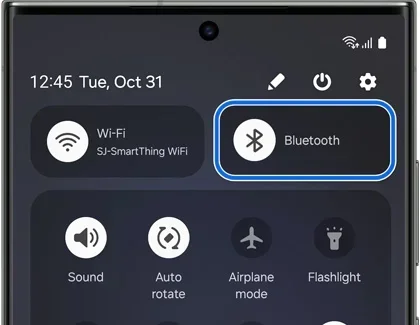
- Swipe down from the top of your screen to open the Quick Settings panel.
- Tap the Smart View icon.
- Select your TV or projector from the list.
- Your phone screen will now appear on the big screen.
This method is perfect for casual viewing. The image quality depends on your Wi-Fi connection. If you have a strong network, the experience is smooth and responsive.
Method 3: Use a Portable Projector
Portable projectors have gotten much smaller and cheaper in recent years. You can buy a compact projector for under $100 that fits in your pocket. These projectors connect to your Samsung phone through a cable or wirelessly.
Some popular options include:
- Anker Nebula Capsule: A tiny projector with built-in Android and Wi-Fi.
- Wanbo T6 Max: An affordable portable projector with good brightness.
- XGIMI MoGo 2: A premium pocket projector with sharp image quality.
These projectors pair perfectly with Samsung phones. You can use them at home, outdoors, or in the office. They are the closest thing to having a projector built into your phone.
Method 4: Use a Streaming Device
If you have a projector with an HDMI input, you can also use a streaming stick like a Fire Stick or Chromecast. Plug the streaming device into your projector, then cast content from your Samsung phone to the device. This gives you access to Netflix, YouTube, and all your favorite apps on the big screen.
If you are curious about using a Fire Stick with a projector, we have a detailed guide on using a Fire Stick on a projector.
Samsung Phone Features That Enhance Your Viewing Experience
Even without a built-in projector, Samsung phones have some amazing features that make them great for viewing and sharing content. Let us look at what makes Samsung phones so good for media.
AMOLED Display Technology
Samsung phones use AMOLED screens that deliver vibrant colors, deep blacks, and excellent contrast. When you project content from a Samsung phone, the source quality is already top-notch. The colors and brightness on the screen translate well to a projected image.
Samsung DeX Mode
Samsung DeX is a powerful feature that turns your phone into a desktop-like experience. You can connect your Samsung phone to a monitor or projector and get a full Windows-like interface. This is incredibly useful for work presentations and multitasking.
To use DeX, you need a compatible docking station or a USB-C to HDMI adapter. Once connected, your phone transforms into a productivity powerhouse. You can run multiple apps, drag and drop files, and even use a mouse and keyboard.
Screen Mirroring and Smart View
We already touched on this, but Smart View deserves more attention. It is Samsung’s built-in wireless casting tool. It works with most smart TVs and some projectors. The feature supports audio and video streaming, so you can watch movies and listen to music on a big screen without any extra apps.
Samsung Phone Multimedia Capabilities
Samsung phones are built for multimedia. The speakers are loud and clear. The video playback is smooth. The screen brightness is high enough to be visible even in bright rooms. All of these features make your Samsung phone an excellent source for projecting content.
You can also use your Samsung phone to send texts over Wi-Fi while projecting, so you stay connected even during a big-screen session.
Best External Projectors That Pair Well With Samsung Phones
If you want to buy a projector to use with your Samsung phone, you have plenty of options. Here are some of the best choices for different needs and budgets.
| Projector | Type | Brightness | Price Range | Best For |
|---|---|---|---|---|
| Anker Nebula Capsule 3 | Portable | 200 ANSI lumens | $300-$400 | Travel and outdoor use |
| XGIMI MoGo 2 Pro | Portable | 300 ANSI lumens | $500-$600 | Home entertainment |
| Wanbo T6 Max | Portable | 550 ANSI lumens | $150-$200 | Budget-friendly projection |
| Epson EpiqVision Mini EF11 | Portable | 1000 lumens | $700-$800 | Bright room projection |
| BenQ TH585P | Home Theater | 3500 lumens | $600-$700 | Dedicated home theater |
For most Samsung phone users, a portable projector is the best choice. They are compact, easy to carry, and connect to your phone without any hassle. If you want to make your setup even more convenient, you can make your projector wireless with a simple adapter or streaming stick.
If you plan to use a projector as your main TV replacement, we also have tips on using a projector as a TV that you might find helpful.
Common Mistakes People Make When Projecting From Samsung Phones
Before you start projecting, let us quickly cover some common mistakes. Avoiding these will save you frustration and get you better results.
- Using a low-quality HDMI adapter: Cheap adapters can cause signal loss, flickering, or no signal at all. Buy a reputable brand.
- Ignoring Wi-Fi bandwidth: Wireless casting needs a strong, stable connection. If your Wi-Fi is slow, the video will lag or buffer.
- Projecting in a bright room: Even the best portable projectors struggle in bright light. Close the curtains or project in a dark room for the best image.
- Forgetting to charge your phone: Projecting drains your battery quickly. Keep your phone plugged in or use a wireless charger while projecting.
- Using the wrong cable: Not all USB-C cables support video output. Make sure your cable or adapter supports DisplayPort Alt Mode.
Quick Tips for the Best Projection Experience
Here are some quick tips to get the most out of projecting from your Samsung phone:
- Turn off battery saver mode: It can limit performance and cause lag during projection.
- Close background apps: This frees up memory and processing power for smoother playback.
- Use a dark room: Even a small amount of ambient light washes out the projected image.
- Adjust the projector focus: A blurry image ruins the experience. Take a moment to focus before you start watching.
- Use a Bluetooth speaker: Projectors often have weak built-in speakers. Connect a Bluetooth speaker or JBL speaker for better audio.
- Keep your phone cool: Projecting generates heat. Avoid using a thick phone case that traps heat.
The Future of Phone Projection Technology
Technology is always moving forward. Could Samsung phones have a projector in the future? It is possible. Several companies are working on micro-projector technology that could fit inside a smartphone without adding much bulk.
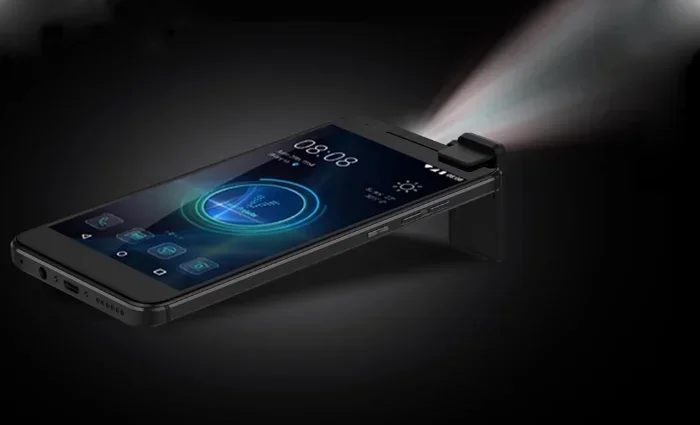
Some startups have already created prototype phones with built-in projectors. The technology is getting better every year. Laser-based projectors are smaller and more efficient than older LED projectors. Battery technology is also improving, which could solve the power drain problem.
However, there is no guarantee that Samsung will bring this feature back. The company has always focused on display quality, and that strategy has served them well. For now, external projectors remain the best way to get a big-screen experience from your Samsung phone.
If you are curious about other phone features, you might enjoy reading about whether your phone has an FM transmitter or which wireless chargers work with all phones.
Final Thoughts
So, does Samsung phones have projector features built in? No, they do not. But that does not limit what you can do with your Samsung phone. You have multiple ways to project your content, from simple wireless casting to HDMI adapters and portable projectors.
Samsung phones are incredibly capable devices. The AMOLED display, DeX mode, and Smart View feature make them excellent sources for projection. Pair your Samsung phone with a good external projector, and you have a portable big-screen setup that beats any built-in projector could offer.
The next time someone asks you if Samsung phones have a projector, you can give them the full answer. And more importantly, you now know exactly how to project from your Samsung phone no matter where you are. So grab your adapter, find a wall, and enjoy the show.
Frequently Asked Questions
Can I project from my Samsung phone without any extra equipment?
Yes, if you have a smart TV that supports Samsung’s Smart View or Screen Mirroring feature, you can wirelessly cast your phone screen to the TV without any cables or adapters. Just make sure both devices are on the same Wi-Fi network and use the Smart View option in your phone’s Quick Settings.
Which Samsung phones support DeX mode for projection?
Most Samsung Galaxy phones from the S8 era onward support DeX mode. This includes the Galaxy S series, Galaxy Note series, Galaxy Z Fold series, and many Galaxy A series models. You will need a USB-C to HDMI adapter or a DeX docking station to connect to a projector or monitor.
Is it better to use a wired or wireless connection for projecting from a Samsung phone?
A wired HDMI connection gives you the most reliable and lag-free experience. It is best for presentations and video playback. Wireless casting through Smart View is more convenient but can experience slight delays or quality drops depending on your Wi-Fi signal strength.
Can I use any portable projector with my Samsung phone?
Most portable projectors work with Samsung phones. Look for projectors that have HDMI input or support wireless casting. Some portable projectors also have built-in Wi-Fi and apps that let you stream directly from your phone without any cables.
Will projecting from my Samsung phone damage the battery?
Projecting does drain your battery faster than normal use. The phone’s processor and display are working hard to send video to an external screen. It is a good idea to keep your phone plugged in while projecting, or at least have a fully charged battery before you start.
Are there any Samsung phones coming in the future with a built-in projector?
There is no official announcement from Samsung about any future phone with a built-in projector. While micro-projector technology is advancing, Samsung has not indicated it plans to add this feature to any upcoming Galaxy phone. For now, external projectors remain the best option.