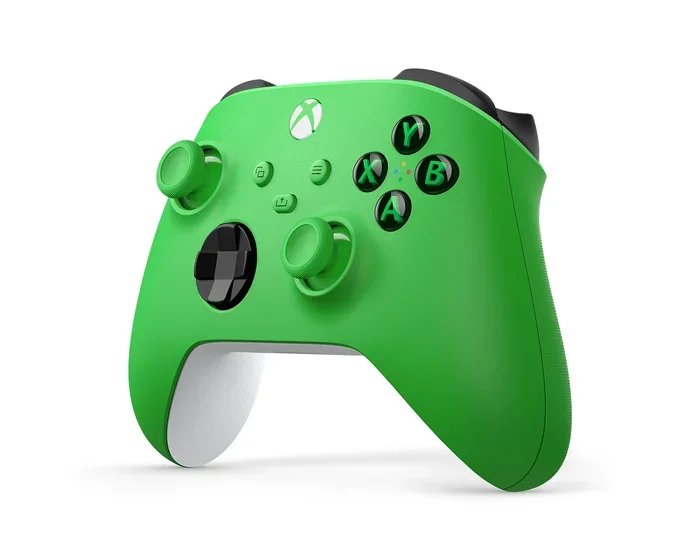
Does My Xbox One Controller Have Bluetooth Built In
The Xbox One controller does not have Bluetooth built in on all models. Only the Xbox One S controller and newer versions include Bluetooth support, while older models rely on a proprietary wireless protocol. This guide will help you identify which controller you own, how to connect it via Bluetooth, and what limitations you should know about.
Have you ever picked up your Xbox One controller and wondered if it supports Bluetooth? Maybe you want to connect it to your phone for mobile gaming or pair it with your laptop without fumbling with cables. The answer is not as simple as a yes or no, and that is exactly why this guide exists.
Does my Xbox One controller have Bluetooth built in? The short answer depends on which model you own. Some Xbox One controllers come with Bluetooth support, while others do not. This is a common question among gamers who want the freedom to connect wirelessly without needing extra accessories. In this article, we will walk you through everything you need to know.
You will learn how to identify your controller model, how to pair it with different devices, and what trade-offs come with using Bluetooth instead of the proprietary Xbox wireless connection. Whether you are a casual gamer or a dedicated enthusiast, this guide has you covered. Let us dive right in.
Key Takeaways
- Not all Xbox One controllers have Bluetooth: Only the Xbox One S controller and later models support Bluetooth connectivity.
- Check the sync button: If your controller has a small circular sync button on the top edge, it likely has Bluetooth.
- Older controllers need a USB adapter: The original Xbox One controller uses a proprietary dongle and cannot connect via Bluetooth.
- Pairing is straightforward: You can pair a Bluetooth-enabled Xbox One controller with PCs, phones, and tablets in just a few steps.
- Bluetooth has limitations: Range, latency, and feature support differ from the proprietary Xbox Wireless protocol.
- An Xbox Wireless Adapter is the best alternative: For full feature support on PC, use the official adapter instead of Bluetooth.
📑 Table of Contents
- Understanding Xbox One Controller Bluetooth
- How to Check If Your Controller Has Bluetooth
- How to Pair Your Xbox One Controller via Bluetooth
- Bluetooth vs Xbox Wireless: What Is the Difference
- Limitations and Things to Know
- Alternatives to Bluetooth for Xbox One Controller
- Can You Use Bluetooth for Xbox Gaming
- Final Thoughts
Understanding Xbox One Controller Bluetooth
Microsoft has released several versions of the Xbox One controller over the years. Not every version includes Bluetooth, and this is where most people get confused. The Xbox One S controller was the first to introduce Bluetooth support, and all controllers released after that kept this feature.
If you are still using the original Xbox One controller that came with the console, it does not have Bluetooth. Instead, it uses a proprietary wireless signal that requires the Xbox Wireless Adapter for PC connectivity. This is an important distinction because it affects what devices you can pair your controller with.
Which Xbox One Controllers Support Bluetooth
Here is a simple breakdown of which controllers include Bluetooth:
- Xbox One S Controller: Includes Bluetooth 4.0. This was the first Xbox controller to support wireless connections beyond the proprietary protocol.
- Xbox One X Controller: Also includes Bluetooth, with the same 4.0 standard.
- Xbox One Elite Controller (Series 1 and 2): Both versions support Bluetooth connectivity.
- Original Xbox One Controller (2013-2015): Does not have Bluetooth. Uses only the proprietary Xbox Wireless protocol.
If you are unsure which controller you have, do not worry. The next section will show you exactly how to check.
How to Check If Your Controller Has Bluetooth
Checking whether your controller supports Bluetooth is quick and easy. You do not need any special tools or software. Just look at your controller and follow these simple steps.
First, flip your controller over and look at the top edge near the USB charging port. You will see a small button. If this button is round and looks like a small circle, your controller likely has Bluetooth. The original Xbox One controller has a different sync button that is more of a narrow rectangular shape.
Another way to check is by looking at the model number on the back of the controller near the Xbox button. The model number starts with “1708” for the original controller and “1710” or newer for Bluetooth-enabled models. If you see “1710” or higher, you have a Bluetooth-capable controller.
You can also try the simplest test of all. Go to your Windows PC, open the Bluetooth settings, and put your controller in pairing mode. If it shows up as an available device, congratulations, your controller has Bluetooth. If it does not appear, your controller likely uses only the proprietary wireless protocol.
How to Pair Your Xbox One Controller via Bluetooth
Once you confirm your controller has Bluetooth, pairing it with your device is straightforward. The process is similar across most devices, but there are slight differences depending on what you are connecting to.
Start by putting your controller in pairing mode. Press and hold the Xbox button to turn it on, then press the small sync button on the top edge. The Xbox button will start flashing rapidly. This tells the controller it is ready to be discovered.
Pairing with a Windows PC
On your PC, go to Settings, then Devices, and click on Bluetooth and other devices. Turn on Bluetooth if it is not already on. Click “Add Bluetooth or other device” and select Bluetooth. Your Xbox controller should appear in the list. Click on it to complete the pairing.
Once connected, you can test your controller in any game or by going to Game Controllers in the Control Panel. The connection should feel responsive and stable for most casual and competitive gaming sessions.
Pairing with a Phone or Tablet
For mobile devices, open your Bluetooth settings and make sure Bluetooth is turned on. Put your controller in pairing mode as described above. Your controller should appear in the list of available devices. Tap on it to connect.
Some games and apps work great with a Bluetooth Xbox controller. You can use it for cloud gaming, emulators, and even mobile gaming that supports controller input. If you also want to use Bluetooth headphones, check out can I pair Bluetooth headphones to Xbox One for more details on wireless audio setups.
Pairing with a Mac or Chromebook
The process on Mac and Chromebook is similar to Windows. Go to Bluetooth settings, put your controller in pairing mode, and select it from the list of available devices. Mac support for Xbox controllers has improved significantly in recent macOS updates.
Bluetooth vs Xbox Wireless: What Is the Difference
This is an important question that many gamers overlook. The Xbox One controller can connect in two different ways, and each has its own strengths and weaknesses. Understanding the difference helps you make the best choice for your setup.
The Xbox Wireless protocol is a proprietary connection that Microsoft developed specifically for Xbox accessories. It offers the lowest latency and the most stable connection. This is the preferred method for console gaming and for serious PC gamers who want the best performance.
Bluetooth connectivity is a universal standard that works with almost any device. The trade-off is slightly higher latency and a shorter effective range. For most casual gaming and everyday use, Bluetooth works perfectly fine. But if you are competing in fast-paced games, the proprietary connection will give you an edge.
Here is a quick comparison of the two connection types:
- Latency: Xbox Wireless has lower latency than Bluetooth. This matters in competitive gaming where split-second reactions count.
- Range: Bluetooth typically works within 30 feet. Xbox Wireless can reach up to 40 feet or more in ideal conditions.
- Device Compatibility: Bluetooth works with almost any modern device. Xbox Wireless requires the Xbox Wireless Adapter on PC.
- Battery Life: Bluetooth can drain the battery slightly faster than the proprietary Xbox Wireless connection.
If you want the best of both worlds, you can use Bluetooth for casual connections and the Xbox Wireless Adapter for serious gaming sessions. For more information on using Bluetooth for gaming, you might also want to read about can I use Bluetooth headphones for gaming to understand how wireless accessories affect your gaming experience.
Limitations and Things to Know
Bluetooth on the Xbox One controller is convenient, but it does come with some limitations you should be aware of before relying on it as your primary connection method.
First, the Bluetooth range is shorter than the Xbox Wireless protocol. If you are sitting more than about 30 feet from your device, you might experience connection drops or lag. This is not a huge issue for most people, but it is worth knowing if you like to play from across the room.
Second, Bluetooth on the Xbox One controller does not support all features. For example, the chat headset adapter that plugs into the 3.5mm jack works differently over Bluetooth compared to the proprietary wireless connection. Some advanced features of the Elite Controller may also behave differently when connected via Bluetooth.
Third, Bluetooth connections can sometimes interfere with other wireless devices in your home. Wi-Fi routers, microwaves, and other Bluetooth devices can all cause minor disruptions. If you notice connection issues, try moving closer to your device or reducing the number of wireless devices in the area.
Also, keep in mind that not all mobile games support controller input. Even with a Bluetooth connection, the game itself needs to accept controller commands. Always check the game’s settings or description to confirm controller support before you buy.
If you are looking for ways to extend your controller’s wireless capabilities, you might want to explore using a wireless controller with different devices. Check out can I use a wireless controller on my phone for tips on using controllers with mobile devices.
Alternatives to Bluetooth for Xbox One Controller
If your controller does not have Bluetooth, or if you want a better connection, there are alternatives worth considering. These options give you more flexibility and better performance in many scenarios.
Using the Xbox Wireless Adapter
The Xbox Wireless Adapter for Windows is the official Microsoft accessory that lets you connect your Xbox controller to a PC without Bluetooth. It provides the same proprietary wireless connection you get when using the controller with an Xbox console. The adapter is plug-and-play and works with both Xbox One and Xbox Series X controllers.
The adapter offers lower latency, better range, and more stable connections than Bluetooth. It is the best option for PC gamers who want the full Xbox controller experience on their computer. You can connect up to eight controllers to one adapter, which is great for local multiplayer sessions.
Using a USB Cable
The simplest alternative is to just plug your controller in with a USB cable. Any micro-USB or USB-C cable (depending on your controller model) will work. This gives you a wired connection with zero latency and no battery concerns. It is perfect for stationary setups where you do not need to move around.
Some people find that a wired connection is the most reliable option, especially for competitive gaming. You never have to worry about interference or battery dying mid-game. It is also the easiest way to use your controller if it does not have Bluetooth support.
Third-Party Bluetooth Adapters
There are third-party Bluetooth adapters available that can add Bluetooth functionality to older Xbox One controllers. These adapters plug into the controller’s micro-USB port and provide a Bluetooth connection. However, these adapters can introduce additional latency and may not work with all features of the controller.
If you go this route, make sure to buy from a reputable brand and read reviews carefully. Some adapters work better than others, and compatibility can vary between controller models and devices.
Can You Use Bluetooth for Xbox Gaming
The short answer is yes, but with some caveats. Bluetooth works well for casual gaming, single-player experiences, and games where a few milliseconds of latency do not matter. For competitive multiplayer games, the proprietary Xbox Wireless connection is still the better choice.
Many popular games support Xbox controllers over Bluetooth on PC and mobile. Games like Rocket League, Minecraft, and various indie titles work great with a Bluetooth-connected controller. The experience is smooth and responsive for most gameplay scenarios.
If you are also interested in using Bluetooth for audio while gaming, consider checking out can I use Bluetooth headphones with Switch for insights on wireless audio setups across different gaming platforms.
Final Thoughts
So, does your Xbox One controller have Bluetooth? Now you know the answer. If you have an Xbox One S controller, Xbox One X controller, or Elite Controller, you are in luck. Your controller supports Bluetooth and you can connect it to a wide range of devices without any extra accessories.
If you have the original Xbox One controller, you will need the Xbox Wireless Adapter or a USB cable to connect to devices. There is no way to add Bluetooth to these older models without third-party adapters, and those come with their own trade-offs.
The world of wireless gaming has come a long way, and Bluetooth support on the Xbox One controller makes it easier than ever to game on the go. Whether you are playing on your phone, laptop, or PC, a Bluetooth connection gives you the freedom to game without being tethered to your device.
Take some time to check your controller model, try pairing it with your devices, and enjoy the convenience of wireless gaming. With the right connection method, your Xbox One controller can work with almost anything. Happy gaming.
Frequently Asked Questions
Can I use any Xbox One controller with Bluetooth?
No, only Xbox One S controllers, Xbox One X controllers, and Elite Controllers support Bluetooth. The original Xbox One controller from 2013 to 2015 does not have Bluetooth and requires a USB adapter or wired connection.
Why is my Xbox controller not showing up in Bluetooth settings?
This usually means your controller does not have Bluetooth support, or it is not in pairing mode. Make sure you are holding the sync button and that your controller’s firmware is up to date. Older models simply do not support Bluetooth connectivity.
Is Bluetooth good enough for competitive gaming on Xbox One controller?
Bluetooth works well for casual and most games. However, for competitive or fast-paced games, the proprietary Xbox Wireless protocol offers lower latency and a more stable connection. Serious competitive gamers prefer the Xbox Wireless Adapter for the best performance.
Can I connect my Xbox One controller to multiple devices via Bluetooth?
Yes, you can pair your controller with multiple devices. You will need to disconnect from one device before connecting to another, but the process is quick and easy. This is one of the big advantages of Bluetooth over the proprietary Xbox Wireless connection.
Does Bluetooth affect the battery life of my Xbox One controller?
Yes, Bluetooth can drain the battery slightly faster than the proprietary Xbox Wireless connection. Most users do not notice a huge difference, but if you are playing long sessions, you may need to charge your controller more often when using Bluetooth.
Can I use my Xbox One controller with Bluetooth on a smart TV?
Some smart TVs support Xbox controller connections via Bluetooth, but compatibility varies by brand and model. Check your TV’s settings for game controller support. If your TV does not support Xbox controllers natively, you may need a different connection method.
=== CONCLUSION ===
Does my Xbox One controller have Bluetooth built in? The answer depends entirely on your controller model. Newer models like the Xbox One S and Xbox One X controllers come with Bluetooth support, making it easy to connect to PCs, phones, and tablets. Older models do not have this feature and need alternative connection methods.
Understanding which controller you own and how to connect it opens up a world of wireless gaming possibilities. You can game on the couch with your phone, connect to your laptop for portable gaming, or enjoy cable-free sessions on your PC. The flexibility that Bluetooth brings to the Xbox One controller is a game-changer for casual and mobile gamers alike.
Remember the key differences between Bluetooth and the Xbox Wireless protocol, choose the connection method that fits your needs, and you will be gaming wirelessly in no time. Whether you are a casual player or someone who wants to game anywhere, your Xbox One controller can handle it.