Does A Chromecast Need To Be Updated For Best Performance
Yes, your Chromecast does need regular updates to deliver the best streaming experience. Keeping your cast device updated ensures stable Wi-Fi connectivity, improved streaming quality, and access to new features. In this guide, we walk you through how to update your Chromecast, why updates matter, and common issues you may face.
Let us start with the short answer. Yes, a Chromecast does need to be updated for best performance. Think of it like any other tech gadget in your home. Over time, software gets older, bugs pop up, and new features arrive. Keeping your cast device current is one of the simplest ways to avoid headaches while streaming your favorite shows.
Many people set up their Chromecast once and then forget about it. They assume it just works forever. But that is not really how it works. Google pushes updates regularly to improve streaming performance, fix security gaps, and add new capabilities. If you skip these updates, your device may start to lag, buffer, or even refuse to connect to your Wi-Fi network.
This guide covers everything you need to know about Chromecast updates. We will explain why updates matter, how to check for them, what to do if an update fails, and some practical tips to keep your streaming setup running at its best. Whether you use the basic Chromecast or the Chromecast with Google TV, this article has you covered.
So grab your remote, make sure your phone is nearby, and let us dive in. By the end of this read, you will know exactly how to keep your cast device in top shape.
Key Takeaways
- Regular updates keep your Chromecast running smoothly and prevent playback issues.
- You can update your Chromecast easily through the Google Home app on your phone.
- Firmware updates improve security and fix bugs that affect streaming performance.
- An outdated Chromecast may suffer from buffering and poor media player performance.
- Restarting your device after an update ensures all changes take effect properly.
- Automatic updates are enabled by default, but manual checks are still a good habit.
- Connecting via ethernet can improve update reliability and overall streaming stability.
📑 Table of Contents
- Why Does A Chromecast Need To Be Updated?
- How To Check For Chromecast Updates
- How Often Should You Update Your Chromecast?
- Common Problems When Updating A Chromecast
- Tips For Keeping Your Chromecast Running At Its Best
- What Happens If You Never Update Your Chromecast?
- Comparison: Updated vs Outdated Chromecast
- Final Thoughts
Why Does A Chromecast Need To Be Updated?
You might wonder why updates are even necessary. Your Chromecast seems to work fine as it is. But there are several important reasons why Google releases these updates regularly.
1. Security Improvements
Every connected device is a potential target for hackers. Your Chromecast sits on your home network and streams content from the internet. That makes it a possible entry point for unwanted access. Google regularly patches known vulnerabilities through firmware updates. These security fixes protect your network and your personal data.
Without updates, your device could become exposed to known exploits. This is especially important if you use your cast device on a shared home network with multiple gadgets. One unprotected device can put your entire network at risk.
2. Bug Fixes And Stability
No software is perfect. Even the best cast devices encounter bugs from time to time. Maybe your screen flickers during playback. Perhaps the remote stops responding. These kinds of issues often get resolved in later updates.
Google listens to user feedback and addresses common problems through regular software patches. When you update your device, you are essentially getting these fixes automatically. It saves you from having to troubleshoot issues that have already been solved by the developers.
3. New Features And Improvements
Updates also bring exciting new features. Google may add support for a new streaming format, improve the user interface, or enhance voice search capabilities. These additions make your streaming experience better over time.
For example, newer firmware versions often improve Wi-Fi connectivity and reduce buffering. They may also enhance compatibility with popular apps like Netflix, YouTube, and Spotify. Staying current means you never miss out on these improvements.
4. Better Streaming Quality
One of the biggest reasons to keep your device updated is improved streaming quality. Updates can optimize how your cast device handles video playback. They may improve support for higher resolutions, better HDR handling, and smoother frame rates.
If you have invested in a good 4K TV, you want your streaming device to match that quality. An outdated Chromecast may not be able to take full advantage of your display. Regular updates help bridge that gap.
How To Check For Chromecast Updates
Checking for updates on your Chromecast is simple and takes just a few minutes. You do not need any technical skills. Here is exactly what you need to do.
Using The Google Home App
The Google Home app is your main tool for managing Chromecast updates. Follow these steps:
- Open the Google Home app on your phone or tablet.
- Make sure your phone is connected to the same Wi-Fi network as your cast device.
- Tap on your Chromecast device from the home screen.
- Tap the gear icon in the top right corner to open settings.
- Scroll down and look for the firmware version number.
- If an update is available, you will see a prompt to install it.
- Tap update and wait for the process to complete.
The update process usually takes about two to five minutes. Your device will restart automatically when it is done. Do not unplug it during this time, as that could cause problems.
Checking For Google TV Updates
If you have the Chromecast with Google TV, the process is slightly different:
- Go to the Home screen on your TV.
- Scroll to the top and select Settings.
- Navigate to Device Preferences.
- Tap About.
- Select System Update.
- Choose Check For Update.
- Install any available updates.
Google TV updates tend to be larger than standard Chromecast updates because they include a full operating system overhaul. Make sure you have a stable Wi-Fi connection before starting the process.
How Often Should You Update Your Chromecast?
There is no fixed schedule for Chromecast updates. Google releases them when they are ready, which can be anywhere from once a month to a few times a year. The good news is that most devices update automatically if you have that setting enabled.
However, automatic updates are not always perfect. Sometimes a network interruption can prevent the download from completing. Other times, the device simply misses the notification. That is why it is a good idea to check manually every few weeks.
Here are some signs that your device might need an update:
- Your streaming quality has dropped noticeably.
- Apps on your cast device are running slowly.
- You are experiencing frequent disconnections from Wi-Fi.
- New features shown in ads or by friends are not available on your device.
- You have not checked for updates in several months.
If you notice any of these issues, a quick update check can often solve the problem. It takes only a couple of minutes and can save you hours of frustration.
Common Problems When Updating A Chromecast
Updates do not always go smoothly. Here are some common issues you might run into and how to fix them.
Update Stuck Or Frozen
Sometimes the update process appears to freeze. The screen might show a progress bar that does not move. In most cases, this is just a slow download. Give it at least 15 to 20 minutes before assuming something is wrong.
If it is truly stuck, try unplugging your Chromecast from the power source. Wait about 30 seconds and plug it back in. The device should restart and either resume the update or start fresh.
Not Enough Storage Space
Chromecast devices have limited internal storage. If your device is nearly full, an update might fail. Clearing unused apps or cached data can help free up space on Google TV models.
For basic Chromecast models, storage is more limited. In this case, a factory reset might be necessary before you can install the latest software version. Just remember that a factory reset will remove all your settings.
Wi-Fi Connection Issues During Update
A weak Wi-Fi signal is one of the most common reasons for update failures. If your cast device is far from your router, the signal might not be strong enough to download a large update file.
Consider moving your router closer to the Chromecast or using a Wi-Fi extender to boost the signal. You can also try connecting your router and cast device closer together during the update process.
Restart Required After Update
After an update completes, your device needs to restart. Sometimes it does this automatically. Other times, you may need to unplug and replug the device manually.
If your Chromecast does not restart on its own within a few minutes, go ahead and power cycle it. This ensures all the new files are properly loaded and the system software is running correctly.
Tips For Keeping Your Chromecast Running At Its Best
Updating is just one part of maintaining a great streaming setup. Here are some additional tips to help you get the most out of your cast device.
Use A Stable Internet Connection
Your streaming quality depends heavily on your internet speed. A stable Wi-Fi connection is essential for smooth playback. If possible, use a 5 GHz network band for faster speeds and less interference.
If your router is far from your TV, consider using a powerline adapter or a mesh network setup. These solutions can help strengthen your connection and reduce buffering during streams.
Keep Your Phone Updated Too
You control your Chromecast mostly through your phone. If your phone’s operating system or the Google Home app is outdated, you might run into compatibility issues. Make sure both are current for the smoothest experience.
Also, keep your phone close to the Chromecast during setup and casting. This helps maintain a strong Bluetooth and Wi-Fi connection between the two devices.
Use An Ethernet Adapter For Reliability
One of the best ways to improve your streaming experience is to use a wired connection. An ethernet adapter for Chromecast provides a direct, stable connection to your router. This eliminates Wi-Fi interference and greatly reduces buffering.
While it requires a small extra purchase, the improvement in stability is well worth it. Especially if you have a lot of devices competing for bandwidth on your home network.
Restart Your Device Regularly
Just like any computer, your Chromecast benefits from occasional restarts. A simple reboot clears temporary files and refreshes the connection to your network. Try restarting your device once a week for best results.
You can restart through the Google Home app or by unplugging the device from power for about 10 seconds. This small habit can make a big difference in long-term performance.
Check Compatibility With Your TV
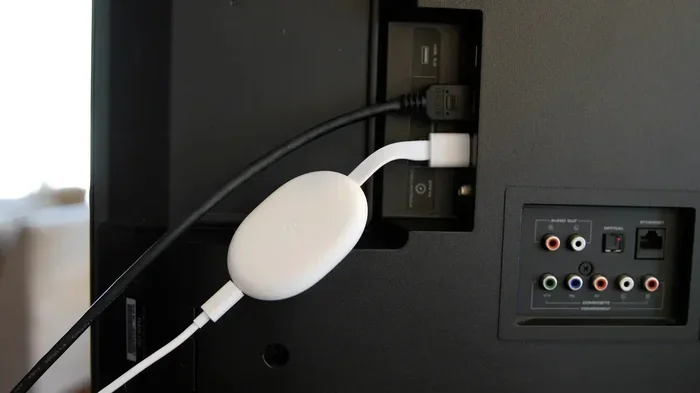
Not all TVs are created equal when it comes to streaming. Make sure your TV has an available HDMI port for your Chromecast. If your TV only has older VGA or composite inputs, you will need a conversion cable or adapter to connect your cast device.
Most modern TVs made in the last decade will work perfectly with Chromecast. But it never hurts to double-check your TV’s ports before purchasing or setting up a new device.
What Happens If You Never Update Your Chromecast?
You can skip updates if you want to. But there are real consequences to doing so over time. Here is what you can expect with an outdated device.
- Reduced streaming quality: Older firmware may not support the latest video codecs or resolution options.
- Security vulnerabilities: Unpatched devices are more exposed to potential exploits and unauthorized access.
- App incompatibility: Streaming apps like Netflix and YouTube regularly update their software. They may eventually stop working with older cast device firmware.
- More frequent crashes: Bugs that have long been fixed in newer versions may continue to cause problems on outdated devices.
- Loss of new features: You will miss out on improvements like better voice search, new remote controls, and enhanced screen mirroring capabilities.
The bottom line is simple. Skipping updates might seem harmless at first. But over weeks and months, the gaps between your device and the latest software standards will grow. Eventually, you may experience frustrating performance issues that could have been easily avoided.
Some users worry that updates might change the interface or remove features they like. While minor interface changes can happen, they are usually for the better. Google designs updates to improve the user experience, not make it worse.
Comparison: Updated vs Outdated Chromecast
Here is a quick look at how an updated Chromecast compares to one that has not been updated in a long time.
| Feature | Updated Device | Outdated Device |
|---|---|---|
| Streaming Quality | Sharp, smooth, supports latest codecs | May stutter, lower resolution support |
| Security | Patched against known threats | Vulnerable to exploits |
| App Compatibility | Works with all current apps | Some apps may not function |
| Wi-Fi Stability | Optimized for modern networks | May drop connections frequently |
| New Features | Access to latest additions | Missing recent improvements |
| Bug Frequency | Minimal known issues | More likely to encounter bugs |
As you can see, the differences are significant. A quick update can transform your streaming experience from frustrating to seamless.
Final Thoughts
So, does a Chromecast need to be updated? Absolutely yes. Regular updates are one of the easiest and most effective ways to keep your streaming device performing at its best. They improve security, fix bugs, add features, and boost streaming quality.
Make it a habit to check for updates every few weeks. It only takes a couple of minutes and can save you from a lot of trouble down the road. Pair regular updates with a stable internet connection and good placement, and your cast device will serve you well for years to come.
If you are having trouble with your streaming setup, consider checking whether your HDMI cable or connection is working properly. Sometimes what seems like a device issue is actually a simple cable problem. And if you ever need to extend your streaming to multiple screens, learning how to extend HDMI to two monitors can open up new possibilities for your home entertainment setup.
Stay current, stay connected, and enjoy every stream without interruption. Your Chromecast will thank you for it.
Frequently Asked Questions
How do I know if my Chromecast needs an update?
Open the Google Home app and select your device. If an update is available, you will see a notification prompting you to install it. You can also check your current firmware version in the device settings and compare it to the latest version listed on Google’s support page.
Can I use my Chromecast while it is updating?
No, you should not use your cast device while it is updating. The device needs to remain powered on and connected to Wi-Fi during the process. Using it mid-update can cause the installation to fail or even damage the software.
What should I do if my Chromecast update fails?
First, check your Wi-Fi connection and make sure it is stable. Restart your device by unplugging it for 30 seconds and plugging it back in. If the update still fails, try resetting your Chromecast to factory settings and attempt the update again.
Do Chromecast updates happen automatically?
Yes, by default, Chromecast devices are set to update automatically. However, automatic updates require a stable Wi-Fi connection and enough battery or power. If your device has been offline for a while, it may not have received the latest updates.
Will updating my Chromecast delete my apps or settings?
No, a standard firmware update will not delete your apps or settings. Your personal data, installed apps, and preferences should remain intact. However, a factory reset before an update will erase everything, so only do that if necessary.
How long does a Chromecast update take?
Most updates take between two and five minutes to complete. Larger updates, such as Google TV system upgrades, may take a bit longer. Make sure your device stays connected to power and Wi-Fi throughout the entire process.