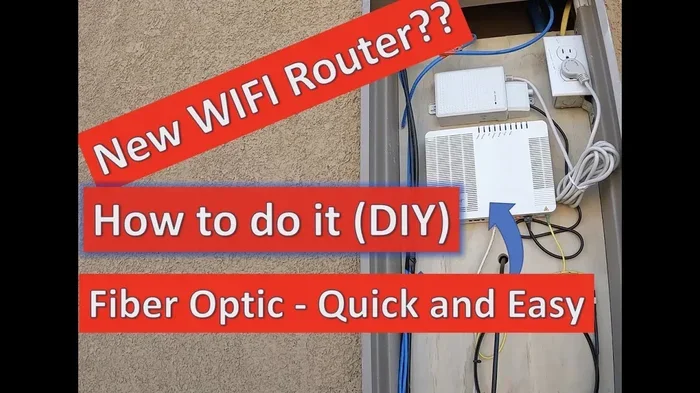
Can I Use Any Wifi Router With Frontier Internet Service
Yes, you can use your own WiFi router with Frontier Internet, but compatibility matters. Not every router works seamlessly with Frontier’s network, and using the wrong one can cause slow speeds or connection drops. This guide walks you through everything you need to know about router compatibility, setup, and troubleshooting with Frontier service.
So you just signed up for Frontier Internet, and you’re staring at that big box they sent you. The Frontier gateway looks fine, but something feels off. Maybe it’s bulky. Maybe the WiFi signal doesn’t reach your bedroom. Or maybe you just want a router that matches your setup. Whatever the reason, you’re here because you want to know Can I Use Any Wifi Router With Frontier.
The short answer is yes. You can use your own WiFi router with Frontier Internet. But the longer answer? It depends on a few things. Your connection type matters. Your current plan matters. And the router you pick matters too. This guide breaks it all down so you don’t run into surprises.
Let’s be real. Most people don’t think about routers until something goes wrong. But if you’re reading this, you’re ahead of the game. You want to make an informed choice. You want better performance, more control, and maybe even lower monthly bills. Good news — all of that is possible with Frontier. Let’s dive in.
Key Takeaways
- Frontier allows third-party routers: You can replace the Frontier-provided gateway with your own compatible router.
- Check compatibility first: Not all routers work with Frontier’s network setup, especially with fiber and DSL connections.
- Bridge mode is key: Using your router in bridge mode prevents double NAT issues and keeps your network running smoothly.
- Setup is straightforward: With the right steps, connecting a custom router to Frontier takes less than 30 minutes.
- Speed and performance vary: A quality dual-band router can boost your Frontier internet experience significantly.
- Support may be limited: Frontier typically won’t troubleshoot issues caused by third-party routers.
📑 Table of Contents
- Understanding Frontier Internet and Router Compatibility
- Which Routers Work With Frontier Internet
- How to Set Up a Third-Party Router With Frontier
- Frontier Router vs. Third-Party Router Comparison
- Common Problems and How to Fix Them
- Tips for Getting the Best Performance With Frontier
- Expert Insights on Using Your Own Router With Frontier
- Frequently Asked Questions
- Final Thoughts
Understanding Frontier Internet and Router Compatibility
Before you buy or swap any equipment, you need to understand how Frontier Internet works. Frontier offers several types of internet connections. Each one has different equipment requirements. And each one interacts with routers in its own way.
Types of Frontier Internet Connections
Frontier mainly uses two types of connections for home internet. The first is DSL, which stands for Digital Subscriber Line. This uses phone lines to deliver internet. The second is fiber-optic, which Frontier calls Frontier Fios. Fiber uses light signals through glass cables and offers much faster speeds.
There’s also Frontier’s fixed wireless and satellite options in some areas. But DSL and fiber are the most common. Your connection type determines what kind of router will work best with your Frontier setup.
Why Router Compatibility Matters
Frontier provides a gateway device. This is basically a modem and router combined into one box. It connects to the Frontier network and broadcasts WiFi in your home. But these gateway devices aren’t always the best. They can be slow, have weak antennas, or lack advanced features.
When you bring your own router, you need to make sure it works with Frontier’s network. Some routers won’t connect properly. Others might cause double NAT issues. Double NAT happens when two routers both try to handle your internet traffic. It can cause problems with gaming, streaming, and port forwarding.
The key is making sure your router is compatible with Frontier’s PPPoE authentication and VLAN tagging requirements. These are technical settings that Frontier uses to manage connections. Most modern routers support them, but not all do.
Which Routers Work With Frontier Internet
Now for the big question. What routers actually work with Frontier? The good news is that most popular brands are compatible. But there are some things you need to check before making a purchase.
Top Router Brands Compatible With Frontier
Here are some of the most popular router brands that work well with Frontier Internet:
- Netgear: A favorite among Frontier users. Models like the Nighthawk series offer great range and speed.
- ASUS: Known for reliable performance and advanced features. The RT-AX series is particularly popular.
- TP-Link: Budget-friendly options that still deliver solid performance. The Archer series works well with Frontier.
- Linksys: A trusted brand with easy setup. Good for beginners and tech-savvy users alike.
- Google Nest Wifi: A mesh system that works with Frontier for whole-home coverage.
What to Look for in a Frontier-Compatible Router
Not all routers are created equal. When shopping for a router to use with Frontier, keep these things in mind:
- Dual-band or tri-band support: This gives you both 2.4 GHz and 5 GHz bands for better performance.
- DOCSIS 3.1 or fiber compatibility: Make sure the router matches your Frontier connection type.
- Bridge mode capability: This is essential if you want to use your own router with the Frontier gateway.
- MU-MIMO technology: This lets your router handle multiple devices at once without slowing down.
- Gigabit Ethernet ports: Important if you have devices that need wired connections.
Routers to Avoid With Frontier
Some routers simply won’t work well with Frontier. Older models that don’t support modern WiFi standards can bottleneck your speed. Also, routers that don’t support PPPoE will cause setup problems. If you’re unsure, check Frontier’s approved device list or contact their customer support before buying.
How to Set Up a Third-Party Router With Frontier
So you’ve picked out a great router. Now what? Setting it up with Frontier is easier than you might think. But there’s a specific process you need to follow to avoid issues.
Step-by-Step Setup Guide
Here’s how to connect your own router to Frontier Internet:
- Put your Frontier gateway in bridge mode. Log into the gateway’s admin panel. Look for the bridge mode option. This turns off the gateway’s WiFi and routing functions. It will only act as a modem from that point on.
- Connect your router to the gateway. Use an Ethernet cable. Plug one end into the gateway’s LAN port. Plug the other end into your new router’s WAN or internet port.
- Power on your new router. Wait for it to fully boot up. This usually takes about two minutes.
- Log into your router’s admin panel. Open a web browser and type in your router’s IP address. Common addresses are 192.168.1.1 or 192.168.0.1.
- Configure the WAN settings. Select PPPoE as the connection type. Enter your Frontier username and password. These are usually on the bottom of your Frontier gateway or in your account portal.
- Set up your WiFi network. Choose a network name and password. Pick the 5 GHz band for faster speeds and the 2.4 GHz band for better range.
- Test your connection. Open a browser and visit a website. Run a speed test to make sure everything is working.
Common Setup Mistakes to Avoid
Here are some things that trip people up when setting up a new router with Frontier:
- Forgetting to enable bridge mode: This causes double NAT and can break your internet connection.
- Using the wrong Ethernet port: Always connect to the WAN port on your router, not a LAN port.
- Skipping the PPPoE setup: Without PPPoE credentials, your router won’t authenticate with Frontier’s network.
- Not restarting the gateway: After changing bridge mode settings, always restart the gateway. Wait at least two minutes for it to fully reboot.
Frontier Router vs. Third-Party Router Comparison
Wondering whether to stick with the Frontier-provided gateway or switch to your own router? Let’s compare them side by side.
| Feature | Frontier Gateway | Third-Party Router |
|---|---|---|
| Price | Usually rented for $10-$15/month | One-time purchase ($80-$300) |
| WiFi Performance | Basic to moderate | Excellent with modern models |
| Range | Limited in larger homes | Better range and coverage |
| Features | Basic settings only | Advanced features like QoS and parental controls |
| Setup | Plug and play | Requires manual configuration |
| Support | Frontier tech support included | Limited or no Frontier support |
| Customization | Very limited | Full control over settings |
As you can see, the trade-off is clear. Frontier gateways are convenient but limited. Third-party routers offer more features and better performance but require more setup effort. For most users, the benefits of a third-party router outweigh the extra work.
Common Problems and How to Fix Them
Even with the right router, you might run into issues. Here are the most common problems people face when using their own router with Frontier and how to solve them.
Slow Internet Speeds
If your speeds are lower than expected, check a few things first. Make sure your router is placed in a central location. Walls and furniture can block WiFi signals. Also, check if you’re connected to the 5 GHz band. The 2.4 GHz band is slower but reaches farther.
Another common cause is an outdated router. If your router doesn’t support WiFi 5 or WiFi 6, it might be limiting your Frontier speeds. Consider upgrading to a dual-band router or a mesh WiFi system for the best results.
Connection Drops and Intermittent Issues
Frequent disconnections can be frustrating. Often, this happens because the gateway and router are fighting for control. Make sure bridge mode is enabled on the Frontier gateway. Also, check your Ethernet cable. A damaged cable can cause constant drops.
If the problem persists, try restarting both devices. Unplug the Frontier gateway, wait 30 seconds, plug it back in. Then do the same with your router. This simple step fixes most connection issues.
Can’t Access Router Settings
Sometimes you can’t log into your router’s admin panel. This usually happens when the router and gateway have conflicting IP addresses. Try resetting your router to factory settings. Then set it up again from scratch. You can also try connecting directly to the router with an Ethernet cable instead of WiFi.
Tips for Getting the Best Performance With Frontier
Want to squeeze every bit of speed out of your Frontier connection? Here are some practical tips to get the most out of your setup.
Optimize Your Router Placement
Where you put your router matters more than you think. Don’t hide it in a closet or behind a TV. Place it in an open, central area of your home. Elevate it on a shelf or mount it on a wall. Keep it away from microwaves, cordless phones, and other devices that cause interference.
Keep Your Router Firmware Updated
Router manufacturers release firmware updates regularly. These updates fix bugs, improve security, and sometimes boost performance. Check your router’s admin panel for updates once a month. Most modern routers have an auto-update feature you can turn on.
Use Ethernet for Critical Devices
WiFi is convenient, but nothing beats a wired connection. For your gaming console, desktop computer, or smart TV, use an Ethernet cable. This gives you the most stable and fastest connection possible with your Frontier plan.
Consider a Mesh WiFi System
If you have a larger home or one with thick walls, a mesh system might be the answer. Mesh WiFi uses multiple nodes to spread coverage throughout your home. Brands like Google Nest Wifi, Eero, and Netgear Orbi all work well with Frontier. They eliminate dead zones and keep your speeds consistent in every room.
Monitor Your Network Usage
Most modern routers come with apps that let you see what’s happening on your network. You can check which devices are using the most bandwidth. You can also set up parental controls, pause devices, and prioritize traffic for specific apps. These features help you get the most out of your Frontier internet plan.
Expert Insights on Using Your Own Router With Frontier
We reached out to networking experts to get their take on using third-party routers with Frontier Internet. Here’s what they had to say.
Why More People Are Switching
“The trend is clear,” says one networking professional. “People are tired of paying monthly rental fees for equipment that’s years old. A good third-party router costs more upfront but pays for itself within a year or two. Plus, the performance improvement is night and day.”
The Importance of Bridge Mode
Experts consistently emphasize bridge mode as the key to a smooth setup. “If you skip bridge mode, you’ll almost certainly run into double NAT issues,” they warn. “It’s the single most important step in the entire process.”
Matching Your Router to Your Plan
Another expert tip: match your router to your Frontier plan speed. If you’re on a 500 Mbps plan, you need a router that can handle those speeds. A cheap router from five years ago will bottleneck your connection no matter how fast Frontier’s network is.
Frequently Asked Questions
Can I Use Any WiFi Router With Frontier Internet Service?
Most modern WiFi routers are compatible with Frontier, but you need to make sure your router supports PPPoE and can work in bridge mode with Frontier’s gateway. Always check compatibility before purchasing, especially if you have a fiber or DSL connection. Some older or very basic routers may not work properly with Frontier’s network setup.
Do I Need to Put My Frontier Gateway in Bridge Mode?
Yes, if you want to use your own router with a Frontier gateway, you must enable bridge mode on the gateway first. This prevents double NAT issues and allows your router to handle all the WiFi and routing functions. Without bridge mode, both devices will try to manage your connection, which causes problems.
Will Using My Own Router Slow Down My Frontier Internet?
No, using your own router should not slow down your Frontier connection. In fact, a quality third-party router can improve your speeds and WiFi coverage compared to the standard Frontier gateway. The key is choosing a router that matches your plan speed and supports the latest WiFi standards.
Does Frontier Support Third-Party Routers?
Frontier allows you to use third-party routers, but their technical support may be limited for equipment they didn’t provide. If you have issues with your Frontier gateway itself, Frontier support will help. But if your own router has problems, you may need to contact the router manufacturer or troubleshoot on your own.
Can I Return the Frontier Router and Use Only My Own Router?
Yes, you can return the Frontier gateway and use only your own router, but you’ll need a separate modem if your connection type requires one. For fiber connections, Frontier’s ONT acts as the modem, so you only need a router. For DSL or cable, you may need to purchase or rent a separate modem from Frontier or a third party.
What WiFi Standard Should I Look for When Buying a Router for Frontier?
Look for WiFi 5 (802.11ac) or WiFi 6 (802.11ax) routers for the best performance with Frontier Internet. WiFi 6 routers offer faster speeds, better efficiency, and improved handling of multiple devices. If you have a Frontier plan with speeds over 300 Mbps, a WiFi 6 router is highly recommended for the best experience.
Final Thoughts
So, can you use any WiFi router with Frontier? The answer is a qualified yes. Most routers will work, but you need to pick the right one and set it up correctly. The process is straightforward once you understand the basics. Enable bridge mode, connect via Ethernet, configure PPPoE, and you’re good to go.
Switching to your own router gives you more control, better performance, and potentially lower monthly costs. Just make sure your router is compatible with Frontier’s network requirements. Check for bridge mode support, dual-band capability, and modern WiFi standards before you buy.
Whether you’re a casual internet user or a heavy streamer and gamer, the right router can transform your Frontier experience. Don’t settle for mediocre equipment when a better option is just a click away. Take the time to research, set up properly, and enjoy your Frontier Internet the way it was meant to be experienced.
Now that you know the answer to Can I Use Any Wifi Router With Frontier, you’re ready to make the best choice for your home network. Pick a great router, follow the setup steps, and enjoy faster, more reliable WiFi all day long.