Difference Between A Crop Pillarbox Stretch On An Hd Directv
The difference between crop, pillarbox, and stretch on an HD DirecTV receiver comes down to how your TV handles the aspect ratio of each channel. Crop cuts off the edges of the screen, pillarbox adds black bars on the sides, and stretch stretches the image to fill the entire display. Choosing the right setting prevents picture distortion and keeps your viewing experience clean and comfortable.
Have you ever settled in to watch your favorite show on DirecTV HD and noticed black bars on the sides of the screen? Or maybe the image looks weirdly stretched, or parts of the picture are missing entirely? You are not alone. Thousands of DirecTV subscribers deal with this every single day, and the reason usually comes down to three little settings: crop, pillarbox, and stretch.
These three options control how your TV displays the signal it receives. Each one handles the aspect ratio differently, and each one has pros and cons. Understanding what they do can save you from a terrible viewing experience. It also helps you get the most out of your high definition setup, whether you watch on a sleek LED TV, a projector, or even a computer monitor.
In this guide, we will break down each setting in plain language. We will show you exactly what happens when you select crop, pillarbox, or stretch on your DirecTV HD receiver. By the end, you will know which setting to pick and why. Let us get into it.
Key Takeaways
- Crop removes the outer edges: This setting fills your screen but cuts off parts of the image, which can hide important details.
- Pillarbox preserves the original picture: Black bars appear on the sides, but nothing gets cut off or distorted.
- Stretch fills the entire screen: The image gets widened, which can make people and objects look oddly stretched or squished.
- 16:9 is the standard for HD: Most HD DirecTV channels broadcast in a 16:9 widescreen format, so pillarbox is usually the best choice.
- 4:3 channels need special handling: Older standard definition content looks different on modern widescreen TVs, and your settings matter.
- Your TV type affects the choice: Whether you use a projector, a modern LED TV, or a plasma screen changes which setting works best.
- You can change settings per channel: DirecTV lets you adjust the picture format for individual channels or set a default for all.
📑 Table of Contents
What Are Crop, Pillarbox, and Stretch?
Before we dive into each setting, let us talk about what they actually mean. These three options are all about how your screen handles the picture format of the signal coming from DirecTV. Think of them as different ways to fit a picture into a frame that might not match the original size.
Every TV show, movie, or sports broadcast comes in a specific aspect ratio. That is just a fancy way of saying the width compared to the height. The two most common ratios are 4:3 (the old square-ish format) and 16:9 (the wide widescreen format we see today). When a channel broadcasts in one ratio but your TV expects another, you need a way to bridge that gap. That is where crop, pillarbox, and stretch come in.
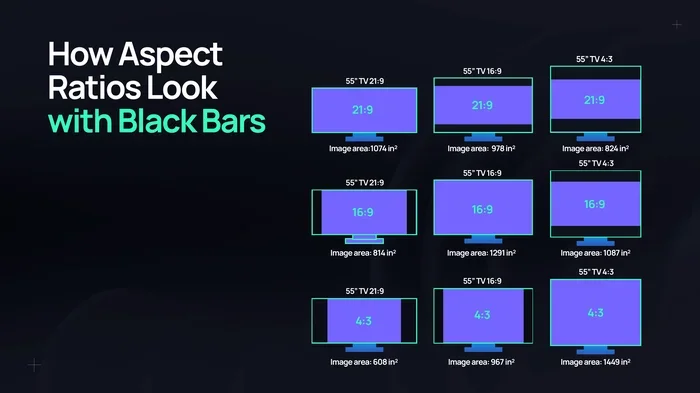
Crop cuts off the edges of the image to fill the screen. Pillarbox adds black bars on the left and right sides to preserve the full image. Stretch pulls the image wider to fill every inch of the screen. Simple enough, right? But the results are very different, and they matter more than most people realize.
Why Aspect Ratio Matters for DirecTV HD
The aspect ratio of a broadcast determines how the image looks on your screen. If a channel sends a 16:9 widescreen signal and your TV is set to display it in 4:3, something has to give. Either the image gets cropped, stretched, or boxed with black bars.
DirecTV HD broadcasts mostly in 16:9, which matches modern widescreen TVs perfectly. But some channels, especially older ones or certain standard definition feeds, still use the 4:3 format. When that happens, your picture settings become really important. Choosing the wrong display mode can make everything look distorted, cut off, or smaller than it should be.
This is also relevant if you are using a projector or connecting your DirecTV box to a larger display. If you have ever wondered can I use a projector as a TV, the answer is yes, but your aspect ratio settings will matter even more on a big screen.
The Crop Option Explained
The crop setting is also sometimes called zoom or full screen on certain DirecTV receivers. What it does is simple: it cuts off the left and right edges of the picture to fill the entire screen. No black bars. No empty space. Just a full-screen image.
Sounds great, right? Well, there is a catch. When you crop the image, you lose part of the picture permanently. Anything that was on the edges gets chopped off and you cannot see it anymore. This is especially problematic during sports broadcasts where the score bug or the sideline action might sit near the edges of the frame.
When Crop Works Well
Crop is not always a bad choice. For certain types of content, it actually works quite well. Here are some situations where crop makes sense:
- Widescreen movies on Blu-ray: Most movies are already in 16:9 or wider, so cropping the edges rarely removes important content.
- Nature documentaries: The focus is usually on the center of the frame, so the edges are less important.
- News broadcasts with a centered anchor: The main subject is typically in the middle of the screen.
When Crop Causes Problems
However, crop can create real headaches in other situations. During football games, the wide shot of the field often gets cut off on the sides. You might miss a wide receiver running along the sideline or a referee making a call at the edge of the frame. The same goes for concerts, wide-angle shots in movies, and any content where the action spans the full width of the screen.
If you have ever noticed that the edges of a scene look cut off or weird, your receiver is probably set to crop. Switching to pillarbox or another format can fix this instantly.
The Pillarbox Option Explained
Pillarbox is the setting that adds black bars on the left and right sides of the screen. It gets its name from the vertical pillars (bars) that appear alongside the image. This setting preserves the entire original picture without cutting off or stretching anything.
Pillarbox is the most faithful way to watch content that was filmed in a different aspect ratio than your screen. If a channel broadcasts in 4:3 and your TV is 16:9, pillarbox keeps the picture intact. You see the full image, just with black bars filling the extra space on the sides.
Why Pillarbox Is Often the Best Choice for HD DirecTV
For most DirecTV HD viewers, pillarbox is the safest and most accurate option. Here is why:
- No image is lost: Every pixel of the original broadcast stays visible.
- No distortion: People do not look stretched or squished.
- No cropping: You do not miss any action at the edges of the frame.
- It matches the director intent: The picture looks exactly as it was meant to be seen.
Many people find pillarbox annoying because of the black bars. They want the screen filled. But those black bars are actually a feature, not a flaw. They are there to protect the integrity of the original image. If you have ever watched a movie on a computer and noticed the black bars, that is the same concept.
If you are using external connections like HDMI, it also helps to make sure your cables are delivering the best signal. If you have ever wondered can I convert a VGA to HDMI, the answer is yes, and doing so can improve the overall picture quality on your DirecTV setup.
The Stretch Option Explained
Stretch is the setting that pulls the image wider to fill the entire screen from edge to edge. It takes the original picture and scales it horizontally so there are no black bars and no cropped edges.
On the surface, stretch seems like a great compromise. You get a full screen with no black bars and no missing content. But the problem is that stretch distorts the image. Everything gets pulled wider, which makes circles look like ovals and people look a little bit wider than they really are.
When Stretch Might Be Acceptable
There are a few situations where stretch is tolerable or even preferred:
- Watching older 4:3 content on a large screen: If you are watching an old sitcom or a vintage broadcast, stretch fills the screen in a way that some viewers find more comfortable than pillarbox.
- Casual viewing with kids: Children often do not notice or care about distortion, and a full screen can be more engaging for them.
- News tickers and graphics: Some viewers prefer stretch because it makes on-screen text larger and easier to read.
When Stretch Should Be Avoided
For serious movie watching, sports, or any content where picture quality matters, stretch is usually a bad idea. Here is why:
- People look unnatural: Faces get wider and distorted, which is distracting.
- Graphics look wrong: Logos, score bugs, and on-screen graphics get stretched horizontally.
- It ruins the cinematic experience: Movies are designed to be watched in a specific aspect ratio, and stretch changes that.
- It can cause eye strain: The distorted image can make your eyes work harder to process what you are seeing.
If you have ever watched a football game in stretch mode and thought the players looked a little funny, that is why. The image is being artificially widened, and it shows.
Comparison: Crop vs Pillarbox vs Stretch
Let us put all three side by side so you can see the differences clearly. Here is a quick comparison of what each setting does on an HD DirecTV receiver.
| Feature | Crop | Pillarbox | Stretch |
|---|---|---|---|
| Fills the full screen? | Yes | No (black bars on sides) | Yes |
| Cuts off parts of the image? | Yes | No | No |
| Distorts the picture? | No | No | Yes |
| Preserves original aspect ratio? | No | Yes | No |
| Best for HD widescreen content? | Sometimes | Yes | No |
| Best for older 4:3 content? | Sometimes | Yes | Sometimes |
| Image quality impact | Loss of edges | No loss | Distortion |
As you can see, each setting has trade-offs. There is no single “best” option for every situation. The right choice depends on what you are watching, what kind of TV you have, and what you value more: a full screen or an accurate picture.
Which Setting Should You Choose for Your DirecTV HD Setup?
Choosing between crop, pillarbox, and stretch depends on a few factors. Let us walk through the most common scenarios so you can decide what works best for you.
If you watch mostly HD channels: Most HD DirecTV channels broadcast in 16:9, which matches modern widescreen TVs. In this case, pillarbox is usually the best default setting. The picture fills the screen naturally without any distortion or cropping. You get the full HD experience exactly as the broadcaster intended.
If you watch a lot of standard definition channels: Some SD channels still broadcast in 4:3. For these, pillarbox again preserves the original picture, but you will see those black bars. If that bothers you, try crop for SD channels only and keep pillarbox for HD channels. DirecTV lets you set different formats for different channels.
If you are a movie lover: Always use pillarbox for films. Movies are carefully composed with specific aspect ratios, and cropping or stretching them takes away from the director’s vision. If you want the full cinematic experience, pillarbox is the way to go.
If you have a projector: Projectors often have different native resolutions and aspect ratios than TVs. If you are connecting your DirecTV box to a projector, you might need to experiment with settings. Some projectors handle pillarbox better than others. If you are curious about projector setups, check out our guide on using a projector as a TV for more tips.
If you have kids watching: Stretch might be okay for kids’ cartoons and shows that are already in 4:3. Children tend to be less sensitive to distortion, and a full screen can hold their attention better. Just be aware that it is not the best quality setting.
How to Change Your DirecTV Picture Settings
Changing your aspect ratio setting on DirecTV is quick and easy. Here is how to do it:
- Press the Menu button on your DirecTV remote.
- Navigate to Settings & Help.
- Select Settings and then Display.
- Look for the Aspect Ratio or Picture Format option.
- Choose between Crop, Pillarbox, or Stretch.
- Select Save and exit the menu.
Some DirecTV remotes also have a dedicated button for aspect ratio. Look for a button labeled “Aspect,” “Format,” or “Screen” on your remote. Pressing it cycles through the available options quickly.
Quick Tips for the Best Picture on DirecTV HD
- Start with pillarbox: It is the safest default for most HD content.
- Check individual channels: Some channels look better in crop, others in pillarbox. Adjust per channel if needed.
- Watch for signal quality: A weak signal can cause picture issues that look like settings problems. Make sure your dish is properly aligned.
- Calibrate your TV: Use your TV’s picture settings menu to adjust brightness, contrast, and sharpness for the best overall image.
- Update your receiver: DirecTV occasionally updates its software. Keep your receiver up to date for the best performance.
Common Mistakes People Make With These Settings
There are a few mistakes that DirecTV users make repeatedly when it comes to aspect ratio settings. Avoiding these can save you a lot of frustration.
Mistake 1: Leaving stretch on by default. Many people set stretch and never change it. Over time, they get used to the distorted picture and do not even notice anymore. Switching back to pillarbox can feel like a revelation.
Mistake 2: Using crop for all content. Crop works fine for some HD channels, but it destroys the viewing experience for 4:3 content and movies. Always consider what you are watching before choosing crop.
Mistake 3: Ignoring the black bars. Some people hate pillarbox because of the black bars and switch to stretch or crop to get rid of them. But those black bars are doing an important job. They are preserving the original picture. Embrace them.
Mistake 4: Not adjusting per channel. DirecTV lets you set different formats for different channels. If you watch a mix of HD and SD channels, take advantage of this feature instead of forcing one setting for everything.
Final Thoughts
The difference between crop, pillarbox, and stretch on an HD DirecTV setup is not just a technical detail. It is the difference between a great picture and a frustrating one. Each setting serves a purpose, and understanding what they do puts you in control of your viewing experience.
Pillarbox is the safest and most accurate choice for most HD DirecTV viewers. It preserves the full picture without distortion or cropping. Crop works well for certain widescreen content but can hide important details at the edges. Stretch fills the screen but distorts the image in ways that are noticeable and distracting.
Take a few minutes to experiment with each setting on your own setup. Watch the same channel in all three modes and see which one looks best to you. Your eyes are the best judge. Once you find the right setting, you will wonder how you ever watched TV any other way.
Remember, your DirecTV HD experience is only as good as your picture settings. Get those right, and everything else falls into place. Happy watching.
Frequently Asked Questions
What is the best aspect ratio setting for DirecTV HD?
Pillarbox is generally the best setting for HD DirecTV because it preserves the original picture without cropping or distorting the image. Most HD channels broadcast in 16:9, which matches modern widescreen TVs perfectly when using pillarbox mode.
Why do I see black bars on my DirecTV HD screen?
Black bars appear when the content you are watching has a different aspect ratio than your TV screen. This is called pillarbox mode, and it is designed to show the full original picture without stretching or cropping it. The bars fill the extra space on the sides.
Can I set different aspect ratio modes for different DirecTV channels?
Yes, DirecTV allows you to customize the picture format on a per-channel basis. You can set one channel to pillarbox and another to crop, depending on what looks best for each broadcast. This is especially useful if you watch a mix of HD and standard definition channels.
Does stretch mode damage my TV?
No, stretch mode does not physically damage your TV. However, it distorts the image by stretching it horizontally, which can make people and objects look wider than they really are. Over time, watching stretched content can also cause eye strain and make the viewing experience less enjoyable.
What is the difference between crop and zoom on DirecTV?
Crop and zoom are essentially the same thing on most DirecTV receivers. Both settings cut off the edges of the picture to fill the screen completely. The terms are used interchangeably depending on your receiver model and menu layout.
Will changing the aspect ratio affect my DirecTV picture quality?
Changing the aspect ratio does not change the resolution or clarity of the signal, but it does change how the image is displayed on your screen. Choosing the right setting ensures you see the picture as it was intended, without distortion or missing content.