Can You Replace Bluetooth On Pc With A Better Adapter
Yes, you can replace Bluetooth on your PC with a better adapter to enjoy faster wireless speeds, improved range, and more stable connections. Whether you use a USB dongle or an internal card, upgrading your Bluetooth hardware is simpler than you think. This guide walks you through every step, from choosing the right adapter to installing and troubleshooting it.
Your PC’s Bluetooth connection keeps dropping. Audio stutters during calls. File transfers take forever. If any of this sounds familiar, you are not alone. Many people deal with weak or outdated Bluetooth on their computers every single day. The good news is that you can replace Bluetooth on PC with a better adapter and solve these problems for good.
Upgrading your Bluetooth hardware does not require a computer science degree. Whether you choose a simple USB dongle or an internal card, the process is straightforward and surprisingly affordable. In this guide, we will walk you through everything you need to know. We will cover why you might need an upgrade, which adapters to choose, how to install them, and how to fix common issues.
By the end of this article, you will have a clear roadmap to better wireless connectivity on your computer. Let us dive in and get your Bluetooth working the way it should.
Key Takeaways
- Upgrading Bluetooth is possible: You can swap out old or weak Bluetooth hardware for a modern adapter with better speed and range.
- Two main options exist: USB Bluetooth dongles offer plug-and-play simplicity, while internal Bluetooth cards deliver stronger, more permanent performance.
- Bluetooth 5.0 and 5.3 are the current standards: These versions offer significantly faster speeds and longer range than older versions.
- Installation is straightforward: Most adapters work with simple driver installation, and many are plug-and-play on modern Windows systems.
- Common issues are fixable: Driver conflicts, interference, and pairing problems can usually be resolved with simple troubleshooting steps.
📑 Table of Contents
Why You Might Want To Replace Bluetooth On Your PC
Not everyone realizes their Bluetooth adapter is holding them back. Many computers come with basic built-in Bluetooth that works fine for simple tasks. But as your wireless needs grow, that old hardware starts to show its limitations. Here are the most common reasons you might want to upgrade.
Slow Transfer Speeds
Older Bluetooth versions like Bluetooth 2.0 and 3.0 are painfully slow. Transferring a music file might take minutes when it should take seconds. Modern Bluetooth versions offer dramatically faster data rates. If you find yourself waiting forever for files to move between devices, your adapter is likely the bottleneck.
Limited Range And Connectivity Issues
Do you need to sit within three feet of your computer for a stable connection? That is a sign of a weak Bluetooth adapter. Older hardware has a limited range, and it struggles with obstacles like walls and furniture. A better adapter can extend your range significantly, giving you more freedom to move around.
Incompatibility With Newer Devices
New headphones, speakers, and peripherals often use the latest Bluetooth standards. If your PC’s Bluetooth is outdated, you might notice connection problems or missing features. Upgrading ensures your computer stays compatible with the newest wireless devices on the market.
Poor Audio Quality
Bluetooth audio has come a long way. Older adapters often cannot support high-quality audio codecs. If your music or calls sound muffled or compressed, a newer adapter with better audio support can make a huge difference. This is especially important for people who use Bluetooth headphones for gaming or music production.
Types Of Bluetooth Adapters You Can Use
When it comes to replacing Bluetooth on your PC, you have two main options. Each has its own strengths, and the right choice depends on your needs, budget, and technical comfort level.
USB Bluetooth Dongles
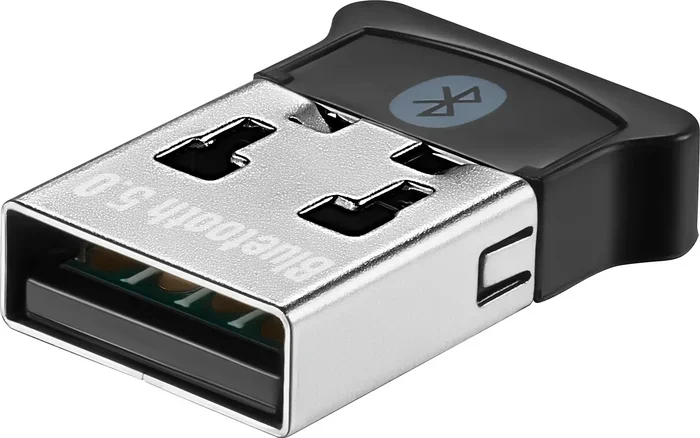
USB Bluetooth dongles are the most popular choice for most users. They are small, affordable, and incredibly easy to use. You simply plug them into a USB port, install the drivers, and you are done. No opening your computer case, no technical expertise required.
Most USB dongles support Bluetooth 5.0 or newer, which brings faster speeds and longer range. They work with both desktop and laptop computers. The main downside is that they take up a USB port, which can be a problem if you already use all your ports for other devices.
If you want a quick and painless upgrade, a USB Bluetooth dongle is the way to go. They typically cost between $10 and $40, making them an affordable solution for most people.
Internal Bluetooth Cards
Internal Bluetooth cards offer a more permanent and powerful solution. These cards install inside your computer’s motherboard slot, similar to how a graphics card or sound card works. They do not take up USB ports, and they often provide stronger, more stable connections.
Internal cards are a great choice for desktop PCs. They tend to have better antennas and more powerful chips than USB dongles. Some high-end cards support Bluetooth 5.3, the latest standard, which offers the fastest speeds and best range available.
The downside is that installation requires opening your computer case and working with internal hardware. If you are not comfortable doing this, a USB dongle is a safer bet. Internal cards also tend to cost more, ranging from $25 to $80 or more.
Comparison: USB Dongle vs Internal Card
| Feature | USB Bluetooth Dongle | Internal Bluetooth Card |
|---|---|---|
| Ease of Installation | Very Easy | Moderate |
| Price Range | $10 – $40 | $25 – $80+ |
| Bluetooth Version | 5.0 – 5.3 | 5.0 – 5.3 |
| Range | Good | Excellent |
| USB Port Usage | Yes | No |
| Best For | Laptops, Quick Upgrades | Desktops, Power Users |
How To Remove Your Existing Bluetooth Adapter
Before you can install a new adapter, you need to deal with the old one. The steps depend on whether your Bluetooth is built into your motherboard or uses a separate card.
Disabling Built-In Bluetooth
Many modern computers have Bluetooth built directly into the motherboard. You cannot physically remove it, but you can disable it. This prevents conflicts with your new adapter. To do this, open Device Manager on Windows, find your Bluetooth adapter under the Bluetooth section, right-click it, and select Disable Device.
Disabling the old adapter frees up system resources and helps your new adapter work without interference. It is a simple step that many people skip, and it can save you a lot of headaches later.
Removing Internal Bluetooth Modules
If your computer has a separate internal Bluetooth card, you can physically remove it. Shut down your PC, unplug it, and open the case. Locate the Bluetooth card, which is usually a small card plugged into a PCIe slot on the motherboard. Gently pull it out and set it aside.
Be careful when handling internal components. Static electricity can damage sensitive parts, so consider touching a metal surface to ground yourself before you start. If you are not comfortable with this, stick with a USB dongle instead.
Uninstalling Bluetooth Drivers
After disabling or removing the old hardware, you should also uninstall its drivers. Go to Device Manager, right-click the Bluetooth device, and select Uninstall Device. This ensures a clean slate for your new adapter. Sometimes leftover drivers from old hardware can cause conflicts with new equipment.
If you are replacing a built-in Bluetooth module, you might also want to check your BIOS settings. Some motherboards let you disable the integrated Bluetooth in the BIOS, which can improve compatibility with a new adapter.
How To Install A New Bluetooth Adapter
Now for the fun part. Installing a new Bluetooth adapter is easier than most people expect. Here is how to do it for both types of adapters.
Installing A USB Bluetooth Dongle
Plug the dongle into an available USB port on your computer. If you are using a USB 3.0 port, you will get the best performance. Wait for Windows to recognize the device. Most modern dongles are plug-and-play on Windows 10 and 11, meaning the drivers install automatically.
If Windows does not install the drivers automatically, visit the manufacturer’s website and download the latest drivers for your specific model. Once the drivers are installed, your computer should be ready to connect to Bluetooth devices. Test it by pairing your phone or headphones and checking the connection quality.
One tip: try to use a USB port on the back of your desktop PC rather than the front ports. Back ports usually have a more direct connection to the motherboard, which means a stronger and more stable Bluetooth signal.
Installing An Internal Bluetooth Card
Start by shutting down your PC and unplugging it from the power outlet. Open the case and locate an available PCIe slot on your motherboard. Remove the metal bracket covering the slot, then carefully insert the Bluetooth card into the slot. Press it down firmly until it clicks into place.
Secure the card with a screw, close the case, and plug your PC back in. When you turn it on, Windows should detect the new hardware and install the drivers automatically. If not, visit the card manufacturer’s website to download the latest drivers.
Some internal Bluetooth cards come with external antenna cables. If yours does, position the antennas outside the case or near a window for the best signal. Good antenna placement can dramatically improve your Bluetooth range and stability.
Best Bluetooth Adapters For PC
Not all Bluetooth adapters are created equal. Here are some of the best options across different price ranges and use cases.
Budget-Friendly Options
If you are looking for a simple and affordable upgrade, the TP-Link UB500 is a popular choice. It supports Bluetooth 5.0 and costs around $15. It offers solid range and reliable performance for everyday tasks like audio streaming and file transfers.
Another great budget option is the ASUS USB-BT500. It also supports Bluetooth 5.0 and is known for easy installation and stable connections. Both of these adapters make excellent entry-level upgrades for PCs with outdated Bluetooth hardware.
Mid-Range Options
The TP-Link UB5000 supports Bluetooth 5.2 and offers faster speeds and better range than 5.0 adapters. It costs around $25 and is a great middle-ground option for users who want better performance without spending a fortune.
The ASUS USB-BT500 is another solid mid-range choice. It supports Bluetooth 5.0 with a strong signal and low latency, making it a good pick for gaming and audio work.
Premium Options
For power users who want the best of the best, the ASUS PCE-BCBM2 is an internal Bluetooth 5.3 card. It offers the fastest speeds and longest range available. It is perfect for desktop PCs that need top-tier wireless performance.
The Intel AX210 is another premium option that supports the latest Bluetooth and Wi-Fi standards. It is an internal card that combines Bluetooth 5.3 with Wi-Fi 6E for a complete wireless upgrade. These cards are ideal for users who demand the highest performance from their wireless connections.
If you are into gaming and use Bluetooth headphones for gaming, a premium adapter can reduce latency and improve audio quality. The difference is especially noticeable in fast-paced games where split-second audio cues matter.
Troubleshooting Common Bluetooth Issues After Replacement
Even with a new adapter, you might run into some issues. Here are the most common problems and how to fix them.
Adapter Not Detected By Windows
If Windows does not recognize your new adapter, first try a different USB port. USB 3.0 ports work best for most dongles. If that does not help, uninstall the device from Device Manager and restart your PC. Windows should then reinstall the drivers automatically.
You can also check for driver updates on the manufacturer’s website. Sometimes the drivers that come with the adapter are outdated, and a newer version can fix detection issues.
Poor Connection Range
If your Bluetooth keeps dropping or has a short range, try moving the adapter to a different USB port. Ports on the back of a desktop PC usually provide a stronger signal than front ports. You can also try a USB extension cable to position the dongle closer to your devices.
Interference from other wireless devices can also cause range problems. Keep your Bluetooth adapter away from Wi-Fi routers, microwaves, and cordless phones. These devices operate on similar frequencies and can cause signal interference.
Audio Stuttering Or Lag
Audio issues are common when Bluetooth is overloaded or using an outdated codec. Make sure your adapter supports the latest Bluetooth version, as newer versions handle audio more efficiently. You can also check your sound settings and enable features like aptX or LDAC if your devices support them.
If you are using your Bluetooth adapter for music or calls, consider the Can I Turn Regular Speakers Into Bluetooth approach for better audio routing. This can sometimes improve the overall audio experience on your PC.
Pairing Problems
If your PC will not pair with a device, make sure the device is in pairing mode. Most devices have a specific button or sequence to enter pairing mode. Also, check that your PC’s Bluetooth is turned on and visible to other devices.
Sometimes removing old pairings helps. Go to your Bluetooth settings, forget the device, and try pairing again from scratch. This clears any corrupted connection data that might be causing the problem.
Final Thoughts
Replacing Bluetooth on your PC with a better adapter is one of the easiest and most effective upgrades you can make. It costs just a few dollars, takes minutes to install, and can transform your wireless experience. Faster speeds, better range, and more stable connections are all within reach.
Whether you choose a USB dongle for simplicity or an internal card for maximum performance, the key is to pick an adapter that supports Bluetooth 5.0 or newer. These modern standards bring real improvements that you will notice every day. From smoother audio to quicker file transfers, the upgrade pays for itself quickly.
Do not let outdated Bluetooth hold you back any longer. Pick the right adapter, follow the installation steps in this guide, and enjoy a better wireless experience on your PC. Your future self will thank you every time you connect a device without frustration.
If you are exploring other wireless upgrades, you might also want to check out Can I Remove Intel Wireless Bluetooth for more tips on managing your PC’s wireless hardware. And if you are interested in using Bluetooth with other devices, look into Can I Turn Regular Speakers Into Bluetooth or Can I Make My Wired Headphones Bluetooth for helpful guides on expanding your wireless setup.
Frequently Asked Questions
Can I Replace Bluetooth On Any PC?
Yes, you can replace Bluetooth on almost any PC. Desktop computers can use USB dongles or internal Bluetooth cards, while laptops typically work best with USB dongles since opening the laptop is not practical. The key is to check what Bluetooth version your current adapter supports and choose a newer one for better performance.
Do I Need To Be A Tech Expert To Replace Bluetooth On My PC?
Not at all. USB Bluetooth dongles are plug-and-play and require no technical skills. Internal Bluetooth cards require opening your PC case, but the installation process is still straightforward if you follow step-by-step instructions. Most people can complete the upgrade in under 30 minutes.
What Is The Best Bluetooth Version For A PC Adapter?
Bluetooth 5.0 or newer is the best choice for most users. Bluetooth 5.0 offers faster speeds, longer range, and better energy efficiency than older versions. If you want the absolute latest, Bluetooth 5.3 provides the best performance and is found in premium adapters and internal cards.
Will A New Bluetooth Adapter Improve Audio Quality?
Yes, a newer Bluetooth adapter can significantly improve audio quality. Modern Bluetooth versions support better audio codecs like aptX and LDAC, which deliver clearer, richer sound. If you use Bluetooth headphones or speakers regularly, upgrading your adapter can make a noticeable difference in sound quality.
Can I Use A Bluetooth Adapter With A Laptop That Has Built-In Bluetooth?
Yes, you can use a USB Bluetooth adapter alongside your laptop’s built-in Bluetooth. In fact, using a dedicated adapter alongside the built-in Bluetooth can give you better performance for specific tasks. Just make sure to disable the built-in Bluetooth in Device Manager to avoid conflicts between the two adapters.
How Much Does A Bluetooth Adapter Cost?
USB Bluetooth dongles range from $10 to $40 for most models. Internal Bluetooth cards cost between $25 and $80 or more, depending on the Bluetooth version and features. Budget-friendly options like the TP-Link UB500 offer great value, while premium cards like the ASUS PCE-BCBM2 deliver top-tier performance for users who need the best wireless experience.