How Do I Stop My Android Phone From Unwanted Throttling
Android phone throttling slows down your device and drains your battery faster than it should. You can fix it by adjusting power settings, limiting background apps, and tweaking developer options. This guide walks you through every step to restore your phone’s speed and performance. These solutions work for Samsung, Google Pixel, OnePlus, and most Android brands. Read on to stop unwanted throttling for good.
Android phone throttling is one of the most frustrating problems you can face. One moment your phone is blazing fast, and the next it feels like you are using a device from 2015. Apps take forever to open, scrolling stutters, and even simple tasks feel like a chore.
The truth is, Android devices are designed to slow themselves down under certain conditions. This happens for battery protection, heat management, and system optimization. But that does not mean you have to accept it. You can take real steps to stop your phone from throttling and keep it running at full speed.
In this guide, we will cover everything you need to know. You will learn what causes throttling, how to detect it, and the exact fixes that work. Whether you have a Samsung, Google Pixel, OnePlus, or any other Android device, these tips will help you get your speed back.
Key Takeaways
- Throttling is a built-in power-saving feature: Android slows your phone to protect battery life and prevent overheating.
- Background apps are a major culprit: Too many apps running in the background trigger thermal and CPU throttling.
- Developer options give you more control: You can disable aggressive power management and force better performance.
- Battery saver mode can cause slowdowns: Turning it off or customizing it helps maintain normal speed.
- Regular maintenance prevents throttling: Clearing cache, updating software, and managing apps keeps your phone running smoothly.
- Factory reset is a last resort: If nothing else works, a reset can eliminate deep-rooted performance issues.
📑 Table of Contents
- What Is Android Phone Throttling and Why Does It Happen
- How to Check If Your Phone Is Being Throttled
- Quick Fixes to Stop Android Phone Throttling
- Advanced Settings to Improve Performance
- Common Mistakes That Make Throttling Worse
- When to Consider a Factory Reset or Professional Help
- Final Thoughts on Stopping Android Phone Throttling
What Is Android Phone Throttling and Why Does It Happen
Throttling is when your phone intentionally reduces its performance. The system does this to save battery, manage heat, or protect hardware. It is not a bug. It is a feature built into Android by Google and phone manufacturers.
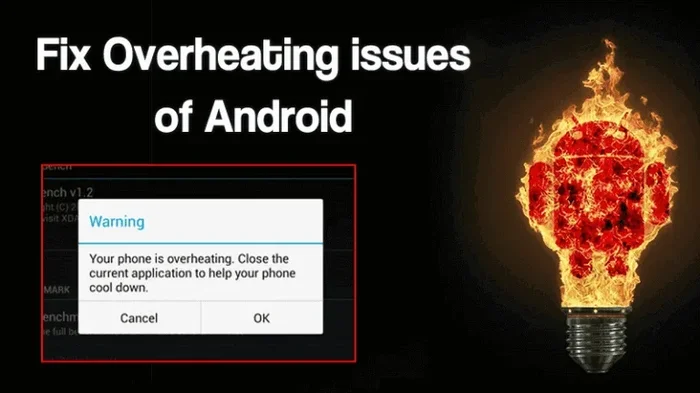
There are two main types of Android phone throttling. The first is thermal throttling. This happens when your phone gets too hot. The processor slows down to cool the device and prevent damage. The second is battery throttling. This occurs when your battery is low or degraded, and the system conserves power by cutting performance.
Some brands are more aggressive with throttling than others. Samsung, for example, uses a feature called Performance Mode that manages speed based on usage. OnePlus has been known to throttle older devices after system updates. Google Pixel phones use Adaptive Battery and Doze mode to limit background activity.
Understanding why throttling happens is the first step to fixing it. Once you know the cause, you can target the right solution. Let us look at the most common reasons your phone might be slowing down.
Common Causes of Throttling
- High CPU usage: Running too many apps or games at once heats up your processor.
- Battery degradation: Old or damaged batteries trigger power-saving slowdowns.
- Background app activity: Apps running silently drain resources and generate heat.
- System updates: New software can change power management settings unexpectedly.
- Charging while using: Charging generates heat, and heavy use on top of that causes thermal throttling.
- Hot environments: Using your phone in direct sunlight or hot rooms accelerates throttling.
How to Check If Your Phone Is Being Throttled
Before you start fixing things, you need to confirm that throttling is actually the problem. Many people think their phone is slow because of low storage or old age. But throttling has its own telltale signs.
Here are the easiest ways to check if your device is being throttled. These methods work on most Android phones and require no extra apps.
Monitor Your Phone Temperature
Feel the back of your phone. If it is unusually warm or hot, thermal throttling is likely active. You can also download a free app like CPU Monitor or AIDA64 to check your device temperature in real time. Normal phone temperatures stay between 30 and 40 degrees Celsius. Anything above 45 degrees usually means throttling has kicked in.
Check Battery Health
Go to Settings > Battery > Battery Health on your phone. If your battery health is below 80 percent, your phone will likely throttle performance to protect the degraded battery. This is very common on phones that are two years old or older.
Use Developer Options to View CPU Usage
You can enable Developer Options and use the running services menu to see which apps are consuming the most CPU. Go to Settings > About Phone > Tap Build Number 7 Times to unlock Developer Options. Then navigate to Developer Options > Running Services to see real-time resource usage.
Quick Fixes to Stop Android Phone Throttling
Now that you know what throttling is and how to detect it, let us dive into the fixes. These are the most effective methods to stop Android phone throttling and restore your device speed.
Fix 1: Disable Battery Saver Mode
Battery saver mode is one of the biggest causes of slowdowns. When this mode is on, your phone limits CPU speed, reduces background activity, and dims your screen. It saves battery, but it kills performance.
To turn it off, go to Settings > Battery > Battery Saver and toggle it off. If you want to keep some battery savings without the slowdown, try Adaptive Battery instead. This feature learns your habits and only restricts apps you rarely use.
Fix 2: Limit Background App Activity
Too many apps running in the background is a leading cause of device slowdown. Each app uses CPU, memory, and generates heat. The more apps running, the more likely your phone is to throttle.
Go to Settings > Apps > See All Apps and tap on apps you rarely use. Select Battery > Restricted to prevent them from running in the background. For apps you use often, you can leave them unrestricted. Focus on limiting social media apps, shopping apps, and games that run processes even when you are not using them.
Fix 3: Clear Your Cache Regularly
Over time, your phone accumulates cache files that slow down the system. Cached data can cause apps to behave strangely and force the processor to work harder than it needs to.
Go to Settings > Storage > Cached Data and clear it. You can also clear cache for individual apps by going to Settings > Apps > [App Name] > Storage > Clear Cache. This simple step can make a noticeable difference in speed.
Fix 4: Keep Your Phone Cool
Heat is the enemy of performance. If your phone gets hot, it will throttle automatically to protect itself. Here are some quick tips to keep your device cool:
- Take off thick phone cases during heavy use or gaming.
- Avoid using your phone in direct sunlight.
- Do not charge your phone while playing demanding games.
- Use a cooling fan or heat sink accessory for gaming sessions.
- Close apps you are not actively using.
Fix 5: Update Your Software
Manufacturers regularly release updates that fix performance bugs and improve power management. An outdated system can cause unnecessary throttling. Go to Settings > System > Software Update and check for the latest version. Keeping your phone updated is one of the easiest ways to maintain smooth performance.
Advanced Settings to Improve Performance
If the quick fixes above do not solve the problem, you can dig deeper into your phone settings. Android offers powerful tools that let you control how your device manages performance and power.
Enable Performance Mode
Many Android phones, especially Samsung and OnePlus devices, have a Performance Mode or Game Mode setting. This mode prioritizes speed over battery life. It prevents the system from throttling the CPU during heavy tasks.
On Samsung phones, go to Settings > Battery and Device Care > Battery > Background Usage Limits and set your gaming or heavy-use apps to optimize for performance. On OnePlus, look for Game Space in your settings and enable performance boost features.
Tweak Developer Options
Developer Options is a hidden menu that gives you advanced control over your phone. You can use it to force better performance and reduce throttling.
Here are the most useful developer settings for stopping throttling:
- Force GPU Rendering: This setting offloads graphics work to your GPU, reducing CPU strain.
- Window Animation Scale: Set this to 0.5x or turn it off for faster screen transitions.
- Transition Animation Scale: Same as above, this speeds up animations and makes your phone feel faster.
- Background Process Limit: Set this to “At most 4 processes” to prevent too many apps from running at once.
To access these settings, go to Settings > Developer Options and scroll through the list. Be careful not to change anything you do not understand. Stick to the settings listed above for the safest performance boost.
Adjust Doze Mode and App Standby
Doze mode is a power-saving feature that puts your phone to sleep when you are not actively using it. App Standby restricts apps that you have not used recently. Both features help save battery but can cause delays when you open apps.
To minimize their impact, go to Settings > Battery > Battery Usage and look for Doze and App Standby settings. You can whitelist important apps so they always stay active and responsive. This prevents the system from throttling or delaying apps you use frequently.
Common Mistakes That Make Throttling Worse
Sometimes, the things we do every day actually make throttling worse without us realizing it. Avoid these common mistakes to keep your phone running at its best.
Installing Too Many Optimization Apps
It sounds ironic, but many “booster” or “cleaner” apps actually make your phone slower. These apps run constantly in the background, using CPU and memory just to free up resources. Instead of helping, they add to the problem. Stick to the built-in Android tools for managing your device.
Ignoring Storage Space
When your phone storage is nearly full, the system struggles to operate efficiently. This can lead to slowdowns that feel like throttling. Keep at least 15 to 20 percent of your storage free. Delete unused apps, old photos, and large files regularly.
Using Heavy Widgets and Live Wallpapers
Widgets and live wallpapers look great, but they constantly use system resources. A weather widget that updates every few minutes or a live wallpaper with animations puts extra load on your processor. Switch to static wallpapers and remove widgets you do not check frequently.
Overcharging Your Phone
Leaving your phone plugged in for hours after it reaches 100 percent can cause heat buildup. This heat triggers thermal throttling and can even degrade your battery faster over time. Unplug your phone once it is fully charged, or use a smart charger that stops charging at 100 percent.
When to Consider a Factory Reset or Professional Help
If you have tried everything and your phone still throttles constantly, it might be time for more drastic measures. A factory reset wipes your phone clean and removes any software issues that could be causing throttling.
Before you reset, make sure to back up all your important data. Go to Settings > System > Reset Options > Erase All Data. After the reset, set up your phone fresh and avoid restoring all your old apps at once. Add them back gradually to see which ones might be causing issues.
If a factory reset does not help, the problem might be hardware-related. A degraded battery, faulty thermal paste, or a damaged heat pipe can all cause persistent throttling. In these cases, take your phone to a professional repair shop. They can diagnose the hardware issue and replace the necessary components.
Remember that Android phone throttling is not always a sign that your phone is dying. In most cases, it is a software issue that you can fix with the right settings and habits. Start with the simple fixes, work your way through the advanced options, and only consider professional help if nothing else works.
Final Thoughts on Stopping Android Phone Throttling
Stopping Android phone throttling is entirely possible with the right approach. You do not need to be a tech expert to make these changes. Start by checking your battery health, disabling battery saver mode, and limiting background apps. Then move on to developer options and performance settings for more advanced control.
Keep your phone cool, update your software regularly, and avoid the common mistakes that make throttling worse. With these habits, your Android device will stay fast and responsive for years to come.
The key is to be proactive. Do not wait until your phone is unbearably slow to take action. Use the tips in this guide today, and you will notice a real difference in your device speed and battery life. Android phone throttling does not have to be a permanent problem. You have the power to fix it right now.
Frequently Asked Questions
Why does my Android phone keep throttling even when it is not hot?
Throttling is not always caused by heat. Battery degradation, background app activity, and aggressive power management settings can all trigger slowdowns even when your phone feels cool. Check your battery health and background app usage first.
Is it safe to use Developer Options to stop throttling?
Yes, it is safe as long as you only change the settings you understand. Stick to the recommended settings in this guide, such as forcing GPU rendering and limiting background processes. Avoid changing settings you are not familiar with.
Will disabling battery saver mode drain my phone faster?
Yes, disabling battery saver mode may reduce your battery life slightly. However, it will significantly improve performance and prevent unnecessary throttling. You can balance this by using Adaptive Battery instead.
How often should I clear my phone cache to prevent throttling?
Clearing your cache once a month is usually enough. You can also clear cache for individual apps whenever they start behaving slowly or using too much storage.
Do all Android phones throttle the same way?
No, different brands throttle differently. Samsung, Google, OnePlus, and Xiaomi all have their own power management systems. Some are more aggressive than others, but the fixes in this guide apply to all Android devices.
Can a damaged battery cause my phone to throttle?
Absolutely. A degraded battery cannot deliver power efficiently, which triggers the system to throttle performance as a safety measure. If your battery health is below 80 percent, consider replacing it to restore full performance.
=== META TITLE ===
Stop Android Phone Throttling With These Easy Fixes
=== URL SLUG ===
/stop-android-phone-throttling
=== SEO TITLE ===
How Do I Stop My Android Phone From Unwanted Throttling