How Do I Reset And Reconnect My Apple Watch Easily
Learning how to reset and reconnect your Apple Watch is easier than you think. This guide walks you through every step, from factory resetting your watch to pairing it again with your iPhone. Whether your Apple Watch is frozen, glitching, or won’t connect, you will find clear instructions that work every time.
Have you ever stared at your Apple Watch screen, completely frozen, wondering what went wrong? Maybe it just stopped syncing with your phone, or the screen froze mid-workout. It is frustrating, right? The good news is that resetting and reconnecting your Apple Watch is a process most people can handle in under ten minutes. You do not need to be a tech expert. You just need the right steps.
In this guide, we will walk you through everything. From why you might need a reset, to the exact steps for Apple Watch reset, to getting your watch paired again. We also cover common problems after a reset and tips to keep your watch running smoothly. By the end, you will feel confident handling this on your own.
Key Takeaways
- Resetting your Apple Watch is simple: You can do it directly from the watch or through the Watch app on your iPhone.
- Always back up your data first: Your iCloud backup Apple Watch settings and health data are safe if you back up before resetting.
- Reconnection takes just a few minutes: After a reset, you can set up as new or restore from a backup quickly.
- Common issues like Bluetooth drops are fixable: A quick restart or software update often solves Apple Watch not connecting problems.
- Know when to call Apple Support: If basic steps don’t work, Apple Support can help with deeper Apple Watch troubleshooting.
📑 Table of Contents
- Why You Might Need to Reset Your Apple Watch
- How to Reset Your Apple Watch (Step by Step)
- How to Reconnect Your Apple Watch After a Reset
- Common Problems After Reset and How to Fix Them
- Tips to Keep Your Apple Watch Running Smoothly
- When to Contact Apple Support
- Frequently Asked Questions
- Final Thoughts
Why You Might Need to Reset Your Apple Watch
There are many reasons your Apple Watch might need a fresh start. Sometimes a simple restart does not fix the problem. That is when a full reset becomes necessary. Let us look at the most common reasons.
Your Watch Is Frozen or Unresponsive
Nothing is more annoying than a frozen screen. You tap the screen, press the side button, and nothing happens. This usually means the software has crashed or gotten stuck. A reset clears out the temporary glitches and gives your watch a clean slate.
You Are Selling or Giving Away Your Watch
Before you hand off your Apple Watch to someone else, you need to unpair it completely. This removes all your personal data, health information, and settings. A reset ensures the next user starts fresh. It also protects your privacy.
Bluetooth Keeps Cutting Out
If your Apple Watch keeps losing its Bluetooth connection with your iPhone, a reset can often fix this. Corrupted data or outdated software can cause constant disconnections. A reset wipes that corrupted data away.
Software Updates Are Stuck
Sometimes a WatchOS update gets stuck halfway through. Your watch might show a spinning wheel for hours. In these cases, a reset forces the system to start over and complete the update properly.
Performance Is Slow
Over time, your watch can get sluggish. Apps take longer to open. The scroll feels laggy. A reset clears out junk data and cached files. Your watch should feel fast again after a fresh start.
How to Reset Your Apple Watch (Step by Step)
Resetting your Apple Watch is straightforward. There are two main ways to do it. You can reset directly from the watch itself, or you can use the Watch app on your iPhone. Let us go through both methods.
Method One: Reset From the Apple Watch
This is the most direct way to perform an Apple Watch reset. Here is exactly what to do:
- Press the side button on your watch until you see the Power Off slider.
- Press and hold the side button and the Digital Crown at the same time.
- Keep holding both buttons for about ten seconds.
- The Apple logo will appear on the screen. Release the buttons.
- Your watch will restart. This is a soft reset.
If a soft reset does not fix your problem, you may need a full factory reset. Go to Settings on your watch. Tap General. Scroll down and tap Reset. Choose Erase All Content and Settings. Enter your passcode if prompted. Confirm that you want to erase everything. Your watch will now reset to factory settings.
Method Two: Reset From the iPhone Watch App
You can also reset your watch from your iPhone. This method is helpful if your watch screen is too glitchy to navigate. Here is how:
- Open the Watch app on your iPhone.
- Tap the My Watch tab at the bottom left.
- Tap on your watch name at the top of the screen.
- Scroll down and tap General.
- Tap Reset.
- Choose Erase All Content and Settings.
- Confirm your choice. Your watch will begin the reset process.
Before you reset, make sure your Apple Watch is charged to at least 30 percent. A reset takes a few minutes, and you do not want your watch dying halfway through. Also, if you have an iCloud backup Apple Watch, your data will be safe. But it is still smart to double-check your backup before you erase anything.
What Happens When You Reset Your Apple Watch
When you erase all content and settings, your watch goes back to the way it was when you first took it out of the box. All your apps are removed. Your settings are cleared. Your health and fitness data is wiped from the watch itself. But here is the good news: if you backed up to iCloud, all that data can be restored during the setup process again.
Your Apple Watch will also unpair from your iPhone automatically after a full reset. You will need to go through the pairing process again. Do not worry. It only takes a few minutes.
How to Reconnect Your Apple Watch After a Reset
Now comes the exciting part. Your watch is reset and ready to go. But how do you get it connected to your iPhone again? The Apple Watch pairing process is simple, but you need to follow the steps carefully.
Step One: Turn On Your Apple Watch
Press and hold the side button on your watch until you see the Apple logo. Your watch will power on. You should see the Hello screen. This means your watch is ready to be set up again.
Step Two: Bring Your Watch Near Your iPhone
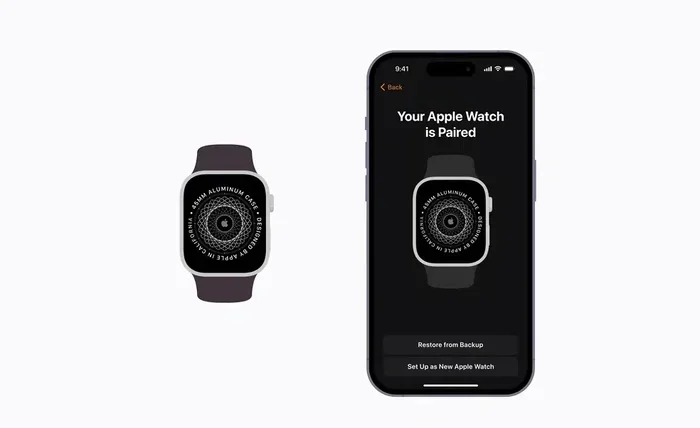
Hold your reset Apple Watch close to your iPhone. Your iPhone should automatically detect it. A message will pop up on your iPhone screen asking if you want to pair the devices. Tap Continue.
If your iPhone does not detect the watch, make sure Bluetooth is turned on. You can check this by going to Settings on your iPhone and tapping Bluetooth. If it is already on and still not detecting, try turning Bluetooth off and back on again.
Step Three: Follow the On-Screen Prompts
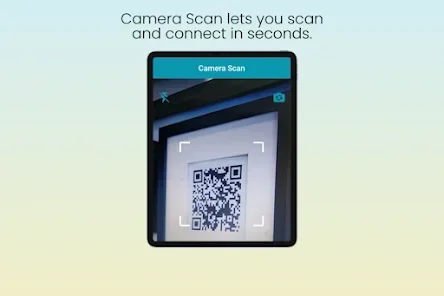
Your iPhone will guide you through the setup. You will see a animation on the watch screen. Hold your iPhone camera over it to pair the devices. Then choose whether you want to set up as a new watch or restore from a backup.
If you choose to restore from a backup, your watch will pull in your apps, settings, and health data. This usually takes about five to ten minutes depending on how much data you have.
Step Four: Sign In With Your Apple ID
You will need to enter your Apple ID password during setup. This links your watch to your iCloud account. It also enables features like Apple Watch cellular, if your plan supports it. Make sure you remember your Apple ID password before you start.
Step Five: Wait for the Sync to Complete
After setup, your watch will begin syncing data from your iPhone. This includes your health data, app notifications, and watch faces. You might see a spinning wheel on the screen. Let it finish. Do not move your watch too far from your phone during this process.
Once the sync is complete, your Apple Watch is fully connected and ready to use. You should see all your apps and settings exactly how you left them.
Common Problems After Reset and How to Fix Them
Sometimes things do not go perfectly after a reset. Your watch might not connect right away, or you might run into errors. Here are the most common issues and how to solve them.
Apple Watch Won’t Pair With iPhone
This is the most common complaint after a reset. If your iPhone does not detect your watch, try these fixes:
- Make sure Bluetooth is turned on on both devices.
- Restart your iPhone by holding the side button and sliding to power off.
- Turn your Apple Watch off and back on again.
- Make sure both devices are close to each other.
- Check that your iPhone has the latest iOS version installed.
Sometimes the Watch app on your iPhone needs a restart too. Close the app completely and open it again. This often fixes detection issues.
Bluetooth Keeps Disconnecting
If your Apple Watch connects but keeps dropping the Bluetooth connection, try this:
- Go to Settings on your iPhone and toggle Bluetooth off and on.
- Restart both your iPhone and your Apple Watch.
- Make sure your watch software is up to date. Go to Settings on your watch, tap General, then Software Update.
- Remove any metal cases or magnetic chargers that might be interfering with the signal.
Watch Shows an Error Message
If you see an Apple Watch error message during pairing, do not panic. Most errors are easy to fix. Write down the exact error code or message. Search for it on Apple’s support website. You can also try resetting network settings on your iPhone. Go to Settings, General, Transfer or Reset iPhone, Reset, and tap Reset Network Settings.
Wrist Detection Is Not Working
After a reset, your Apple Watch wrist detection might need to be turned back on. Go to the Watch app on your iPhone, tap My Watch, tap Passcode, and make sure Wrist Detection is switched on. This feature keeps your watch locked when it is not on your wrist. It also improves accuracy for health tracking.
Tips to Keep Your Apple Watch Running Smoothly
Once you have your Apple Watch reset and reconnected, you want to keep it running well. Prevention is always better than fixing problems. Here are some simple habits that make a big difference.
Keep Your WatchOS Updated
Apple releases regular Apple Watch software update patches. These fix bugs and improve performance. Go to Settings on your watch, tap General, then Software Update. If an update is available, install it when you can. Keeping your watch updated reduces the chances of glitches and connection issues.
Restart Your Watch Weekly
Just like your iPhone, your Apple Watch benefits from a regular restart. Once a week, hold the side button and the Digital Crown together for ten seconds. This clears out temporary files and keeps things running fast. It is a simple habit that prevents many common issues.
Charge Your Watch Properly
Always use the official Apple Watch charger or a certified third-party charger. Cheap chargers can damage the battery over time. Try to keep your watch charged between 20 and 80 percent. This extends the overall battery life significantly.
Manage Your Apps
Too many apps can slow down your watch. Go through your apps every few weeks and delete the ones you no longer use. This frees up storage space and helps your watch run faster. Your Apple Watch will feel snappier with fewer apps running in the background.
Enable Automatic Sync
Make sure your Apple Watch sync is set to automatic. Open the Watch app on your iPhone, tap General, and make sure Auto-Sync is turned on. This ensures your health data, messages, and app information stay up to date without you having to do anything manually.
When to Contact Apple Support
Most Apple Watch troubleshooting steps can be done at home. But sometimes the problem is deeper than a simple reset. If you have tried everything in this guide and your watch still will not connect, it is time to reach out to Apple Support.
Here are signs you should contact Apple:
- Your watch keeps restarting on its own after a reset.
- You see a persistent Apple Watch error message that does not go away.
- Your watch will not charge at all, even with a new charger.
- The touchscreen is completely unresponsive after multiple resets.
- Your Apple Watch shows signs of water damage or physical harm.
You can contact Apple Support through the Apple Support app on your iPhone, by visiting an Apple Store, or by calling Apple directly. They can run diagnostics remotely or help you schedule a repair if needed. Most issues are covered under warranty or AppleCare+.
Frequently Asked Questions
How long does it take to reset and reconnect an Apple Watch?
A full reset takes about five to ten minutes depending on how much data is on your watch. The reconnection process usually takes another five to ten minutes. If you are restoring from an iCloud backup Apple Watch, it might take a bit longer based on your data size. Overall, plan for about fifteen to twenty minutes total.
Will I lose my data if I reset my Apple Watch?
Yes, a factory reset erases all data from your Apple Watch. However, if you backed up your watch to iCloud or your iPhone before resetting, you can restore all your data during the setup process. Always make sure you have a recent backup before you erase anything.
Can I reset my Apple Watch without using my iPhone?
Yes, you can reset your Apple Watch directly from the watch itself. Go to Settings, tap General, tap Reset, and choose Erase All Content and Settings. You will need your passcode to confirm. After the reset, you can pair the watch with a new or reset iPhone if needed.
Why won’t my Apple Watch connect after a reset?
This is usually caused by a Bluetooth issue, an outdated software version, or a problem with your iPhone’s network settings. Try restarting both devices, making sure Bluetooth is on, and checking for WatchOS and iOS updates. If the problem persists, remove the watch from your iPhone’s Bluetooth list and try pairing again.
Do I need to enter my Apple ID after resetting?
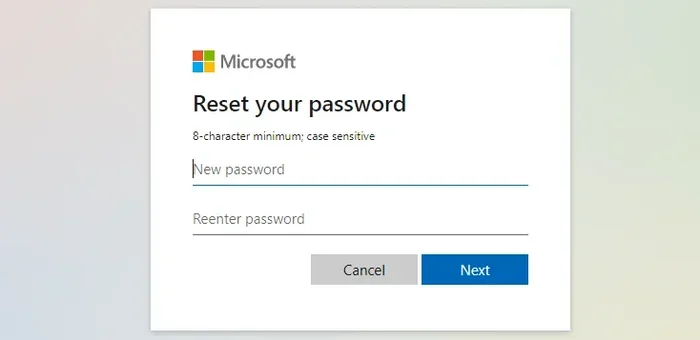
Yes, you will need to enter your Apple ID and password during the setup process after a reset. This is because the Apple Watch is linked to your Apple ID for security and feature activation. If you forgot your password, you can reset it through Apple’s account recovery page before you start the setup.
Is it safe to reset my Apple Watch if it has a cracked screen?
Yes, resetting is safe even with a cracked screen. You can use the iPhone method through the Watch app to avoid interacting with the touchscreen. If the screen is completely unresponsive, you can still put the watch in recovery mode and restore it using your computer. Apple Support can walk you through this if needed.
Final Thoughts
Resetting and reconnecting your Apple Watch does not have to be scary. With the right steps, you can handle it all on your own. Whether you are dealing with a frozen screen, constant disconnections, or preparing your watch for a new owner, the process is straightforward and manageable.
Remember to always back up your data first. Follow the steps carefully. And do not hesitate to reach out to Apple Support if you get stuck. Your Apple Watch is a powerful device, and a simple reset often solves most problems you will face.
Now that you know exactly how to reset and reconnect your Apple Watch, you can tackle any issue with confidence. Keep this guide bookmarked for future reference. Your watch will thank you for it, and you will never have to worry about a frozen screen or lost connection again.