How Do I Plug My Phone Into The Tv Screen Right Now
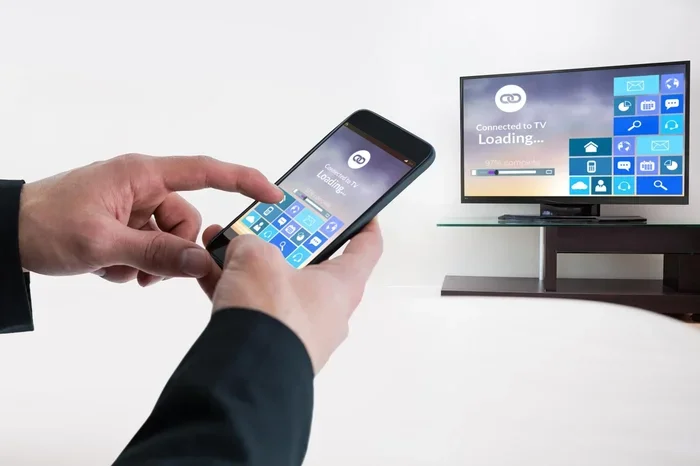
Plugging your phone into your tv is easy with the right cable, adapter, or wireless method. This guide gives you step-by-step instructions for Android and iPhone users, plus tips for the best viewing experience.
Have you ever wanted to show someone a video on your phone but the screen is just too small? Or maybe you are hosting a movie night and want to use your tv as the display. Whatever the reason, learning how to plug your phone into the tv is one of the most useful tech skills you can pick up. The good news is that it does not matter what kind of phone you have. There is a method that works for you. In this article, we will walk through every option available today. You will find clear steps, helpful tips, and answers to the questions people ask most often.
The process might seem tricky if you have never done it before. But trust me, once you try it the first time, it becomes second nature. You will wonder how you ever lived without it. Let us dive in and explore all the ways you can connect your phone to your tv screen.
Key Takeaways
- Wired connections using HDMI adapters give you the most reliable and lag-free experience when you plug your phone into the tv.
- Wireless casting through Chromecast, AirPlay, or Smart View lets you stream without any cables at all.
- Both Android and iPhone support multiple connection methods, so you can choose what works best for your device.
- Quick tips like using the right cable and keeping your software updated make a huge difference in performance.
- Common mistakes like using the wrong adapter or ignoring software updates are easy to avoid with this guide.
- You do not need WiFi for some wired methods, which is great for situations where your internet is slow or unavailable.
- Your tv does not need to be a Smart TV for most wired connections to work.
📑 Table of Contents
- Why You Should Plug Your Phone Into the TV
- What You Need to Plug Your Phone Into the TV
- How to Connect an Android Phone to Your TV
- How to Connect an iPhone to Your TV
- Wireless Ways to Cast Your Phone to the TV
- Troubleshooting Common Connection Problems
- Quick Tips for the Best Viewing Experience
- Common Mistakes People Make When Connecting Their Phone to the TV
- Can You Connect Your Phone to a TV Without WiFi?
- Does Your TV Need to Be a Smart TV?
- Conclusion
Why You Should Plug Your Phone Into the TV
There are so many reasons to connect your phone to your tv. The small screen on your phone limits how much you can enjoy. When you cast your phone display to a tv, everything changes. Here are some of the top reasons people do this every day.
Watch Videos and Movies on a Bigger Screen
Streaming services like Netflix, YouTube, and Disney Plus look amazing on a tv. But sometimes you want to watch something that is not on your tv app. Maybe it is a video from social media or a clip someone sent you. Plugging your phone into the tv lets you watch anything, anywhere, on the big screen.
Share Photos and Videos with Family
Got a great vacation slideshow? Want to show everyone the video from last weekend? Connecting your phone to the tv makes sharing instant. Everyone in the room can see the photos clearly. No more squinting at a tiny phone screen.
Play Mobile Games on a Larger Display
Some games are just better on a big screen. Whether you are playing puzzle games or action games, mobile gaming on a tv feels completely different. It is especially fun when you have friends over and want to play together.
Use Your Phone as a Second Screen
Some people use their phone as a remote or keyboard while their tv shows content. This setup is handy for typing comments or controlling playback without getting up from the couch.
What You Need to Plug Your Phone Into the TV
Before you start, you need to know what equipment you will need. The answer depends on your phone type and your tv. Let us break down the options so you can gather everything before you begin.
Wired Connection Options
Wired connections are the most reliable way to display phone content on a tv. They do not lag, they do not drop, and they work with almost any tv. Here is what you might need:
- USB-C to HDMI cable — This works for most newer Android phones. You plug one end into your phone and the other into your tv’s HDMI port.
- Lightning to HDMI adapter — iPhone users need this special adapter. Apple uses a different connector, so you need an adapter that fits your charging port.
- Micro USB to HDMI adapter — Older Android phones use Micro USB. You can find adapters for these as well.
- HDMI cable — Most adapters come with an HDMI cable, but you may need to buy one separately depending on the adapter you choose.
Wireless Connection Options
Wireless methods are super convenient because you do not need any cables. Here are the most popular options:
- Chromecast — A small device you plug into your tv’s HDMI port. It connects to your WiFi and lets you cast from your phone.
- AirPlay — Built into Apple devices and many Smart TVs. You can mirror your iPhone screen wirelessly to a compatible tv.
- Smart View (Samsung) — Samsung phones have this feature built in for connecting to Samsung Smart TVs.
- Miracast — A wireless standard supported by many Android phones and TVs. It works without extra hardware in some cases.
- Built-in Smart TV casting — Many modern Smart TVs have native casting features you can access from your phone’s quick settings.
Quick Comparison of Wired vs. Wireless
| Feature | Wired Connection | Wireless Connection |
|---|---|---|
| Setup Speed | Fast, plug and play | Fast, but may need WiFi setup |
| Lag or Delay | Almost none | Small delay possible |
| Cable Needed | Yes | No |
| Works Without WiFi | Yes | Usually no |
| Video Quality | Full HD or 4K | Depends on WiFi strength |
| Best For | Gaming, presentations | Casual streaming, sharing |
How to Connect an Android Phone to Your TV
Android phones offer several ways to connect to a tv. The method you choose depends on your phone model and what you want to do. Let us walk through the most popular options step by step.
Method 1: USB-C to HDMI Cable
This is the easiest and most reliable method for newer Android phones. Here is how to do it:
- Check your phone for a USB-C port. Most Android phones made after 2018 use USB-C.
- Get a USB-C to HDMI adapter or cable. You can find these online or at electronics stores for around 10 to 25 dollars.
- Plug the USB-C end into your phone.
- Connect the HDMI end to an open HDMI port on your tv.
- Switch your tv to the correct HDMI input using your remote.
- Your phone screen should appear on the tv immediately.
That is it. No apps needed. No WiFi required. This method works great for streaming videos, showing photos, and even gaming.
Method 2: Wireless Screen Mirroring
If you do not want to use a cable, you can mirror your screen wirelessly. Here is how:
- Make sure your phone and tv are on the same WiFi network.
- Open your phone’s quick settings by swiping down from the top of the screen.
- Look for a button called Smart View, Screen Mirroring, or Cast.
- Tap it and select your tv from the list.
- Your phone screen will now appear on the tv.
Wireless mirroring works well for most things. But if you are playing a fast game or watching high-action videos, you might notice a slight delay. For the best experience, a wired connection is hard to beat.
Method 3: Using a Streaming Device
Devices like Chromecast, Roku, or Amazon Fire Stick give you even more options. You plug the device into your tv’s HDMI port, connect it to WiFi, and then cast content from your phone. This method is great because it does not use your phone screen directly. Instead, your phone acts as a remote control while the tv does the heavy lifting.
How to Connect an iPhone to Your TV
iPhone users have a slightly different set of options. Apple uses its own connector and its own wireless system. But the process is just as simple once you know what to do.
Method 1: Lightning to HDMI Adapter
Apple makes a special adapter for this purpose. Here is what to do:
- Buy a Lightning to HDMI adapter from Apple or a trusted third-party brand.
- Plug the Lightning end into your iPhone’s charging port.
- Connect an HDMI cable from the adapter to your tv.
- Switch your tv to the correct HDMI input.
- Your iPhone screen will display on the tv right away.
This adapter costs around 15 to 50 dollars depending on the brand. It is the most dependable way to connect an iPhone to a tv without WiFi.
Method 2: AirPlay Wireless Mirroring
If you have a Smart TV that supports AirPlay, you can mirror your iPhone wirelessly. Here is how:
- Make sure your iPhone and tv are on the same WiFi network.
- Open the Control Center by swiping down from the top right of your screen.
- Tap the Screen Mirroring button.
- Select your tv from the list.
- Enter the code if your tv asks for one.
AirPlay is incredibly easy to use. The video quality is excellent when your WiFi signal is strong. This is the go-to method for most iPhone users who want to share their screen with a tv.
Method 3: Using Apple TV or a Streaming App
If you have an Apple TV device, you get the smoothest experience possible. Apple TV works seamlessly with iPhones. You can also use apps like Netflix or YouTube directly on your tv without mirroring your whole screen. This saves battery and gives you better performance.
Wireless Ways to Cast Your Phone to the TV
Not everyone wants to deal with cables. Wireless casting is convenient, and the technology has improved a lot over the years. Let us look at the best wireless options available right now.
Google Chromecast
Chromecast is one of the most popular casting devices. You plug a small dongle into your tv’s HDMI port and connect it to your WiFi. Then you can cast content from apps like YouTube, Spotify, and Netflix directly from your phone. The best part is that your phone handles the sending while the Chromecast handles the streaming. This means you can use your phone for other things while content plays on your tv.
Apple AirPlay
AirPlay is Apple’s wireless casting technology. It works with iPhones, iPads, and Macs. Many modern Smart TVs support AirPlay natively. If your tv does not, you can buy an Apple TV box for a great experience. AirPlay is known for its smooth performance and high-quality video output.
Samsung Smart View
If you have a Samsung phone and a Samsung tv, Smart View is your best friend. It is built right into your phone and connects instantly to Samsung TVs. You can mirror your entire screen or just cast specific apps. The integration between Samsung devices is excellent and makes the whole process feel effortless.
Miracast
Miracast is a wireless standard that many phones and TVs support. It does not need an extra device like Chromecast. If both your phone and tv support Miracast, you can connect them directly. Look for the Wireless Display option in your phone’s settings to see if it is available.
Troubleshooting Common Connection Problems
Sometimes things do not work the first time. That is completely normal. Here are the most common issues and how to fix them.
No Signal on the TV
If your tv shows no signal, try these steps:
- Check that the cable is firmly plugged in on both ends.
- Make sure your tv is set to the correct HDMI input.
- Try a different HDMI port on your tv.
- Restart your phone and try again.
Lag or Delay During Screen Mirroring
Wireless connections can sometimes lag. To fix this:
- Move closer to your WiFi router.
- Make sure no one else is streaming heavy content on the same network.
- Restart your router and phone.
- Use a wired connection for the best performance.
Phone Does Not Detect the TV
If your phone cannot find the tv to connect to:
- Make sure both devices are on the same WiFi network.
- Turn WiFi off and back on on both devices.
- Check for software updates on your phone.
- Restart both devices and try again.
Black Screen on the TV
A black screen usually means the connection is there but the signal is not displaying correctly:
- Check your phone’s display settings for mirroring options.
- Try a different cable or adapter.
- Make sure your tv supports the resolution your phone is sending.
Quick Tips for the Best Viewing Experience
Once you have your phone connected to your tv, a few simple tips can make everything better. These are things I wish someone had told me when I first started doing this.
- Turn off notifications — Nothing ruins a movie night like a text message popping up on the big screen. Put your phone in Do Not Disturb mode.
- Use a high-quality cable — Cheap cables can cause flickering or low-quality video. Spend a few extra dollars on a reliable brand.
- Keep your phone charged — Screen mirroring uses a lot of battery. Plug your phone into a charger while you watch.
- Adjust your tv’s picture settings — Brightness and contrast can make a big difference in how your content looks on the large screen.
- Close background apps — This frees up resources and helps your phone send a smoother signal to the tv.
Expert Insight from a Tech Professional
According to tech experts, the best method depends on what you are trying to do. For gaming or presentations, a wired connection is always the safest choice. For casual movie watching or sharing photos with friends, wireless casting works perfectly. The key is to match the method to your needs. Do not overcomplicate things. Start simple and upgrade if you need to.
Common Mistakes People Make When Connecting Their Phone to the TV
Avoid these common mistakes and you will save yourself a lot of frustration.
- Using the wrong adapter — Not all adapters work with all phones. Check your phone model before buying an adapter.
- Ignoring software updates — Outdated software can cause connection issues. Always keep your phone updated.
- Forgetting to switch the tv input — This sounds obvious, but many people plug everything in and forget to change the tv channel to the right HDMI port.
- Using a damaged cable — Frayed or old cables cause connection problems. Replace them if they look worn.
- Assuming all TVs work the same way — Older TVs may not support the same features as newer ones. Check your tv’s manual or specs online.
Can You Connect Your Phone to a TV Without WiFi?
Yes, you absolutely can. Wired connections like USB-C to HDMI or Lightning to HDMI do not need WiFi at all. This is great for situations where your internet is slow or you do not have a WiFi network available. You can also use some wired methods to display phone content on a tv even in areas with no internet access. Wireless methods usually do need WiFi, but some devices like Chromecast have a guest mode that works without requiring your phone to be on the same network.
Does Your TV Need to Be a Smart TV?
No, your tv does not need to be a Smart TV for most wired connections. As long as your tv has an HDMI port, you can plug in an adapter and mirror your phone screen. For wireless methods, a Smart TV makes things easier because it has built-in casting features. But you can also use external devices like Chromecast or Apple TV to add wireless capabilities to any tv with an HDMI port.
Conclusion
So there you have it. You now know exactly how to plug your phone into the tv using every method available today. Whether you use a wired HDMI adapter for the most reliable connection or go wireless with Chromecast or AirPlay, the process is straightforward and works with almost any device.
The key is to pick the method that fits your needs best. If you want zero lag and the highest quality, go wired. If you want convenience and flexibility, go wireless. Either way, you will be able to enjoy your phone’s content on a much bigger screen in no time.
Try it today. Pick up the right adapter or open your casting app and give it a try. Once you see your phone screen on the tv, you will wonder why you did not do it sooner. Share this guide with friends who have been wondering the same thing. Connecting your phone to your tv is one of those simple upgrades that makes a real difference in your daily life.
Frequently Asked Questions
Can I plug any phone into any TV?
Most modern phones can connect to most TVs, but the method depends on your phone’s port and your tv’s inputs. Newer Android phones with USB-C can use a USB-C to HDMI adapter. iPhones need a Lightning to HDMI adapter. If your tv has an HDMI port, you can connect almost any phone with the right adapter. Some older phones may need a different adapter, so check your phone’s specifications before buying one.
Do I need WiFi to connect my phone to my TV?
No, you do not need WiFi for wired connections. USB-C to HDMI and Lightning to HDMI adapters work without any internet connection. However, wireless methods like Chromecast, AirPlay, and screen mirroring do require WiFi. If you are in an area without WiFi, a wired connection is your best bet for displaying your phone on a tv screen.
Why is my phone screen not showing on the TV?
Several things can cause this issue. First, check that your cable or adapter is firmly connected on both ends. Make sure your tv is set to the correct HDMI input. Restart both your phone and tv and try again. Also, check that your phone’s display settings allow screen mirroring or output. If you are using a wireless method, make sure both devices are on the same WiFi network.
Can I charge my phone while it is connected to the TV?
Yes, in most cases you can. Many USB-C to HDMI adapters have a built-in USB port that lets you charge your phone while it is connected. Lightning to HDMI adapters for iPhones also sometimes include a pass-through charging port. This is very helpful if you plan to watch something for a long time and do not want your phone battery to die.
What is the difference between screen mirroring and casting?
Screen mirroring shows your entire phone screen on the tv exactly as it looks on your phone. Casting, on the other hand, sends content from a specific app to the tv while you can still use your phone for other things. For example, when you cast a YouTube video, the video plays on the tv but you can use your phone for other tasks. Mirroring shows everything, including notifications and other apps, on the tv screen.
Is it safe to leave my phone plugged into the TV for a long time?
Yes, it is generally safe. Wired connections do not put extra strain on your phone. However, your phone may get warm if it is processing video output for a long time. To be safe, make sure your phone has good ventilation and is not covered by anything while connected. Also, using the original or a high-quality charger adapter helps prevent overheating issues during long viewing sessions.
=== META DESCRIPTION ===
Learn how to plug your phone into the tv screen easily. Step-by-step guides for Android and iPhone with cables, adapters, and wireless options. Read now!