Can You Connect 2 HDMI Together And What Happens Next
Can you connect 2 HDMI cables together? Yes, but it depends on what you want to achieve. Using an HDMI splitter, HDMI switch, or active HDMI cable lets you extend or duplicate your signal without major signal loss. However, daisy-chaining cables directly can cause video quality drops and audio issues. This guide breaks down every method, explains what happens next, and helps you choose the right solution for your setup.
Have you ever found yourself staring at two HDMI cables and wondering if you can just plug them together? Maybe your TV is too far from your gaming console. Or perhaps you need to connect two laptops to one monitor. The question Can You Connect 2 HDMI Together comes up more often than you might think.
The short answer is yes, but there is a catch. You cannot simply plug one HDMI cable into another and expect it to work. You need a helper device like a splitter, switch, or extender. And each option does something different to your audio and video signal. Let us walk through everything you need to know.
Key Takeaways
- You can connect two HDMI cables: Use a splitter, switch, or extender to link two cables safely.
- Direct daisy-chaining does not work: Plugging one HDMI cable into another without a device will not pass a signal.
- Signal loss is real: Every connection point can reduce your display resolution and audio quality.
- Choose the right device: An HDMI splitter duplicates signals, while a switch lets you toggle between sources.
- Check your HDMI version: HDMI 2.0 and HDMI 2.1 support higher bandwidth for 4K and beyond.
- Active cables help over long runs: They boost the signal and reduce signal degradation over distance.
- Match your devices: Ensure all gear supports the same resolution and refresh rate for the best results.
📑 Table of Contents
- Can You Connect 2 HDMI Cables Together?
- What Happens When You Connect Two HDMI Cables With a Splitter?
- Using an HDMI Switch to Connect Two Cables
- HDMI Extenders: Connecting Two Cables Over Long Distances
- Does Connecting Two HDMI Cables Affect Video and Audio Quality?
- Common Mistakes When Connecting Two HDMI Cables
- Expert Insights on Multi-HDMI Setups
- Comparison Table: HDMI Splitter vs Switch vs Extender
- What Happens Next After You Connect Two HDMI Cables?
- Final Thoughts
Can You Connect 2 HDMI Cables Together?
Many people assume that HDMI cables work like extension cords. You plug one into the other, and the signal just keeps going. Unfortunately, that is not how HDMI technology works. An HDMI cable carries a digital signal from one source to one display. When you try to connect two cables end to end without any device in between, the signal stops dead.
So what happens when you try to daisy-chain two HDMI cables? Nothing. No picture. No sound. The HDMI port on your source device sends out a signal, but the second cable has nothing to receive it. Think of it like trying to plug two male USB cables together. It just does not work that way.
Why Direct Connection Fails
Every HDMI cable has a specific design. The connector on one end is male, and the other end is female. When you connect a source to a display, the male end plugs into the female port. But two male ends or two female ends cannot mate. Even if you found some kind of adapter, the HDMI protocol does not support chaining cables directly. The signal needs a device to regenerate and route it.
This is where devices like HDMI splitters, HDMI switches, and HDMI extenders come into play. They act as middlemen that take the signal, process it, and send it where you need it.
What Happens When You Connect Two HDMI Cables With a Splitter?
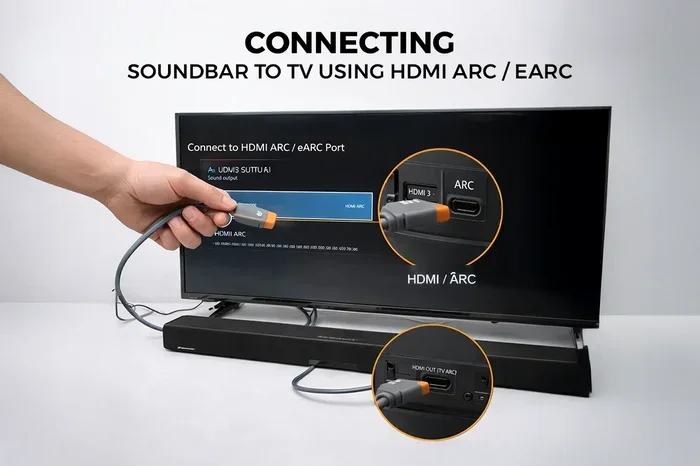
An HDMI splitter is the most common way to connect two HDMI cables together. It takes one input and splits it into two or more outputs. You plug your source device into the splitter, and then run separate cables to each display.
So what happens next when you use a splitter? Both screens show the same content. You get audio and video on both displays. But here is the important part. The splitter does not boost the signal. It divides it. That means if you have a 4K source, both outputs need to support 4K for the best results.
Signal Loss and Quality Drop
One of the biggest concerns with HDMI splitters is signal loss. Every time you split a signal, you reduce the strength of that signal. If you are using a cheap splitter, you might notice a drop in display resolution. Colors might look washed out. Or you might get flickering on one or both screens.
Here are some quick tips to avoid signal degradation when using a splitter:
- Buy a powered HDMI splitter that has its own power supply.
- Use high-quality cables rated for your desired resolution.
- Keep cable runs short, ideally under 15 feet per run.
- Check that your splitter supports the same HDMI version as your source device.
When a Splitter Is the Right Choice
Splitters work great in specific situations. If you want to show the same presentation on two projectors in a conference room, a splitter is perfect. If you need to mirror your laptop screen on a TV and a second monitor, a splitter handles that easily. Just remember that a splitter duplicates the signal. It does not extend your desktop across two screens.
Using an HDMI Switch to Connect Two Cables
An HDMI switch does the opposite of a splitter. Instead of taking one input and making many outputs, it takes many inputs and sends them to one output. This is handy when you have multiple devices but only one HDMI port on your TV or monitor.
So what happens when you connect two HDMI cables through a switch? You get to toggle between your devices. Plug in your cable box on input one and your gaming console on input two. Then use the switch to pick which device you want to see on your screen. It is simple and effective.
Types of HDMI Switches
Not all switches are the same. Here are the main types you will encounter:
- Manual switches: You press a button or flip a switch to change inputs. These are affordable and reliable.
- Remote-controlled switches: You use a remote to toggle between devices. More convenient but slightly pricier.
- Automatic switches: The switch detects which device is turned on and changes inputs automatically. Very convenient but can sometimes be finicky.
When shopping for an HDMI switch, look for one that supports your resolution. If you have a 4K TV, make sure the switch supports 4K at 60Hz or higher. A switch that only handles 1080p will hold your setup back.
HDMI Extenders: Connecting Two Cables Over Long Distances
If your problem is distance, an HDMI extender is your best friend. An extender lets you run an HDMI cable over much longer distances than a standard cable allows. It typically uses two cables connected by a small box or adapter.
Here is how it works. You connect one end of the extender to your source device using a short HDMI cable. Then you run a longer cable from the extender to your display. The extender boosts the signal so it can travel further without signal loss.
Cat5/Cat6 HDMI Extenders
A popular type of HDMI extender uses Ethernet cables (Cat5 or Cat6) to carry the HDMI signal over long distances. You connect a sender unit to your source and a receiver unit to your display. Then you run a Cat5 or Cat6 cable between them. These extenders can push an HDMI signal up to 100 feet or more.
But there are trade-offs. You might notice a slight delay, especially with fast-moving content. Some extenders also reduce the maximum supported resolution. Always check the specs before buying.
Fiber Optic HDMI Extenders
For really long runs, fiber optic HDMI cables or extenders are the way to go. They use light instead of electrical signals, which means virtually no signal degradation over distance. These cables can run 100 feet or more while maintaining full 4K quality. The downside is price. Fiber optic setups cost more than traditional copper cables.
Does Connecting Two HDMI Cables Affect Video and Audio Quality?
This is one of the most common questions people ask when they set up a multi-cable system. The honest answer is it depends. Every connection point in your setup is a potential weak spot. The more cables and adapters you use, the greater the chance of signal degradation.
Here is what can go wrong:
- Resolution drops: Your 4K source might fall back to 1080p if a cable or device cannot handle the bandwidth.
- Audio sync issues: You might notice the sound is slightly out of sync with the picture.
- Flickering or intermittent signal: A loose connection or cheap cable can cause the screen to flicker.
- HDCP errors: Some devices use copy protection (HDCP) that can block the signal if it detects an unsupported connection.
To keep your video quality and audio quality high, invest in good cables and trusted devices. A cheap HDMI splitter might save you a few dollars now but cost you in frustration later.
Quick Tips to Maintain Quality
- Always use cables rated for the resolution you need.
- Avoid unnecessary adapters in your chain.
- Use powered devices (splitters, switches, extenders) instead of passive ones for longer runs.
- Check that all your gear supports the same HDMI version (HDMI 2.0 or HDMI 2.1).
- Keep cable lengths as short as possible between devices.
Common Mistakes When Connecting Two HDMI Cables
Even with the best intentions, people make mistakes when setting up multiple HDMI connections. Here are the most common ones and how to avoid them.
Mistake 1: Daisy-Chaining Without a Device
This is the number one mistake. People plug one HDMI cable into another and expect the signal to pass through. It does not work. Always use a proper device like a splitter, switch, or extender to connect two cables.
Mistake 2: Ignoring HDMI Versions
Not all HDMI cables and devices are created equal. HDMI 1.4 supports 4K at 30Hz. HDMI 2.0 supports 4K at 60Hz. HDMI 2.1 supports 4K at 120Hz and even 8K. If your splitter or switch only supports HDMI 1.4, you will not get the full performance out of your 4K devices.
Mistake 3: Using Cheap, Unbranded Cables
A $2 HDMI cable from an unknown brand might work for standard definition. But for 4K or high refresh rates, you need a quality cable. Look for cables that are certified and rated for the bandwidth you need.
Mistake 4: Overlooking Power Requirements
Some splitters and switches need external power. If you buy a passive device and expect it to work over long cable runs, you will be disappointed. Always check whether your device needs a power adapter and include one in your setup.
Mistake 5: Not Testing Before Mounting
Before you mount your TV or run cables through walls, test your entire setup first. Make sure both displays show the correct resolution and audio. Fix any issues before they become permanent problems.
Expert Insights on Multi-HDMI Setups
We spoke with AV specialists who work with complex home theater and office setups every day. Their number one piece of advice? Keep it simple. The more devices you add between your source and your display, the more chances there are for something to go wrong.
They also recommend buying from reputable brands. Companies like Monoprice, Cable Matters, and UGREEN make reliable HDMI splitters, switches, and extenders at fair prices. You do not need to spend a fortune, but avoid the absolute cheapest options.
Another expert tip is to label your cables. When you have multiple HDMI runs, it can get confusing fast. A simple label maker saves hours of troubleshooting later.
Comparison Table: HDMI Splitter vs Switch vs Extender
| Feature | HDMI Splitter | HDMI Switch | HDMI Extender |
|---|---|---|---|
| Main Purpose | Duplicates signal to multiple displays | Switches between multiple sources | Extends signal over long distances |
| Number of Inputs | 1 | 2 or more | 1 |
| Number of Outputs | 2 or more | 1 | 1 |
| Signal Boost | Usually no (powered models yes) | No | Yes |
| Best For | Mirroring content | Multiple devices, one screen | Long cable runs |
| Potential Signal Loss | Yes, with cheap models | Minimal | Low with fiber optic |
| Price Range | $10 to $50 | $10 to $40 | $15 to $100+ |
What Happens Next After You Connect Two HDMI Cables?
Once you have your setup in place, here is what to expect. If you used a splitter, both displays should light up with the same content within seconds. If you used a switch, you will need to select your input source. If you used an extender, give it a few seconds to establish the connection.
Check your display resolution on each screen. Go to your device settings and make sure everything is set correctly. If you see a blank screen, try unplugging and replugging the cables. If you have no sound, check your audio output settings on your source device.
Most setups work perfectly the first time. If you run into issues, do not panic. Nine times out of ten, it is a cable or settings problem, not a hardware failure.
Final Thoughts
So, can you connect 2 HDMI cables together? Absolutely. But you need the right tools for the job. Whether you choose an HDMI splitter, an HDMI switch, or an HDMI extender, each option solves a different problem. Splitters duplicate your signal. Switches let you choose between sources. Extenders push your signal further than a standard cable allows.
The key is to understand what you need before you buy anything. Figure out whether you want to mirror content, switch between devices, or extend your signal over distance. Then pick the right device and use quality cables. Your setup will work smoothly, and you will enjoy great video quality and audio quality on every screen.
Do not let the complexity of HDMI connections scare you away. With the right knowledge and a little planning, connecting two HDMI cables together is easy. Start with the tips in this guide, test your setup, and enjoy your upgraded display arrangement.
Frequently Asked Questions
Can I connect two HDMI cables directly without any device?
No, you cannot. HDMI cables have male and female connectors, and two male ends or two female ends cannot connect directly. You need a device like a splitter, switch, or extender to join two HDMI cables properly.
Will an HDMI splitter reduce my 4K quality?
It depends on the splitter. A cheap passive splitter may reduce your signal and lower the resolution. A powered splitter that supports HDMI 2.0 or HDMI 2.1 will maintain full 4K quality on both outputs.
What is the difference between an HDMI splitter and an HDMI switch?
An HDMI splitter takes one input and sends the same signal to multiple displays. An HDMI switch takes multiple inputs and sends them to one display. They do opposite things but both help you connect two HDMI cables together.
How long can an HDMI cable be before signal loss occurs?
A standard passive HDMI cable works well up to about 15 feet. Beyond that, you may experience signal degradation. For longer runs, use an HDMI extender or a fiber optic HDMI cable to maintain quality.
Do I need a powered HDMI splitter or will a passive one work?
For short cable runs and standard resolution, a passive splitter can work fine. But for 4K content or longer cable runs, a powered splitter with its own power supply is strongly recommended to avoid signal loss.
Can I use an HDMI extender with a gaming console?
Yes, most HDMI extenders work great with gaming consoles. However, make sure your extender supports the resolution and refresh rate your console uses. For modern consoles like the PS5 or Xbox Series X, look for an extender that supports HDMI 2.1 and 4K at 120Hz.
=== CONCLUSION ===
Connecting two HDMI cables together is entirely possible, and the results can be exactly what you need. Whether you want to mirror your screen, switch between multiple devices, or extend your signal across a large room, the right HDMI accessory makes all the difference. The key is choosing the correct device, using quality cables, and understanding that each connection point can affect your video quality and audio quality.
Start simple. Test your setup. Adjust as needed. With the guidance in this article, you are now equipped to tackle any HDMI connection challenge with confidence. Go ahead, connect those two cables, and enjoy your expanded setup.