How Do I Connect Google Chrome To My Tv Wirelessly
Connecting Google Chrome to your TV wirelessly is simple and fast. You can use Chromecast, smart TV built-in casting, or screen mirroring to send your browser content to a big screen. This guide walks you through every method with clear steps and helpful tips.
Have you ever wanted to watch something from your laptop or desktop on a bigger screen? Maybe you found a great video, a funny meme, or a presentation, and you wish you could see it on your TV. The good news is that how do I connect Google Chrome to my TV wirelessly is a question with a very simple answer. You do not need fancy cables or expensive equipment. Most people can do it in just a few minutes.
Wireless casting has changed the way we share content. Instead of huddling around a small laptop screen, you can spread everything across your living room TV. Whether you want to browse a website, watch online videos, or share a slideshow, connecting Chrome to your TV gives you a much better experience. This guide covers every method you can use, from built-in smart TV features to popular devices like Chromecast.
We will walk through each step carefully. You will also find tips to fix common problems, answers to frequently asked questions, and advice to get the best results. By the end of this article, you will feel confident casting from Chrome to any TV in your home. Let us get started.
Key Takeaways
- Chromecast is the easiest way to cast Chrome tabs directly to your TV without extra cables.
- Most smart TVs support Google Cast, so you may not need a separate device at all.
- Screen mirroring lets you show your entire desktop on the TV, not just one tab.
- Both devices must be on the same WiFi network for wireless casting to work properly.
- Troubleshooting tips can fix common issues like audio delays, no cast icon, or connection drops.
- You can cast audio separately from video for a flexible viewing and listening experience.
- Third-party apps like AirScreen offer alternatives if your TV does not support Google Cast natively.
📑 Table of Contents
- Why Cast Google Chrome to Your TV Wirelessly?
- How Do I Connect Google Chrome To My TV Wirelessly Using Chromecast
- How Do I Connect Google Chrome To My TV Wirelessly Using a Smart TV
- Screen Mirroring Chrome to Your TV Wirelessly
- Troubleshooting Common Connection Issues
- Quick Tips and Expert Insights for Better Casting
- Comparison of Wireless Casting Methods
- Frequently Asked Questions
- Conclusion
Why Cast Google Chrome to Your TV Wirelessly?
Casting Chrome to your TV opens up a world of possibilities. It is not just about watching videos. There are many practical reasons to make this connection. Here are some of the top benefits.
Enjoy Content on a Bigger Screen
A laptop screen is small. Even a 15-inch display feels tiny when you want to watch a movie or show with family. Casting Chrome to your TV lets everyone see the content clearly. You get the full comfort of a big screen without moving your files or bookmarks.
Share Presentations and Work Easily
If you use Chrome for work, casting is a lifesaver. You can present slides, dashboards, or reports directly from your browser. No need to plug in a projector or pass around a laptop. Your audience sees everything on the TV in real time.
Keep Your Devices Free
When you cast wirelessly, your phone or laptop stays free. You can still browse the web, check messages, or use other apps while your TV plays content. This multitasking ability is one of the best parts of wireless casting.
No Cables Needed
Wireless connections mean no tangled cables. No HDMI adapters. No searching for the right port. Everything goes through your WiFi network, which keeps your setup clean and simple.
How Do I Connect Google Chrome To My TV Wirelessly Using Chromecast
Chromecast is Google’s own streaming device. It plugs into your TV’s HDMI port and connects to your WiFi network. Once set up, it lets you cast any Chrome tab directly to your TV screen. This is the most popular and reliable method for most users.
Step 1: Set Up Your Chromecast Device
Before you can cast, you need to get your Chromecast ready. Plug the Chromecast dongle into an empty HDMI port on your TV. Switch your TV input to that HDMI channel. Download the Google Home app on your phone or tablet. Follow the on-screen prompts to connect the Chromecast to your WiFi network. Make sure your phone and Chromecast are on the same network.
Step 2: Open Chrome and Find the Cast Icon
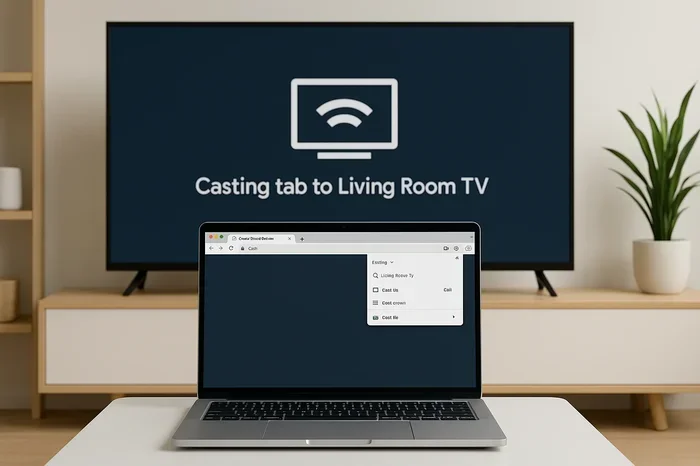
Launch Google Chrome on your computer or laptop. Look at the top-right corner of the browser window. You should see a small rectangle with Wi-Fi waves in the corner. This is the cast icon. If you do not see it, click the three-dot menu in the top-right corner. Go to Cast from the dropdown list.
Step 3: Select Your TV and Start Casting
Click the cast icon. A list of available devices will appear. Choose your Chromecast or smart TV from the list. A new casting panel will open. You can choose to cast your entire desktop or just the current tab. Click the Cast button to start. Your Chrome content now appears on your TV.
Step 4: Stop Casting When You Are Done
When you want to stop, click the cast icon again. You will see a button that says Stop Casting. Click it, and your TV will return to its normal input. Your Chrome tab stays open on your computer, so you can pick up right where you left off.
How Do I Connect Google Chrome To My TV Wirelessly Using a Smart TV
Many modern smart TVs come with built-in Google Cast support. This means you do not need a separate Chromecast device. Your TV can receive casting signals directly from Chrome. Here is how to do it.
Check If Your Smart TV Supports Google Cast
Look at your TV’s settings or app list. If you see a Google Cast or Chromecast built-in option, your TV supports it. Most TVs made after 2018 from brands like Samsung, LG, Sony, and TCL include this feature. You can also check your TV’s manual or the manufacturer’s website for confirmation.
Connect Both Devices to the Same WiFi Network
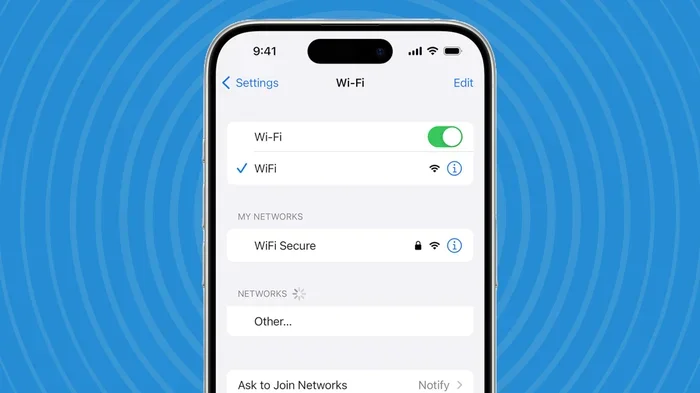
This is the most important step. Your computer running Chrome and your smart TV must be on the same WiFi network. Check your TV’s network settings and your computer’s network settings. If they show different networks, switch one of them to match the other.
Open Chrome and Cast to Your TV
Open Chrome on your computer. Click the cast icon in the top-right corner. Your smart TV should appear in the list of available devices. Select it and choose whether to cast a tab or your full desktop. Your TV will now display your Chrome content.
Adjust Display Settings for the Best Experience
Sometimes the casted content does not fill the entire TV screen. You can fix this by going to your TV’s display settings. Look for aspect ratio or screen fit options. Setting it to 16:9 or full screen usually resolves the issue. On the Chrome side, you can also right-click the casted tab and choose full screen.
Screen Mirroring Chrome to Your TV Wirelessly
Screen mirroring is different from tab casting. When you mirror your screen, your TV shows everything on your computer desktop. You do not need to open a specific Chrome tab. This method is great for presentations or when you want to show multiple things at once.
How Screen Mirroring Works
Screen mirroring sends a live copy of your entire display to your TV. Every click, scroll, and keystroke appears on the big screen. It is like looking at your computer monitor but much larger. The difference from tab casting is that you see your whole desktop, not just one browser window.
Setting Up Screen Mirroring from Chrome
Open Chrome and click the cast icon. Instead of selecting a specific tab, choose the Cast desktop option. Pick your TV from the device list. A new window will appear showing your desktop. You can resize and position this window to fill the TV screen. Now everything you do on your computer shows on the TV.
Tips for Better Screen Mirroring
- Close unnecessary tabs on your computer to reduce lag.
- Use a wired internet connection on your computer if possible for smoother performance.
- Lower your screen resolution slightly if you notice delays or stuttering.
- Turn off hardware acceleration in Chrome settings if mirroring is choppy.
Troubleshooting Common Connection Issues
Even with the simplest setup, you might run into problems now and then. Do not worry. Most issues have quick fixes. Here are the most common problems and how to solve them.
The Cast Icon Is Not Showing in Chrome
If you cannot find the cast icon, the first thing to check is your WiFi connection. Both your computer and your TV or Chromecast must be on the same network. Try refreshing the Chrome browser. If that does not work, go to Chrome settings and make sure the Google Cast extension is enabled. You can also try restarting Chrome entirely.
Video or Audio Is Lagging During Cast
Lag usually happens when your WiFi signal is weak. Move your router closer to your TV and computer. Reduce the number of devices using your network at the same time. You can also lower the video quality in Chrome by clicking the cast icon and adjusting the quality settings.
Audio Plays on Your Computer but Not on the TV
This is a common issue. Go to the cast panel in Chrome and check the audio output settings. Make sure audio is set to play on the TV, not your computer speakers. You can also check your TV’s volume and make sure it is not muted.
Your TV Does Not Appear in the Device List
Restart your TV and your router. Wait a minute for them to reconnect. Make sure your TV’s casting feature is turned on in its settings. On some smart TVs, you need to enable screen sharing or Miracast in the display or network settings menu.
Quick Tips and Expert Insights for Better Casting
Once you get the basics down, these tips will help you get even better results from your wireless Chrome casting setup.
Use the 5GHz WiFi Band
If your router supports it, connect your devices to the 5GHz band instead of 2.4GHz. The 5GHz band is faster and less crowded, which means smoother casting with fewer interruptions.
Keep Chrome Updated
Google releases Chrome updates regularly. These updates often include improvements for casting and screen sharing. Make sure you are running the latest version of Chrome for the best experience.
Use the Cast Button in YouTube and Other Sites
Many websites have their own cast buttons built in. When you are on YouTube, for example, you can click the cast button directly on the video player. This sends the video to your TV without needing to cast the whole tab. It often gives better quality and smoother playback.
Cast Audio Only for Background Music
You can also cast just the audio from a Chrome tab. This is great for music streaming or podcasts. Open a music site, click the cast icon, and select your TV. The sound will play through your TV speakers while you continue using your computer for other tasks.
Try Third-Party Apps for Non-Google TVs
If your TV does not support Google Cast natively, do not give up. Apps like AirScreen, AllCast, or LetsView can add casting support to many TVs. These apps create a bridge between your Chrome browser and your TV. They are easy to install and work with most smart TV brands.
Comparison of Wireless Casting Methods
There are several ways to connect Chrome to your TV wirelessly. Each method has its strengths. Here is a quick comparison to help you choose the right one.
- Chromecast: Dedicated device, reliable, supports tab and desktop casting, works with most TVs that have HDMI.
- Built-in Smart TV Cast: No extra device needed, easy setup, but depends on your TV brand and model.
- Screen Mirroring (Miracast): Shows full desktop, works on many TVs, but can be slower and less stable than Chromecast.
- Third-Party Apps: Adds casting to non-supported TVs, flexible, but may require extra configuration.
For most users, Chromecast or a built-in Google Cast smart TV is the best choice. It is fast, reliable, and easy to use. Screen mirroring is a good backup option when you need to show your full desktop.
Frequently Asked Questions
Can I connect Google Chrome to any TV wirelessly?
Most modern smart TVs support wireless casting. If your TV does not have built-in Google Cast, you can use a Chromecast device or a third-party app. As long as your TV has an HDMI port and a WiFi connection, you can make it work with the right setup.
Do I need the Chromecast app to cast from Chrome?
You do not need the Chromecast app on your computer. Chrome has built-in casting support. However, the Google Home app on your phone is helpful during the initial setup of your Chromecast device. After that, you can manage everything from Chrome itself.
Why is my cast connection so slow or choppy?
A slow connection usually means your WiFi signal is weak or your network is crowded. Try moving closer to your router, switching to the 5GHz band, or reducing the number of devices on your network. Restarting your router can also help speed things up.
Can I cast Chrome to more than one TV at the same time?
Chrome does not support casting to multiple TVs simultaneously from a single tab. However, you can open multiple Chrome windows, each casting to a different device. This works well if you want to show the same content in different rooms.
Is wireless casting safe and secure?
Casting over your home WiFi network is generally safe. Your data stays within your local network and does not go through the internet. To keep things secure, make sure your WiFi network uses a strong password and is not open to public access.
What should I do if my TV shows a black screen when I cast?
A black screen often means the TV input is not set correctly or the cast session has timed out. Try switching your TV to the correct HDMI input. You can also stop the cast session in Chrome and start a new one. Restarting both your computer and your TV can also resolve this issue.
Conclusion
Learning how do I connect Google Chrome to my TV wirelessly is a skill that makes your digital life much more enjoyable. Whether you use Chromecast, a smart TV with built-in casting, or screen mirroring, the process is straightforward and rewarding. You can watch videos, share presentations, browse the web, and enjoy media on a big screen without any cables.
The key is to make sure both your computer and your TV are on the same WiFi network. Keep your Chrome browser updated. Use the tips and troubleshooting steps in this guide whenever you run into issues. With a little practice, casting from Chrome will become second nature.
Now that you have all the information you need, try it out for yourself. Open Chrome, find something you want to watch, and send it to your TV. The big screen experience is just a few clicks away. Happy casting!