How Can I Share Wi Fi Password From Iphone To Another Phone
Sharing your Wi-Fi password from iPhone to another phone is quick and easy using built-in Apple features like QR codes, AirDrop, and iCloud Keychain. You can also use QR code generators for cross-platform sharing with Android devices. This guide covers every reliable method so you can connect friends and family to your network in seconds.
Need to get someone connected to your Wi-Fi without handing over the password out loud? Whether you are setting up a new phone for a friend or connecting a tablet for a family member, there are several easy ways to share Wi-Fi password from iPhone to another phone. Apple makes this process smoother than you might think, especially if both devices are in the Apple ecosystem. But what if the other phone runs Android? Do not worry — there is a solution for that too.
In this guide, we will walk you through every reliable method to share your Wi-Fi password from iPhone to another phone. You will learn step-by-step instructions, quick tips, and common mistakes to avoid. By the end, you will be able to connect any device to your network in just a few taps.
Key Takeaways
- QR Code Method: The fastest way to share Wi-Fi password from iPhone to another phone without typing anything.
- AirDrop Sharing: Works seamlessly between Apple devices running iOS 16 or later.
- iCloud Keychain: Automatically syncs saved Wi-Fi passwords across all your Apple devices.
- Cross-Platform Option: QR codes work for sharing with Android and other non-Apple phones too.
- Common Issues: Know how to fix problems when password sharing doesn’t work as expected.
📑 Table of Contents
- Why Sharing Wi-Fi Passwords Matters
- Method 1: Share Wi-Fi Password Using the QR Code
- Method 2: Share Wi-Fi Password Using AirDrop
- Method 3: Share Wi-Fi Password Using iCloud Keychain
- Method 4: Share Wi-Fi Password Between iPhone and Android
- Quick Tips for Smooth Wi-Fi Password Sharing
- Common Mistakes to Avoid
- Frequently Asked Questions
- Conclusion
Why Sharing Wi-Fi Passwords Matters
Wi-Fi networks are essential in daily life. From streaming movies to working from home, a stable connection keeps everything running. But typing long, complicated passwords on a small screen is frustrating. That is where sharing comes in handy.
When you share Wi-Fi password from iPhone to another phone, you save time and reduce errors. A mistyped password means repeated failed attempts. With the right method, the other person gets connected instantly. It also keeps your password private since you do not have to say it out loud or type it on a shared screen.
Here are some common situations where sharing Wi-Fi passwords is useful:
- Setting up a new iPhone or iPad for a family member
- Connecting a friend’s Android phone to your home network
- Helping a guest get online at your home or office
- Syncing Wi-Fi access across your own Apple devices
- Quickly onboarding a new team member in a small office
Method 1: Share Wi-Fi Password Using the QR Code
The QR code method is one of the simplest and most universal ways to share Wi-Fi password from iPhone to another phone. It works with both iPhone and Android devices. You generate a QR code on your iPhone, and the other person simply scans it with their phone’s camera.
How to Generate a Wi-Fi QR Code on iPhone
Follow these steps to create a shareable QR code for your Wi-Fi network:
- Open the Settings app on your iPhone.
- Tap on Wi-Fi to view your connected network.
- Tap the info icon (the small “i” in a circle) next to your network name.
- Tap on the Share Password option or the QR code icon at the top of the screen.
- Your iPhone will display a QR code on the screen.
- Share this QR code with the other person by showing it on screen or sending a screenshot.
How the Other Person Connects
Once you have the QR code displayed, the other person can connect in seconds:
- On iPhone: Open the Camera app, point it at the QR code, and tap the notification that appears. The phone will ask to join the network. Confirm, and the connection is made.
- On Android: Open the Camera app or Google Lens, point it at the QR code, and follow the prompt to connect to the Wi-Fi network.
This is the most convenient method because it does not require both phones to be in the same ecosystem. Anyone with a camera can scan and connect.
Method 2: Share Wi-Fi Password Using AirDrop
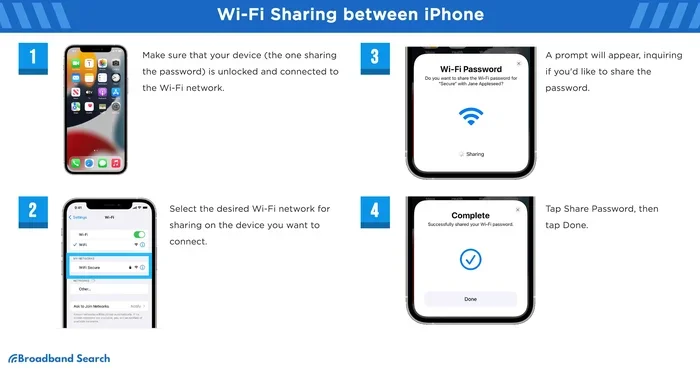
If both phones are iPhones, AirDrop is the fastest and most seamless way to share Wi-Fi password from iPhone to another phone. AirDrop uses Bluetooth and Wi-Fi to transfer data between nearby Apple devices. You can share the Wi-Fi password as a contact card or through the shared password feature built into iOS.
How to Share Wi-Fi Password via AirDrop
Here is how you can send your Wi-Fi password to another iPhone user:
- Make sure AirDrop is turned on. Go to Settings > General > AirDrop and select Everyone or Contacts Only.
- Open the Settings app and go to Wi-Fi.
- Tap the info icon next to your connected network.
- Tap Share Password or Share and choose AirDrop.
- Select the recipient from your AirDrop contacts.
- The recipient will receive the password on their device and can use it to connect.
Tips for a Smooth AirDrop Transfer
- Make sure both devices have Bluetooth and Wi-Fi turned on.
- Keep the devices within about 30 feet of each other.
- Ensure both users are signed in with their Apple ID.
- If AirDrop does not work, restart both devices and try again.
Note: AirDrop works best between devices running iOS 16 or later. Older versions may have limited sharing options.
Method 3: Share Wi-Fi Password Using iCloud Keychain
If you want your Wi-Fi password to be available across all your own Apple devices, iCloud Keychain is the way to go. When you connect to a Wi-Fi network on one Apple device, iCloud Keychain can automatically sync that password to your other devices. This is especially useful if you want to share Wi-Fi password from iPhone to another phone that is also an iPhone or iPad you own.
How to Enable iCloud Keychain
Set up iCloud Keychain to sync your Wi-Fi passwords across devices:
- Open Settings on your iPhone.
- Tap your name at the top to open your Apple ID settings.
- Tap on iCloud.
- Select Keychain and toggle on iCloud Keychain.
- On your other Apple device, go to Settings > Wi-Fi and the shared network should appear with a connect option.
When to Use iCloud Keychain
This method is ideal when you want to connect your own devices without manually entering the password. It is not designed for sharing with someone else’s device unless they are logged into the same Apple ID. For sharing with friends or guests, use the QR code or AirDrop method instead.
Method 4: Share Wi-Fi Password Between iPhone and Android
Sharing a Wi-Fi password from an iPhone to an Android phone requires a different approach since Apple and Google use different ecosystems. The good news is that the QR code method works perfectly for this scenario. You can also use third-party apps to bridge the gap.
Using the QR Code for iPhone to Android Sharing
This is the most reliable cross-platform method:
- On your iPhone, go to Settings > Wi-Fi and tap the info icon next to your network.
- Tap the Share Password or QR code option.
- Show the QR code to the Android user or send a screenshot.
- The Android user opens their Camera app or Google Lens and scans the code.
- The Android phone will prompt to join the network. Tap Connect, and the device is online.
Using Third-Party Apps
If the QR code method does not work for any reason, several apps on the App Store and Google Play can help you share Wi-Fi password from iPhone to another phone. Some popular options include Wi-Fi sharing apps that generate QR codes or share credentials through messaging apps. Always use trusted apps and be cautious about sharing your network credentials through third-party services.
Quick Tips for Smooth Wi-Fi Password Sharing
Follow these practical tips every time you share your Wi-Fi password:
- Always update your iOS: Newer versions of iOS include improved sharing features and bug fixes.
- Check your Wi-Fi signal: A strong signal ensures the other device connects without issues after receiving the password.
- Use the QR code for guests: It is the fastest method and works with any phone, regardless of the operating system.
- Restart both devices first: If sharing is not working, a quick restart on both phones often resolves the issue.
- Turn off Personal Hotspot: Sometimes a personal hotspot can interfere with Wi-Fi sharing. Turn it off temporarily if you run into issues.
- Verify the network name: Make sure the other person is connecting to the exact same network, especially if you have multiple routers or extenders.
Common Mistakes to Avoid
Even with the right method, a few common mistakes can cause problems when you try to share Wi-Fi password from iPhone to another phone. Here is what to watch out for:
- Forgetting to turn on Wi-Fi on the receiving device: The other phone must have Wi-Fi enabled before it can scan a QR code or receive a password.
- Using an outdated iOS version: Older iOS versions may not support the latest sharing features. Update to the latest version for the best experience.
- Not checking AirDrop settings: If AirDrop is set to “Receiving Off,” the transfer will fail. Always verify it is active.
- Sharing the wrong network: Double-check that the QR code or password you are sharing matches the intended network.
- Ignoring privacy concerns: Only share your Wi-Fi password with people you trust. A shared network means shared bandwidth and potential access to shared files on your network.
Frequently Asked Questions
Can I share my Wi-Fi password from iPhone to an Android phone?
Yes. The easiest way is to use the QR code method. On your iPhone, go to Settings > Wi-Fi, tap the info icon next to your network, and share the QR code. The Android user can scan it with their camera or Google Lens to connect.
Do both phones need to be on the same Wi-Fi network to share the password?
No. For the QR code and AirDrop methods, the iPhone sharing the password does not need to be connected to the same network. However, the receiving device does need Wi-Fi enabled to connect after receiving the password.
Is it safe to share my Wi-Fi password using these methods?
Yes, these are all built-in Apple features or standard QR code methods. They are secure as long as you share the code or password only with trusted individuals. Avoid posting your QR code publicly.
Why can not I find the Share Password option on my iPhone?
Make sure your iPhone is running iOS 16 or later. Also, check that you are connected to a Wi-Fi network and that you tap the info icon correctly. Restarting the Settings app or your iPhone can also help if the option is not appearing.
Can I share my Wi-Fi password with multiple devices at once?
Yes. You can display the QR code to multiple people or send it through messaging apps. Each person can scan it independently and connect their own device.
Will the other person see my full Wi-Fi password when they receive it?
When using AirDrop or the QR code method, the other person does not see the plain text password. Their device uses the shared credentials to connect automatically. If you need to share the actual password text, you can do so through a secure messaging app.
Conclusion
Sharing your Wi-Fi password from iPhone to another phone is a simple process once you know the right method. For iPhone-to-iPhone sharing, AirDrop and iCloud Keychain offer the smoothest experience. For cross-platform sharing or connecting guests quickly, the QR code method is your best bet. It works with any phone that has a camera and takes only a few seconds.
Keep these methods in mind the next time someone asks to connect to your network. With the steps outlined in this guide, you can share Wi-Fi password from iPhone to another phone confidently and securely. No more typing long passwords on tiny keyboards — just a few taps and everyone is online.