Gmail Blue Checkmark Explained and Why You Should Care
The Gmail blue checkmark is a verification badge that confirms a sender’s identity and helps you trust the emails you receive. It works through Google’s sender authentication systems like SPF, DKIM, and DMARC, which verify that an email truly comes from the claimed domain. Understanding this feature helps you avoid phishing scams and improves your email deliverability if you send messages for a business or brand.
Have you ever opened an email and noticed a small blue checkmark next to the sender’s name? Maybe you wondered what it meant or whether you could trust that email more because of it. The Gmail blue checkmark is one of the most talked-about email features in recent years, and for good reason.
In a world where phishing attacks and email scams are everywhere, having a way to verify who really sent a message is a big deal. Google introduced the Gmail blue checkmark to help users like you and me tell the difference between legitimate senders and scammers pretending to be someone else. This little blue badge carries a lot of weight when it comes to email trust and security.
In this article, we will break down everything you need to know about the Gmail blue checkmark. We will cover what it is, how it works, why it matters, and how you can get one for your own domain. Whether you are a business owner, a marketer, or just someone who wants a safer inbox, this guide has you covered.
Key Takeaways
- Verified Identity: The Gmail blue checkmark confirms that an email sender is who they claim to be.
- Security Boost: It helps protect you from phishing emails and email spoofing attempts.
- Deliverability Matters: Having a verified sender status improves your email open rates and inbox placement.
- Google Workspace Required: You need a Google Workspace account and proper domain authentication to earn the badge.
- Brand Indicators: The blue checkmark is part of Google’s Brand Indicators for Message Identification (BIMI) initiative.
- Everyday Users Benefit Too: Even regular Gmail users gain from knowing which senders are verified.
- Ongoing Maintenance: You must keep your authentication records up to date to maintain the blue checkmark status.
📑 Table of Contents
- What Is the Gmail Blue Checkmark?
- How Does the Gmail Blue Checkmark Work?
- Why the Gmail Blue Checkmark Matters for Your Email
- How to Get the Gmail Blue Checkmark for Your Domain
- Common Mistakes That Can Cause You to Lose the Blue Checkmark
- What the Gmail Blue Checkmark Means for Everyday Users
- Comparison: Verified vs. Unverified Senders
- Quick Tips for Maintaining Your Gmail Blue Checkmark
- Expert Insights on Email Verification
- Conclusion
What Is the Gmail Blue Checkmark?
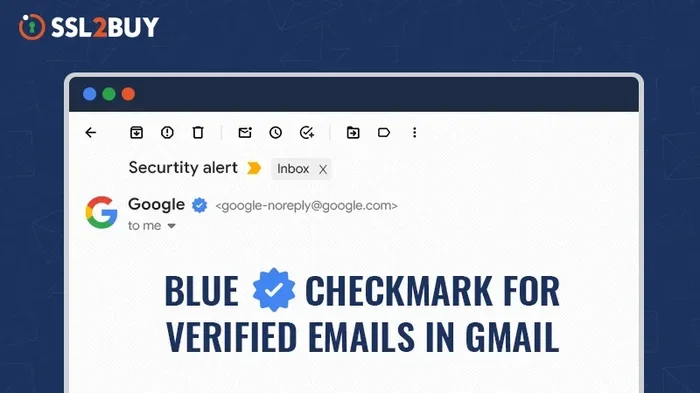
The Gmail blue checkmark is a verification badge that appears next to a sender’s name in your Gmail inbox. It tells you that Google has confirmed the sender’s identity. This means the email truly comes from the domain it claims to be from, and not from a scammer or impersonator.
Think of it like a verified badge on social media platforms. When you see a blue checkmark on Twitter or Instagram, you know that account is authentic. The Gmail blue checkmark does the same thing for email. It gives you confidence that the person or organization sending you a message is who they say they are.
How Does Gmail Verify Senders?
Google uses several email authentication methods to verify senders. These include SPF records, DKIM signatures, and DMARC policies. Together, these systems check whether an email was sent from an authorized server and whether it has not been tampered with during transit.
When all three checks pass, Google can confidently display the Gmail blue checkmark next to the sender’s name. This process happens behind the scenes every time an email is sent. You do not need to do anything special to see it. The verification is automatic once a sender meets Google’s requirements.
Why Does Email Verification Matter?
Email verification matters because your inbox is one of the most targeted places for cyberattacks. Scammers use email spoofing to make it look like they are sending from a trusted source. They might pretend to be your bank, a company you shop from, or even your boss. The Gmail blue checkmark helps fight this by giving you a clear signal of who is really behind the message.
Without verification, it is very hard to tell a real email from a fake one. The blue checkmark removes that guesswork. It gives you instant peace of mind every time you see it in your inbox.
How Does the Gmail Blue Checkmark Work?
Understanding how the Gmail blue checkmark works requires a quick look at email authentication. It might sound technical, but the basic idea is simple. Google checks a series of digital records to confirm that an email is legitimate before showing the badge.
SPF Records: The First Line of Defense
SPF stands for Sender Policy Framework. It is a DNS record that lists which mail servers are allowed to send emails on behalf of a domain. When an email arrives, Gmail checks the SPF record to see if the sending server is authorized. If it is not on the list, the email fails the SPF check.
For the Gmail blue checkmark to appear, SPF must pass. This is the most basic layer of sender verification. Without a valid SPF record, no amount of other authentication will help you earn the badge.
DKIM Authentication: Protecting Email Content
DKIM stands for DomainKeys Identified Mail. It adds a digital signature to every email you send. When Gmail receives a DKIM-signed email, it checks the signature against the sender’s public key published in DNS records.
If the signature matches, the email has not been altered in transit. This is crucial for the Gmail blue checkmark because it proves the email content is authentic. Even if a scammer intercepts the email, they cannot change it without breaking the DKIM signature.
DMARC Policy: Telling Email Receivers What to Do
DMARC stands for Domain-based Message Authentication, Reporting, and Conformance. It builds on SPF and DKIM by telling email receivers what to do when an email fails authentication. A DMARC policy can tell Gmail to reject, quarantine, or accept a failed email.
Having a strict DMARC policy is one of the strongest signals you can send to Google. It shows that you take email security seriously. This is a key requirement for earning the Gmail blue checkmark and maintaining your verified sender status.
The Role of BIMI
BIMI stands for Brand Indicators for Message Identification. It is an emerging standard that allows senders to display their brand logo next to the blue checkmark. While BIMI is still rolling out across email providers, it works hand in hand with the Gmail blue checkmark to create a more trusted email experience.
When BIMI is fully implemented, you will not only see a blue checkmark but also the sender’s logo. This adds another layer of visual trust that makes it even easier to identify legitimate emails at a glance.
Why the Gmail Blue Checkmark Matters for Your Email
The Gmail blue checkmark is not just a fancy badge. It has real, practical benefits for both senders and recipients. Let us look at why this feature matters so much in today’s email landscape.
Better Email Deliverability
If you send emails for a business, you know how frustrating it can be when your messages land in spam folders. The Gmail blue checkmark signals to Gmail’s spam filters that your email comes from a verified source. This dramatically improves your chances of landing in the primary inbox instead of the promotions or spam tabs.
Better deliverability means more people actually see your emails. For marketers, business owners, and anyone relying on email communication, this is a game changer. The blue checkmark works as a trust signal that boosts your sender reputation over time.
Increased Trust and Credibility
When your recipients see the blue checkmark next to your name, they immediately trust your email more. This is especially important for businesses that handle sensitive information or financial transactions. A verified sender badge tells your customers that you are a legitimate organization, not a scammer.
Trust translates directly into engagement. People are more likely to open emails, click links, and take action when they trust the sender. The Gmail blue checkmark helps you build that trust from the very first email they see in their inbox.
Protection Against Phishing and Spoofing
Phishing attacks are one of the biggest email threats today. Scammers create emails that look like they come from real companies or people. The Gmail blue checkmark helps combat this by giving recipients a clear way to verify sender identity.
When your domain is authenticated and verified, scammers cannot easily impersonate you. Even if they try, Gmail will not show the blue checkmark on their fake emails. This protects both you and your recipients from falling victim to email fraud.
Competitive Advantage in Marketing
In crowded inboxes, the Gmail blue checkmark gives you a competitive edge. When a recipient sees multiple emails from different brands, the verified badge helps yours stand out. It signals professionalism and legitimacy, which can lead to higher open rates and better campaign performance.
Many businesses are still working toward getting their blue checkmark. By securing yours early, you position yourself ahead of the competition and build a stronger brand presence in your customers’ inboxes.
How to Get the Gmail Blue Checkmark for Your Domain
If you want the Gmail blue checkmark for your own emails, you need to set up proper domain authentication. This process requires a Google Workspace account and some technical configuration. Here is a step-by-step guide to help you get started.
Step 1: Set Up Google Workspace
First, you need a Google Workspace account. This is Google’s business email and productivity suite. It gives you a custom email domain like [email protected] instead of a generic @gmail.com address. Google Workspace is required for sender verification.
You can sign up for Google Workspace directly through Google’s website. Plans start at a reasonable monthly cost per user. Once you have your Workspace account, you are ready to move to the next step.
Step 2: Configure Your DNS Records
Next, you need to add DNS records to your domain registrar. These records include your SPF, DKIM, and DMARC settings. Each record serves a specific purpose in the authentication process.
Google provides detailed instructions for setting up each record type. You will need access to your domain’s DNS management panel, which is usually provided by your domain registrar like GoDaddy, Namecheap, or Cloudflare. Follow the instructions carefully and double-check each entry.
Step 3: Submit Your Domain for Verification
Once your DNS records are in place, you can submit your domain for verification through Google Workspace Admin. Google will check your records and confirm that everything is set up correctly.
This process may take a few hours to complete. DNS changes can take time to propagate across the internet. Once verified, Google will begin displaying the Gmail blue checkmark for emails sent from your domain.
Step 4: Maintain Your Authentication
Getting the blue checkmark is not a one-time event. You need to maintain your authentication records to keep it. If your SPF, DKIM, or DMARC records change or expire, you could lose the badge.
Set reminders to review your DNS records regularly. Keep your DKIM keys rotated and updated. Staying on top of your authentication setup ensures your Gmail blue checkmark stays visible and your sender reputation remains strong.
Common Mistakes That Can Cause You to Lose the Blue Checkmark
Many domain owners work hard to earn the Gmail blue checkmark only to lose it because of simple mistakes. Here are the most common pitfalls to avoid.
Letting DNS Records Expire
DNS records have expiration dates and need to be renewed. If you forget to renew your SPF or DKIM records, your authentication breaks. This immediately affects your sender verification status.
Set calendar reminders or use automated monitoring tools to track your DNS record expiration dates. Staying proactive prevents unexpected loss of the blue checkmark.
Using Third-Party Email Services Without Proper Setup
If you use email marketing tools like Mailchimp or Constant Contact, you need to configure them properly. These services send emails on your behalf, but they must be included in your SPF record. If they are not, your emails may fail SPF checks and lose the blue checkmark.
Always include all third-party sending services in your SPF record. Check with each service provider for their specific SPF include instructions.
Changing Domains Without Re-Authenticating
If you switch to a new domain or subdomain, you must re-authenticate it from scratch. The Gmail blue checkmark from your old domain does not carry over. Each domain needs its own complete authentication setup.
Plan ahead when changing domains. Set up SPF, DKIM, and DMARC records for the new domain before you start sending any emails from it.
Ignoring DMARC Reports
DMARC generates reports that show you who is sending emails on behalf of your domain. Ignoring these reports means you could miss unauthorized senders using your domain for phishing.
Review your DMARC reports regularly. They give you valuable insight into your email ecosystem and help you maintain a strong sender reputation.
What the Gmail Blue Checkmark Means for Everyday Users
You do not need to be a business owner or marketer to benefit from the Gmail blue checkmark. As an everyday Gmail user, this feature directly impacts your email experience and security.
When you see the blue checkmark in your inbox, you know that email is safe to open and respond to. You do not need to worry about it being a phishing attempt or a spoofed message. This simple visual cue saves you time and protects you from scams.
On the flip side, when you do not see a blue checkmark, it is a reminder to be cautious. While an unverified email is not necessarily dangerous, the absence of the badge should prompt you to look more closely at the sender and the content of the message.
The Gmail blue checkmark also helps you manage your inbox more efficiently. You can quickly identify trusted senders and prioritize their emails. This is especially helpful when you receive a high volume of messages each day and need to sort through them quickly.
Google continues to improve this feature with each update. Future enhancements may include more detailed sender information, better integration with Google’s security tools, and expanded support for BIMI logos. The blue checkmark is becoming an essential part of how we communicate and trust email in the digital age.
Comparison: Verified vs. Unverified Senders
Here is a quick comparison to show the difference between emails with and without the Gmail blue checkmark.
- Trust Level: Verified senders with the blue checkmark are immediately trusted. Unverified senders require more scrutiny from the recipient.
- Deliverability: Verified emails land in the primary inbox more consistently. Unverified emails have a higher chance of landing in spam or promotions folders.
- Phishing Protection: The blue checkmark acts as a shield against impersonation. Without it, there is no visual guarantee of sender identity.
- Brand Recognition: Verified senders with BIMI logos enjoy stronger brand recognition. Unverified senders rely solely on their email address for identity.
- User Confidence: Recipients feel more confident opening and engaging with blue checkmark emails. Unverified emails may be ignored or deleted.
Quick Tips for Maintaining Your Gmail Blue Checkmark
- Monitor your DNS records monthly to ensure nothing has changed unexpectedly.
- Use an email authentication testing tool to check your SPF, DKIM, and DMARC setup regularly.
- Keep all third-party sending services listed in your SPF record.
- Rotate your DKIM keys at least once a year to maintain security.
- Review DMARC aggregate reports to spot any unauthorized sending activity.
- Update your Google Workspace settings whenever you add new email services or change your sending infrastructure.
- Educate your team about the importance of email authentication and the blue checkmark.
Expert Insights on Email Verification
According to email security experts, the Gmail blue checkmark represents a significant step forward in email authentication. Industry professionals emphasize that domain verification is no longer optional for businesses that want to maintain a strong sender reputation.
Email deliverability specialists recommend that every organization implement SPF, DKIM, and DMARC as a baseline security practice. The blue checkmark is the visible reward for doing this work correctly. It also serves as a competitive differentiator in crowded inboxes.
Security researchers note that verified sender badges like the Gmail blue checkmark have the potential to significantly reduce the success rate of phishing attacks. When users can easily identify legitimate senders, they are less likely to fall for fraudulent emails that try to impersonate trusted brands.
Conclusion
The Gmail blue checkmark is more than just a small icon next to a sender’s name. It is a powerful tool that enhances email security, builds trust, and improves deliverability for businesses and individuals alike. Whether you are a sender working to earn the badge or a recipient relying on it to stay safe, the blue checkmark adds a valuable layer of confidence to your email experience.
By understanding how the Gmail blue checkmark works and taking the steps to set up proper domain authentication, you protect yourself and your audience from email fraud. You also position yourself as a credible, trustworthy sender in a crowded digital landscape. Take the time to verify your domain today, and enjoy the benefits of a verified, trusted email presence tomorrow.
Frequently Asked Questions
What does the Gmail blue checkmark mean?
The Gmail blue checkmark means that Google has verified the sender’s identity. It confirms that the email truly comes from the domain it claims to be from and has passed SPF, DKIM, and DMARC authentication checks. This badge helps you trust that the email is legitimate and not a phishing attempt.
How do I get the blue checkmark for my email?
To earn the Gmail blue checkmark, you need a Google Workspace account and a custom domain. You must set up SPF, DKIM, and DMARC DNS records for your domain and submit it for verification through Google Workspace Admin. Once Google confirms your authentication setup, the blue checkmark will appear for your emails.
Can anyone lose their Gmail blue checkmark?
Yes, if your DNS authentication records expire, change, or become misconfigured, you can lose the blue checkmark. Google continuously monitors sender authentication, and any failure in SPF, DKIM, or DMARC checks can result in the badge being removed. Regular maintenance of your DNS records is essential to keep the verification active.
Is the Gmail blue checkmark the same as BIMI?
The Gmail blue checkmark and BIMI are related but not the same. The blue checkmark confirms sender identity through email authentication. BIMI goes further by allowing verified senders to display their brand logo next to the checkmark. BIMI requires a valid DMARC policy with a strict enforcement level and a registered SVG logo file.
Does the blue checkmark protect me from all email scams?
The Gmail blue checkmark significantly reduces the risk of phishing from impersonated domains, but it does not protect you from all scams. Scammers can still send fraudulent emails from unverified domains or use social engineering tactics. Always exercise caution and verify unexpected requests, even from senders without a blue checkmark.
Will the Gmail blue checkmark appear on all email providers?
Currently, the Gmail blue checkmark is specific to Gmail and Google’s email ecosystem. Other email providers like Outlook and Yahoo have their own verification systems. BIMI is being adopted by multiple providers, but the blue checkmark display may vary depending on which email service the recipient uses.
=== CONCLUSION ===
The Gmail blue checkmark is a vital feature that makes email safer and more trustworthy for everyone. It gives senders a way to prove their identity and gives recipients a clear signal of authenticity. By setting up proper domain authentication and maintaining your records, you can earn and keep this valuable badge.
Take action today. Check your email authentication setup, verify your domain, and start building a more trusted email presence. The Gmail blue checkmark is your proof that you take email security seriously, and your recipients will thank you for it.