Do Iphones Have A Built In QR Code Scanner Feature
Do Iphones Have A Built In QR Code Scanner? Yes, they do. Every modern iPhone comes with a native QR code reader built right into the camera app. You do not need to download any extra software to scan quick response codes. This built-in QR functionality has been available since iOS 11, making it easy for anyone to scan codes instantly. In this guide, we will walk you through everything you need to know about iPhone QR scanning.
Have you ever been standing in line at a coffee shop and seen a small square pattern on a poster or menu? That pattern is called a QR code. You probably wondered if your phone could read it. The good news is that Do Iphones Have A Built In QR Code scanner? The answer is a clear and simple yes.
If you own an iPhone, you already have a powerful QR code reader right inside your device. Apple has made this feature available for many years now. You do not need to search for a separate app or download anything extra. Your iPhone camera handles QR code scanning all by itself. This makes life much easier whether you want to visit a website, join a Wi-Fi network, or look up a menu.
In this article, we will cover everything you need to know about iPhone QR functionality. We will explain how the built-in QR scanner works. We will walk you through the steps to scan a code. We will also help you fix common problems and share tips to stay safe while scanning. By the end, you will feel confident using your iPhone camera QR feature every day.
Key Takeaways
- All modern iPhones have a built-in QR scanner: No third-party app is needed to scan QR codes on iPhone devices running iOS 11 or later.
- The Camera app handles QR scanning automatically: Just point your iPhone camera at a code and tap the notification that appears.
- You can also use the Control Center QR scanner: This is a quick shortcut for scanning codes without opening the camera.
- Scanning is safe when you stay cautious: Only scan codes from trusted sources to avoid phishing or malware risks.
- Common issues are easy to fix: Most QR code not working problems on iPhone have simple solutions like toggling settings or cleaning the lens.
- QR codes work for many daily tasks: From restaurant menus to Wi-Fi logins and payments, iPhone QR scanning covers a wide range of uses.
📑 Table of Contents
- The Short Answer: Do Iphones Have A Built In QR Code Scanner
- How iPhone QR Code Scanning Works
- How To Scan A QR Code On Your iPhone
- Common Issues And Fixes When QR Codes Do Not Work On iPhone
- Uses For The iPhone Built In QR Scanner
- Is It Safe To Scan QR Codes On iPhone
- Comparison: Built-In QR Scanner vs Third-Party QR Apps
- Frequently Asked Questions
- Final Thoughts
The Short Answer: Do Iphones Have A Built In QR Code Scanner
The short answer is yes. Do Iphones Have A Built In QR Code reader? Every iPhone released since 2017 has this feature turned on by default. Apple added native QR code support in iOS 11, which came out in 2017. This means almost every iPhone user today can scan codes without installing anything.
Before iOS 11, users had to download a third-party QR code reader app from the App Store. Those apps worked fine, but they added extra steps. You had to find the app, open it, and point your phone at the code. Now, the process is much smoother. Apple built the QR code reader iPhone right into the system. This is one of the many reasons iPhones are so convenient for everyday tasks.
Here is a quick look at when Apple introduced QR support:
- iOS 11 (2017): Apple added native QR scanning to the Camera app. This was a big change for iPhone users.
- iOS 13 and later: Apple added a Control Center shortcut for QR scanning. This made the process even faster.
- iOS 15 and later: Scanning became even more seamless. The camera recognizes codes instantly and shows a notification banner.
So if you have a relatively modern iPhone, your device is fully ready to scan. You do not need to worry about setting anything up. The native QR scanner is already waiting for you in your camera app.
How iPhone QR Code Scanning Works
Understanding how QR code scanning on iPhone works is simple. The technology behind these square codes is called a quick response code. It was invented in Japan in 1994 for tracking car parts. Today, QR codes are used everywhere. They store information like website links, contact details, and Wi-Fi passwords.
Your iPhone camera uses the built-in image recognition engine to read these codes. When you point your camera at a QR code, the system detects the pattern. It then decodes the information stored inside. Finally, it shows you a notification or takes you directly to the content.
The Camera App Does the Heavy Lifting
The main tool for scanning QR codes on iPhone is the Camera app. When you open the Camera app and point it at a code, the phone automatically detects it. You do not need to tap any button or switch to a special mode. A notification banner appears at the top of your screen. Tapping that banner takes you to the linked content.
This process is called wireless QR code scanning. It uses the camera sensor and the phone’s processor to read the code. No internet connection is needed to detect the code itself. However, you do need a connection to open most linked websites or content.
The Control Center Shortcut
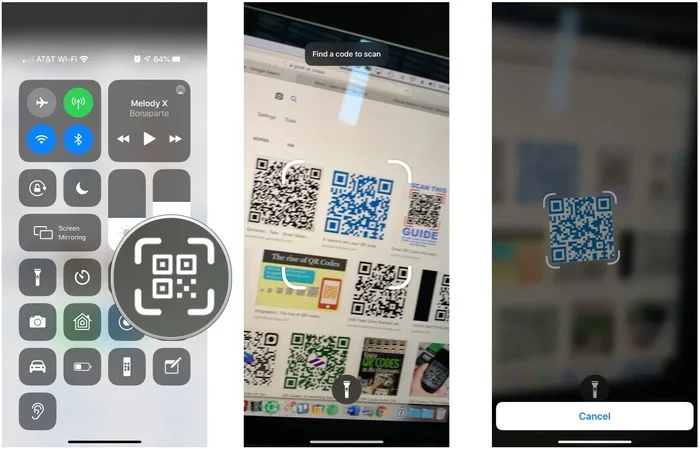
Apple also added a dedicated QR scanner in the Control Center. This is a quick way to scan without even opening the Camera app. You just swipe down from the top right corner of your screen and tap the QR scanner icon. The camera opens in scanning mode, ready to read any code you point it at.
This shortcut is especially handy when you are in a rush. It saves you the step of opening the Camera app first. If you do not see the QR scanner in your Control Center, you can add it through the Settings app. We will cover that in a moment.
How To Scan A QR Code On Your iPhone
Scanning a QR code on iPhone is incredibly easy. It takes just a few seconds. Here is how to do it using the Camera app, which is the most common method.
- Open the Camera app. You can do this from your home screen or by swiping up from the lock screen.
- Point your camera at the QR code. Make sure the code fits within the frame on your screen.
- Wait for the notification. A yellow banner or notification will appear at the top of your screen.
- Tap the notification. This will open the link, connect to Wi-Fi, or perform whatever action the code contains.
That is all there is to it. No need to focus manually. The iPhone camera does the work for you. Just hold your phone steady and let it do its job.
Using the Control Center QR Scanner
If you prefer a faster method, the Control Center QR scanner is a great option. Here is how to set it up and use it:
- Open Settings. Go to Settings and then tap Control Center.
- Add the QR Scanner. Look for QR Scanner in the list and tap the green plus sign next to it.
- Open Control Center. Swipe down from the top right corner of your screen.
- Tap the QR icon. The camera will open in scanning mode immediately.
Once you have this set up, scanning codes becomes even faster. It is a small change that saves a lot of time over the long run. Many people add this shortcut and never look back.
Quick Tips for Better Scanning
Here are some simple tips to make your iPhone camera QR scanning work better:
- Hold your phone steady. Keep the QR code within the frame. Moving too much can confuse the scanner.
- Make sure there is good lighting. Bright, even light helps the camera read the code faster.
- Clean your camera lens. A smudgy lens can make scanning harder. A quick wipe with a soft cloth works wonders.
- Do not stand too far away. Hold your phone about 8 to 12 inches from the code for best results.
- Try different angles. Sometimes tilting your phone slightly helps the camera detect the code.
Common Issues And Fixes When QR Codes Do Not Work On iPhone
Even though scanning QR codes on iPhone is designed to be simple, sometimes things go wrong. You might point your camera at a code and nothing happens. This can be frustrating, but most problems have easy fixes.
QR Code Not Working On iPhone: Common Causes
Here are the most common reasons why your QR code not working on iPhone and how to fix each one:
- The Camera app does not have permission. Go to Settings, then Privacy, then Camera. Make sure the Camera app is allowed to access your camera.
- QR code scanning is turned off. Open Settings, go to Camera, and look for Scan QR Codes. Make sure the toggle is turned on.
- The code is damaged or too far away. Try moving closer to the code or finding a clearer version of it.
- Your camera lens is dirty. Wipe it gently with a clean, soft cloth.
- Your iPhone needs a restart. Sometimes a simple restart fixes temporary glitches with the camera or scanning features.
When To Update Your iPhone
If none of the fixes above work, your software might be out of date. Apple regularly releases iOS updates that improve camera performance and QR code functionality iPhone features. Go to Settings, then General, then Software Update. If an update is available, install it. This often resolves scanning issues that were caused by older software versions.
When To Contact Apple Support
Rarely, a hardware issue might prevent your camera from reading codes. If you have tried everything and the camera still does not detect QR codes, it may be time to contact Apple Support or visit an Apple Store. A professional can check if the camera module needs repair or replacement.
Uses For The iPhone Built In QR Scanner
The built-in QR scanner iPhone is incredibly versatile. People use it for many different tasks every day. Here are some of the most popular and practical ways to use QR scanning on your iPhone.
Restaurant Menus
Many restaurants now use restaurant QR code menu options instead of printed menus. You simply scan the code on the table and your phone opens the full menu in your browser. This is convenient for both customers and restaurant owners. No need to handle physical menus or worry about sanitation.
Wi-Fi Network Login
Have you ever struggled to type in a long Wi-Fi password? A QR code can solve this problem. Many hotels, cafes, and offices display a QR code for their Wi-Fi network. When you scan it with your iPhone QR functionality, your phone connects to the network automatically. No password typing required.
Payments and Shopping
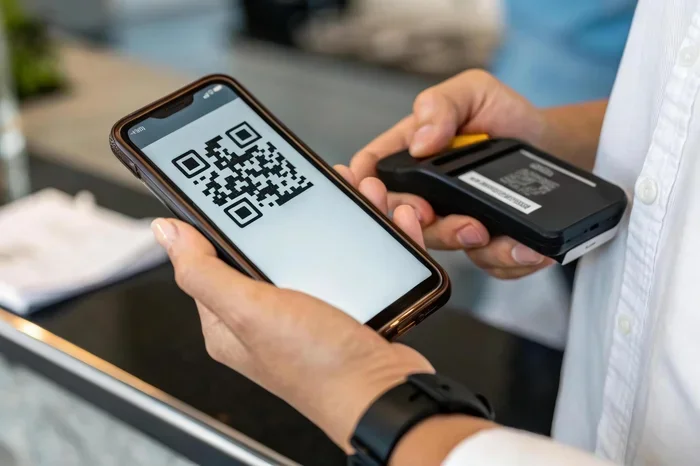
QR codes are widely used for mobile payments. Apps like Apple Pay and various banking apps use QR codes for secure transactions. When you scan a payment QR code, your phone opens the payment screen. You can then confirm the transaction with Face ID or Touch ID. This makes buying things faster and more secure.
Event Tickets and Boarding Passes
Concerts, flights, and events often use QR codes for entry. You can store your ticket or boarding pass on your iPhone and simply scan the code at the gate or entrance. This is faster than digging through paper tickets or printing them out.
Product Information and Reviews
Many brands put QR codes on their product packaging. Scanning these codes can take you to product details, reviews, warranty information, or special offers. This is a great way to learn more about a product before or after you buy it.
Contact Sharing
You can share your contact information using a QR code. When someone scans your code, their phone automatically saves your name, phone number, email, and other details. This is much faster than typing out all that information manually.
Is It Safe To Scan QR Codes On iPhone
This is a very important question. The short answer is that scanning QR codes on your iPhone is generally safe. Apple has built strong security into the iOS system. However, you should always use common sense when scanning codes from unknown sources.
How Apple Keeps You Safe
When you scan a QR code using the built-in Camera app, iOS shows you the URL before you open it. This gives you a chance to check where the link leads. If the URL looks suspicious or unfamiliar, do not tap it. Your iPhone QR scanner is designed with this safety step in mind.
Apple also blocks known malicious websites through Safari’s built-in fraud protection. If you accidentally tap a dangerous link, Safari may warn you before the page loads. This adds another layer of protection for QR code security iPhone users.
Tips for Safe QR Code Scanning
- Only scan codes you trust. Stick to codes from known businesses, official websites, or people you know.
- Check the URL before tapping. Always look at the preview that appears after scanning. If it looks weird, do not open it.
- Avoid codes in public places that look tampered with. If a sticker is placed over an original QR code, it could be a scam. Look for signs of tampering.
- Keep your iPhone updated. Apple regularly releases security patches that protect against new threats.
- Do not enter personal information on sites you reached through QR codes. If a site asks for sensitive details and you are unsure, close it and verify the source.
By following these simple tips, you can enjoy all the benefits of iPhone QR scanning without worry. The feature is safe and convenient when used wisely.
Comparison: Built-In QR Scanner vs Third-Party QR Apps
You might wonder if there is any reason to download a separate QR code reader app when your iPhone already has a built-in scanner. Here is a simple comparison to help you decide.
| Feature | Built-In iPhone Scanner | Third-Party QR Apps |
|---|---|---|
| Needs Download? | No | Yes |
| Speed | Fast and seamless | Varies by app |
| Extra Features | Basic scanning and link opening | History, batch scanning, creation tools |
| Security | Built-in iOS protection | Depends on the app developer |
| Storage Space | None used | Takes up space on your phone |
| Ease of Use | Very easy, no setup needed | Requires installation and setup |
For most users, the built-in scanner is all you need. It is fast, safe, and requires no extra downloads. Third-party apps are useful only if you need advanced features like saving scan history or creating your own QR codes. For everyday scanning tasks, the native QR code reader iPhone tool is the best choice.
Frequently Asked Questions
Do all iPhones have a built-in QR scanner?
Yes, all iPhones running iOS 11 or later have a built-in QR scanner. This includes iPhone 6 and newer models. You do not need to download any app or change any settings. The feature is ready to use right out of the box. Just open your Camera app and point it at any QR code.
Why is my iPhone not scanning QR codes?
The most common reason is that QR scanning is turned off in your Camera settings. Go to Settings, then Camera, and make sure Scan QR Codes is toggled on. Also check that the Camera app has permission in Privacy settings. Restarting your iPhone can also fix temporary glitches that prevent scanning.
Can I scan a QR code without opening the Camera app?
Yes, you can use the Control Center QR scanner shortcut. Swipe down from the top right corner of your screen and tap the QR scanner icon. This opens the camera directly in scanning mode. To add this shortcut, go to Settings, then Control Center, and include the QR Scanner option.
Is it safe to scan QR codes from strangers or random posters?
You should be cautious. Only scan codes from trusted sources. When you scan a code, iOS shows you the URL before you open it. If the link looks suspicious or unfamiliar, do not tap it. Avoid codes that look like stickers placed over original codes, as they could be tampered with.
Can I create my own QR codes on iPhone?
The built-in Camera app can only scan codes, not create them. However, you can create QR codes using Safari or third-party apps. Many free QR code generator apps are available in the App Store. You can also use the Shortcuts app or online tools through Safari to generate custom codes for links, contacts, or Wi-Fi networks.
Do I need Wi-Fi to scan a QR code on iPhone?
No, you do not need Wi-Fi to detect and read a QR code. The camera and scanning engine work offline. However, you do need an internet connection to open most links or content that the QR code directs you to. For Wi-Fi login codes, you do not need internet before scanning, as the code itself contains the connection details.
Final Thoughts
The answer to Do Iphones Have A Built In QR Code is a clear yes. Your iPhone has had a powerful native QR code scanner for many years now. It works through the Camera app and the Control Center shortcut. You do not need any third-party tools to scan codes for menus, payments, Wi-Fi logins, or event tickets.
Scanning is fast, easy, and built right into iOS. Whether you are a tech-savvy user or someone who is just getting started with smartphones, the iPhone QR functionality makes your life simpler. Just point your camera, tap the notification, and you are done.
Remember to stay safe while scanning. Check URLs before opening them, and only scan codes from trusted sources. Keep your iPhone updated to get the latest security improvements. With these simple habits, you can enjoy everything that QR code scanning on iPhone has to offer.
Now that you know how easy it is to use your built-in QR scanner iPhone, try it out the next time you see a QR code. You will be surprised at how often you use it once you start. It is one of those small features that makes a big difference in your daily routine.