Convert Prn Files Pdf Using These Simple Free Tools
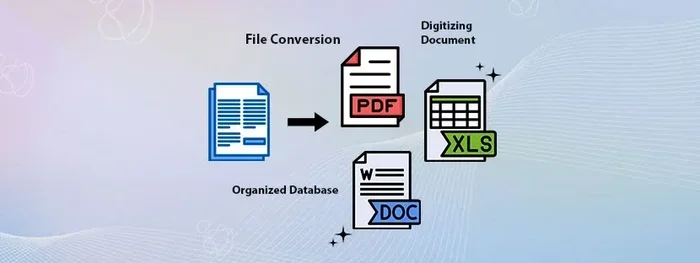
Converting prn files to pdf is simpler than most people think. You can use free tools like SumatraPDF, Ghostscript, or online converters to turn raw printer files into clean, shareable PDFs. This guide walks you through every method so you can pick the best one for your needs.
Have you ever opened a folder and found a file ending in .prn? Maybe you double-clicked it and got a wall of strange characters. Or perhaps someone sent you a prn file and you had no idea how to open it. You are not alone. Lots of people run into this problem every day.
The good news is that converting prn files to pdf is really straightforward. You do not need expensive software or advanced tech skills. In this guide, we will show you the best free tools, step-by-step instructions, and helpful tips to get the job done right. Let us dive in.
Key Takeaways
- PRN files are raw printer output files that can be converted to PDF using free tools.
- Ghostscript and SumatraPDF are two of the best free options for converting prn files to PDF.
- Online converters offer a quick solution without installing any software on your computer.
- Virtual printers like PDF24 or CutePDF can also handle prn file conversion with ease.
- Common conversion problems include garbled text and missing images, which are usually easy to fix.
- Always check your PDF output to make sure fonts, images, and formatting look correct before sharing.
📑 Table of Contents
- What Is a PRN File and Why Do People Convert It to PDF?
- Best Free Tools to Convert PRN Files to PDF
- How to Convert PRN Files to PDF (Step-by-Step)
- Comparing Free PRN to PDF Conversion Tools
- Common Problems When Converting PRN Files to PDF
- Tips for Getting Perfect PDF Output Every Time
- Final Thoughts
What Is a PRN File and Why Do People Convert It to PDF?
A PRN file is a printer output file. When you tell your printer to “print to file” instead of printing on paper, it creates a PRN file. This file holds all the data your printer needs: text, images, formatting, and printer commands. Think of it like a digital blueprint of a printed page.
So why do people want to convert these files? Here are the most common reasons:
- Sharing documents – PRN files do not open easily on most computers. PDF files do.
- Archiving – PDFs are easier to store and organize than raw printer files.
- Viewing on any device – PDF readers are everywhere. PRN viewers are not.
- Professional sharing – PDFs look clean and polished. PRN files look like gibberish to most people.
- Avoiding printer dependency – You can view the content without needing the original printer driver.
The PRN format comes from the printer spooler, which is the background process that manages print jobs. When a print job goes to a file instead of a physical printer, the spooler saves the data in PRN format. This file contains raw printer commands specific to the printer model that created it. That is why opening a PRN file on a different computer or printer can cause problems.
How PRN Files Work Under the Hood
PRN files usually contain two types of data. The first is plain text for readable content. The second is binary data for images and special formatting. Together, they tell the printer exactly how to place every dot on the page. When you convert this to PDF, you translate that raw data into a universal format that any device can read perfectly.
Different printers create different PRN formats. HP printers use PCL (Printer Command Language) format. Older PostScript printers create PRN files with PostScript commands. This matters because the best conversion tool depends on what kind of PRN file you have.
Best Free Tools to Convert PRN Files to PDF
You have several great options for converting prn files pdf without spending a dime. Let us look at the top free tools available right now.
Ghostscript (The Most Powerful Free Option)
Ghostscript is a free and open-source tool that handles PRN files like a pro. It supports both PCL and PostScript formats. Many people consider it the gold standard for PRN to PDF conversion. It runs on Windows, Mac, and Linux computers.
Here is why Ghostscript stands out:
- Free and open source – no hidden fees or subscriptions
- Supports many PRN formats – PCL, PostScript, and more
- Command line tool – great for batch processing multiple files
- High-quality output – preserves text and images accurately
- No installation required – you can run it from a USB drive
The downside is that Ghostscript uses a command line interface. If you are not comfortable with typing commands, it might feel a bit tricky at first. But do not worry. We will walk you through it in the next section.
SumatraPDF (The Easiest Option)
SumatraPDF is a lightweight PDF reader that can also open PRN files directly. It is super fast and simple to use. If you want the easiest path to viewing and converting PRN files, SumatraPDF is a great choice.
Benefits of SumatraPDF include:
- Very easy to install and use – just download and open
- Opens PRN files natively – no extra steps needed
- Lightweight – does not slow down your computer
- Free forever – no premium version or ads
- Built-in PDF export – save as PDF with one click
SumatraPDF works great for simple PRN files. However, it may struggle with complex files that have heavy graphics or unusual formatting. For most everyday files though, it works perfectly fine.
PDF24 Creator (The All-in-One Option)
PDF24 Creator is a free desktop application that does much more than convert PRN files. It is a full PDF toolbox. You can merge PDFs, split PDFs, compress files, add watermarks, and much more. It also handles PRN to PDF conversion smoothly.
Why people love PDF24 Creator:
- All-in-one PDF solution – do many tasks in one app
- Free virtual printer – print any file to PDF
- No limits on file size – great for large documents
- Works offline – your files stay private
- User-friendly interface – easy for beginners
Online Converters (The Quickest Option)
If you do not want to install anything, online converters are your best bet. Websites like CloudConvert, Zamzar, and PDF2Go let you upload a PRN file and download a PDF within seconds. They are perfect for one-off conversions.
Pros of online converters:
- No installation needed – works right in your browser
- Very fast – upload and download in seconds
- No technical skills required – just click and convert
- Works on any device – phone, tablet, or computer
Just be careful with sensitive documents. When you upload a file to an online service, it passes through their servers. For personal or confidential files, a local tool like Ghostscript or PDF24 is a safer choice.
How to Convert PRN Files to PDF (Step-by-Step)
Now let us get hands-on. Here are detailed steps for the three most popular methods.
Method 1: Using Ghostscript
Follow these steps carefully to convert your PRN file using Ghostscript:
- Download Ghostscript from the official website. Choose the Windows version if that is your operating system.
- Install Ghostscript by following the on-screen prompts. The default settings work fine for most people.
- Open Command Prompt on your computer. Press the Windows key, type “cmd,” and hit Enter.
- Navigate to your PRN file folder by typing
cd C:\path\to\your\fileand pressing Enter. - Run the conversion command:
gswin64c -dNOPAUSE -dBATCH -sDEVICE=pdfwrite -sOutputFile=output.pdf input.prn - Check your output – look for the new PDF file in the same folder.
This method works great for batch conversions too. You can write a simple script to convert multiple PRN files at once. Just repeat the command for each file or use a loop in the command line.
Method 2: Using SumatraPDF
This method is much simpler. Here is what to do:
- Download SumatraPDF from the official website. It is a tiny file and installs in seconds.
- Install SumatraPDF with the default settings.
- Right-click your PRN file and choose “Open with” then select SumatraPDF.
- Click File in the top menu and select “Save as PDF.”
- Choose a location to save the new PDF file.
- Open the PDF to make sure everything looks right.
That is it. Three minutes from start to finish. SumatraPDF handles most standard PRN files without any issues. If your file has special formatting, you might need to try a different tool.
Method 3: Using PDF24 Creator
PDF24 Creator gives you a nice middle ground between ease of use and features:
- Download and install PDF24 Creator from the official website.
- Open the application and click on “Tools” in the top menu.
- Select “PRN to PDF Converter” if available, or use the virtual printer.
- Open your PRN file using the built-in viewer.
- Click “Print” and choose the PDF24 printer as your output device.
- Save the file as a PDF to your desired location.
PDF24 also lets you edit the PDF after conversion. You can add pages, rotate images, or adjust margins. This makes it a versatile choice for people who need more than just basic conversion.
Comparing Free PRN to PDF Conversion Tools
With so many options available, how do you pick the right one? Here is a quick comparison of the top free tools.
| Tool | Ease of Use | PRN Format Support | Speed | Best For |
|---|---|---|---|---|
| Ghostscript | Medium | PCL, PostScript, and more | Fast | Advanced users and batch processing |
| SumatraPDF | Very Easy | Standard PRN files | Very Fast | Quick one-time conversions |
| PDF24 Creator | Easy | Most PRN formats | Fast | All-around PDF work |
| Online Converters | Very Easy | Standard PRN files | Fast | No-install quick conversions |
| CutePDF Writer | Easy | Standard PRN files | Fast | Creating PDFs from print jobs |
As you can see, each tool has its strengths. If you need raw power and flexibility, Ghostscript is the way to go. If you want something simple and fast, SumatraPDF or an online converter will do the trick. And if you want a full PDF toolkit, PDF24 Creator is hard to beat.
Which Tool Should You Choose?
Here is a quick guide to help you decide:
- Choose Ghostscript if you are comfortable with command line tools and need to convert many files at once.
- Choose SumatraPDF if you want the simplest possible solution and just need to view and save a few files.
- Choose PDF24 Creator if you want extra PDF editing features along with conversion.
- Choose an online converter if you do not want to install anything and your files are not confidential.
Common Problems When Converting PRN Files to PDF
Conversion does not always go perfectly. Here are the most common issues and how to fix them.
Garbled or Missing Text
This is the number one problem people face. Garbled text usually happens when the PRN file uses a printer-specific font that the conversion tool does not recognize. The fix is to use a tool that supports your printer’s language. Ghostscript handles the widest range of printer languages, so it is often the solution here.
Another cause is missing font files. If the original document used a font that is not installed on your computer, the PRN file may reference it but not include the actual font data. In this case, try substituting a similar font during conversion or use a tool that embeds fonts automatically.
Images Not Appearing in the PDF
If your PRN file contains images that do not show up in the PDF, the issue is often related to image compression. Some PRN files use compressed image formats that certain conversion tools cannot decode. Try a different tool or check if the PRN file was created with a PostScript printer, as these handle images differently than PCL printers.
PDF File Is Too Large
Large PDF files can be annoying to share or store. If your converted PDF is bigger than expected, try these fixes:
- Use Ghostscript with compression settings to reduce file size during conversion.
- Run the PDF through a compression tool after conversion.
- Reduce image resolution in the original PRN file before converting.
Conversion Fails or Tool Crashes
If your conversion tool crashes or fails, the PRN file may be corrupted. Try reprinting the file from the original application to create a new PRN file. Also, make sure your conversion tool is up to date. Older versions may not support newer PRN file formats.
Tips for Getting Perfect PDF Output Every Time
Want professional-looking PDFs from your PRN files? Follow these practical tips.
Always Use the Latest Version of Your Tool
Software updates fix bugs and add support for new PRN formats. Before converting, make sure your tool is current. This simple step prevents many common conversion problems.
Test with a Sample File First
Do not convert your entire batch of files without testing first. Pick one PRN file, convert it, and check the output carefully. Look at the text, images, and formatting. If it looks good, you can confidently convert the rest.
Keep Your Original PRN Files
Always save the original PRN files before converting them. Sometimes the output is not perfect, and you will need to try a different tool or setting. Having the original file gives you the flexibility to retry without starting over.
Use the Right Tool for the Right PRN Format
Not all PRN files are created equal. A PCL PRN file from an HP printer needs a different approach than a PostScript PRN file from an older printer. Identify your PRN file type first, then choose the tool that supports it best. This one step can save you a lot of frustration.
Check Your Output on Multiple Devices
Before sharing your converted PDF, open it on different devices. A PDF that looks perfect on your desktop might have issues on a phone or tablet. This quick check ensures everyone who receives the file has a good experience.
Consider Using a Virtual Printer for Ongoing Needs
If you regularly need to convert print jobs to PDF, set up a virtual printer. Tools like PDF24 and CutePDF install as virtual printers on your computer. Then, whenever you print, you can choose the virtual printer instead of a physical one. This creates a PDF automatically, bypassing the need for PRN files altogether.
Final Thoughts
Converting prn files to pdf does not have to be a headache. With the right free tools and a little patience, you can turn any raw printer file into a clean, professional PDF document. Whether you choose Ghostscript for power, SumatraPDF for simplicity, PDF24 for versatility, or an online converter for speed, there is a solution that fits your needs.
Remember to always test your conversion with a sample file first. Keep your original PRN files safe. And do not be afraid to try a different tool if the first one does not give you the results you want. The best tool is the one that works for your specific PRN file type and your comfort level.
Now that you have all the information you need, go ahead and try converting your PRN files today. With the free tools and steps outlined in this guide, you will be a pro at converting prn files pdf in no time. Happy converting!
Frequently Asked Questions
What is a PRN file and how is it different from a PDF?
A PRN file is a raw printer output file created when you print to a file instead of a physical printer. It contains printer-specific commands and data. A PDF is a universal document format that looks the same on any device. PRN files are not meant for human viewing, while PDFs are designed for easy sharing and reading.
Is it safe to convert PRN files to PDF online?
Most reputable online converters are safe for general documents. However, if your PRN file contains sensitive or confidential information, it is better to use a local tool like Ghostscript or PDF24 Creator. This keeps your files on your computer and off external servers.
Can I convert PRN files to PDF on a Mac or Linux computer?
Yes, absolutely. Ghostscript works on Mac and Linux systems just as well as Windows. SumatraPDF is Windows-only, but PDF24 Creator also supports multiple platforms. Choose a cross-platform tool if you are not on Windows.
Why does my converted PDF look different from the original document?
This usually happens when the PRN file uses printer-specific fonts or formatting that the conversion tool cannot fully interpret. Try using Ghostscript for better compatibility, or check if the original document can be reprinted to create a new PRN file with more universal formatting.
Can I batch convert multiple PRN files to PDF at once?
Yes, Ghostscript is the best option for batch conversion. You can write a simple script that processes multiple PRN files in sequence. PDF24 Creator also supports batch operations through its tools menu. This saves a lot of time when you have many files to convert.
Do I need special software to open a PRN file without converting it?
You can open a PRN file without converting it using SumatraPDF or certain PRN viewer applications. However, converting to PDF is usually the better option because PDFs are more widely supported and easier to share with others.