Can You Transfer Photos Directly From Iphone To Computer
Yes, you can transfer photos directly from iPhone to computer using several easy methods. Whether you use a USB cable, AirDrop, iCloud, or third-party apps, moving your photos is faster than you think. This guide walks you through every option so you can pick the best method for your needs. You will learn wired and wireless transfer techniques, common mistakes to avoid, and expert tips to keep your photos safe and organized.
Have you ever plugged your iPhone into your computer and wondered how to get your photos off the device? The good news is that Can You Transfer Photos Directly From Iphone To Computer is a simple yes. You do not need to be a tech expert to move your pictures from your phone to your laptop or desktop. There are several straightforward methods that work for both Mac and Windows users.
Whether you want to free up space on your iPhone, back up your favorite memories, or edit photos on a bigger screen, direct transfer is the way to go. This article covers every method you can use right now. We will walk you through wired transfers, wireless options, and cloud-based solutions. By the end, you will know exactly which method fits your life best.
Key Takeaways
- Multiple transfer methods exist: You can use a USB cable, AirDrop, iCloud, or third-party apps to move photos from iPhone to computer.
- Wired transfers are fastest: Connecting your iPhone with a USB cable gives you the quickest and most reliable photo transfer experience.
- Wireless options are convenient: AirDrop and iCloud let you transfer photos without any cables or extra software.
- Common mistakes slow you down: Avoid issues like low storage, outdated software, and wrong file formats by following simple tips.
- Third-party apps add flexibility: Tools like iMazing and AnyTrans offer extra features for managing your photo library.
- Regular backups matter: Transferring photos regularly helps free up iPhone storage and keeps your memories safe.
📑 Table of Contents
- Can You Transfer Photos Directly From Iphone To Computer?
- Method 1: Using a USB Cable for Wired Transfer
- Method 2: Wireless Transfer with AirDrop
- Method 3: Cloud-Based Transfer via iCloud
- Method 4: Using Third-Party Apps and Software
- Which Method Is Best for You?
- Tips for Faster and Smoother Transfers
- Common Problems and How to Fix Them
- How Often Should You Transfer Your Photos?
- Final Thoughts
Can You Transfer Photos Directly From Iphone To Computer?
The short answer is absolutely yes. You can transfer photos directly from iPhone to computer using a USB cable, AirDrop, iCloud, or third-party software. Each method has its own strengths, and the best one depends on your setup and needs.
Many people assume they need expensive software or complicated setups. That is not true at all. Apple and Windows both offer built-in tools that make iPhone photo transfer methods simple and free. You just need to know where to look and which option works for your situation.
Here is a quick look at the main ways to move your photos:
- USB Cable Transfer: Plug your iPhone into your computer and import photos directly. This is the fastest and most reliable method.
- AirDrop: Send photos wirelessly between your iPhone and a Mac. No cables needed.
- iCloud Photos: Sync your photos through the cloud and access them on any device.
- Third-Party Apps: Use tools like iMazing or AnyTrans for extra features and flexibility.
- Email or Messaging: Send photos to yourself for quick, small transfers.
Each of these methods handles direct photo transfer from your iPhone to your computer. Let us dive deeper into each one so you can choose the right path.
Method 1: Using a USB Cable for Wired Transfer
Why Wired Transfer Works So Well
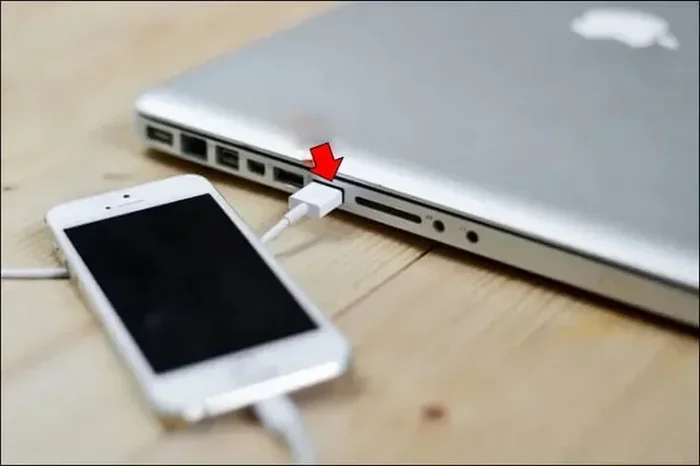
Using a USB cable connection iPhone to computer is the most direct way to move your photos. It does not rely on Wi-Fi or internet speed. The transfer happens right through the cable, which means it is fast and stable.
This method works for both Mac and Windows computers. You just need the right cable and a few minutes. Most people already have what they need sitting in a drawer at home.
How to Transfer Photos Using a USB Cable on Windows
Follow these simple steps to move photos from your iPhone to a Windows PC:
- Plug one end of your USB cable into your iPhone.
- Plug the other end into an available USB port on your computer.
- Unlock your iPhone and tap Trust This Computer if prompted.
- On your PC, open File Explorer and look for your iPhone under This PC.
- Open Internal Storage, then go to DCIM > 100APPLE or 101APPLE.
- Copy the photos you want to your computer and paste them in a folder.
This method gives you full control over which photos you move. You can pick and choose without syncing your entire library. It is perfect when you only need a few specific images.
How to Transfer Photos Using a USB Cable on Mac
Mac users have a slightly different path. Here is how to do it:
- Connect your iPhone to your Mac using a USB cable.
- Unlock your iPhone and tap Trust if asked.
- Open the Photos app on your Mac.
- Your iPhone should appear in the sidebar under Devices.
- Click on your iPhone and select Import Selected or Import All New Photos.
The Mac Photos app makes it easy to see previews before you import. You can also use Image Capture, which is a built-in Mac app that gives you a simple file browser view of your iPhone photos.
Quick Tip: Always unlock your iPhone before connecting it. A locked screen can prevent your computer from recognizing the device properly.
Speed and Quality of USB Transfers
Wired transfers are the fastest option available. A full gallery of 1,000 photos can transfer in just a few minutes. The quality stays exactly the same because you are copying the original files directly.
One thing to keep in mind is cable quality. Use a good-quality Lightning or USB-C cable. Cheap cables sometimes cause connection issues or slow transfer speeds. If you notice problems, try a different cable first before troubleshooting anything else.
Method 2: Wireless Transfer with AirDrop
What Makes AirDrop So Convenient
If you use a Mac, AirDrop photos from iPhone is one of the easiest wireless options. AirDrop uses Bluetooth and Wi-Fi to send files directly between Apple devices. There is no internet connection required, and no cables to fuss with.
This method is ideal for transferring a handful of photos quickly. It is not the best option for moving thousands of photos at once, but for everyday sharing and quick backups, it works great.
How to Use AirDrop to Send Photos
Here is how to send photos from your iPhone to your Mac using AirDrop:
- Make sure both your iPhone and Mac have Wi-Fi and Bluetooth turned on.
- Open Control Center on your iPhone and tap the AirDrop icon.
- Set AirDrop to Everyone or Contacts Only.
- On your Mac, open Finder and make sure AirDrop is open in the sidebar.
- On your iPhone, open the Photos app and select the photos you want to send.
- Tap the Share button and choose your Mac from the AirDrop list.
- Accept the transfer on your Mac.
The photos will download directly to your Mac Downloads folder. From there, you can move them wherever you like. The whole process takes seconds for a few photos.
Limitations of AirDrop
AirDrop is great for small transfers, but it has some limits. You cannot use it between an iPhone and a Windows PC. It also slows down when transferring large batches of photos. For moving your entire camera roll, a wired connection or cloud method works better.
Expert Insight: AirDrop works best when both devices are within 30 feet of each other. Walls and obstacles can weaken the signal and slow the transfer.
Method 3: Cloud-Based Transfer via iCloud
How iCloud Photos Sync Works
iCloud Photos is Apple’s cloud storage service. When you turn it on, your iPhone photos sync automatically to iCloud. You can then access those same photos on any device logged into your Apple ID, including your computer.
This method is completely wireless and happens in the background. You do not need to connect anything. It is perfect for people who want their photos available everywhere without thinking about it.
Setting Up iCloud Photos on iPhone
To start using iCloud for your photos, follow these steps:
- Open Settings on your iPhone.
- Tap your name at the top to open your Apple ID.
- Tap iCloud and then tap Photos.
- Toggle on iCloud Photos.
- Wait for your photos to upload. This may take a while depending on how many photos you have and your internet speed.
Accessing iCloud Photos on Your Computer
On a Mac, iCloud photos appear automatically in the Photos app if you have iCloud sync turned on. On a Windows PC, you can download iCloud for Windows from Apple’s website. Once installed, your photos will sync to a folder on your PC.
Keep in mind that iCloud offers 5 GB of free storage. If you have a large photo library, you may need to upgrade to a paid plan. The 50 GB plan costs just a few dollars per month and gives you plenty of room.
Quick Tip: To save space on your iPhone, use the Optimize iPhone Storage option in iCloud Photos settings. This keeps full-resolution photos in the cloud and smaller versions on your device.
Pros and Cons of iCloud Transfer
- Pros: Automatic syncing, no cables needed, works across all devices, and easy to set up.
- Cons: Requires internet connection, limited free storage, and sync speed depends on your Wi-Fi speed.
Method 4: Using Third-Party Apps and Software
When Built-In Tools Are Not Enough
Sometimes the built-in options do not meet your needs. Maybe you want more control over your photo library, or you need to transfer photos to a Windows PC without iCloud. This is where third-party iPhone transfer software comes in handy.
Several apps and programs are designed specifically for moving photos between your iPhone and computer. They often offer features that Apple’s built-in tools do not, like selective transfer, batch editing, and backup scheduling.
Top Third-Party Options
Here are some popular tools for photo export from iPhone to computer:
- iMazing: A powerful tool that lets you browse and transfer iPhone photos with ease. It works on both Mac and Windows.
- AnyTrans: Offers a simple interface for moving photos and managing your iPhone storage.
- Mobicip: Good for family device management and photo transfers.
- CopyTrans: A Windows-friendly option that works without iTunes.
Are Third-Party Apps Worth It?
Most of these apps offer free trials with limited features. If you transfer photos regularly or need advanced management tools, paying for a full version can be worthwhile. For occasional transfers, the free built-in methods are usually enough.
Common Mistakes to Avoid: Do not download apps from unknown sources. Stick to well-known developers to protect your personal data and avoid malware. Always check reviews before installing any third-party software.
Which Method Is Best for You?
Comparison Table
Here is a side-by-side look at the main transfer methods:
| Method | Speed | Ease of Use | Works With | Best For |
|---|---|---|---|---|
| USB Cable | Very Fast | Easy | Mac and Windows | Large batches, full library transfers |
| AirDrop | Fast | Very Easy | Mac only | Quick transfers of a few photos |
| iCloud | Medium | Easy | Mac and Windows | Ongoing sync and backup |
| Third-Party Apps | Varies | Easy | Mac and Windows | Advanced management and control |
Matching the Method to Your Needs
Think about what you need most. If you want speed and reliability, a USB cable transfer is the clear winner. If you want convenience and no cables, AirDrop or iCloud are your best bets. If you need detailed control over your photo library, a third-party app gives you the most options.
Many people use a combination of methods. They might use iCloud for everyday syncing and a USB cable for monthly full backups. This gives you the best of both worlds.
Tips for Faster and Smoother Transfers
Keep Your Software Updated
Always make sure your iPhone and computer are running the latest software versions. Updates often fix bugs that can cause transfer problems. A simple restart before transferring can also help clear minor glitches.
Free Up Space Before Transferring
If your iPhone storage is almost full, transfers may slow down or fail. Before a big transfer, delete any apps or files you no longer need. You can also use the iPhone storage management tools in Settings to see what is taking up the most space.
Use a Stable Connection
For wireless methods like AirDrop and iCloud, make sure you are on a strong Wi-Fi network. Move closer to your router if needed. For USB transfers, plug your computer directly into a wall outlet to avoid power issues during long transfers.
Expert Insight: Professional photographers often use USB transfers for their daily workflow. The speed and reliability of a wired connection make it the go-to choice when handling thousands of high-resolution images.
Common Problems and How to Fix Them
Computer Does Not Recognize iPhone
This is one of the most common issues. Try these fixes:
- Use a different USB cable or port.
- Restart both your iPhone and computer.
- Update your computer’s operating system.
- On Windows, install Apple Mobile Device Support.
- Unlock your iPhone and tap Trust.
Photos Appear Blurry After Transfer
If your photos look blurry after transferring, check your settings. Make sure you are copying the original files and not optimized versions. For iCloud users, ensure that Download and Keep Originals is turned on in your iCloud Photos settings.
Transfer Keeps Stalling or Failing
Interrupted transfers can happen for several reasons:
- Low battery on either device.
- Weak Wi-Fi connection for wireless transfers.
- Too many files transferring at once.
- Insufficient storage space on your computer.
Pausing and resuming the transfer, or transferring in smaller batches, often fixes this problem.
How Often Should You Transfer Your Photos?
There is no single right answer. It depends on how much you shoot and how much storage you have on your iPhone. A good rule of thumb is to transfer your photos at least once a week. This keeps your iPhone running smoothly and ensures your memories are backed up.
If you take a lot of photos or videos, consider transferring after every big event. Vacations, family gatherings, and special occasions can fill up your storage quickly. Getting into a regular habit saves you from running into storage warnings at the worst possible moment.
Key Takeaways:
- USB cable transfer is the fastest and most reliable method for moving photos from iPhone to computer.
- AirDrop is perfect for quick wireless transfers between iPhone and Mac.
- iCloud Photos provides automatic syncing so your photos are always available.
- Third-party apps offer advanced features for power users who need more control.
- Regular transfers keep your iPhone storage healthy and your photos safely backed up.
Final Thoughts
Can You Transfer Photos Directly From Iphone To Computer? Absolutely, and now you know exactly how. You have several reliable options at your fingertips, from simple USB connections to seamless cloud syncing. The right method depends on your devices, your workflow, and how often you need to move your photos.
Start with the built-in tools first. They are free, reliable, and already on your devices. If you find yourself needing more, explore the third-party options. Whatever method you choose, the most important thing is to make transferring photos a regular habit.
Your memories are valuable. Taking a few minutes each week to move them from your iPhone to your computer gives you peace of mind and keeps your phone running at its best. Try the methods in this guide today, and you will wonder why you did not start sooner.
Frequently Asked Questions
What is the fastest way to transfer photos from iPhone to computer?
The fastest way is using a USB cable. A wired connection transfers photos directly without relying on Wi-Fi or internet speed. You can move hundreds of photos in just a few minutes this way.
Can I transfer photos from iPhone to Windows PC without iTunes?
Yes, you can. Windows File Explorer lets you access your iPhone photos directly when connected via USB. You do not need iTunes at all. Simply plug in your phone, unlock it, and browse the DCIM folder to copy your photos.
Is AirDrop safe for transferring photos?
Yes, AirDrop is very safe. It uses encrypted connections between Apple devices and requires you to accept each transfer. It does not send your photos through the internet or store them in the cloud, so your privacy stays protected.
How much iCloud storage do I need for photo syncing?
It depends on your photo library size. The free 5 GB plan works for light users, but most people need at least 50 GB. You can check your usage in Settings and upgrade to a larger plan if needed. iCloud plans start at just a few dollars per month.
Why are my transferred photos blurry on my computer?
This usually happens when optimized storage is enabled. Your iPhone may have sent smaller versions of your photos to save space. Make sure you are copying original files or check your iCloud settings to download and keep full-resolution versions.
Can I transfer photos wirelessly from iPhone to any computer?
AirDrop only works between Apple devices. For wireless transfer to a Windows PC, you can use iCloud, email, or third-party apps. Cloud-based methods like iCloud work with any computer that has a web browser and internet connection.
=== CONCLUSION ===
Can You Transfer Photos Directly From Iphone To Computer is a question with a clear and easy answer. You have USB cables for speed, AirDrop for convenience, iCloud for automatic syncing, and third-party apps for advanced control. Each method serves a different purpose, and you can even combine them for the best results.
The key is to pick the method that fits your daily routine and stick with it. Regular transfers keep your iPhone storage free, your photos backed up, and your memories organized. Start with one method today, and you will feel the difference immediately.
Your photos tell your story. Make sure they are safe, accessible, and ready for you to enjoy whenever you need them. Follow the steps in this guide, and you will master iPhone-to-computer photo transfers in no time.