Can I Install My Xfinity Modem Myself and Save Money
Yes, you can install your Xfinity modem yourself and skip the technician visit that costs extra every month. This guide walks you through the entire Xfinity modem installation process in plain, simple steps. You will learn what equipment you need, how to set up your Xfinity gateway, and how to activate it without any hassle. We also cover common pitfalls and money-saving tips to help you keep more cash in your pocket. By the end, you will feel confident tackling the setup on your own.
Key Takeaways
- Self-installation saves money: Skipping the Xfinity technician fee can save you $20 to $100 per visit.
- You need basic equipment: A coaxial cable, Ethernet cable, power adapter, and your Xfinity gateway are all you require.
- Activation is done online: You can activate your modem through the Xfinity website or app in just a few minutes.
- Placement matters a lot: Setting your modem in a central, open area improves your Wi-Fi signal strength.
- Watch for common mistakes: Forgetting to check compatibility or skipping the internet speed test are frequent errors.
- Support is always available: Xfinity customer service can help if you get stuck during the process.
📑 Table of Contents
- Can I Install My Xfinity Modem Myself and Save Money?
- Why Self-Installing Your Xfinity Modem Makes Sense
- What You Need Before You Start
- Step-by-Step Xfinity Modem Installation Guide
- Common Mistakes to Avoid During Self-Installation
- When Should You Call a Professional Instead?
- Expert Tips to Maximize Your Xfinity Modem Performance
- How to Save Even More Money on Your Xfinity Internet
- Conclusion
Can I Install My Xfinity Modem Myself and Save Money?
So you just got a new Xfinity internet plan. Maybe you moved to a new place. Or perhaps you are tired of paying the monthly modem rental fee. Whatever the reason, you are probably wondering if you can handle the setup on your own. The good news is that you absolutely can install your Xfinity modem yourself. And the best part? You can save real money doing it.
Most people do not realize that Xfinity charges a monthly fee just to rent their modem equipment. Over a year, that adds up fast. By buying your own compatible modem and doing a self-install Xfinity modem setup, you can cut that cost for good. This article will show you exactly how to do it. We will cover everything from picking the right gear to getting your internet running smoothly.
Do not worry if you are not tech-savvy. The process is simpler than most people think. You do not need any special tools or technical skills. Just follow along, and you will have your Xfinity gateway up and running in no time. Let us dive in.
Why Self-Installing Your Xfinity Modem Makes Sense
Understanding the Xfinity Modem Rental Fee
Xfinity charges customers between $14 and $25 per month to rent their modem or gateway. That might not sound like a lot at first. But over 12 months, that is $168 to $300 you are paying just to borrow equipment. Over two or three years, the cost becomes very significant.
When you buy your own cable modem, you pay once and own it forever. Most standalone modems cost between $80 and $200. That means you can break even in just a few months. After that, you are saving money every single month. This is the main reason so many people choose to do a self-install Xfinity modem setup.
Comparing Rental vs. Own Modem Costs
| Option | Monthly Cost | 1-Year Cost | 3-Year Cost |
|---|---|---|---|
| Xfinity Rental | $14-$25 | $168-$300 | $504-$900 |
| Own Modem (One-Time Purchase) | $0 (after purchase) | $80-$200 | $80-$200 |
| Annual Savings | $14-$25/month | $0-$300 | $300-$700 |
As you can see, the savings add up quickly. Even a mid-range modem pays for itself within the first year. And you get to keep the equipment. That is a win-win for your home network setup and your wallet.
What You Need Before You Start
Compatible Modem for Xfinity
Not every modem works with Xfinity. Xfinity uses a specific technology standard called DOCSIS (Data Over Cable Service Interface Specification). You need a modem that is listed on Xfinity’s approved device list. The most common standards you will see are DOCSIS 3.0 and DOCSIS 3.1.
DOCSIS 3.0 modems are great for most households. They handle speeds up to about 1 Gbps. If you have a very fast Xfinity plan, a DOCSIS 3.1 modem might be a better fit. These support higher speeds and are more future-proof. You can find the full list of Xfinity compatible modems on the Xfinity website.
Other Equipment You Will Need
Beyond the modem, you need a few basic items. Here is a simple checklist:
- Coaxial cable – This connects your wall outlet to the modem. Xfinity usually provides one, but you can buy your own.
- Ethernet cable – This connects your modem to your computer for the initial setup. Most modems come with one in the box.
- Power adapter – The modem includes its own power supply. Just make sure you have a wall outlet nearby.
- Xfinity account credentials – You will need your Xfinity username and password for activation.
- A smartphone or computer – You need a device to complete the online activation process.
That is it. No special tools. No technical degree required. Just these simple items and you are ready to go.
Step-by-Step Xfinity Modem Installation Guide
Step 1: Choose the Best Location for Your Modem
Placement is one of the most important parts of your Xfinity modem setup. You want to put your modem in a central spot in your home. This helps spread the Wi-Fi signal evenly to all rooms.
Avoid placing the modem in a closet or behind furniture. Walls and obstacles block the signal. Keep it in an open area, preferably off the floor. A high shelf or a table works great. Also, stay away from microwaves and cordless phones. They can cause interference with your Wi-Fi signal strength.
Think about where you use the internet the most. If you work from a home office, place the modem nearby. If the living room is your main spot, center it there. Good placement makes a huge difference in your daily internet experience.
Step 2: Connect the Coaxial Cable
Find the wall outlet that was installed by Xfinity. It looks like a round metal jack on the wall. Take your coaxial cable and screw one end into the wall outlet. Tighten it by hand until it is snug. Do not over-tighten, or you could damage the connector.
Now connect the other end of the coaxial cable to the modem. Look for the port labeled “Cable In” or “Coax In” on the back of your modem. Push the cable in and twist the connector clockwise until it locks in place.
This connection brings the internet signal from Xfinity’s network into your modem. It is the most important physical link in the whole setup. Make sure both connections are secure and tight.
Step 3: Power On the Modem
Plug the power adapter into the modem. Then plug the other end into a wall outlet. Press the power button on the modem if it has one. If it does not have a power button, it will turn on automatically once plugged in.
Now wait. This is the part people find most frustrating. The modem needs time to start up. You will see several lights on the front panel begin to blink. This is normal. The lights will eventually become solid or stop blinking, which means the modem has connected to Xfinity’s network.
The whole boot-up process usually takes about 2 to 5 minutes. Sometimes it takes longer, especially after a fresh installation. Be patient and let the modem do its thing. Do not unplug it or restart it during this time.
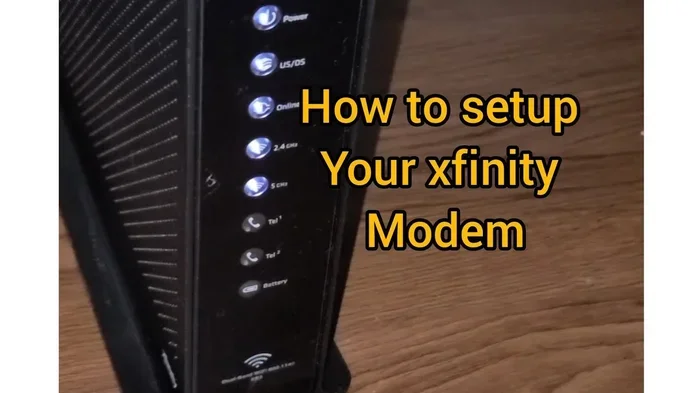
Step 4: Check the Modem Lights
Once the modem finishes starting up, take a look at the lights on the front panel. Each light tells you something about the connection status. Here is what to look for:
- Power Light: Should be solid. This means the modem has electricity.
- Online Light: Should be solid or blinking. This means the modem is connecting to Xfinity’s network.
- US/DS Light: Should be solid. This stands for Upstream and Downstream. It means the modem has a good connection to the network.
- Wi-Fi Light: Should be solid. This means the wireless network is active.
If the online light stays off or keeps blinking after 10 minutes, something might be wrong. Try checking your coaxial connections. You can also call Xfinity support for help. But do not panic. Most issues are easy to fix.
Step 5: Connect to the Modem and Activate
Now it is time to connect your computer or phone to the modem. If you are using a computer, plug in an Ethernet cable from the modem to your laptop. If you prefer Wi-Fi, look for the default network name on the bottom or back of the modem. Connect using the default password printed there.
Once connected, open your web browser. Go to the Xfinity activation page at xFi.com/activate. Sign in with your Xfinity account credentials. Follow the on-screen instructions to activate your modem.
The activation process usually takes just a few minutes. You will be asked to confirm your modem’s serial number and agree to terms. Once complete, your modem is officially registered to your account. You are now part of the Xfinity network.
Step 6: Run an Internet Speed Test
After activation, it is smart to run an internet speed test. Go to a site like Speedtest.net or Fast.com. Run the test and check the results.
Compare your results to the speed plan you signed up for. If your speeds are close to what you pay for, everything is working great. If the speeds are much lower, try moving the modem to a different location. You can also restart the modem and test again.
Running a speed test is the best way to confirm your home network setup is working correctly. Do not skip this step. It only takes a minute and gives you peace of mind.
Common Mistakes to Avoid During Self-Installation
Buying an Incompatible Modem
This is the number one mistake people make. Not all modems work with Xfinity. Before you buy anything, check Xfinity’s approved device list. Buying a modem that is not on the list means it will not work, and you will have wasted your money.
Also, make sure the modem supports the speed tier you subscribed to. If you pay for 400 Mbps but your modem only handles 100 Mbps, you will never get the full speed. Always match your modem to your plan.
Skipping the Activation Step
Some people plug in the modem and assume it is ready to go. It is not. You must activate the modem through your Xfinity account. Without activation, the modem will not connect to the internet, no matter what lights are showing.
Activation registers your device with Xfinity’s system. It links the modem’s serial number to your account. This step is essential and cannot be skipped. Always complete it right after plugging in the modem.
Poor Modem Placement
Where you put your modem affects everything. A modem tucked in a basement or behind a TV cabinet will give you weak signals. Your internet will be slow, and your Wi-Fi will drop in certain rooms.
Place the modem in a central, open area. Keep it elevated and away from walls. Avoid placing it near other electronics that cause interference. A little thought about placement goes a long way toward a great internet experience.
Forgetting to Update Modem Firmware
After activation, check if your modem has a firmware update available. Firmware updates fix bugs and improve performance. Most modern Xfinity gateways update automatically, but standalone modems sometimes need a manual check.
Log into your modem’s admin panel to check for updates. This is a quick step that can improve your connection stability. It is one of those small things that makes a big difference over time.
When Should You Call a Professional Instead?
Self-installation works great for most people. But there are times when calling a technician makes more sense. If your home has complex wiring or multiple floors, a pro might handle it better. If you have tried everything and your modem still will not connect, it is time to call Xfinity support.
Also, if you are renting a modem from Xfinity and just need help setting it up, the technician visit ensures everything is configured correctly. The technician can also check your signal levels and make adjustments that are hard to do yourself.
There is no shame in calling for help. Xfinity offers professional installation for a fee. Sometimes paying for a technician is worth the peace of mind. The key is knowing when DIY makes sense and when it does not.
Expert Tips to Maximize Your Xfinity Modem Performance
Restart Your Modem Regularly
Just like any electronic device, modems benefit from a fresh restart. Restarting your modem once a week clears out memory and refreshes the connection. Unplug the power cable, wait 30 seconds, and plug it back in. This simple habit keeps your internet connection stable and fast.
Use a Separate Router for Better Coverage
Many people use a modem and router combo unit. But if you have a large home, a separate router might perform better. A standalone router gives you more control over settings and can cover more square footage.
You can connect your modem to a third-party router using an Ethernet cable. This setup is called a “modem-router combo” or a “gateway setup.” It gives you the best of both worlds. You own the modem and choose a router that fits your needs.
Secure Your Network
After your Xfinity modem setup is complete, take a moment to secure your Wi-Fi network. Change the default network name and password. Use WPA3 encryption if your modem supports it. A secure network keeps strangers out and protects your personal data.
Also, change the admin password for your modem. This prevents anyone from accessing your modem settings without permission. These small steps go a long way toward keeping your network safe and fast.
How to Save Even More Money on Your Xfinity Internet
Self-installing your modem is one of the best ways to save money. But there are other tricks too. Here are a few tips to keep more money in your pocket:
- Negotiate your plan: Call Xfinity every year and ask for a better rate. Loyalty often pays off.
- Bundle services: If you need TV or phone, bundling can lower your total monthly bill.
- Check for promotions: Xfinity frequently offers new customer deals and seasonal promotions.
- Use your own equipment: Beyond the modem, buy your own router if needed. This eliminates another rental fee.
- Monitor your usage: Make sure you are not paying for speeds you do not need. Downgrade if your usage is low.
These small changes can add up to significant savings over time. The key is to stay proactive and not just accept whatever Xfinity bills you each month.
Conclusion
Installing your Xfinity modem yourself is easier than most people think. You save money, learn something new, and gain full control over your home network setup. The process is straightforward when you follow the right steps and avoid common mistakes.
Remember to choose a compatible modem, place it in a central location, and activate it through your Xfinity account. Run a speed test afterward to make sure everything is working as it should. If you hit a roadblock, Xfinity support is always there to help.
By taking the DIY route, you are not just saving a few dollars. You are taking charge of your internet experience. So go ahead, grab your coaxial cable, and get started. Your Xfinity modem installation is closer than you think, and the savings are well worth the effort.
Frequently Asked Questions
Do I need any special tools to install my Xfinity modem myself?
No special tools are needed. You only need a coaxial cable, an Ethernet cable, and a power outlet. Everything else comes included with the modem. Most people can complete the setup with just their hands and a computer or phone.
How long does it take to self-install a Xfinity modem?
Most people finish the entire process in about 30 to 45 minutes. The boot-up time takes the longest, usually around 5 minutes. Activation and the speed test add just a few more minutes. It is a quick and straightforward process.
What if my Xfinity modem will not connect after self-installation?
First, check all cable connections. Make sure the coaxial cable is tight on both ends. Restart the modem by unplugging it for 30 seconds and plugging it back in. If the problem continues, contact Xfinity support. They can check your account and signal levels remotely.
Can I use any modem with Xfinity, or does it have to be on their approved list?
The modem must be on Xfinity’s approved device list. Using an incompatible modem will not work. Xfinity provides a full list of supported models on their website. Always double-check compatibility before purchasing any equipment.
Will self-installing void my Xfinity warranty or service agreement?
No, self-installing does not void your Xfinity service agreement. You are still a paying Xfinity customer. However, if you bought your own modem, Xfinity support may not troubleshoot equipment issues with your personal hardware. They will still help with your internet service.
How do I know if my internet speed is good after installation?
Run a speed test at Speedtest.net or Fast.com. Compare the results to the speed tier you pay for. If your speeds are within 80% of your plan’s advertised speed, everything is working well. Slightly lower speeds can happen due to network congestion or Wi-Fi interference.