Can I Get Wi Fi From My Phone And Share With Friends
Yes, you can get Wi-Fi from your phone and share it with friends using built-in features like mobile hotspot and tethering. This guide walks you through every step, from setting up your Wi-Fi hotspot on Android and iPhone to troubleshooting common issues. You will learn how to share your cellular data safely, boost your connection speed, and avoid battery drain while keeping everyone connected on the go.
Have you ever been at a park, a coffee shop, or a friend’s house and thought, “Can I get Wi-Fi from my phone and share with friends?” The answer is a big yes. Your smartphone is a lot more powerful than most people realize. It can act as a portable Wi-Fi router and keep everyone online when there is no other network around.
In this guide, we will walk you through everything you need to know about getting Wi-Fi from your phone and sharing it with friends. We will cover how to set up a mobile hotspot, what tethering means, how to stay safe, and how to avoid common mistakes. Whether you use an Android or an iPhone, this article has you covered.
Sharing your phone’s internet connection is called internet sharing or Wi-Fi tethering. It uses your cellular data to create a small local network. Other devices like laptops, tablets, and other phones can connect to it just like they would connect to a regular home router. Pretty cool, right?
Key Takeaways
- You can turn your phone into a Wi-Fi hotspot: Both Android and iPhone have built-in features that let you share your cellular data with other devices.
- Setting up a hotspot is easy: It only takes a few minutes to configure your mobile hotspot settings on any smartphone.
- Watch your data usage: Sharing Wi-Fi from your phone can consume your data plan quickly, so keep an eye on limits.
- Battery drain is real: Using your phone as a router drains battery fast, so use a power bank or keep it plugged in.
- Security matters: Always set a strong Wi-Fi password to protect your personal hotspot from unauthorized access.
- Speed depends on signal strength: Your connection speed will vary based on your cellular coverage and the number of connected devices.
- Tethering has multiple forms: You can share via Wi-Fi, Bluetooth, or USB cable depending on your needs.
📑 Table of Contents
- What Does It Mean to Get Wi-Fi From Your Phone?
- How to Set Up a Mobile Hotspot on Android
- How to Set Up a Personal Hotspot on iPhone
- How Fast Is Wi-Fi From Your Phone?
- How Much Data Does a Hotspot Use?
- Tips to Boost Your Phone Hotspot Performance
- Is It Safe to Share Wi-Fi From Your Phone?
- Phone Hotspot vs. Portable Wi-Fi Device
- Troubleshooting Common Hotspot Problems
- Can You Get Wi-Fi From Your Phone Without a Data Plan?
- The Future of Phone-Based Wi-Fi Sharing
- Final Thoughts
What Does It Mean to Get Wi-Fi From Your Phone?
When you get Wi-Fi from your phone, you are turning your device into a wireless router. Your phone connects to a cellular network through your data plan. Then it broadcasts that connection as a Wi-Fi signal that other devices can pick up and use.
This process is also known as mobile hotspot or personal hotspot. Your phone becomes the source of internet for nearby devices. Think of it like a mini router that fits in your pocket.
Here are the three main ways to share your phone’s internet:
- Wi-Fi Tethering: This is the most common method. Your phone creates a Wi-Fi network that other devices can connect to wirelessly.
- Bluetooth Tethering: You share your internet connection through Bluetooth. It is slower but uses less battery.
- USB Tethering: You connect your phone to a computer using a cable. This gives the fastest and most stable connection.
Most people use Wi-Fi tethering because it is the easiest and works with almost any device. Let us dive deeper into how you can do this on your phone.
How to Set Up a Mobile Hotspot on Android
Setting up a mobile hotspot on an Android phone is simple. Almost every Android device has this feature built in. Here is how you do it step by step.
Step 1: Open Your Settings
Go to your Settings app on your Android phone. Look for a section called “Network,” “Connections,” or “Hotspot and Tethering.” The exact name depends on your phone brand. Samsung, Google Pixel, and OnePlus may have slightly different menu names.
Step 2: Find the Hotspot Option
Tap on “Mobile Hotspot” or “Portable Hotspot.” You will see a toggle switch to turn it on. Some phones also let you tap “Set up Wi-Fi hotspot” to change the network name and Wi-Fi password.
Step 3: Configure Your Hotspot
It is a good idea to change the default Wi-Fi password to something secure. Use a mix of letters, numbers, and symbols. This keeps your personal hotspot safe from strangers who might try to connect without your permission.
Step 4: Connect Your Friends’ Devices
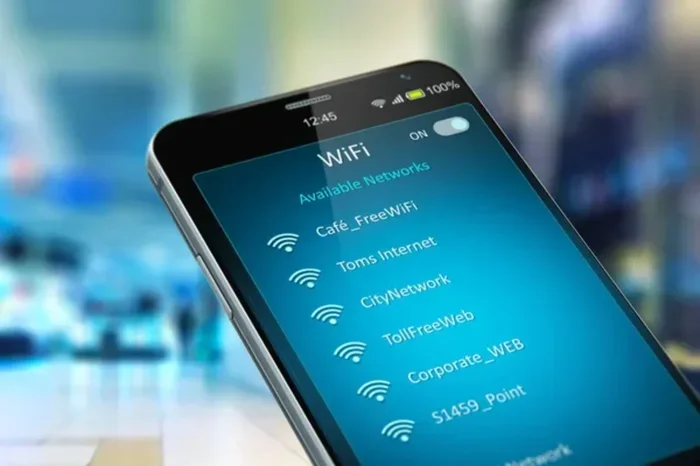
Once your hotspot is on, your friends can go to their Wi-Fi settings and find your network name. They enter the Wi-Fi password, and they are connected. That is all it takes to share Wi-Fi from your phone with friends.
Quick Tip: Always turn off your hotspot when you are not using it. This saves battery and keeps your data usage in check.
How to Set Up a Personal Hotspot on iPhone
iPhone users have a similar feature called Personal Hotspot. Apple makes it very easy to share your cellular data with other people. Here is how to do it.
Step 1: Go to Settings
Open the Settings app on your iPhone. Tap on “Personal Hotspot.” If you do not see it, go to “Cellular” and then “Personal Hotspot.”
Step 2: Turn It On
Toggle “Allow Others to Join” to on. Your iPhone will now create a Wi-Fi network that others can see. You will see a Wi-Fi password displayed on this screen.
Step 3: Share the Password
Give the Wi-Fi password to your friends. They can go to their device’s Wi-Fi settings, find your iPhone’s name, and connect. It works just like connecting to any regular Wi-Fi network.
Other Ways to Share on iPhone
iPhone also supports Bluetooth tethering and USB tethering. You can connect a friend’s laptop to your iPhone using a Lightning or USB-C cable. This method is great when you need a stable connection for work or streaming.
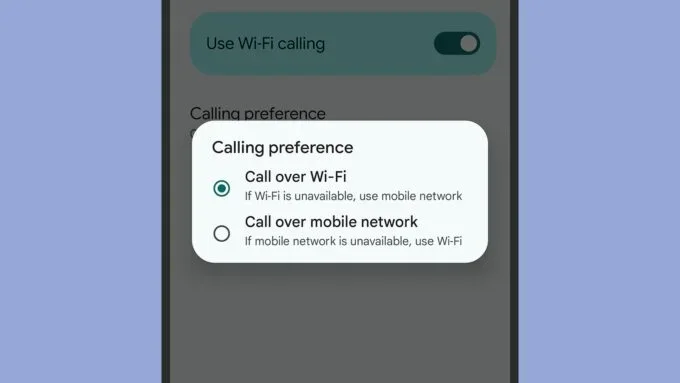
Quick Tip: If you use Wi-Fi calling or FaceTime a lot, be aware that sharing your hotspot may affect call quality if your cellular signal is weak.
How Fast Is Wi-Fi From Your Phone?
Many people wonder about connection speed when they use their phone as a router. The truth is, your speed depends on several factors.
Factors That Affect Your Hotspot Speed
- Cellular Signal Strength: If you have a strong 4G or 5G signal, your Wi-Fi hotspot will be fast. In areas with weak coverage, the speed drops.
- Number of Connected Devices: The more devices connected, the slower it gets for everyone. Try to limit the number of devices to three or four.
- Phone Model: Newer phones with 5G support offer much faster hotspot speeds than older models.
- Data Plan Speed: Your data plan matters. Some plans throttle speeds after a certain amount of data usage.
- Distance from the Phone: Just like a regular router, being closer to your phone gives you a better Wi-Fi signal.
For most casual activities like browsing, social media, and video calls, a phone hotspot works great. For heavy gaming or large downloads, a wired USB connection or a dedicated portable Wi-Fi device might be better.
How Much Data Does a Hotspot Use?
This is one of the most important questions people forget to ask. Sharing Wi-Fi from your phone uses your cellular data, and it can go fast. Here is a quick look at how much different activities consume.
| Activity | Data Used Per Hour |
|---|---|
| Web browsing | 60 MB – 150 MB |
| Standard video streaming | 1 GB – 3 GB |
| HD video streaming | 3 GB – 7 GB |
| Music streaming | 100 MB – 150 MB |
| Video calls (Zoom, FaceTime) | 500 MB – 1.5 GB |
| Social media scrolling | 100 MB – 300 MB |
| Online gaming | 40 MB – 100 MB |
As you can see, video streaming eats up data the fastest. If you plan to share your hotspot for a movie night, make sure you have enough data allowance left in your plan. A 10 GB data plan can be used up quickly if multiple people are streaming at the same time.
Expert Insight: Always check your data usage in your phone settings before and after sharing your hotspot. Most phones have a built-in data tracker that shows exactly how much you have used. This helps you avoid surprise overage charges.
Tips to Boost Your Phone Hotspot Performance
Want to get the best Wi-Fi range and connection speed from your phone hotspot? Try these practical tips.
1. Use a Wi-Fi Booster or External Antenna
Some phones support external antennas that can boost your cellular signal. This is especially useful in rural areas or places with weak coverage. A stronger signal means a better Wi-Fi hotspot for your friends.
2. Keep Your Phone Charged
Running a mobile hotspot drains your battery fast. Use a power bank or keep your phone plugged into a charger. A phone that dies mid-hotspot is no fun for anyone.
3. Place Your Phone in a Central Location
Just like a router, the position of your phone matters. Place it in the middle of the group. Avoid putting it in a pocket or bag. This improves Wi-Fi coverage and gives everyone a better connection speed.
4. Limit the Number of Connected Devices
Too many devices slow down the network. Set a limit and let everyone know how many can connect at once. This keeps the bandwidth shared fairly.
5. Use the Latest Wi-Fi Standard
Modern phones support Wi-Fi 5 or Wi-Fi 6. These standards offer faster speeds and better performance. Make sure your phone’s hotspot settings are set to the latest available standard.
6. Switch Between 2.4 GHz and 5 GHz
Some phone hotspots let you choose between 2.4 GHz and 5 GHz bands. The 5 GHz band is faster but has shorter range. The 2.4 GHz band is slower but reaches further. Choose based on your situation.
Quick Tip: If your friends are close to you, use 5 GHz for speed. If they are farther away, use 2.4 GHz for better Wi-Fi range.
Is It Safe to Share Wi-Fi From Your Phone?
Security is a real concern when you share Wi-Fi from your phone. When you open your personal hotspot to others, you are letting them access your cellular data connection. Here is how to stay safe.
Use a Strong Password
Never leave your hotspot open or use a weak password like “123456” or “password.” Use a strong Wi-Fi password with at least 10 characters. Mix uppercase letters, lowercase letters, numbers, and symbols.
Change the Default Network Name
Changing your hotspot name helps you avoid drawing attention. A generic name like “Samsung Hotspot” tells everyone what kind of phone you have. A unique name is less appealing to potential intruders.
Turn Off Auto-Connect for Unknown Devices
Most phones let you control which devices can connect. Disable auto-connect for unknown devices. This prevents strangers from using your data plan without your knowledge.
Monitor Connected Devices
Check your hotspot settings regularly to see which devices are connected. If you see a device you do not recognize, remove it and change your Wi-Fi password immediately.
Common Mistakes to Avoid:
- Leaving your hotspot on all the time: This drains your battery and uses data even when no one is connected.
- Ignoring data limits: Going over your data plan limit can result in extra charges or slow speeds.
- Using weak passwords: This leaves your personal hotspot vulnerable to unauthorized access.
- Not updating your phone: Software updates often include security patches that protect your mobile hotspot.
Phone Hotspot vs. Portable Wi-Fi Device
Some people wonder if they should use their phone or buy a dedicated portable Wi-Fi device. Let us compare the two.
| Feature | Phone Hotspot | Portable Wi-Fi Device |
|---|---|---|
| Cost | Free (uses existing phone) | $50 – $200 for the device |
| Setup | Very easy, built-in feature | Requires setup and charging |
| Battery Life | Drains phone battery quickly | Built-in battery, lasts longer |
| Speed | Good, depends on phone model | Good to excellent |
| Portability | Already in your pocket | Extra device to carry |
| Data Source | Uses your phone data plan | Uses a SIM card or plan |
| Best For | Occasional sharing | Frequent or long-term sharing |
For most people, a phone hotspot is the best choice. It costs nothing extra and is always with you. A portable Wi-Fi device makes sense if you travel often or need to connect many devices for long periods.
Troubleshooting Common Hotspot Problems
Sometimes your mobile hotspot may not work as expected. Here are common issues and how to fix them.
Hotspot Keeps Disconnecting
This usually happens when your cellular signal is weak. Move to a different location or restart your phone. Also check if your phone’s software is up to date.
Devices Cannot Find the Hotspot
Make sure your hotspot is turned on and visible. On some phones, you need to enable “Visible to All” in the hotspot settings. Also, make sure the other device’s Wi-Fi is turned on.
Slow Connection Speed
Too many connected devices slow things down. Disconnect devices you are not using. Also, move closer to your phone for a stronger Wi-Fi signal.
Hotspot Not Showing Up on Some Devices
This can happen if your phone is using the 5 GHz band and the other device only supports 2.4 GHz. Switch your hotspot to 2.4 GHz for better compatibility.
Data Runs Out Quickly
This is a data usage problem. Limit the number of connected devices and avoid heavy activities like HD streaming when sharing your hotspot.
Quick Tip: Restarting your phone before turning on the hotspot can fix many minor glitches. It clears the cache and refreshes your network settings.
Can You Get Wi-Fi From Your Phone Without a Data Plan?
This is a common question. The short answer is no. To get Wi-Fi from your phone and share it, you need an active cellular data plan. Without a data plan, your phone cannot connect to the internet through the cellular network, so it has nothing to share.
Some people try to use Wi-Fi calling or offline apps to work around this, but it does not work for creating a Wi-Fi hotspot. The hotspot feature requires an active data connection to broadcast internet to other devices.
If you do not have a data plan, consider getting a prepaid SIM card or a low-cost plan. Many carriers offer affordable options that work well for occasional internet sharing.
The Future of Phone-Based Wi-Fi Sharing
The way we share internet is changing fast. 5G networks are making phone hotspots faster than ever. In the near future, sharing Wi-Fi from your phone will be even more seamless.
Some newer phones now support Wi-Fi 6E and Wi-Fi 7 standards. These offer incredible speeds and can handle many connected devices at once. Imagine hosting a small outdoor gathering and everyone stays online through your phone without any lag.
Carriers are also introducing unlimited data plans with hotspot included. This makes mobile hotspot usage more practical for everyday internet sharing. The days of worrying about running out of data are slowly fading away.
Expert Insight: Keep an eye on your phone manufacturer’s updates. Companies like Samsung, Apple, and Google are constantly improving their hotspot features with better speed, range, and security.
Final Thoughts
So, can you get Wi-Fi from your phone and share it with friends? Absolutely. Your phone is one of the most useful tools you have for internet sharing on the go. Whether you are at a beach, a camping trip, or a busy office with no Wi-Fi, your mobile hotspot can save the day.
Just remember to keep your Wi-Fi password strong, monitor your data usage, and manage your battery. With the tips and tricks in this guide, you will be a pro at sharing Wi-Fi from your phone in no time.
Start experimenting with your personal hotspot today. Try it out with a friend and see how easy it is. Once you get the hang of it, you will never find yourself without a way to stay connected again.
Can I Get Wi-Fi From My Phone Without an Internet Plan?
No, you need an active cellular data plan to create a Wi-Fi hotspot from your phone. Without a data plan, your phone cannot connect to the internet through the cellular network, so it has nothing to broadcast to other devices.
Does Sharing Wi-Fi From My Phone Drain the Battery?
Yes, running a mobile hotspot drains your phone battery quickly. It is best to keep your phone plugged in or use a power bank when sharing your internet connection for extended periods.
How Many Devices Can Connect to My Phone Hotspot?
Most phones allow up to 10 devices to connect to the personal hotspot. However, connecting too many devices slows down the connection speed for everyone. Three to four devices is the sweet spot for good performance.
Is It Safe to Share My Hotspot With Friends?
It is safe as long as you use a strong Wi-Fi password and monitor connected devices. Avoid leaving your hotspot open or using default passwords. Change your hotspot name and password regularly for added security.
Can I Use My Phone Hotspot While on a Call?
Yes, you can use your mobile hotspot while on a call. However, if you are on a Wi-Fi calling or VoLTE call, your call quality may be affected if your cellular signal is weak.
What Is the Difference Between Wi-Fi Tethering and Bluetooth Tethering?
Wi-Fi tethering creates a wireless network that other devices can connect to. It is fast and works with many devices. Bluetooth tethering is slower but uses less battery and has a shorter range. USB tethering uses a cable and offers the most stable connection.
Frequently Asked Questions
What is Can I Get Wi Fi From My Phone?
Can I Get Wi Fi From My Phone is an important topic with many practical applications.