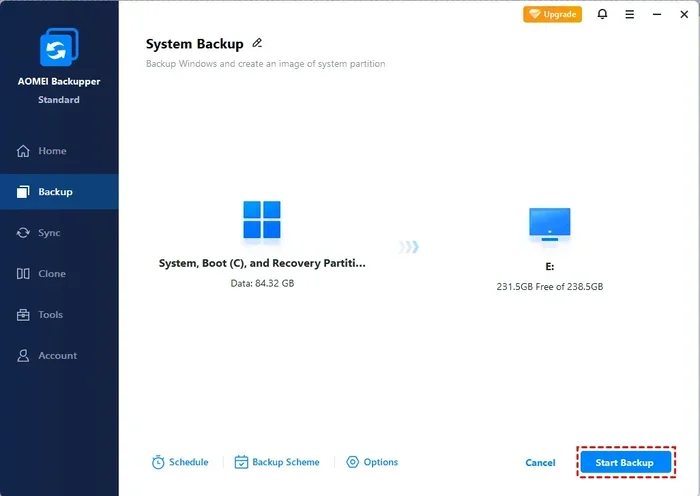
The Difference Between Backup and Restore Explained
Understanding the difference between backup and restore is essential for anyone who wants to protect their digital files. Backup means copying and storing your data safely, while restore means bringing that saved data back when something goes wrong. This guide breaks down both processes so you can keep your files safe and recover them quickly.
Have you ever lost an important file and wished you could just get it back? That feeling is stressful, frustrating, and honestly, a little scary. Whether it is a family photo, a work document, or months of creative projects, losing data can hit hard.
This is where backup and restore comes in. These two processes work hand in hand to protect your files and give you peace of mind. But here is the thing, many people confuse them or treat them as the same thing. They are not.
In this guide, we will break down the difference between backup and restore in plain, simple language. You will learn what each process does, how they differ, and how to set up a plan that actually works. By the end, you will know exactly how to keep your data safe and how to get it back when you need it most.
Key Takeaways
- Backup creates a copy: It saves your files in a separate location to prevent permanent loss.
- Restore retrieves saved data: It brings your files back from a backup when needed.
- They work together: You cannot restore without first having a backup in place.
- Multiple backup types exist: Full, incremental, and differential backups serve different needs.
- Common mistakes cause data loss: Skipping verification and ignoring backup schedules are top errors.
- Best practices save the day: Following a solid backup and restore plan keeps your data safe.
📑 Table of Contents
What Is Backup?
Backup means making a copy of your data and storing it somewhere else. Think of it like making a photocopy of an important document and keeping the copy in a safe drawer. If the original gets lost or damaged, you still have the copy.
When you back up your files, you create a duplicate of your data. This duplicate lives in a different location, which is the whole point. If your computer crashes, gets stolen, or falls victim to a ransomware attack, your backup keeps your information safe.
Why Backup Matters
Data loss happens more often than you might think. Hard drives fail. Phones get dropped in water. Laptops get stolen. Even a simple power outage can corrupt files. According to studies, around 30% of people have never backed up their data, and yet a surprising number experience data loss every year.
Here are some common reasons you might lose data:
- Hardware failure: Hard drives and SSDs wear out over time.
- Accidental deletion: We all accidentally hit delete at the wrong time.
- Malware and viruses: Malicious software can destroy or encrypt your files.
- Theft or loss: Devices get lost or stolen every day.
- Natural disasters: Fires, floods, and earthquakes can destroy physical devices.
A solid backup strategy protects you from all of these scenarios. It is not a matter of if something will go wrong, it is a matter of when.
Types of Backup
Not all backups are the same. Different types serve different purposes, and knowing them helps you choose the right approach for your needs.
Full Backup
A full backup copies every single file and folder on your system. It takes the most time and storage space, but it gives you a complete copy of everything. This is the most thorough type of data backup you can do.
Incremental Backup
An incremental backup only copies files that have changed since the last backup. It is faster and uses less storage. However, restoring from incremental backups can take longer because you need the full backup plus each incremental backup in order.
Differential Backup
A differential backup copies all changes made since the last full backup. It takes more space than incremental backups but is faster to restore because you only need the full backup and the latest differential backup.
Cloud Backup
Cloud backup sends your data to remote servers over the internet. Services like Google Drive, Dropbox, and iCloud make this easy. You do not need any physical hardware, and your data stays safe even if your device is destroyed.
Local Backup
Local backup stores your data on a physical device like an external hard drive or USB flash drive. It gives you fast access to your files and does not rely on an internet connection.
| Backup Type | Speed | Storage Used | Restore Speed |
|---|---|---|---|
| Full Backup | Slow | High | Fast |
| Incremental Backup | Fast | Low | Slow |
| Differential Backup | Medium | Medium | Medium |
| Cloud Backup | Depends on internet | Varies | Depends on internet |
| Local Backup | Fast | Varies | Fast |
What Is Restore?
Restore is the process of retrieving your data from a backup. If your computer crashes or you accidentally delete an important file, you use the restore function to bring your files back to life.
Think of it this way. Backup is like saving a game in a video game. Restore is like loading that saved game when you lose or want to start over. Without a saved game, you cannot load it. The same goes for data, you cannot restore what you never backed up.
How the Restore Process Works
The restore process depends on your backup method and software. But here is a general idea of how it works:
- You lose or damage data: Your file gets deleted, corrupted, or your device fails.
- You open your backup software: You access the tool you used to create the backup.
- You select the backup source: You choose where your backup is stored, whether it is a cloud service, an external drive, or a local folder.
- You choose what to restore: You pick the specific files, folders, or even your entire system that you want to bring back.
- You start the restore: The software copies the saved data back to your device.
- You verify the restore: You check that your files are intact and working properly.
Some restore processes are simple and take just a few minutes. Others, like full system restores, can take hours. It all depends on the amount of data and the backup type you used.
Restore Point and System Image
Two important terms come up often in the restore world: restore point and system image.
A restore point is a snapshot of your system settings and files at a specific moment in time. Windows creates these automatically, and you can create them manually too. When something goes wrong, you can roll your system back to a restore point and undo recent changes.
A system image is a complete snapshot of your entire drive. It includes your operating system, installed programs, settings, and all your files. Restoring from a system image essentially puts your computer back exactly the way it was when the image was created.
The Key Difference Between Backup and Restore
The difference between backup and restore comes down to direction and purpose. Backup moves your data from your device to a safe storage location. Restore moves your data back from that storage location to your device. One is about protection, and the other is about recovery.
Here is a simple comparison that makes it crystal clear:
| Aspect | Backup | Restore |
|---|---|---|
| Purpose | To protect and duplicate data | To recover and retrieve data |
| Direction | Device to storage | Storage to device |
| When it happens | Before data loss occurs | After data loss occurs |
| Frequency | Regular and scheduled | As needed |
| Storage required | Yes, extra storage space | No extra storage needed |
| User action | Set up and maintain | Initiate when needed |
Another way to think about it is this: backup is proactive, and restore is reactive. You set up backups before anything goes wrong. You perform a restore after something has already gone wrong.
Both are essential. A backup without a restore plan is useless because you do not know how to get your data back. A restore without a backup is impossible because there is nothing to restore from.
Types of Restore Processes
Not all restores are the same either. The type of restore you need depends on what went wrong and what kind of backup you have.
File-Level Restore
A file-level restore lets you recover individual files or folders. This is the most common type of restore. Maybe you accidentally deleted a spreadsheet or a photo got corrupted. You open your backup tool, find the file, and restore just that one item.
System-Level Restore
A system-level restore brings back your entire operating system and all your files. This is what you need when your computer won’t boot at all or when a major failure wipes out everything. It takes longer and requires a full system image or comprehensive backup.
Application-Level Restore
Some backup tools let you restore specific applications without affecting the rest of your system. This is useful when a program gets corrupted but your files and operating system are fine.
Point-in-Time Restore
A point-in-time restore brings your system back to a specific moment. This is incredibly useful when you realize a problem started after a recent change. You roll back to a restore point from before the issue began.
Common Backup and Restore Mistakes
Even with the best intentions, people make mistakes when it comes to protecting their data. Here are the most common ones to avoid.
Skipping Backup Verification
Just because you created a backup does not mean it works. Many people set up a backup and never check it. Then, when they need to restore, they discover the backup was corrupt or incomplete. Always test your backups by doing a trial restore now and then.
Ignoring the 3-2-1 Rule
The 3-2-1 backup rule is a gold standard. It means you should have three copies of your data, stored on two different types of media, with one copy kept offsite. Ignoring this rule leaves your data vulnerable to a single point of failure.
Never Updating Your Backup Schedule
Your backup needs change over time. If you only back up once a month but create new files daily, you could lose weeks of work. Update your backup frequency to match how often your data changes.
Using Unreliable Backup Software
Not all backup software is created equal. Some free tools lack important features like versioning, encryption, or scheduling. Invest in reliable backup solutions that match your needs and budget.
Forting to Encrypt Sensitive Data
If your backup contains personal or financial information, it needs encryption. An unencrypted backup in the cloud or on a lost external drive is a security risk. Always use encrypted backup options when available.
Best Practices for Backup and Restore
Setting up a solid backup and restore plan does not have to be complicated. Follow these simple steps, and you will be well protected.
- Start today: Do not wait for something bad to happen. Set up your first backup right now.
- Automate your backups: Use scheduling features so your backups happen without you thinking about them.
- Follow the 3-2-1 rule: Keep three copies, on two media types, with one offsite.
- Test your restores regularly: A backup you cannot restore is no backup at all.
- Use versioning: Keep multiple versions of your files so you can go back to earlier versions if needed.
- Keep your backup software updated: Updates fix bugs and add new features that improve data protection.
- Label and organize your backups: Name your backup files clearly so you can find what you need fast.
Quick Tips for Better Data Protection
- Set a weekly reminder to check your backup status.
- Use both cloud and local backups for extra safety.
- Keep at least one backup offsite, like in a secure cloud storage service.
- Encrypt all backup drives and cloud accounts.
- Document your restore process so others can help if needed.
Expert Insight: Why Backup and Restore Planning Is a Must
Data loss experts agree that a well-planned backup and recovery strategy is one of the most important investments you can make. Whether you are a home user or a business owner, the cost of losing your data far outweighs the effort and expense of setting up a proper plan.
Think of it like insurance. You hope you never need it, but if something goes wrong, you will be incredibly glad you have it. The same applies to your digital files. A good backup plan gives you a safety net, and knowing how to restore from that backup gives you confidence.
Small businesses especially should take note. Studies show that 60% of small businesses that experience major data loss shut down within six months. Having a reliable disaster recovery plan in place can mean the difference between surviving a crisis and going under.
Conclusion
The difference between backup and restore is simple but incredibly important. Backup is the process of copying and saving your data to a safe location. Restore is the process of bringing that data back when you need it. One protects your files, and the other recovers them.
Both processes are essential parts of any data protection strategy. Without backup, you have nothing to restore from. Without knowing how to restore, your backup is just stored data collecting dust.
Take action today. Set up a backup schedule, choose the right backup types for your needs, and practice your restore process. A little preparation now can save you from a world of pain later. Your digital life is worth protecting, and understanding the difference between backup and restore is the first step toward keeping it safe.
Remember, the best time to set up your backup was yesterday. The second best time is right now. Do not wait for a data loss event to teach you the lesson. Be proactive, stay prepared, and keep your files safe.
Frequently Asked Questions
What is the main difference between backup and restore?
Backup is the process of copying your data to a safe location for protection. Restore is the process of retrieving that saved data when you need it back. One prevents data loss, and the other recovers from it.
Can you restore without a backup?
No, you cannot restore without a backup. Restore depends entirely on having previously saved copies of your data. If you never backed up your files, there is nothing to restore from.
How often should I back up my data?
It depends on how often your data changes. For most people, a daily or weekly backup is enough. If you work on important files every day, consider backing up daily or even multiple times a day for critical data.
What is the 3-2-1 backup rule?
The 3-2-1 rule means you keep three copies of your data, stored on two different types of media, with one copy kept offsite. This approach provides strong protection against different types of data loss.
Is cloud backup safe?
Yes, cloud backup is generally very safe. Reputable cloud services use encryption and redundancy to protect your data. However, you should still choose trusted providers and enable two-factor authentication for extra security.
How long does a restore process take?
The restore time depends on the amount of data and the backup method. A simple file-level restore might take just a few minutes. A full system restore from a large backup image could take several hours.