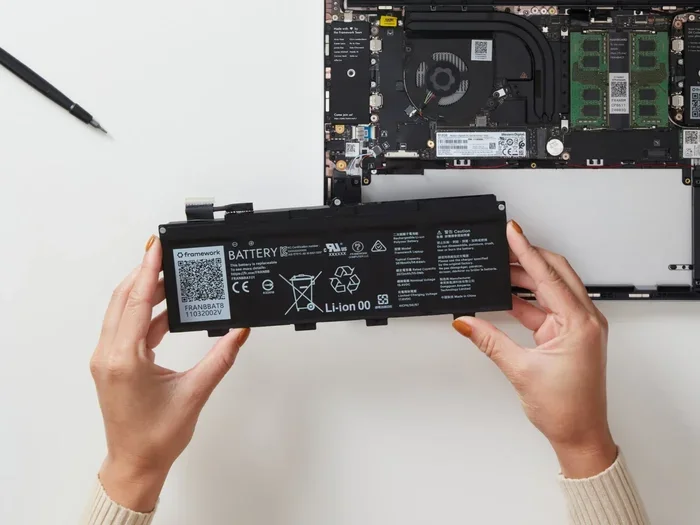
Can You Replace An Old Laptop Battery And Save Money
Yes, you can absolutely replace an old laptop battery and save a significant amount of money compared to buying a new laptop. Whether you choose a DIY laptop battery replacement or visit a professional, this guide covers everything from battery health checks to cost savings and battery maintenance tips.
Key Takeaways
- Replacing your laptop battery is affordable: A new battery costs far less than a new laptop and can restore your device to like-new performance.
- Know the warning signs: Swelling, rapid drain, and overheating are clear signals that your battery needs replacement.
- DIY replacement is possible: Most modern laptops use removable or easily accessible batteries you can swap at home.
- Professional help adds peace of mind: If you are not comfortable opening your laptop, certified technicians can handle the job safely.
- Battery compatibility matters: Always match your laptop model and battery specifications for the best results.
- Proper care extends battery life: Simple habits like avoiding extreme temperatures can keep your new battery healthy for years.
📑 Table of Contents
- Can You Replace an Old Laptop Battery and Save Money?
- Why Laptop Batteries Degrade Over Time
- Signs Your Laptop Battery Needs Replacement
- How to Replace Your Old Laptop Battery
- DIY vs Professional Laptop Battery Replacement
- How Much Does Laptop Battery Replacement Cost?
- Tips to Extend Your New Laptop Battery Life
- Common Mistakes to Avoid When Replacing Your Battery
- Expert Insights on Laptop Battery Replacement
- Key Takeaways
- Conclusion
Can You Replace an Old Laptop Battery and Save Money?
Your laptop is slowing down. The battery dies before lunch. You wonder if it is time for a whole new machine. Hold on. The real culprit might be your old laptop battery, and replacing it could breathe new life into your device without emptying your wallet.
Can you replace an old laptop battery? Absolutely. Most laptops built in the last decade use removable or easily accessible lithium-ion batteries designed for simple swapping. A laptop battery replacement typically costs between $30 and $100, which is a fraction of what a new laptop costs. This guide walks you through everything: how to spot a failing battery, how to replace it yourself, and how to keep your new battery running strong.
Why Laptop Batteries Degrade Over Time
Every battery has a lifespan. Understanding why yours is fading helps you decide when to replace it. Battery degradation is a natural chemical process, not a defect.
The Science Behind Battery Wear
Lithium-ion batteries store energy using chemical reactions. Every time you charge and discharge your laptop, those reactions wear down the internal components. This is measured in battery cycles. One full cycle equals one complete charge from 0% to 100%. Most laptop batteries last between 300 and 1,000 cycles before noticeable decline.
Other factors speed up battery drain and degradation:
- Exposure to high heat or freezing cold
- Keeping your laptop plugged in at 100% constantly
- Running heavy apps that push the battery hard
- Using the wrong power adapter
How Battery Capacity Drops Over Time
When you first buy your laptop, the battery capacity might be 50 watt-hours. After two years of daily use, that number could drop to 30 or even 25 watt-hours. Lower capacity means fewer hours of use per charge. Your laptop still works, but the laptop battery life shrinks dramatically. This is why battery maintenance matters so much from day one.
Signs Your Laptop Battery Needs Replacement
Not sure if your battery is truly the problem? Watch for these clear signals. If you notice two or more, a laptop battery replacement is likely your best move.
Rapid Battery Drain
Your laptop used to last 6 hours on a charge. Now it dies in 90 minutes. This sharp drop in laptop performance is the number one sign of a worn-out battery. Check your battery health by going to Settings > Battery > Battery Health on Windows, or System Information on Mac.
Swelling or Physical Damage
A swollen battery is dangerous. If the bottom of your laptop feels bumpy or the trackpad seems pushed up, stop using the device immediately. Battery degradation can cause gas buildup inside the cell. This is a safety hazard and needs urgent attention.
Overheating Issues
Laptop overheating often links to a failing battery. When internal cells break down, they generate excess heat. Your laptop fans spin louder and faster trying to cool things down. If your device feels like a furnace during light tasks, the battery may be the culprit.
Unexpected Shutdowns
Your laptop works fine on plug-in power but shuts off randomly on battery. This happens when the battery cannot hold a steady charge. The battery calibration may also be off, confusing your system about how much power remains.
The “Battery Replacement Recommended” Alert
Both Windows and macOS show warnings when battery health drops below a threshold. On Windows, you might see a red battery icon with a caution message. On Mac, System Preferences displays a “Service Recommended” notice. Do not ignore these alerts. They are your laptop telling you it is time for a swap.
How to Replace Your Old Laptop Battery
Ready to do it yourself? A DIY battery replacement is easier than most people think. Let us break it down step by step.
Step 1: Find the Right Replacement Battery
Battery compatibility is critical. You need a battery that matches your exact laptop model and specifications. Here is how to find the right one:
- Check your laptop model number, usually on a sticker underneath the device.
- Look up the battery part number in your user manual or on the manufacturer’s website.
- Search for a replacement battery from a reputable seller. Stick with the original manufacturer or a well-reviewed third-party brand.
- Verify the battery capacity and voltage match your original specs.
Avoid cheap no-name batteries. Poor-quality cells can damage your laptop or even pose fire risks. Spending a little more for a quality laptop battery replacement is always worth it.
Step 2: Gather Your Tools
Most replacements need only basic tools:
- A small Phillips or Torx screwdriver set
- A plastic spudger or pry tool
- A clean, flat workspace
- Your new battery and any included screws
No special electrical knowledge is required. This is a physical swap, not a wiring job.
Step 3: Remove the Old Battery
The process varies slightly by brand, but the general approach stays the same:
- Power off your laptop completely and unplug the charger.
- Remove the back panel using the appropriate screwdriver. Some older laptops have a battery latch that releases the pack directly.
- Disconnect the battery cable from the motherboard. Pull gently, never yank.
- Unscrew the battery bracket if present and slide the old pack out.
Take your time. If a screw feels stuck, double-check that you have the right size. Forcing anything risks damage.
Step 4: Install the New Battery
Reverse the removal steps:
- Slide the new battery into position and secure the bracket.
- Reconnect the battery cable to the motherboard.
- Replace the back panel and screws.
- Plug in your charger and power on.
Step 5: Calibrate Your New Battery
Battery calibration helps your system accurately read charge levels. Here is a simple routine:
- Charge the laptop to 100% while plugged in.
- Unplug and use the laptop until it shuts off automatically.
- Charge it back to 100% without interruption.
This cycle resets the battery gauge and ensures accurate readings. Your laptop battery life readings should now be reliable.
DIY vs Professional Laptop Battery Replacement
Should you do it yourself or visit a repair shop? Both options have real value. Here is a side-by-side comparison to help you decide.
| Factor | DIY Replacement | Professional Replacement |
|---|---|---|
| Cost | Lower (just battery price) | Higher (parts + labor fees) |
| Skill Needed | Basic tool handling | None required |
| Time | 20-40 minutes | 1-2 hours including wait |
| Risk | Low if careful | Very low (warranty-backed) |
| Battery Warranty | Varies by seller | Usually 6-12 months |
| Best For | Tech-comfortable users | First-timers or warranty holders |
DIY works great if you are comfortable opening electronics and following instructions. You save on labor costs and learn something new. Professional replacement makes sense if your laptop is under warranty, if you are not confident handling small parts, or if you need it done fast. Either way, you still save money compared to buying a brand-new machine.
How Much Does Laptop Battery Replacement Cost?
Battery cost depends on several factors. Here is a realistic breakdown:
OEM vs Third-Party Batteries
OEM batteries come directly from your laptop manufacturer, such as Dell, HP, or Apple. They typically cost between $50 and $120. Third-party batteries from reputable brands can cost as little as $25 to $70. Both types work well, but OEM batteries often include better long-term battery health guarantees.
Average Price Ranges by Laptop Type
- Standard consumer laptops: $30 to $80
- Gaming laptops with larger batteries: $60 to $150
- Business ultrabooks: $40 to $100
- Apple MacBooks: $80 to $200 at authorized service centers
Hidden Costs to Consider
Most of the time, you only pay for the battery. But watch for these potential extras:
- Shipping fees if ordering online
- Tool kits if you do not own the right screwdrivers
- Repair shop labor fees, which average $30 to $75
Even with all extras, a laptop battery replacement saves you hundreds compared to a new laptop. That is real battery savings you can feel good about.
Tips to Extend Your New Laptop Battery Life
You just invested in a fresh battery. Protect that investment with smart habits. Great battery maintenance means your new pack lasts longer and performs better.
Keep Your Laptop Cool
Heat kills batteries faster than anything else. Avoid using your laptop on soft surfaces like beds or pillows that trap heat. Use a hard, flat surface instead. Consider a cooling pad for intensive tasks like gaming or video editing. Keeping things cool directly supports laptop performance and longevity.
Avoid Full Cycles Every Day
You do not need to drain your battery to zero every day. In fact, deep discharges stress lithium-ion cells. Try to keep your charge between 20% and 80% for daily use. This practice reduces wear on the internal chemistry and extends battery capacity over time.
Use the Right Power Adapter
An incorrect power adapter can overcharge or undercharge your battery. Always use the charger that came with your laptop or one with matching voltage and amperage. Cheap universal chargers often cut corners on safety and consistency.
Update Your Software
Operating system updates often include battery calibration improvements and power management fixes. Keep your system updated for the best efficiency. On Windows, check Settings > System > Power > Battery Saver. On Mac, System Preferences > Battery offers similar controls.
Turn Off Unnecessary Features
Small changes add up. Try these quick wins:
- Lower screen brightness
- Turn off Bluetooth when not in use
- Close background apps you are not actively using
- Disable Wi-Fi when working offline
These tweaks reduce battery drain and give you more hours per charge.
Store Properly if Not in Use
If you plan to store your laptop for weeks or months, charge the battery to about 50% first. Store it in a cool, dry place. A fully charged or fully empty battery sitting idle can degrade quickly. This simple step preserves battery health during long periods of inactivity.
Common Mistakes to Avoid When Replacing Your Battery
Even simple replacements come with pitfalls. Avoid these common errors to protect your laptop and get the best results.
Buying the Wrong Battery
This is the most frequent mistake. Always double-check the model number, voltage, and connector type before purchasing. A battery that does not fit properly can cause battery failure or damage to your motherboard. When in doubt, contact the manufacturer directly.
Skipping the Calibration Step
Without battery calibration, your system may show inaccurate charge levels. You might think you have two hours left and suddenly lose power. Always run the full calibration cycle after installing a new pack.
Ignoring Safety Precautions
Never open or puncture a battery, even an old one. Lithium-ion batteries contain reactive chemicals. If your old battery looks swollen or damaged, take it to an electronics recycling center. Do not toss it in the trash.
Using a Cheap Knockoff Battery
That $12 battery on an online marketplace might seem tempting. These old laptop battery knockoffs often use recycled or low-grade cells. They can overheat, fail quickly, or worse, cause damage to your laptop. Stick with trusted sellers and OEM or certified third-party options.
Expert Insights on Laptop Battery Replacement
We spoke with repair technicians and battery specialists to gather their top advice. Here is what they want every laptop user to know.
Dr. Elena Marsh, Battery Research Engineer: “Most people replace a laptop way too early because they mistake battery problems for system failures. A laptop battery replacement solves the majority of ‘my laptop is slow’ complaints. Before upgrading, always check your battery health first.”
James Park, Certified Repair Technician: “The biggest issue I see is people buying the wrong replacement. They look up their laptop brand but not their specific model number. Ten minutes spent verifying compatibility saves hours of troubleshooting. Always match the part number exactly.”
Sara Liu, Tech columnist and reviewer: “Treat your battery like a long-term investment. Good battery maintenance habits, like avoiding extreme heat and keeping charge levels moderate, can add years to your device’s useful life. The best time to start is right after your laptop battery replacement.”
Key Takeaways
- Replacing your laptop battery is affordable: A new battery costs far less than a new laptop and can restore your device to like-new performance.
- Know the warning signs: Swelling, rapid drain, overheating, and unexpected shutdowns all signal a failing battery.
- DIY replacement is doable: Most laptops use accessible batteries that require only basic tools and a little patience.
- Professional service is a solid option: If you are not comfortable doing it yourself, certified technicians offer safe, warranty-backed replacements.
- Battery compatibility is critical: Always verify your laptop model and battery specifications before purchasing a replacement.
- Proper care extends battery life: Avoid extreme heat, maintain charge levels between 20% and 80%, and use the correct power adapter.
- You save real money: A battery replacement costs a small fraction of a new laptop, making it one of the smartest tech investments you can make.
Conclusion
Can you replace an old laptop battery and save money? Yes, without a doubt. A laptop battery replacement is one of the simplest, most cost-effective upgrades you can make. It takes under an hour, costs a small fraction of a new machine, and instantly improves your laptop performance and laptop battery life.
Whether you go the DIY route or trust a professional, the key is acting before your old battery ruins your productivity entirely. Watch for the warning signs, invest in a quality replacement, and practice good battery maintenance from day one. Your wallet and your laptop will thank you.
So do not rush to the store for a brand-new computer. Replace your old laptop battery, save your money, and enjoy a device that feels fresh again. It is the smart, simple choice that more people should be making.
Frequently Asked Questions
How do I check if my laptop battery needs replacing?
Check your battery health through your system settings. On Windows, look for the red battery icon or run the command “powercfg /batteryreport.” On Mac, go to System Information and check condition. If your battery health is below 80% or you experience rapid drain, swelling, or overheating, replacement is likely needed.
Can I replace my laptop battery myself without any technical skills?
Yes, most modern laptops are designed for easy battery swaps. You just need a basic screwdriver set and a plastic pry tool. Follow a model-specific video guide and you can complete the job in 20 to 40 minutes. No advanced electrical knowledge is required.
How long does a replacement laptop battery last?
A quality replacement battery typically lasts 300 to 1,000 charge cycles, which translates to roughly two to four years of daily use. Proper battery maintenance, like avoiding extreme heat and keeping charge between 20% and 80%, can extend this significantly.
Is it safe to use a third-party replacement battery?
It is safe if you buy from a reputable brand that meets your laptop’s exact voltage and capacity specifications. Avoid unverified, ultra-cheap knockoff batteries. Stick with well-reviewed sellers and, when possible, choose OEM or certified third-party options for the safest experience.
Will replacing my battery void my laptop warranty?
It depends on your manufacturer. Some brands like Dell and HP allow user-accessible battery swaps without voiding warranty. Apple generally requires authorized service for warranty coverage. Check your warranty terms before opening your laptop, especially if it is still under manufacturer protection.
What should I do with my old laptop battery?
Never throw it in the trash. Lithium-ion batteries contain hazardous chemicals. Take your old battery to an electronics recycling center, a retailer that accepts battery drop-offs, or a local hazardous waste facility. Many manufacturers also offer mail-back recycling programs for free.