How Do I Share Passwords Between Iphones with iCloud
Want to know how to share passwords between iPhones with iCloud? This guide walks you through every step of iOS password sharing using iCloud Keychain. You will learn setup, family sharing, troubleshooting, and security tips to keep your credentials safe and synced across all your Apple devices.
Have you ever needed to share a password between your iPhones and felt stuck? Maybe you bought a new phone, or you want to give your spouse access to a shared account. Whatever the reason, how do I share passwords between iPhones is a question many Apple users ask every day.
The good news is that Apple makes this process really simple. You do not need any shady third-party apps or complicated workarounds. iCloud Keychain handles everything for you. It is built right into your iPhone and works seamlessly across all your Apple devices.
In this guide, we will walk you through every step. You will learn how iCloud password sync works, how to set up family sharing passwords, and how to manage shared credentials safely. By the end, you will feel confident sharing passwords between iPhones like a pro.
Key Takeaways
- iCloud Keychain makes sharing easy: It syncs passwords securely across all your Apple devices with just a few taps.
- Family Sharing is built right in: You can share passwords with up to six family members through iCloud Family Sharing.
- Security is always on: Apple uses end-to-end encryption to protect your shared credentials at all times.
- Setup takes only minutes: You do not need any third-party apps to get started with iPhone password sync.
- Troubleshooting is simple: Most issues can be fixed by checking your iCloud settings and updating your iOS.
- Two-factor authentication adds a layer of protection: It keeps your shared passwords safe from unauthorized access.
📑 Table of Contents
- What Is iCloud Keychain and How Does It Work?
- How Do I Share Passwords Between Iphones: Step-by-Step Guide
- Setting Up iCloud Family Sharing for Passwords
- Managing and Editing Shared Passwords
- Security Tips for Shared Passwords on iPhone
- Troubleshooting Common iCloud Password Sharing Issues
- Why iCloud Password Sharing Beats Third-Party Apps
- Common Mistakes to Avoid When Sharing Passwords
- Expert Insights on iPhone Password Sharing
- Key Takeaways
- Conclusion
What Is iCloud Keychain and How Does It Work?
iCloud Keychain is Apple’s built-in password manager. It stores your passwords, Wi-Fi details, and credit card information securely. Then it syncs everything across your Apple devices using iCloud Keychain sync technology.
Think of it as your personal vault that lives in the cloud. Every time you save a password on one iPhone, it appears on your other Apple devices too. This is the foundation of iPhone password sync and iOS password sharing.
How iCloud Keychain Keeps Your Data Safe
Apple uses end-to-end encryption for all data stored in iCloud Keychain. This means only your devices can read your passwords. Not even Apple can see them.
Here is how the security works:
- Your passwords are encrypted on your device before they leave.
- The encrypted data travels through Apple’s servers.
- Only your trusted devices can decrypt and read the data.
- Two-factor authentication adds another layer of protection.
This makes encrypted password sharing between iPhones very safe. You do not have to worry about hackers intercepting your credentials.
How Do I Share Passwords Between Iphones: Step-by-Step Guide
Now let us get into the actual process. How do I share passwords between iPhones using iCloud? It is easier than you think. Follow these steps carefully.
Step 1: Make Sure iCloud Keychain Is Turned On
Before you can share anything, you need to enable iCloud Keychain on both iPhones. Here is how:
- Open the Settings app on your iPhone.
- Tap your name at the top to open your Apple ID.
- Select iCloud.
- Tap Keychain.
- Toggle on iCloud Keychain.
Do this on both iPhones. Once both devices have Keychain enabled, they will start syncing passwords automatically.
Step 2: Sign In with the Same Apple ID
Both iPhones must use the same Apple ID for password sharing to work. If they use different Apple IDs, the devices will not sync passwords.
To check or change your Apple ID:
- Go to Settings and tap your name.
- Verify that the email address is the same on both devices.
- If not, sign out and sign back in with the correct Apple ID.
This is the most common reason why iCloud password sync fails. Always double-check this first.
Step 3: Share Passwords Through iCloud Family Sharing
If you want to share passwords with family members, use iCloud Family Sharing. This feature lets up to six people share passwords securely.
Here is how to set it up:
- Open Settings on your iPhone.
- Tap your name, then tap Family Sharing.
- Select Passwords.
- Choose the family member you want to share with.
- Pick the passwords you want to share.
- Tap Share.
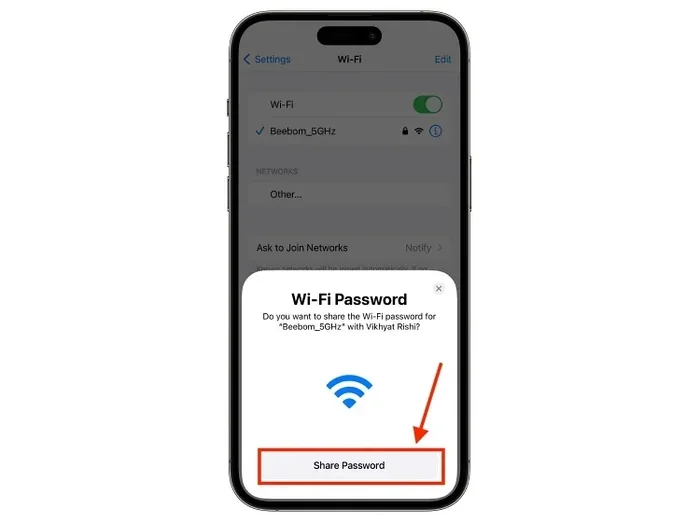
The other person will get a notification. They can accept the shared credentials right from their iPhone. This is one of the best features of Apple device password sync.
Step 4: Find and Use Shared Passwords
Once sharing is set up, finding shared passwords is simple:
- Open Settings on the receiving iPhone.
- Go to Passwords (you may need to authenticate with Face ID or Touch ID).
- Your shared passwords will appear in the list.
- Tap any entry to view or copy the credentials.
Password autofill iPhone also works with shared passwords. When you visit a website or app, your iPhone will suggest the shared login automatically.
Setting Up iCloud Family Sharing for Passwords
iCloud Family Sharing is one of the most useful features for sharing passwords between iPhones. It is designed for families who want to share access without compromising security.
Who Can Use Family Sharing?
Family Sharing works with up to six family members. You can set it up for:
- Your spouse or partner
- Your children (with parental controls)
- Other trusted family members
Each person keeps their own Apple ID. But they can share specific passwords and other content through the Family Sharing setup.
Setting Up Family Sharing for the First Time
If you have not set up Family Sharing yet, here is a quick guide:
- Open Settings and tap your name.
- Tap Family Sharing.
- Tap Get Started.
- Follow the on-screen prompts to invite family members.
- Once everyone is added, go to Passwords to start sharing.
The whole process takes about five minutes. After that, shared passwords Apple will sync automatically to all family members’ devices.
Managing Family Sharing Permissions
You have full control over what each family member can see. You can:
- Share specific passwords with specific people.
- Stop sharing a password at any time.
- See who has access to each shared credential.
- Remove a family member and revoke their access.
This level of control makes family sharing passwords both convenient and secure.
Managing and Editing Shared Passwords
Once passwords are shared, you may need to update or change them. Apple makes this easy too. You can manage shared passwords right from your iPhone.
How to Update a Shared Password
When you change a password on one iPhone, the update syncs to all shared devices. Here is how to change a password:
- Go to Settings and tap Passwords.
- Find the password you want to change.
- Tap on the entry.
- Select Edit.
- Enter the new password.
- Tap Done.
The new password will automatically sync to all devices through iCloud Keychain sync. Everyone with access will see the updated credentials.
How to Remove a Shared Password
If you no longer want to share a password, you can remove it:
- Go to Settings and tap Passwords.
- Find the shared password.
- Swipe left on the entry.
- Tap Delete.
The other person will no longer have access to that credential. This is important when you change jobs, end a subscription, or simply want more privacy.
Using the Passwords App on iOS 17 and Later
If you are running iOS 17 password sharing or later, Apple introduced a dedicated Passwords app. This app gives you a cleaner, more organized way to view and manage all your credentials.
Key features of the Passwords app include:
- A unified view of all saved passwords.
- Easy sharing with family members.
- Strong password suggestions for new accounts.
- Alerts for compromised or reused passwords.
- Quick access with Face ID or Touch ID.
The Passwords app is a big upgrade for iPhone password manager users. It makes share credentials between devices faster and more intuitive.
Security Tips for Shared Passwords on iPhone
Sharing passwords comes with responsibility. You want to make sure your shared credentials stay safe. Here are some essential iCloud security tips.
Enable Two-Factor Authentication
Two-factor authentication is a must for anyone sharing passwords. It ensures that even if someone knows your Apple ID password, they cannot access your account without a second verification step.
To enable it:
- Go to Settings and tap your name.
- Tap Sign-In and Security.
- Turn on Two-Factor Authentication.
This is one of the most important steps you can take for iCloud security.
Use Strong, Unique Passwords
When you share a password, make sure it is strong. A weak password puts everyone at risk. Apple’s password autofill iPhone feature can suggest strong, unique passwords for you.
Look for passwords that:
- Are at least 12 characters long.
- Include a mix of letters, numbers, and symbols.
- Are not reused across multiple accounts.
- Are generated by your Apple password manager.
Review Shared Passwords Regularly
Make it a habit to review your shared passwords every few months. Remove access for people who no longer need it. This keeps your shared passwords Apple list clean and secure.
Never Share Passwords Through Messages or Email
Sharing passwords through text messages or email is risky. Those channels are not encrypted the same way iCloud Keychain is. Always use the official sharing methods built into iOS.
Troubleshooting Common iCloud Password Sharing Issues
Sometimes things do not work as expected. Here are the most common problems and how to fix them.
Passwords Not Syncing Between Devices
If your iPhone password sync is not working, try these fixes:
- Check that both devices are connected to Wi-Fi.
- Make sure iCloud Keychain is turned on in Settings.
- Verify that both devices use the same Apple ID.
- Restart both iPhones and try again.
- Update to the latest version of iOS.
Most syncing issues are resolved by simply restarting your devices or updating your software.
Shared Passwords Not Showing Up
If a shared password does not appear on the other iPhone, try this:
- Go to Settings and tap your name.
- Select iCloud and then Keychain.
- Toggle iCloud Keychain off and back on.
- Wait a few minutes for the sync to complete.
This forces a fresh sync and usually resolves the issue.
Family Member Cannot Accept Shared Password
If a family member is having trouble accepting shared credentials:
- Make sure they are signed in with their own Apple ID.
- Check that their iCloud Keychain is enabled.
- Ensure they have the latest iOS version installed.
- Ask them to accept the invitation from their iCloud settings.
Sometimes the invite gets buried in notifications. A quick check of the Settings app usually fixes it.
Password Autofill Not Working for Shared Logins
If shared passwords are not autofilling in Safari or apps:
- Go to Settings and tap Passwords.
- Make sure AutoFill is turned on.
- Check that the website URL matches the saved password entry.
- Try clearing your Safari autofill data and re-entering the password.
Password autofill iPhone works best when the saved URL matches the site you are visiting exactly.
Why iCloud Password Sharing Beats Third-Party Apps
You might wonder if you need a separate app to share passwords. The truth is, iCloud Keychain handles everything you need. Here is why it beats most third-party options.
| Feature | iCloud Keychain | Third-Party Apps |
|---|---|---|
| Built into iPhone | Yes | No |
| End-to-end encryption | Yes | Varies |
| Family sharing | Yes | Often extra cost |
| Setup complexity | Very simple | Can be complex |
| Works across Apple devices | Yes | Limited |
| Extra downloads needed | No | Yes |
As you can see, iCloud Keychain offers a clean, secure, and free solution. You do not need to install anything extra or create another account.
Third-party password managers can still be useful in some situations. But for most Apple users, the built-in option is more than enough. It is fast, secure, and already on your phone.
Common Mistakes to Avoid When Sharing Passwords
Even with a simple process, people make mistakes. Here are the most common ones to watch out for.
- Using different Apple IDs: This breaks password sync completely. Always use the same Apple ID on devices you want to share between.
- Forgetting to enable iCloud Keychain: If Keychain is off, nothing syncs. Always double-check this setting.
- Sharing too many passwords: Only share what you need. Not every password should be accessible to everyone.
- Ignoring software updates: Old iOS versions can cause syncing problems. Keep your devices updated.
- Not reviewing shared access: People change. Review who has access to your shared passwords regularly.
Avoiding these mistakes will save you a lot of frustration and keep your iCloud password sync running smoothly.
Expert Insights on iPhone Password Sharing
Apple security experts recommend treating shared passwords with the same care as your own. Always use the official sharing tools built into iOS. Never screenshot or text your passwords to anyone.
Security researchers also suggest enabling two-factor authentication on every account you share. Even if a password is intercepted, the second factor keeps your account safe.
Another pro tip: use the Passwords app to audit your shared credentials. It will flag any password that has been involved in a known data breach. This helps you stay ahead of potential security threats.
Key Takeaways
- iCloud Keychain is your built-in password sharing tool: It syncs passwords securely across all your Apple devices with minimal setup.
- Family Sharing makes group sharing easy: You can share passwords with up to six family members through iCloud Family Sharing.
- Security is built in: End-to-end encryption and two-factor authentication protect your shared credentials at all times.
- Setup takes only a few minutes: You do not need any third-party apps or technical expertise to get started.
- Keep your software updated: The latest iOS version ensures the best performance and security for password sharing.
- Review shared access regularly: Remove access for people who no longer need it to keep your accounts safe.
- The Passwords app simplifies everything: iOS 17 and later offer a dedicated app for managing and sharing all your credentials.
Conclusion
How do I share passwords between iPhones is a question with a very simple answer: iCloud Keychain. Apple has built a powerful, secure, and easy-to-use system that handles password sharing without any extra apps or complicated steps.
Whether you are syncing passwords between your own devices or sharing credentials with family members, iCloud makes it all seamless. The setup takes just a few minutes, and once it is done, everything works automatically in the background.
Remember to keep your iCloud security strong with two-factor authentication. Review your shared passwords regularly. And always use the official tools Apple provides rather than risky workarounds.
With the tips and steps in this guide, you are now fully equipped to share passwords between iPhones with confidence. Try it today and experience how easy iOS password sharing can be.
Frequently Asked Questions
Can I share passwords between iPhones that use different Apple IDs?
No, both iPhones must use the same Apple ID for iCloud Keychain password sharing to work. If you want to share with someone who has a different Apple ID, use iCloud Family Sharing instead.
Is iCloud password sharing safe from hackers?
Yes, Apple uses end-to-end encryption for all data stored in iCloud Keychain. This means your passwords are protected both in transit and on Apple’s servers. Hackers cannot access your shared credentials through iCloud.
How many people can I share passwords with using Family Sharing?
You can share passwords with up to six family members through iCloud Family Sharing. Each person keeps their own Apple ID, and you control exactly which passwords each person can access.
Do I need to install any extra apps to share passwords between iPhones?
No, you do not need any third-party apps. iCloud Keychain is built right into iOS and handles password sharing automatically. Everything you need is already on your iPhone.
What happens if I change a shared password on one iPhone?
The updated password syncs automatically to all shared devices through iCloud Keychain sync. Everyone with access will see the new credentials the next time their device connects to the internet.
Can I share passwords between an iPhone and a Mac?
Yes, iCloud Keychain syncs passwords across all Apple devices, including iPhones, iPads, and Macs. As long as all devices are signed in with the same Apple ID and have iCloud Keychain enabled, sharing works seamlessly.