How Do I Retrieve Qr Code Data From Screenshots Easily
Want to know how do I retrieve QR code data from screenshots? You can use free online decoders, mobile apps, or desktop software to extract QR code information from any image. This guide walks you through every method so you can get your QR code data fast and safely.
Have you ever saved a QR code screenshot on your phone or computer and then needed the actual data inside it? Maybe it was a website link, a Wi-Fi password, or contact information. Whatever the case, retrieving QR code data from a screenshot is easier than you think.
In this guide, I will walk you through every method you can use to extract QR code data from images. Whether you are on a phone, a tablet, or a desktop computer, there is a tool that fits your needs. No technical skills required. Just follow along, and you will have your QR code decoded in minutes.
So let us dive right in. By the end of this article, you will know exactly how do I retrieve QR code data from any screenshot, and you will have a handful of reliable tools to make it happen.
Key Takeaways
- Multiple Methods Available: You can retrieve QR code data from screenshots using online tools, mobile apps, or desktop software.
- Free and Easy Options Exist: Many QR code readers and decoders cost nothing and work right in your browser.
- Image Quality Matters: A blurry or cropped screenshot can cause retrieval failures, so always start with a clear image.
- Security Is Important: Some QR codes contain malicious links, so always verify the source before opening decoded data.
- Batch Processing Saves Time: Advanced tools let you extract QR code data from multiple screenshots at once.
- Common Problems Have Simple Fixes: Cropping, adjusting contrast, or re-saving the image often solves retrieval issues.
📑 Table of Contents
- What Is a QR Code and Why Do People Need to Retrieve Its Data?
- How Do I Retrieve QR Code Data From a Screenshot?
- Best Tools and Apps to Extract QR Code Data From Images
- Common Problems When Retrieving QR Code Data and How to Fix Them
- Expert Tips for Getting the Best Results From QR Code Screenshots
- Final Thoughts
What Is a QR Code and Why Do People Need to Retrieve Its Data?
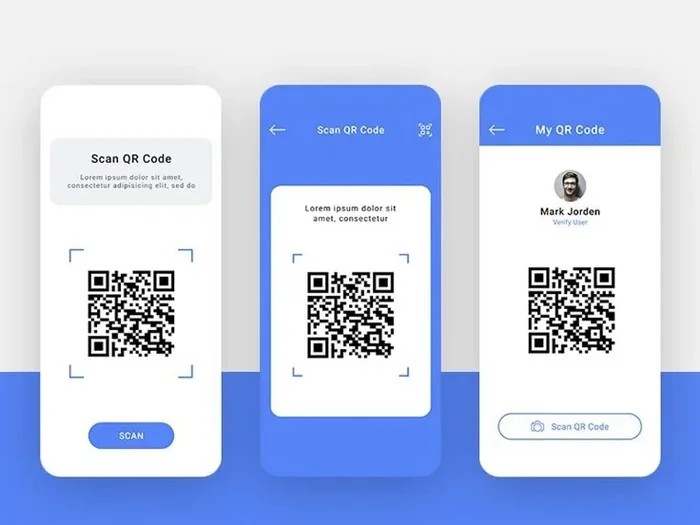
A QR code is a quick response code. It is a square-shaped barcode that stores information. When you scan it with a phone camera or a QR reader app, the code reveals the hidden data inside. That data could be a web URL, a text message, a phone number, or even a Wi-Fi login.
People use QR codes everywhere now. Restaurants put them on menus. Stores put them on product packaging. Event tickets have them. Business cards carry them. And sometimes, you save a screenshot of a QR code because you need to read it later. That is where the retrieval process comes in.
Why Screenshots Make QR Code Retrieval Tricky
When you scan a QR code directly with your phone camera, the process is smooth. The camera reads the code in real time. But a screenshot is just an image file. Your phone does not know it is a QR code until you point a reader at it. This is why knowing how to decode QR code data from images is such a useful skill.
Sometimes the screenshot is not perfect. The QR code might be too small. The image might be blurry. The colors might be off. All of these things can make data extraction harder. But do not worry. I will cover fixes for all of that later in this article.
How Do I Retrieve QR Code Data From a Screenshot?
There are three main ways to retrieve QR code data from screenshots. You can use online tools, mobile apps, or desktop software. Each method has its strengths. Let us look at all three so you can pick the best one for your situation.
Method 1: Use a Free Online QR Code Decoder
This is the fastest way for most people. You do not need to install anything. You just upload your screenshot to a website, and the site decodes the QR code for you. Here is how it works:
- Open your web browser on any device.
- Go to a free QR code decoder website. Some popular ones include QR Code Reader, ZXing Decoder Online, and QR-Code-Generator.com.
- Upload your screenshot or paste the image URL.
- Click the decode button.
- The website will display the hidden data from the QR code.
That is it. This method works great for single QR codes and takes less than a minute. It is also the best option if you are using a shared or public computer where you cannot install apps.
Method 2: Use a Mobile QR Reader App
If you are on your phone, a mobile QR reader app can handle the job. Many people already have a QR scanner built into their phone camera. But not all of them can read QR codes from saved images. Here is what to do:
- iPhone Users: Open the Photos app and find your screenshot. Look for a QR code icon in the bottom-right corner of the screen. Tap it to see the decoded data.
- Android Users: Open Google Lens from your camera or home screen. Point it at the screenshot in your gallery. Google Lens will detect the QR code and show you the data.
- Third-Party Apps: Apps like QR & Barcode Scanner or Kaspersky QR Scanner can read QR codes from your photo gallery. Just open the app, select the image, and it will decode the content.
This method is perfect when you want to retrieve QR code data quickly without opening a browser. It also works offline on most devices.
Method 3: Use Desktop Software
If you work on a laptop or desktop computer, you might prefer dedicated software. Desktop tools often offer more features than online decoders. They can handle batch processing, meaning you can decode many QR code screenshots at once. Some good options include:
- QR Journal: A free desktop app that reads QR codes from image files.
- ZXing (“Zebra Crossing”): An open-source tool that supports QR code decoding on Windows, Mac, and Linux.
- CodeTwo QR Code Desktop Reader: Lets you scan QR codes from screenshots, webcams, or printed materials.
Desktop software is ideal if you handle QR codes regularly for work or business. The setup takes a few extra minutes, but the payoff in speed and features is worth it.
Best Tools and Apps to Extract QR Code Data From Images
Not all QR code tools are created equal. Some are fast but limited. Others are slow but packed with features. Below, I compare the top tools you can use to read QR code from photo files and retrieve the hidden data.
| Tool Name | Type | Platform | Batch Processing | Cost |
|---|---|---|---|---|
| QR Code Reader Online | Web-Based | Any Browser | No | Free |
| Google Lens | Mobile App | Android & iOS | No | Free |
| QR & Barcode Scanner | Mobile App | Android & iOS | No | Free (with ads) |
| QR Journal | Desktop Software | Windows & Mac | Yes | Free |
| CodeTwo QR Reader | Desktop Software | Windows | Yes | Free |
| ZXing Decoder Online | Web-Based | Any Browser | No | Free |
As you can see, most of these tools are free. That makes it easy to try a few and find the one that works best for you. If you only need to decode a QR code once, a web-based tool is the simplest choice. If you do it often, a desktop app will save you time in the long run.
Quick Tips for Choosing the Right Tool
- Check your device first. Many phones now have built-in QR readers that work on screenshots. You might not need to download anything.
- Look for privacy policies. Some online decoders upload your image to their servers. If the QR code contains sensitive data, use a local tool instead.
- Read user reviews. Popular tools with good ratings tend to give more reliable results.
- Try before you commit. Most of these tools are free, so test a couple and see which one feels the most comfortable.
Common Problems When Retrieving QR Code Data and How to Fix Them
Even with the right tool, you might run into trouble. QR code screenshots are not always perfect. Here are the most common problems people face when trying to retrieve QR code data and how to solve each one.
Problem 1: The QR Code Is Too Small or Blurry
A tiny or blurry QR code is the number one reason retrieval fails. When the code is unclear, the scanner cannot read the pattern correctly. Here is what you can do:
- Zoom in on the screenshot before scanning it.
- Use a tool with a high-resolution scanner. Some apps let you crop the QR code area for a sharper read.
- If possible, go back to the original source and take a new screenshot at a larger size.
Problem 2: The Colors Are Not Contrasting Enough
QR codes work best with high contrast. A dark code on a light background is easy to read. But a light code on a white background, or a faded code on a colored background, can confuse most scanners. Try these fixes:
- Use an image editor to increase the contrast of the screenshot.
- Convert the image to black and white if the colors are muddled.
- Some QR decoder tools have a contrast adjustment built in. Look for this feature before giving up.
Problem 3: The Screenshot Has a Border or Frame Around the QR Code
Many QR code scanners need a white border around the code to work properly. This border is called a “quiet zone.” If your screenshot cuts off the quiet zone, the scanner might fail. Here is the fix:
- Crop the image so the entire QR code is visible, including a small white border around it.
- Do not tilt or rotate the QR code in the image. Keep it straight and square.
Problem 4: The Decoded Data Looks Garbled or Wrong
Sometimes the tool decodes the QR code but the data looks scrambled. This usually happens when the image has compression artifacts. When you save a screenshot as a low-quality JPEG, the QR code pattern gets distorted. Try this:
- Re-save the image as a PNG file. PNG keeps the image sharp and lossless.
- Try a different decoder tool. Some tools handle compressed images better than others.
- If you have access to the original QR code, scan it directly instead of using the screenshot.
Expert Insight
Professional tip: When in doubt, always go back to the original QR code if you can. A live scan is always more reliable than decoding a saved image. Screenshots are great backups, but they are not perfect replacements for a real-time scan.
Expert Tips for Getting the Best Results From QR Code Screenshots
I have helped many people retrieve QR code data from screenshots, and I have learned a few tricks along the way. Here are my top recommendations for getting the best results every time.
1. Always Save Screenshots in PNG Format
JPEG compression can ruin the fine details of a QR code. When you save a screenshot, choose PNG whenever possible. PNG files keep every pixel sharp and clear. This small change can make the difference between a successful decode and a failed one.
2. Crop the QR Code Before Decoding
Most decoder tools work better when the QR code fills most of the image frame. Crop out any unnecessary parts of the screenshot before you try to decode it. A focused, clean image gives the best results.
3. Use Multiple Tools if One Fails
Not all decoders are created equal. If one tool cannot read your QR code, try another. Some tools use different algorithms and can handle tricky images better than others. I keep at least two QR decoder apps on my phone for this exact reason.
4. Check for Damaged or Partially Printed QR Codes
If your screenshot comes from a printed QR code, check for damage. Smudges, creases, or faded ink can block parts of the code. Most decoders need at least 70% of the QR code pattern to work. If the damage is too severe, you may need to get a fresh copy of the original QR code.
5. Be Careful With Unknown QR Codes
Before you decode and open any QR code data, make sure you trust the source. Some QR codes contain malicious links that can lead to phishing sites or trigger unwanted downloads. Only scan QR codes from people and businesses you know and trust.
Final Thoughts
So, how do I retrieve QR code data from screenshots? The answer is simple. You have plenty of options. You can use a free online decoder, a mobile app like Google Lens, or a desktop tool like QR Journal. Each method works well, and none of them require advanced technical skills.
The key is to start with a clear image. Save your screenshots in PNG format, crop the QR code properly, and choose a reliable decoder tool. If you run into problems, the fixes are usually straightforward. Adjust the contrast, zoom in, or try a different tool.
QR codes are everywhere in our digital lives. Knowing how to extract QR code data from a screenshot is a practical skill that saves time and frustration. I hope this guide has given you everything you need to retrieve QR code data quickly and confidently. Now go ahead and try it out for yourself.
Frequently Asked Questions
Can I retrieve QR code data from a screenshot on my iPhone?
Yes, you can. Open the screenshot in your Photos app and look for the QR code icon that appears at the bottom of the screen. Tap it, and your iPhone will decode the QR code data automatically. No extra app is needed for most iOS versions.
What format should I save my QR code screenshot in?
Always save your QR code screenshot as a PNG file. PNG format keeps the image sharp and lossless. JPEG compression can distort the fine details of the QR code pattern, which may cause decoding failures.
Are free QR code decoder tools safe to use?
Most free QR code decoder tools are safe, especially well-known ones like ZXing Decoder Online or Google Lens. However, if the QR code contains sensitive information, consider using a local desktop tool that does not upload your image to external servers.
Can I extract QR code data from multiple screenshots at once?
Yes, you can. Desktop software like QR Journal and CodeTwo QR Code Desktop Reader support batch processing. You can load several QR code images at once and extract the data from all of them in a single session.
Why does my QR code screenshot fail to decode?
The most common reasons are low image quality, missing quiet zones (the white border around the code), low contrast, or compression artifacts from JPEG saving. Try cropping the image, increasing contrast, re-saving as PNG, or using a different decoder tool.
Do I need an internet connection to retrieve QR code data from screenshots?
It depends on the tool. Online decoders need an internet connection because they process the image on their servers. Mobile apps like Google Lens and desktop software like QR Journal can work offline once they are installed on your device.
=== CONCLUSION ===
Retrieving QR code data from screenshots is a simple process once you know the right steps. Whether you use a free online decoder, a mobile app, or desktop software, the goal is the same: get the hidden data out of the image and into a usable format. The methods in this article cover every device and skill level, so anyone can find a solution that works.
Remember to keep your screenshots clear, save them in PNG format, and always verify the source of any QR code you decode. With these habits in place, you will never struggle to extract QR code data from images again. Try the methods above today, and you will see how easy it really is.