How Do I Rename My Network Name On My Iphone Quickly
Renaming your network name on iPhone is simple and takes just a few taps. Whether you want to personalize your hotspot name or change your Wi-Fi network identifier, this guide walks you through every step. You will learn the exact settings to find, common mistakes to avoid, and pro tips for choosing the perfect name.
Have you ever looked at a list of Wi-Fi networks and thought, “I wish that was mine with a cooler name”? Or maybe you have been sharing your hotspot and people could not find it because the default name is just a string of random letters and numbers. Whatever the reason, how do I rename my network name on my iPhone is a question many people ask. The good news is that it is incredibly easy and takes less than a minute. In this guide, we will walk you through every step, share helpful tips, and answer common questions so you can get your network name just the way you want it.
Your iPhone network name is more than just an identifier. It is what other people see when they search for Wi-Fi or look for a hotspot to connect to. A good name makes your device stand out and helps others find it quickly. Whether you are at home, at a party, or traveling, having a recognizable network name saves time and confusion. Let us dive into everything you need to know about changing your iPhone network name.
Key Takeaways
- Easy Access: You can rename your iPhone network name in just a few taps through the Settings app.
- Two Different Names: Your iPhone has both a Wi-Fi network name and a personal hotspot name, and they are changed in different places.
- Personalization Matters: A custom network name makes your device easy to spot and adds a fun personal touch.
- No Extra Apps Needed: Everything is built right into iOS, so you do not need to download any third-party tools.
- Troubleshooting Is Simple: Most issues with renaming can be fixed by restarting your iPhone or resetting network settings.
- Best Practices Exist: Avoid special characters and keep your name short for the best compatibility across all devices.
📑 Table of Contents
- Why You Might Want to Rename Your iPhone Network Name
- How to Rename Your Network Name on iPhone
- What Happens When You Change Your iPhone Hotspot Name
- Tips for Choosing the Best Network Name
- Common Mistakes When Renaming Your iPhone Network Name
- Troubleshooting Network Name Change Issues
- Final Thoughts
Why You Might Want to Rename Your iPhone Network Name
There are several reasons why people want to change their network name. Some want it to look personal and fun. Others need it for practical reasons like identifying their device in a crowded area. Here are the most common reasons:
- Personalization: Your default network name might include your phone model or a random string of characters. Renaming it lets you add your own style.
- Easy Identification: If you have multiple devices sharing a hotspot, a clear name helps others connect to the right one.
- Security Through Obscurity: A unique name does not reveal your device type or personal information.
- Fun and Creativity: Many people enjoy giving their hotspot a clever or humorous name.
- Professional Use: If you use your iPhone for work, a professional network name can look more polished.
No matter your reason, the process is the same. Let us move on to the step-by-step guide.
How to Rename Your Network Name on iPhone
Changing your iPhone network name is straightforward. The process depends on whether you want to rename your personal hotspot name or your Wi-Fi network name. Let us cover both scenarios in detail.
Renaming Your Personal Hotspot Name
The personal hotspot name is what other people see when they search for Wi-Fi networks to connect to from your iPhone. Here is how to change it:
- Open the Settings app on your iPhone.
- Tap on Personal Hotspot (or Mobile Hotspot on some iOS versions).
- Look for the option that says Allow Others to Join or Wi-Fi Password.
- Tap on the hotspot name at the top of the screen.
- Delete the current name and type in your new preferred name.
- Tap Done or go back to save the changes.
That is it! Your new hotspot name will now appear when other people search for available Wi-Fi networks. The change takes effect immediately.
Renaming Your Wi-Fi Network Name (SSID)
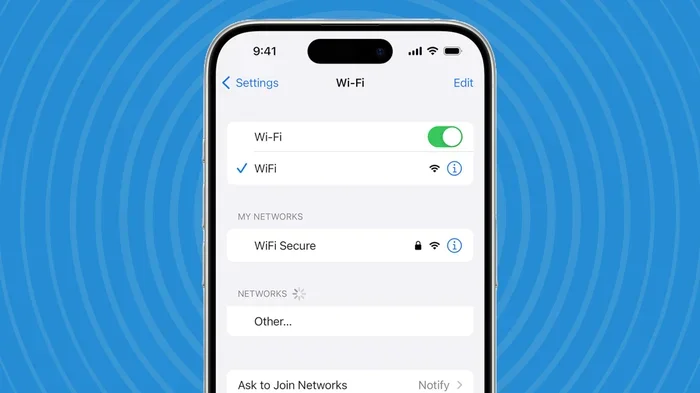
If you want to change the name of the Wi-Fi network your iPhone connects to (the SSID), the process is slightly different. You cannot change the SSID from your iPhone alone if you are connecting to someone else’s network. However, if you are using your iPhone as a hotspot, the hotspot name and SSID are the same thing. For home Wi-Fi networks, you would need to access your router settings through a web browser.
Here is a quick comparison to help clarify:
| Network Type | Where to Change | Can iPhone Do It? |
|---|---|---|
| Personal Hotspot Name | Settings > Personal Hotspot | Yes, directly on iPhone |
| Home Wi-Fi SSID | Router Admin Panel | No, need router access |
| Public Wi-Fi Network | Network Admin Controls | No, cannot be changed by users |
For most people asking “how do I rename my network name on my iPhone,” they are referring to the personal hotspot name. That is the one you can change right from your device.
Quick Tips for Renaming
- Keep It Short: Some older devices struggle with very long network names. Aim for under 20 characters.
- Avoid Special Characters: Symbols like @, #, and & can cause connection issues on some devices.
- Use Clear Spelling: Make sure your name is easy to read and spell so others can find it without confusion.
- Test Immediately: After renaming, ask a friend to search for your network to confirm the change worked.
What Happens When You Change Your iPhone Hotspot Name
Changing your network name is a simple process, but there are a few things that happen behind the scenes that are worth knowing about.
Other Devices Will Need to Reconnect
When you rename your hotspot, any device that was previously connected will lose the connection. They will need to search for the new name and reconnect using the same password. This is normal and nothing to worry about.
Your Password Stays the Same
Renaming your network does not change your Wi-Fi password. Your hotspot password remains exactly as it was. You do not need to update any passwords on devices that were previously connected.
No Data or Settings Are Affected
Changing the network name is purely cosmetic. It does not affect your cellular data, your settings, or any other iPhone functions. Everything continues to work exactly as before.
Expert Insight
According to Apple support documentation, changing your personal hotspot name is a local setting stored on your device. It does not sync through iCloud or affect any other Apple devices you own. Each iPhone maintains its own unique hotspot name unless you manually change it on each device.
Tips for Choosing the Best Network Name
Now that you know how to rename your network, let us talk about choosing a great name. A good network name is easy to recognize, professional (if needed), and free of problematic characters.
Best Practices for Network Names
- Use Your Name: Something like “John’s iPhone” or “Sarah’s Hotspot” makes it easy for guests to identify.
- Add a Location: “Beach House Hotspot” or “Office Network” helps people know where to connect.
- Keep It Professional: If you use your hotspot for work, avoid funny or inappropriate names.
- Make It Memorable: Choose something you will remember and that others can easily recall.
- Avoid Personal Information: Do not include your full name, address, or phone number for privacy reasons.
Examples of Great Network Names
Here are some ideas if you are stuck for inspiration:
- “The Johnson Family Hotspot”
- “iPhone of [Your Name]”
- “Coffee Shop Wi-Fi”
- “Traveler’s Connection”
- “Home Base Network”
- “The Best Hotspot Ever”
Feel free to get creative! The best network name is one that is easy for you and others to remember.
Common Mistakes When Renaming Your iPhone Network Name
Even though the process is simple, people sometimes run into issues. Here are the most common mistakes and how to avoid them.
Using Special Characters That Break Compatibility
Some people love using emojis or symbols in their network names. While iPhones handle these fine, many Android devices, laptops, and smart TVs cannot connect to networks with special characters in the name. Stick to letters, numbers, and spaces for maximum compatibility.
Forgetting to Save Changes
After typing in your new name, make sure you tap “Done” or navigate away from the screen properly. If you simply press the home button or switch apps without saving, your changes may not take effect.
Choosing a Name That Is Too Similar to Other Networks
If you live in an apartment building or crowded area, having a generic name like “iPhone” or “Hotspot” makes it hard to distinguish yours from others. Be specific and unique.
Not Updating Connected Devices
After renaming, remind anyone who regularly connects to your hotspot that the name has changed. They will need to delete the old network from their saved networks list and reconnect with the new name.
Common Mistakes Summary
- Using special characters that break compatibility with other devices
- Forgetting to save the new name before leaving the settings screen
- Choosing a name too generic or too similar to nearby networks
- Not informing regular users about the name change
- Including personal information in the network name
Troubleshooting Network Name Change Issues
Sometimes things do not go as smoothly as expected. If your new network name is not showing up or the change did not save, here is what you can do.
Restart Your iPhone
The simplest fix for most iPhone issues is to restart the device. This refreshes all network settings and forces your iPhone to broadcast the new hotspot name. To restart, press and hold the power button, slide to power off, wait a few seconds, and turn it back on.
Reset Network Settings
If restarting does not work, you can try resetting your network settings. Go to Settings > General > Transfer or Reset iPhone > Reset > Reset Network Settings. This will clear all saved Wi-Fi networks and Bluetooth pairings, so make sure you know your Wi-Fi passwords before doing this.
Update Your iOS
Older iOS versions sometimes have bugs that prevent network name changes from saving properly. Go to Settings > General > Software Update to check if a newer version is available. Keeping your iPhone updated ensures the best performance and compatibility.
Check for Carrier Restrictions
In rare cases, your mobile carrier may restrict certain hotspot settings. Contact your carrier’s customer support to ask if there are any limitations on changing your hotspot name or settings.
Final Thoughts
Changing your iPhone network name is one of those small things that makes a big difference. It takes seconds to do, requires no extra apps, and gives you full control over how your device appears to others. Whether you want a professional name for work or a fun name for parties, now you know exactly how to do it.
Remember, the key is to keep your name simple, avoid special characters, and test the change by having someone else look for your network. If you run into any issues, a quick restart or network settings reset usually solves the problem.
So go ahead and personalize your iPhone network name today. It is a small change that adds a big touch of personality to your daily tech experience. Now that you know how do I rename my network name on my iPhone, you are all set to make your device truly yours.
Frequently Asked Questions
Can I rename my iPhone network name without resetting my settings?
Yes, absolutely. Renaming your network name does not require any reset. Simply go to Settings, tap on Personal Hotspot, and change the name. Your saved Wi-Fi networks, passwords, and all other settings remain untouched.
Will changing my iPhone hotspot name affect my internet speed?
No, changing your network name has zero effect on your internet speed. The name is just a label that identifies your device. Your data connection and speed depend on your cellular signal and carrier, not on the name you give your hotspot.
Can I use emojis in my iPhone hotspot name?
You can, but it is not recommended. While iPhones handle emojis fine, many other devices like Android phones, laptops, and smart TVs may not be able to detect or connect to a network with emojis in its name. Stick to plain text for the best compatibility.
How do I find my current iPhone hotspot name?
Go to Settings and tap on Personal Hotspot. The name of your hotspot is displayed at the top of the screen, right below the Allow Others to Join toggle. This is the exact name other people will see when searching for Wi-Fi networks.
Can I change my iPhone network name using Siri?
Unfortunately, no. Siri does not have the ability to change your hotspot or network name directly. You will need to manually navigate to the Settings app and make the change yourself. It only takes a few taps, so it is quick and easy.
What is the difference between a network name and an SSID?
A network name and an SSID are essentially the same thing. SSID stands for Service Set Identifier, which is the technical term for the name of a Wi-Fi network. When you change your iPhone hotspot name, you are changing its SSID. This is the name that appears in the list of available Wi-Fi networks on other devices.