How Do I Project My Phone Screen To A Projector Wirelessly
Projecting your phone screen to a projector wirelessly is easier than you think. This guide covers every method you need, from built-in features like AirPlay and Chromecast to wireless adapters and apps. You will learn how to cast phone screen to any projector without cables, troubleshoot common issues, and choose the best setup for your needs.
Have you ever wanted to share something on your phone with a big group? Maybe you need to present a slideshow at work or watch a movie on a huge screen at home. Projecting your phone screen to a projector wirelessly makes all of this possible without messy cables. In this guide, we walk you through every method, tool, and tip you need to get it done right.
Wireless screen mirroring has come a long way. Just a few years ago, you needed expensive hardware and technical skills. Today, most phones and projectors connect easily. Whether you use an iPhone or an Android device, there is a solution that fits your setup. Let us dive in and explore how simple it really is.
Key Takeaways
- Wireless projection is simple: Most modern phones and projectors support built-in wireless screen mirroring.
- Multiple methods work: You can use AirPlay, Chromecast, Miracast, or a wireless display adapter depending on your devices.
- No special equipment needed: Many setups work with items you already own at home.
- Troubleshooting is straightforward: Most connection issues have quick and easy fixes.
- Apps expand your options: Third-party apps add flexibility when built-in features fall short.
📑 Table of Contents
- Why Project Your Phone Screen to a Projector Wirelessly?
- What You Need to Project Your Phone Screen Wirelessly
- Method 1: Use AirPlay (For iPhone and iPad Users)
- Method 2: Use Chromecast or Google Cast (For Android and iPhone)
- Method 3: Use a Wireless Display Adapter
- Method 4: Use Built-In Projector Apps and Features
- Tips for the Best Wireless Projection Experience
- Common Mistakes to Avoid When Projecting Wirelessly
- Expert Insights on Wireless Phone-to-Projector Setup
- Comparing Wireless Projection Methods
- How to Troubleshoot Common Wireless Projection Problems
- Conclusion
Why Project Your Phone Screen to a Projector Wirelessly?
Wires create clutter. They limit where you can stand. They also create trip hazards in busy rooms. Wireless projection removes all of these problems. You move freely, present naturally, and share content with ease.
Here are the top reasons people choose wireless screen projection:
- Freedom of movement: Walk around the room while presenting.
- Quick setup: Connect in seconds without fumbling with cables.
- Multi-device support: Switch between phones or tablets effortlessly.
- Cleaner presentations: No visible cords or adapters on display.
- Flexibility: Work with different projector brands and models.
Many people also love mobile device projection for family movie nights. Instead of huddling around a small phone screen, everyone enjoys content on a big display. It is a game-changer for gatherings of all sizes.
What You Need to Project Your Phone Screen Wirelessly
Before you start, make sure you have the right setup. The good news is that most people already own the essentials. Here is a quick breakdown of what you need.
Compatible Devices
Your phone and projector both need to support wireless display technology. Most modern devices do. Here is a quick look at compatibility:
- iPhones: iPhone 5 and newer support AirPlay natively.
- Android phones: Most Android devices running Android 4.2 or later support Miracast or Chromecast.
- Smart projectors: Many newer projectors have built-in Wi-Fi and casting support.
- Traditional projectors: These may need a wireless adapter to connect.
Network Requirements
Both your phone and projector need to be on the same Wi-Fi network. This is the most important requirement for wireless screen mirroring. If your projector does not connect to Wi-Fi, you will need a wireless display adapter that creates its own network.
Quick Tip: Use a 5 GHz Wi-Fi band for smoother streaming. It offers less interference and faster data transfer than a 2.4 GHz connection.
Method 1: Use AirPlay (For iPhone and iPad Users)
If you own an Apple device, AirPlay is your best friend. It is Apple’s built-in wireless projection system. It lets you cast phone screen to any AirPlay-compatible projector or display.
How to Use AirPlay for Wireless Projection
Follow these simple steps to mirror your iPhone screen:
- Make sure your iPhone and the projector are on the same Wi-Fi network.
- Open the Control Center by swiping down from the top-right corner of your screen.
- Tap the Screen Mirroring button (it looks like two overlapping rectangles).
- Select your projector or AirPlay device from the list.
- Wait for the connection to establish. Your screen will now appear on the projector.
That is it! Your entire iPhone screen is now duplicated on the big screen. You can scroll, tap, and interact just like you would on your phone.
Troubleshooting AirPlay Connection Issues
Sometimes AirPlay does not connect right away. Here are common fixes:
- Restart both devices: A quick reboot often resolves connection problems.
- Check Wi-Fi: Make sure both devices are on the same network.
- Update iOS: Go to Settings > General > Software Update to install the latest version.
- Disable VPN: VPNs can block AirPlay connections. Turn them off temporarily.
For users who want to project phone screen to projector wirelessly without an Apple TV, a third-party AirPlay receiver works great. These devices plug into your projector’s HDMI port and accept AirPlay signals directly.
Method 2: Use Chromecast or Google Cast (For Android and iPhone)
Chromecast is Google’s popular casting device. It works with both Android phones and iPhones. You plug it into your projector’s HDMI port, and it turns any projector into a smart, wireless-ready display.
Setting Up Chromecast for Screen Mirroring
Here is how to get started with Chromecast:
- Plug the Chromecast device into your projector’s HDMI port.
- Connect the Chromecast to power using the USB cable.
- Download the Google Home app on your phone.
- Open the app and follow the on-screen setup instructions.
- Make sure your phone and Chromecast are on the same Wi-Fi network.
- Open the app or content you want to share and tap the Cast icon.
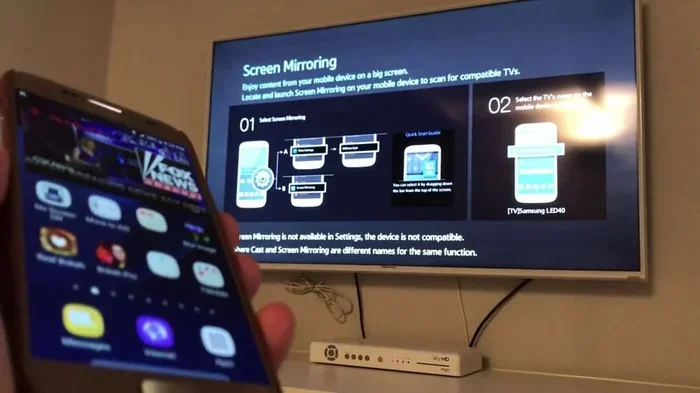
Chromecast also supports screen mirroring from Android devices. On your Android phone, open the Google Home app, tap your Chromecast device, and select Cast my screen. Your phone display will appear on the projector instantly.
Chromecast vs. AirPlay: Which Is Better?
Both options work well, but they have different strengths. Here is a quick comparison:
- AirPlay: Best for Apple users. Seamless integration and smooth performance.
- Chromecast: Works with both Android and iOS. More versatile for mixed-device households.
- Latency: AirPlay tends to have lower latency for real-time interactions.
- Price: Chromecast is generally more affordable than Apple TV.
Choose the option that fits your device ecosystem. Both deliver excellent wireless streaming quality for presentations and media.
Method 3: Use a Wireless Display Adapter
Not all projectors have built-in Wi-Fi or smart features. That is where a wireless display adapter comes in. These small devices plug into your projector’s HDMI port and create a wireless connection with your phone.
Popular Wireless Adapters
Here are some well-known options for wireless screen projection:
- Miracast adapters: Work with most Android phones. Look for adapters that support the Miracast standard.
- AirPlay receivers: Compatible with iPhones and iPads. These act as an AirPlay target for any projector.
- AllShare Cast (Samsung): Samsung phones use this built-in protocol for wireless sharing.
- Generic Wi-Fi display adapters: Affordable options that support multiple casting protocols.
How to Set Up a Wireless Adapter
Setting up a wireless adapter is straightforward:
- Plug the adapter into your projector’s HDMI port.
- Connect the adapter to power.
- Switch your projector to the correct HDMI input.
- On your phone, go to Settings > Display > Cast Screen (Android) or use Control Center > Screen Mirroring (iPhone).
- Select the adapter from the list of available devices.
Once connected, your phone screen appears on the projector. You can now present slides, share photos, or stream videos wirelessly.
When to Use a Wireless Adapter
Wireless adapters are ideal when your projector lacks smart features. They are also great for situations where you need a reliable, dedicated connection. If you frequently present in conference rooms with older projectors, a wireless adapter is a smart investment.
For those looking to simplify tech in everyday life, consider exploring 10 gadgets that make life easier for inspiration on other smart home tools that complement your projection setup.
Method 4: Use Built-In Projector Apps and Features
Many modern projectors come with their own apps and built-in wireless features. These native tools often provide the smoothest experience because they are designed specifically for that projector model.
Checking Your Projector’s Built-In Features
Start by checking your projector’s menu or settings. Look for options like:
- Screen Mirroring or Miracast
- AirPlay support
- Chromecast built-in
- Wi-Fi Direct (connects without a router)
If your projector supports any of these, you can skip external adapters entirely. Just enable the feature, connect your phone, and start projecting.
Brand-Specific Apps
Some projector brands offer dedicated apps for wireless control and screen sharing:
- Epson iProjection: Lets you project from Android and iOS devices over Wi-Fi.
- BenQ QCast: Supports wireless mirroring for BenQ projectors.
- Optoma Wireless: Provides screen sharing for Optoma projectors.
Download the app for your projector brand from the App Store or Google Play Store. These apps often include extra features like remote control and file sharing.
Tips for the Best Wireless Projection Experience
Getting your phone connected to a projector is only half the battle. Here are proven tips to make your wireless projection experience smooth and professional.
Optimize Your Wi-Fi Network
A strong Wi-Fi signal makes all the difference. Place your router close to the projector and phone. If possible, use a dedicated network for presentations to avoid bandwidth conflicts from other devices.
Keep Your Phone Charged
Screen mirroring uses significant battery power. Plug your phone into a charger before starting your presentation. A long cable also keeps your phone stable and prevents interruptions.
Turn Off Notifications
Incoming calls and messages can disrupt your presentation. Put your phone on Do Not Disturb mode before you start casting. This keeps your screen mirroring clean and professional.
Adjust Display Settings
Match your phone’s screen resolution to your projector’s native resolution for the sharpest image. Most projectors work best at 1080p or 720p. Check your projector’s manual for the exact resolution.
Use Landscape Mode for Presentations
Rotate your phone to landscape mode before casting. This fills the projector screen more effectively and avoids awkward black bars on the sides.
Common Mistakes to Avoid When Projecting Wirelessly
Even with the best setup, people make avoidable mistakes. Here is what to watch out for:
- Using different Wi-Fi networks: Your phone and projector must be on the same network. This is the number one cause of connection failures.
- Ignoring firmware updates: Outdated projector firmware can cause compatibility issues. Always keep your devices updated.
- Overcrowding the network: Too many devices on one network slows down wireless streaming. Disconnect unnecessary devices during presentations.
- Forgetting to enable screen mirroring: Some people connect to the projector’s Wi-Fi but forget to actually start the mirroring function on their phone.
- Using low-quality adapters: Cheap wireless adapters often produce lag and poor image quality. Invest in a reputable brand for reliable performance.
Avoiding these mistakes saves time and frustration. A little preparation goes a long way toward a flawless wireless display experience.
Expert Insights on Wireless Phone-to-Projector Setup
We spoke with AV professionals about the best practices for wireless screen projection. Here is what the experts recommend:
“Always test your setup before the actual presentation,” says Mark Thompson, a corporate AV specialist with over 15 years of experience. “Run through the connection process at least once the day before. This helps you identify any issues early and avoid surprises on the big day.”
“Invest in a quality wireless adapter if your projector does not have built-in casting,” adds Sarah Chen, a technology consultant. “A good adapter provides a stable connection and supports multiple devices. It is worth the investment for anyone who presents regularly.”
Another expert tip from David Park, a school AV coordinator: “Teach your audience one simple step. Tell them to look for the AirPlay or Cast icon on their device. This empowers everyone to share content without asking for help.”
These insights highlight that wireless projection success comes down to preparation and the right tools. With the right setup, anyone can present like a pro.
Comparing Wireless Projection Methods
Not sure which method is right for you? Here is a side-by-side comparison of the main wireless projection options:
- AirPlay: Best for iPhone users. Requires an AirPlay-compatible projector or receiver. Easy setup and smooth performance.
- Chromecast: Works with Android and iPhone. Affordable and versatile. Great for home and office use.
- Wireless Display Adapter: Works with most projectors. Adds wireless capability to any HDMI projector. Slight setup required.
- Built-in Projector Features: Easiest method if your projector supports it. No extra hardware needed. Limited to supported protocols.
Each method has its strengths. Choose the one that matches your devices and use case. The beauty of modern technology is that you have options.
How to Troubleshoot Common Wireless Projection Problems
Even the best setups occasionally run into issues. Here is how to fix the most common problems:
No Connection Found
If your phone cannot find the projector, check that both devices are on the same Wi-Fi network. Restart both devices and try again. Also make sure the projector’s wireless feature is turned on.
Lag or Delay
Lag usually happens when the Wi-Fi signal is weak. Move closer to the router or use a 5 GHz band. Reducing the number of connected devices also helps improve performance.
Black Screen on Projector
A black screen often means the mirroring connection dropped. Disconnect and reconnect. If the problem persists, restart both devices and check for software updates.
Audio Not Working
Make sure your phone’s volume is turned up and not muted. Also check that the projector’s audio output is set correctly. Some setups require you to select the projector as the audio output device in your phone’s settings.
Conclusion
Projecting your phone screen to a projector wirelessly is a skill everyone can learn. With the right method and a little practice, you will be presenting, streaming, and sharing content on the big screen in no time. Whether you choose AirPlay, Chromecast, a wireless adapter, or built-in projector features, the process is simpler than most people expect.
Start by checking your devices for compatibility. Pick the method that suits your setup best. Follow the tips in this guide to get the smoothest experience possible. And remember, the key to great wireless projection is preparation and a reliable Wi-Fi connection.
Now that you know how easy it is to cast phone screen to any projector, there is no reason to stay tethered to a cable. Embrace the freedom of wireless screen mirroring and take your presentations, movies, and sharing to the next level.
Frequently Asked Questions
Can I project my phone screen to any projector wirelessly?
Most modern projectors support wireless projection either built-in or through a compatible adapter. If your projector has an HDMI port and Wi-Fi connectivity, you can likely set up wireless screen mirroring with the right device or app.
Do I need an internet connection to project wirelessly?
Not always. Some wireless adapters use Wi-Fi Direct, which creates a direct connection between your phone and the projector without needing a router. However, most methods like AirPlay and Chromecast work best when both devices are on the same Wi-Fi network.
Is wireless projection laggy compared to wired connections?
Wireless projection can have slight lag, especially with lower-quality adapters or weak Wi-Fi signals. Using a 5 GHz network and a reputable adapter minimizes lag significantly. For most presentations and media viewing, the difference is barely noticeable.
Can I project from both iPhone and Android to the same projector?
Yes, you can. Using a universal wireless adapter like a Miracast receiver or Chromecast allows both iPhone and Android users to connect to the same projector. Some adapters support multiple casting protocols for maximum compatibility.
What is the best wireless adapter for projecting phone screens?
The best adapter depends on your needs and devices. Popular options include the Amazon Fire TV Stick for general use, the Airtame adapter for professional presentations, and the Epson EasyMP Connect for Epson projector users. Look for adapters that support both AirPlay and Miracast for the widest compatibility.
Will projecting my phone screen drain the battery quickly?
Yes, screen mirroring uses more battery than normal phone use because it continuously sends your display data to the projector. To conserve battery, plug your phone into a charger while projecting and reduce screen brightness on your device when possible.
=== CONCLUSION ===
Projecting your phone screen to a projector wirelessly opens up a world of possibilities. From business presentations to family movie nights, the freedom of going cable-free is real and accessible. You now have multiple methods at your fingertips, from native features like AirPlay and Chromecast to wireless adapters and built-in projector tools.
Start with the method that matches your devices best. Test your setup before important presentations. Follow the troubleshooting tips when needed. And remember, technology should make your life easier, not harder.
With the knowledge in this guide, you are ready to cast phone screen to any projector with confidence. Enjoy the big screen experience whenever and wherever you need it.