How Do I Pair My Beats to My iPhone Quickly and Easily
Pairing your Beats headphones to your iPhone is simple and fast when you follow the right steps. This guide walks you through the entire process from turning on Bluetooth to enjoying your favorite music. Whether you have Beats Solo, Powerbeats, or Beats Studio, you will find everything you need here.
Key Takeaways
- Fast Bluetooth Pairing: Connecting Beats to iPhone takes less than a minute when both devices are ready.
- Easy Reset Options: A quick reset solves most pairing problems without technical skills.
- Built-in iPhone Tools: Your iPhone settings handle everything you need for a smooth connection.
- Battery Matters: Keeping your Beats charged ensures reliable pairing every time.
- Firmware Updates Help: Updating your Beats through the Beats app keeps connections stable.
- Multiple Devices? You can pair Beats to more than one device with a few extra steps.
📑 Table of Contents
- Why Pairing Your Beats to iPhone Is So Easy
- What You Need Before You Start
- Step-by-Step Guide to Pairing Beats with iPhone
- Troubleshooting Common Pairing Issues
- Tips to Keep Your Beats Connected All Day
- How to Reset Your Beats for a Fresh Start
- Quick Comparison: Beats Models and iPhone Compatibility
- Expert Insights on Beats and iPhone Connectivity
- Common Mistakes to Avoid When Pairing Beats
- Key Takeaways
- Conclusion
Why Pairing Your Beats to iPhone Is So Easy
Apple designed Beats headphones to work perfectly with iPhones. The Bluetooth pairing process is built right into iOS. This means you do not need any extra software or cables. Just a few taps on your screen and you are listening to music.
Wireless earbuds and headphones have changed how we listen to audio. Device pairing has become faster and more reliable over the years. Beats headphones use Bluetooth 5.0 or higher in most models. This gives you a strong signal and wide Bluetooth range of up to 30 feet.
Many people also use wireless earbuds for calls, workouts, and commutes. Having your Beats connected to your iPhone means you get seamless audio across apps. Music, podcasts, phone calls, and Siri all work through your headphones.
Think about how much easier life gets with wireless audio. You do not have to untangle wires or worry about cords pulling out. The Beats setup process is designed to be just as simple as possible. Even if you are not tech-savvy, you can do it.
Also, having a great iPhone connectivity experience matters. When your headphones connect fast and stay connected, your whole day feels smoother. You can find more great gadgets that make daily life easier in our 10 Gadgets To Make Moms Life Easier guide.
What You Need Before You Start
Before you begin the pairing process, make sure you have everything ready. This saves time and prevents frustration. Here is what you need:
- Your Beats headphones — fully charged or at least 20% battery
- Your iPhone — running the latest version of iOS
- Bluetooth turned on on your iPhone
- Your Beats in pairing mode — this is the most important step
- A quiet space — so you can hear any audio cues from your Beats
Checking your battery first is a smart move. Low battery can cause Bluetooth troubleshooting issues later. If your Beats are completely dead, plug them in for at least 10 minutes before starting.
Also, make sure your iPhone is not connected to another audio device. Sometimes iPhones stay paired to old devices in the background. This can cause confusion during the Beats pairing process. Turning off Bluetooth on other nearby Apple devices helps too.
It is also a good idea to restart your iPhone before pairing. A fresh start clears any temporary glitches. This small step makes a big difference. Think of it as preparing your tools before building something.
For moms and busy parents juggling a lot, having your audio devices ready is a game-changer. Wireless headphones let you enjoy quiet time or take calls hands-free. Check out our 10 Gadgets To Make Moms Life Easier list for more productivity-boosting tools.
Step-by-Step Guide to Pairing Beats with iPhone
Now let us get into the actual pairing process. Follow these steps carefully and you will be listening in no time. The process works for most Beats models including Beats Solo, Beats Studio, Powerbeats, and Beats Fit Pro.
Step 1: Turn On Your Beats
Press and hold the power button on your Beats headphones. You will see a LED light flash. This tells you the headphones are on and ready. On some models, the light will be white. On others, it might be red or blue.
If your Beats are brand new, they will automatically enter pairing mode. This is a nice shortcut. You do not need to do anything extra. Just wait for the flashing light and move to the next step.
For Beats that have been paired before, you need to manually enter pairing mode. On most models, you hold down the power button for about five seconds. The LED light will start flashing. This means your Beats are ready to be discovered.
Step 2: Open iPhone Bluetooth Settings
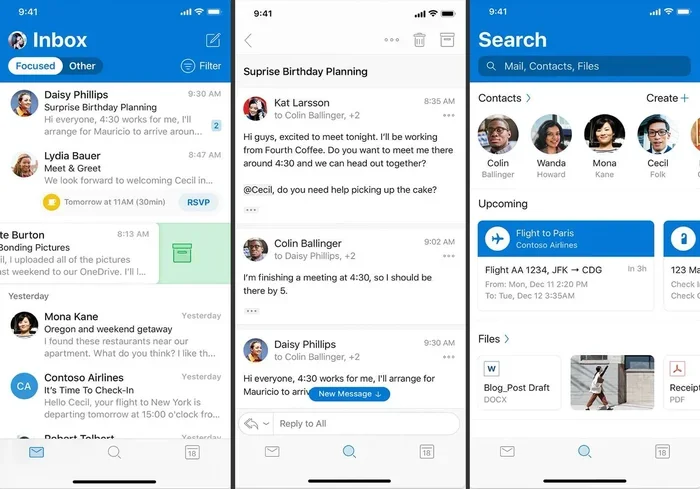
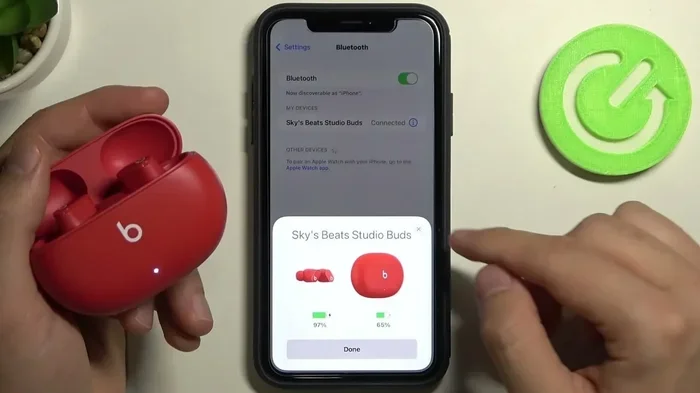
Unlock your iPhone and open the Settings app. Tap on “Bluetooth” near the top of the screen. Make sure the Bluetooth toggle is turned on. You will see it turn green.
Your iPhone will now search for nearby Bluetooth devices. This takes just a few seconds. You will see a list of available devices appear under “Other Devices.”
Make sure your iPhone is close to your Beats during this step. The Bluetooth range is about 30 feet. But being closer helps with a faster discovery. Keep your Beats and iPhone in the same room.
Step 3: Select Your Beats from the List
Look for your Beats model name in the list. It might say “Beats Solo,” “Beats Studio,” or another model name. Tap on the name to connect.
Your iPhone will take a moment to pair. You might see a spinning loading icon. This is normal. Within a few seconds, the Beats will appear under “My Devices” with a status that says “Connected.”
You may also see a pop-up on your iPhone screen asking to confirm the pairing. Tap “Connect” if you see this. Some Beats models also play a short sound to confirm the connection.
Step 4: Test the Connection
Play some music or a podcast on your iPhone. You should hear the audio through your Beats right away. Try adjusting the volume using the headphone controls or your iPhone screen.
Also test taking a phone call. Call someone or ask Siri a question. This confirms that both audio and microphone work through your Beats. If everything works, you are all set.
For those looking to streamline their daily tech routine, wireless devices like Beats pair seamlessly with other smart gadgets. You can also explore more smart tools in our 10 Gadgets To Make Moms Life Easier guide for more ideas.
Troubleshooting Common Pairing Issues
Sometimes things do not go as smoothly as we hope. Bluetooth troubleshooting is normal and nothing to worry about. Here are the most common problems and how to fix them.
Beats Not Showing Up on iPhone
This is the most common issue. If your Beats do not appear in the Bluetooth list, try these fixes:
- Make sure your Beats are in pairing mode. The LED light should be flashing.
- Turn Bluetooth off and back on from your iPhone settings.
- Restart your iPhone completely and try again.
- Move closer to your iPhone. Distance can affect discovery.
- Check if another device is already connected to your Beats.
Sometimes the iPhone just needs a fresh start. Restarting clears temporary bugs that block device discovery. This simple fix works more often than you might think.
Audio Cuts Out or Stutters
If your audio keeps cutting out, the Bluetooth connection might be weak. Try moving closer to your iPhone. Walls and other electronics can interfere with the signal.
Also check if other wireless devices are causing interference. Microwaves, baby monitors, and even Wi-Fi routers can disrupt Bluetooth. Moving away from these devices can help a lot.
Another cause is low battery on either device. Charge both your Beats and your iPhone if needed. A low battery weakens the Bluetooth signal and causes dropouts.
Beats Connected but No Sound
This can happen if your iPhone routes audio to a different output. Go to Settings, then Bluetooth, and tap the “i” icon next to your Beats. Make sure the audio output is set to your Beats.
Also check your iPhone volume. Sometimes it gets turned down accidentally. Use the volume buttons on the side of your iPhone or the controls on your Beats.
Paired but Keeps Disconnecting
Frequent disconnections usually point to a software issue. Update your iPhone to the latest iOS version. Go to Settings, General, Software Update to check.
You should also update your Beats firmware. Open the Beats app on your iPhone and check for updates. Outdated firmware can cause iPhone connectivity problems that look like hardware issues.
Tips to Keep Your Beats Connected All Day
Once your Beats are paired, you want them to stay connected. Here are some simple tips that make a huge difference.
- Keep firmware updated — Open the Beats app regularly to check for updates
- Charge before low — Do not let your Beats battery drop below 10%
- Store properly — Keep Beats in their case when not in use
- Avoid interference — Stay away from crowded Wi-Fi areas
- Reset occasionally — A quick reset keeps things running smoothly
- Use one device at a time — Switching between many devices can cause issues
These habits take seconds to follow but save you hours of frustration. Think of them like brushing your teeth. Small routines make a big difference over time.
Also, if you use multiple Bluetooth devices daily, keeping them organized helps. The more devices you pair, the more your iPhone has to manage connections. A clean Bluetooth list means better performance. This is especially helpful if you rely on wireless audio throughout your day.
How to Reset Your Beats for a Fresh Start
Sometimes the best fix is a clean slate. Resetting your Beats clears all old pairings and settings. This is helpful when you want to connect to a new iPhone or fix stubborn issues.
Here is how to reset most Beats models:
- Press and hold the power button and the volume down button together
- Hold them for about 10 seconds
- Release the buttons when the LED light flashes
- Your Beats are now reset and ready for a new pairing
After resetting, go back to the pairing steps we covered earlier. Your Beats will act like they just came out of the box. This is a powerful fix for many Bluetooth troubleshooting situations.
Resetting also helps when you are selling or giving away your Beats. It clears all your personal device data. Always reset before passing on any Bluetooth device to someone else.
For more tech tips that simplify your daily routine, check out our guide on 10 Gadgets To Make Moms Life Easier. It covers helpful tools that work great with your iPhone and Beats setup.
Quick Comparison: Beats Models and iPhone Compatibility
Not all Beats models are exactly the same. Here is a quick look at how different Beats models work with iPhone.
| Beats Model | Bluetooth Version | iPhone Compatibility | Special Features |
|---|---|---|---|
| Beats Solo 4 | 5.3 | iOS 15 and later | Foldable, 50-hour battery |
| Beats Studio 4 | 5.3 | iOS 15 and later | Adaptive Noise Cancellation |
| Powerbeats Pro | 5.0 | iOS 14 and later | Ear hooks, sweat resistant |
| Beats Fit Pro | 5.3 | iOS 15 and later | Secure fit, spatial audio |
| Beats Solo 3 | 4.2 | iOS 12 and later | Apple W1 chip, fast pairing |
| Beats Studio 3 | 4.2 | iOS 12 and later | Pure ANC, W1 chip |
As you can see, most modern Beats models work great with iPhones. The newer models with Bluetooth 5.0 or higher offer the best experience. They connect faster and stay connected more reliably.
If you have an older Beats model, do not worry. Even Beats with older Bluetooth versions still pair with iPhones. The process is the same. You just might not get all the latest features like spatial audio or adaptive noise cancellation.
For anyone looking to simplify their tech setup even further, wireless gadgets continue to evolve and make life more convenient. Visit our 10 Gadgets To Make Moms Life Easier article for more ideas that complement your Beats and iPhone experience.
Expert Insights on Beats and iPhone Connectivity
Apple and Beats have worked closely together for years. The Beats brand was actually founded by Dr. Dre and later acquired by Apple in 2014. This means Beats products are designed with Apple technology at their core.
The Apple W1 and H1 chips found in many Beats models make pairing incredibly smooth. These chips handle the Bluetooth pairing process automatically. You do not need to enter long PIN codes or jump through hoops.
Experts also recommend using the Beats app for the best experience. The app lets you update firmware, customize controls, and check battery levels. It is a free download from the App Store.
One thing many people overlook is the importance of location services. Your iPhone uses location data to optimize Bluetooth connections. Keep location services on for your Bluetooth settings to ensure the best performance.
Another pro tip is to unpair old devices regularly. If your Beats are connected to a device you no longer use, it can cause confusion. Go to your Bluetooth settings, tap the “i” icon next to the old device, and select “Forget This Device.” This keeps your Bluetooth list clean and your connections strong.
Common Mistakes to Avoid When Pairing Beats
Even simple processes come with common mistakes. Here are errors to watch out for when pairing Beats to iPhone:
- Skipping the pairing mode step — This is the number one reason pairing fails
- Not charging your Beats first — Low battery causes connection drops
- Having too many Bluetooth devices on — This slows discovery and causes confusion
- Forgetting to update iOS — Old software can cause compatibility issues
- Ignoring the Beats app — Firmware updates fix many connection problems
- Trying to pair in a crowded area — Too many Bluetooth signals cause interference
Avoiding these mistakes saves you time and headaches. Most of them are easy to prevent with a little preparation. Think of it like packing for a trip. A few minutes of prep prevent hours of problems later.
Key Takeaways
- Fast Bluetooth Pairing: Connecting Beats to iPhone takes less than a minute when both devices are ready.
- Easy Reset Options: A quick reset solves most pairing problems without technical skills.
- Built-in iPhone Tools: Your iPhone settings handle everything you need for a smooth connection.
- Battery Matters: Keeping your Beats charged ensures reliable pairing every time.
- Firmware Updates Help: Updating your Beats through the Beats app keeps connections stable.
- Multiple Devices? You can pair Beats to more than one device with a few extra steps.
Conclusion
Pairing your Beats to your iPhone is one of the simplest tech tasks you will ever do. The whole process takes less than two minutes once you know the steps. From turning on Bluetooth to selecting your Beats in the settings, everything is designed to be effortless.
Remember that troubleshooting is normal. If something goes wrong, a quick reset or firmware update usually fixes it. Keep your devices charged and updated for the best experience. Your Beats and iPhone are built to work together beautifully.
Now that you know how to pair your Beats, you can enjoy wireless audio wherever you go. Whether you are commuting, working out, or relaxing at home, your Beats connect seamlessly to your iPhone. The freedom of wireless audio is truly something to enjoy.
For more tips on making technology work better for you, explore our other guides. Simple tech knowledge makes a big difference in your daily life. Enjoy your music and happy listening.
Frequently Asked Questions
How long does it take to pair Beats with iPhone?
The pairing process takes less than one minute once both devices are ready. You just need to turn on Bluetooth, put your Beats in pairing mode, and select them from your iPhone settings. The whole process is fast and straightforward.
Why won’t my Beats show up on my iPhone?
This usually happens because your Beats are not in pairing mode. Make sure the LED light is flashing. Also try turning Bluetooth off and back on, or restarting your iPhone. Moving closer to your iPhone can also help with device discovery.
Can I pair my Beats to more than one iPhone?
Yes, you can pair Beats to multiple devices. However, they can only connect to one device at a time. To switch between devices, disconnect from one and connect to the other. This is useful if you share your Beats with family members.
Do I need the Beats app to pair with iPhone?
No, you do not need the Beats app for basic pairing. The iPhone Bluetooth settings handle everything. However, the Beats app is useful for updating firmware, checking battery levels, and customizing controls. It is optional but recommended.
What should I do if my Beats keep disconnecting from my iPhone?
First, make sure both devices have enough battery. Then check for firmware and iOS updates. If the problem continues, reset your Beats and try pairing again. Interference from other wireless devices can also cause disconnections.
Are Beats compatible with older iPhone models?
Yes, Beats headphones work with older iPhone models too. Even older Beats models with Bluetooth 4.2 pair with iPhones running iOS 12 or later. The connection might not have all the latest features, but it works reliably.