How Do I Find Stored Passwords On My Android Phone
Finding stored passwords on your Android phone is easier than you think. Whether you use Google’s built-in password manager, Chrome, or a third-party app, you can view and manage your saved credentials in just a few taps. This guide walks you through every method so you can recover, update, or check your passwords with confidence.
Key Takeaways
- Google Password Manager: The easiest way to find stored passwords on Android through your Google account settings.
- Chrome Browser: You can access saved passwords directly from the Chrome app on your phone.
- Third-Party Apps: Apps like LastPass, 1Password, and Bitwarden offer secure password storage and retrieval.
- Android Settings: Your phone’s built-in settings menu lets you manage autofill and password options.
- Security Matters: Always use a strong screen lock and enable two-factor authentication to protect your saved passwords.
- Sync Across Devices: Your passwords sync seamlessly when you’re signed into your Google account on multiple devices.
📑 Table of Contents
- How Do I Find Stored Passwords On My Android Phone
- Why Your Android Phone Stores Passwords
- Using Google Password Manager To Find Saved Passwords
- Finding Passwords Saved in Chrome Browser
- Using Third-Party Password Manager Apps
- Managing and Editing Your Saved Passwords
- Keeping Your Saved Passwords Secure
- Troubleshooting Common Issues
- Final Thoughts
How Do I Find Stored Passwords On My Android Phone
Have you ever been locked out of an account and needed to recover a password? Or maybe you just want to check what passwords your Android phone is saving for you. Either way, you are in the right place. Finding stored passwords on your Android phone is a simple process once you know where to look.
Your Android device stores passwords in several places. Google Password Manager, the Chrome browser, Samsung’s built-in tools, and third-party apps all keep track of your login credentials. The good news is that you do not need to be a tech expert to access them. With a few straightforward steps, you can view every saved password on your phone. Let us walk through each method together.
In this guide, we will cover everything from Google’s built-in tools to third-party password managers. You will learn how to find, view, edit, and delete saved passwords. We will also share tips to keep your credentials safe. By the end, you will feel confident managing your android password manager setup.
Why Your Android Phone Stores Passwords
Modern smartphones make life convenient. One of the biggest perks is password autofill. Instead of typing in your credentials every time, your phone remembers them and fills them in automatically. This saves time and reduces frustration.
But why does your phone store these passwords in the first place? Here is a quick look at the reasons:
- Convenience: Autofill lets you log in with a single tap.
- Security: Stored passwords are encrypted and protected by your device lock.
- Sync Across Devices: When signed into your Google account, passwords sync to your phone, tablet, and computer.
- Password Generation: Many tools suggest strong, unique passwords when you create new accounts.
- Easy Recovery: If you forget a password, your phone can help you retrieve it quickly.
Understanding how and why your phone saves passwords is the first step toward better digital hygiene. Once you know where everything lives, managing your stored passwords android becomes second nature.
Using Google Password Manager To Find Saved Passwords
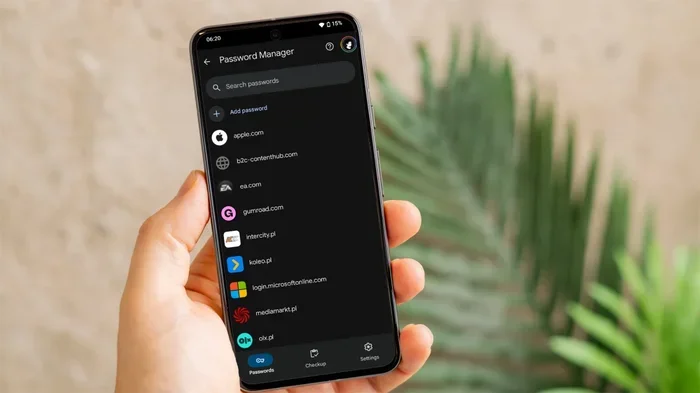
Google Password Manager is the most common way people store and retrieve passwords on Android. It is built right into your phone and works across all Google services. If you have ever signed into a website or app using your Google account, there is a good chance your password is saved here.
Step-by-Step Guide To Access Google Password Manager
Follow these simple steps to view your saved passwords:
- Open the Settings app on your Android phone.
- Scroll down and tap Google.
- Select Manage your Google Account.
- Swipe to the Security tab at the top.
- Scroll down and tap Password Manager.
- You may need to authenticate with your fingerprint, PIN, or password.
- You will now see a list of all saved passwords.
From this screen, you can tap on any entry to reveal the password, edit it, or delete it. Google also shows you which passwords have been compromised in known data breaches. This is a powerful feature that helps you stay safe online.
Finding Passwords Through the Google App
There is another quick way to access your passwords. Open the Google app on your phone. Tap your profile picture in the top right corner. Go to Passwords under the Google Account section. This opens the same Password Manager interface. It is a handy shortcut if you do not want to dig through settings menus.
Quick Tip: Bookmark the Password Manager page in your Chrome browser on your phone. This makes it even faster to access your saved credentials whenever you need them.
Finding Passwords Saved in Chrome Browser
Many Android users rely on Google Chrome as their primary browser. Chrome has its own built-in password saving feature. If you browse the web frequently, you likely have dozens of passwords stored in Chrome alone.
How To View Chrome Saved Passwords
Here is how you can find passwords saved in Chrome:
- Open the Chrome app on your Android phone.
- Tap the three dots in the top right corner.
- Select Settings from the dropdown menu.
- Tap Passwords.
- You will see a list of all websites and usernames with saved passwords.
- Tap any entry to view, copy, or delete the password.
Chrome also lets you search for specific passwords. Use the search bar at the top of the Passwords screen to find a particular site quickly. This is especially useful if you have a long list of saved credentials.
Syncing Chrome Passwords With Your Google Account
One of the best things about Chrome password saving is that it syncs with your Google account. This means you can find your saved passwords on your computer too. Just log into Chrome on any device, and your passwords follow you. Make sure sync is turned on in Chrome settings for this to work seamlessly.
Quick Tip: If you want to export your Chrome passwords, go to the Passwords settings and look for the export option. This creates a CSV file you can save securely. However, be careful with exported files since they are not encrypted.
Using Third-Party Password Manager Apps
While Google Password Manager works well for most people, some users prefer dedicated password manager apps. These apps offer extra features like secure notes, credit card storage, and advanced security monitoring. Let us look at the most popular options.
1Password
1Password is a premium password manager known for its clean interface and strong security. It uses end-to-end encryption to keep your data safe. To find your passwords in 1Password:
- Open the 1Password app.
- Tap the Vaults tab.
- Select the vault containing your passwords.
- Tap any entry to view the username and password.
Bitwarden
Bitwarden is a free and open-source password manager. It is a great choice if you want full control over your data without paying a subscription. To access your passwords:
- Launch the Bitwarden app.
- Enter your master password to unlock the vault.
- Browse through your saved logins.
- Tap any entry to view or copy the credentials.
LastPass
LastPass has been around for many years and remains a popular choice. It offers both a free tier and a premium version. Finding passwords in LastPass is straightforward:
- Open the LastPass app.
- Enter your master password.
- Navigate to the Passwords section.
- Use the search bar to find specific logins.
Samsung Pass
If you use a Samsung phone, Samsung Pass is a built-in option. It stores passwords, autofills logins, and even saves payment cards. To access Samsung Pass:
- Go to Settings on your Samsung phone.
- Tap Biometrics and Security.
- Select Samsung Pass.
- Authenticate and browse your saved credentials.
Each of these apps serves as a secure password vault android option. They are worth considering if you want more features than what Google Password Manager offers.
Managing and Editing Your Saved Passwords
Once you know how to find your stored passwords, the next step is learning how to manage them effectively. Simply finding passwords is not enough. You need to keep them updated and secure.
How To Edit a Saved Password
Editing a password is simple whether you use Google Password Manager or a third-party app. In Google Password Manager, just tap the entry you want to change. Then tap the pencil icon to edit the username or password. Save your changes when you are done.
How To Delete Unused Passwords
Over time, you accumulate passwords for sites and apps you no longer use. These old entries can clutter your password list and create unnecessary security risks. Here is how to clean up:
- Open your password manager of choice.
- Browse through the list of saved entries.
- Tap the entry you want to remove.
- Select Delete or the trash icon.
- Confirm the deletion.
Regularly pruning your saved passwords keeps your list organized and reduces your exposure if your device is ever compromised.
How To Add a New Password Manually
Not all passwords get saved automatically. Sometimes you need to add one manually. In Google Password Manager, tap the Add Password button at the bottom. Enter the website, username, and password. The next time you visit that site, your phone will autofill the credentials.
Keeping Your Saved Passwords Secure
Finding and viewing your passwords is only half the battle. Keeping them secure is just as important. After all, what good is a password manager if someone else can access it?
Use a Strong Screen Lock
Your phone is the gateway to all your saved passwords. Make sure you use a strong screen lock. A PIN with at least six digits is a good start. Even better, use a fingerprint or face recognition. This ensures that even if someone picks up your phone, they cannot easily access your passwords.
Enable Two-Factor Authentication
Two-factor authentication adds an extra layer of protection. Even if someone gets hold of your password, they still need a second form of verification to log in. Enable 2FA on all important accounts, especially your Google account. This is one of the best password security android practices you can follow.
Check for Compromised Passwords
Google Password Manager includes a feature that alerts you if any of your saved passwords have appeared in a known data breach. Check this regularly by visiting the Password Manager and looking for the security alerts section. If a password is flagged, change it immediately.
Avoid Public Wi-Fi for Sensitive Logins
Public Wi-Fi networks are convenient but risky. Hackers can intercept data on open networks. Avoid logging into important accounts when connected to public Wi-Fi. If you must, use a VPN to encrypt your connection.
Expert Insight: Cybersecurity experts recommend reviewing your saved passwords at least once a month. This keeps your accounts safe and helps you spot any suspicious activity early. Think of it like checking your bank statements, but for your digital life.
Troubleshooting Common Issues
Sometimes things do not go as smoothly as we would like. Here are a few common problems and how to fix them when finding stored passwords on Android.
Passwords Not Showing Up in Google Password Manager
If your passwords are missing, check that you are signed into the correct Google account. Also, make sure that password saving is turned on in Chrome settings. Go to Chrome Settings > Passwords and ensure that Save Passwords is enabled.
Autofill Not Working
If your passwords are saved but not autofilling, check your autofill settings. Go to Settings > System > Languages & Input > Autofill Service. Make sure Google is selected as the default autofill service. Restarting your phone can also help in some cases.
Forgot Your Google Account Password
If you cannot access your Google account, you will not be able to view your saved passwords through Google Password Manager. Use Google’s account recovery page to regain access. Have your recovery phone number or email ready to speed up the process.
Third-Party App Not Syncing
If you use a third-party password manager and your passwords are not syncing, check your app settings. Make sure you are logged in and that sync is enabled. Also, ensure you have a stable internet connection. Logging out and back in often resolves sync issues.
Final Thoughts
Knowing how to find stored passwords on your Android phone gives you control over your digital life. Whether you use Google Password Manager, Chrome, or a third-party app, the process is straightforward and user-friendly. You now know how to access, view, edit, and delete saved passwords across multiple platforms.
But more importantly, you understand how to keep those passwords safe. Using a strong screen lock, enabling two-factor authentication, and regularly checking for compromised passwords are all essential habits. Your android password manager is only as secure as the practices you put around it.
Take a few minutes today to review your saved passwords. Delete any old or unused entries. Update weak passwords. And make sure your autofill settings are working correctly. A little effort now can save you from serious headaches later. Your digital security is worth it.
With the steps and tips in this guide, you are well-equipped to manage every stored password android device holds. Stay safe, stay organized, and enjoy the peace of mind that comes with knowing your accounts are protected.
Frequently Asked Questions
Can I see all my saved passwords on Android in one place?
Yes, you can. Google Password Manager is the central hub for all passwords saved through your Google account. You can also check Chrome’s built-in password section for any passwords stored specifically in the browser. Third-party apps like 1Password or Bitwarden have their own vaults as well.
Is it safe to view saved passwords on my Android phone?
Absolutely. As long as your phone is locked with a strong PIN, fingerprint, or face recognition, viewing your saved passwords is safe. Google and other reputable apps use encryption to protect your data. Just make sure you do not share your screen or passwords with anyone you do not trust.
What happens if I delete a saved password from my Android phone?
Deleting a saved password removes it from your device and, if sync is enabled, from all devices linked to your Google account. You will need to log in to that site or app again and create a new password. The site itself will not be affected.
Can I export my saved passwords from Android?
Yes. Google Password Manager allows you to export your passwords as a CSV file. Go to Password Manager settings and look for the export option. Be cautious with exported files since they are not encrypted. Store them in a secure location or delete them after use.
Do I need a third-party password manager if I use Google Password Manager?
Not necessarily. Google Password Manager is free, built into Android, and works well for most users. However, third-party apps like 1Password or Bitwarden offer extra features such as secure sharing, dark web monitoring, and cross-platform support. It depends on your needs.
How can I make my saved passwords more secure on Android?
Start by using a strong screen lock and enabling two-factor authentication on your Google account. Regularly check for compromised passwords in Google Password Manager. Avoid saving passwords on shared or public devices. And consider using a dedicated password generator to create unique, strong passwords for each account.