How Do I Connect My Bluetooth Without A Receiver
You can connect Bluetooth without a receiver by using your device’s built-in Bluetooth, a Bluetooth transmitter, or a compatible adapter. Whether you want to pair headphones, speakers, or other devices, these methods make wireless audio simple and affordable. This guide walks you through each option step by step.
Have you ever wanted to go wireless but thought you needed a fancy receiver to make it happen? The truth is, connecting Bluetooth without a receiver is easier than most people think. Whether you want to pair your headphones to a TV, stream music from a laptop, or hook up a speaker to your phone, there are several straightforward ways to get it done. You do not always need extra hardware or technical know-how. In this guide, we will walk you through every method, tip, and trick so you can enjoy wireless audio without any hassle.
The world of wireless technology has grown fast. Today, most devices come with Bluetooth built in right out of the box. But what about older gadgets that do not have it? Or what if your Bluetooth is not working the way it should? Do not worry. We have got you covered. This article breaks everything down into simple steps you can follow right now.
Key Takeaways
- Built-in Bluetooth: Most modern devices already have Bluetooth built in, so you may not need a receiver at all.
- Bluetooth Transmitter: A transmitter can add wireless capability to older devices that lack Bluetooth.
- Bluetooth Adapter: USB adapters are a quick and affordable way to add Bluetooth to laptops and desktops.
- Pairing Tips: Keeping devices close and updated ensures a strong and stable connection.
- Troubleshooting: Simple fixes like restarting devices often resolve common Bluetooth issues.
📑 Table of Contents
- What Does It Mean to Connect Bluetooth Without A Receiver?
- Method 1: Use Your Device’s Built-In Bluetooth
- Method 2: Use a Bluetooth Transmitter
- Method 3: Use a USB Bluetooth Adapter
- Method 4: Use a Smart Speaker or Soundbar With Bluetooth
- Common Bluetooth Connection Problems and How to Fix Them
- Tips for Better Bluetooth Connectivity
- How Bluetooth Transmitters Compare to Receivers
- Quick Tips for Everyday Bluetooth Use
- Final Thoughts
What Does It Mean to Connect Bluetooth Without A Receiver?
When people talk about a Bluetooth receiver, they usually mean a small device that picks up a Bluetooth signal and sends it to another device. For example, some older TVs or car stereos need a receiver to play audio from a phone. But connecting Bluetooth without a receiver means using other methods to achieve the same wireless connection. You might use built-in Bluetooth, a transmitter, or even an adapter. The goal is the same: wireless audio streaming without extra cables or complicated setups.
Think of it this way. You want to listen to music from your phone through your car speakers. If your car stereo does not have Bluetooth, you might think you need a receiver. But there are other paths. You could use a transmitter, a USB adapter, or even switch to a device that already supports Bluetooth pairing. The options are more plentiful than you might expect.
Method 1: Use Your Device’s Built-In Bluetooth
The simplest way to connect Bluetooth without a receiver is to use the Bluetooth that is already inside your device. Most modern smartphones, tablets, laptops, and even some TVs come with Bluetooth enabled right out of the box. You just need to turn it on and pair your device.
How to Check If Your Device Has Bluetooth
Before you start, make sure your device supports Bluetooth connectivity. Here is how to check:
- On iPhone or iPad: Open Settings and look for Bluetooth. If you see it, your device has it.
- On Android: Swipe down from the top of your screen and tap the Bluetooth icon. Or go to Settings > Connected Devices.
- On Windows Laptop: Click the Start menu, then go to Settings > Devices > Bluetooth & other devices.
- On Mac: Click the Apple menu > System Preferences > Bluetooth.
- On Smart TVs: Go to Settings > Sound > Bluetooth or Audio Output and look for Bluetooth options.
How to Pair Your Device
Once you confirm Bluetooth is available, follow these steps to pair your devices:
- Turn on Bluetooth on both devices.
- Put your headphones, speaker, or other device into pairing mode. Usually, you hold down the Bluetooth button until a light flashes.
- On your main device, tap “Scan” or “Search for devices.”
- Find your device in the list and tap it.
- Wait for the connection to complete. You should hear a confirmation sound or see a message.
That is it. You are now connected wirelessly without any receiver. This method works great for Bluetooth headphones, Bluetooth speakers, and even wireless controllers. If your device already has Bluetooth, you are halfway home.
One thing to keep in mind: Bluetooth range matters. Most devices work well within about 30 feet. If you go too far away, the connection may drop. Keep your devices close for the best experience.
Method 2: Use a Bluetooth Transmitter
If your device does not have built-in Bluetooth, a Bluetooth transmitter is a fantastic alternative. Many people confuse transmitters with receivers, but they work in opposite directions. A receiver takes a Bluetooth signal in. A transmitter sends a Bluetooth signal out. So if you want to send audio from a non-Bluetooth device to your wireless headphones or speakers, a transmitter does the job.
When Do You Need a Transmitter?
You might need a transmitter if:
- Your TV has a headphone jack but no Bluetooth.
- You want to listen to a desktop computer through wireless earbuds.
- Your car stereo does not support Bluetooth, but you want to stream music from your phone.
- You have a speaker with an AUX port but no Bluetooth.
How to Set Up a Bluetooth Transmitter
Setting up a transmitter is simple. Here is what to do:
- Plug the transmitter into the audio output of your device. This could be a 3.5mm headphone jack, an optical port, or an RCA output.
- Power on the transmitter. Most run on batteries or USB cables.
- Put your Bluetooth headphones or speaker into pairing mode.
- On the transmitter, hold the pairing button until it flashes.
- The two devices should connect automatically.
Once paired, audio from your TV, computer, or music player streams wirelessly to your headphones or speaker. No receiver needed on the receiving end because your headphones or speaker already has Bluetooth built in. This is one of the easiest ways to add wireless capability to older devices.
Some transmitters also support aptX and LDAC codecs, which improve audio quality. If you care about sound quality, look for a transmitter that supports these formats. They deliver richer, clearer sound compared to basic Bluetooth connections.
Method 3: Use a USB Bluetooth Adapter
A USB Bluetooth adapter is another great way to connect Bluetooth without a receiver. These small dongles plug into a USB port and give your device Bluetooth capability instantly. They are especially useful for desktop computers and older laptops that do not have built-in Bluetooth.
Who Benefits From a USB Bluetooth Adapter?
- Desktop PC users who want to connect wireless headphones or speakers.
- Laptop owners with older models that lack Bluetooth.
- Anyone who needs a quick and affordable fix for Bluetooth connectivity issues.
How to Set Up a USB Bluetooth Adapter
Here is how to get started:
- Plug the adapter into an available USB port.
- Wait for your computer to recognize it. Most modern systems install drivers automatically.
- If your computer does not recognize it, visit the manufacturer’s website and download the driver.
- Turn on Bluetooth on your computer.
- Put your Bluetooth device in pairing mode.
- Search for devices and select your Bluetooth speaker or headphones.
USB adapters are small, portable, and inexpensive. You can find reliable ones for under $15. They work well for audio streaming, file transfers, and even using a wireless controller with your PC. Just keep the adapter close to your Bluetooth device for the strongest signal.
One tip: if you experience lag or weak signal, try plugging the adapter into a USB 3.0 port. USB 3.0 provides more power and can improve wireless audio performance. Avoid using USB hubs unless necessary, as they can sometimes weaken the signal.
Method 4: Use a Smart Speaker or Soundbar With Bluetooth
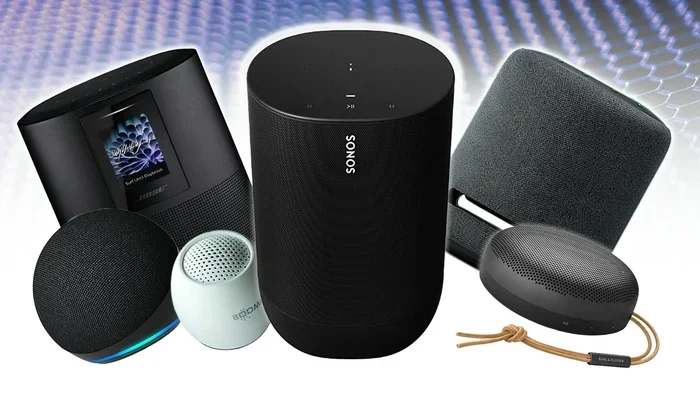
Another way to enjoy Bluetooth audio without a receiver is to use a device that already has Bluetooth built in. Smart speakers and soundbars are excellent examples. Many smart speakers like the Amazon Echo or Google Nest support Bluetooth and can connect directly to your phone or tablet.
For example, if you want to play music from your phone in a room that does not have a Bluetooth-enabled speaker, you can bring in a smart speaker and pair it wirelessly. The same goes for soundbars. If your TV does not support Bluetooth, you can connect a Bluetooth soundbar to it and stream audio from your phone. This works because the soundbar has Bluetooth built in, so no external receiver is needed.
Some people also use their phone as a Bluetooth hub. If you have a device that can connect to your phone via Bluetooth, your phone essentially acts as the bridge. This is a simple workaround that many people overlook. It is especially handy when you are traveling or in a temporary setup.
Common Bluetooth Connection Problems and How to Fix Them
Even when you use these methods, you might run into Bluetooth connection issues. Do not panic. Most problems have simple solutions. Here are the most common issues and how to fix them.
Devices Will Not Pair
If your devices will not pair, try these steps:
- Make sure Bluetooth is turned on on both devices.
- Turn Bluetooth off and back on again.
- Restart both devices.
- Make sure your device is in pairing mode. Check the manual if you are unsure.
- Move the devices closer together. Distance can block the signal.
Audio Keeps Cutting Out
If your audio drops frequently, try the following:
- Move closer to the source device. Walls and furniture can block the signal.
- Turn off other Bluetooth devices nearby. Too many devices can cause interference.
- Check if your Bluetooth version is up to date on both devices.
- Remove the device from the paired list and pair it again from scratch.
Audio and Video Are Out of Sync
This problem often happens when streaming video. The audio lags behind the video. Here is how to fix it:
- Check if your transmitter or adapter supports low-latency codecs.
- Reduce the distance between the devices.
- Close other apps that might be using Bluetooth bandwidth.
- Try a different Bluetooth transmitter if the problem persists.
Most Bluetooth troubleshooting steps are quick and easy. You do not need to be a tech expert to fix these issues. A simple restart often solves the problem.
Tips for Better Bluetooth Connectivity
Want the best possible wireless audio experience? Follow these tips:
- Keep your devices updated. Software updates often include Bluetooth improvements and bug fixes.
- Stay within range. Most Bluetooth devices work best within 30 feet of each other.
- Avoid interference. Wi-Fi routers, microwaves, and other wireless devices can interfere with Bluetooth signals.
- Use quality devices. Cheap Bluetooth adapters may cause lag or poor sound quality. Invest in a reputable brand.
- Clear paired devices list. If you have too many devices saved, it can slow down pairing. Remove old devices you no longer use.
- Check battery levels. Low battery on either device can weaken the Bluetooth connection.
These small steps make a big difference. Taking a few minutes to optimize your setup can save you hours of frustration. Bluetooth connectivity works best when both devices are in good shape and close to each other.
How Bluetooth Transmitters Compare to Receivers
It helps to understand the difference between a transmitter and a receiver so you know exactly what you need. Here is a quick comparison:
| Feature | Bluetooth Transmitter | Bluetooth Receiver |
|---|---|---|
| What it does | Sends audio out wirelessly | Receives wireless audio in |
| Best for | Non-Bluetooth TVs, PCs, stereos | Non-Bluetooth speakers, headphones |
| Connection type | AUX, optical, or RCA in | 3.5mm or RCA out |
| Do you need one? | When your source device lacks Bluetooth | When your speaker/headphones lack Bluetooth |
| Price range | $10 to $50 | $10 to $40 |
As you can see, the choice depends on your setup. If your source device (like a TV) does not have Bluetooth, you need a transmitter. If your speaker or headphones do not have Bluetooth, you need a receiver. But if both your source and your audio device already support Bluetooth pairing, you do not need either one. That is the beauty of connecting Bluetooth without a receiver.
Quick Tips for Everyday Bluetooth Use
Here are some quick tips to keep in mind for daily use:
- Always turn off Bluetooth on devices you are not using. It saves battery and reduces interference.
- Label your paired devices so you can tell them apart easily.
- Use a Bluetooth transmitter for one-to-one connections, like listening to TV without disturbing others.
- If you are using a USB adapter, plug it directly into the computer rather than through a hub.
- For the best sound quality, use a transmitter or adapter that supports aptX or AAC codecs.
These tips might seem small, but they add up. They help you get the most out of every Bluetooth connection. Whether you are streaming music, watching a movie, or gaming, a well-optimized setup makes everything smoother.
Final Thoughts
Connecting Bluetooth without a receiver is simpler than most people think. You can use built-in Bluetooth on your devices, add a transmitter for older equipment, or plug in a USB adapter for quick wireless capability. Each method has its own benefits, and all of them work without needing a separate receiver device. The key is understanding what your device already supports and choosing the right approach for your situation.
Take a moment to check which devices in your home already have Bluetooth. You might be surprised how many do. From your phone and tablet to your laptop and smart TV, the wireless connection might already be there waiting for you. If not, a transmitter or adapter solves the problem in minutes. With the tips and troubleshooting steps in this guide, you are well equipped to enjoy wireless audio in any setup. Start connecting today and leave the cables behind.
Remember, wireless technology keeps improving every year. Newer Bluetooth versions offer better range, faster connections, and higher audio quality. Stay curious, keep your devices updated, and enjoy the freedom of going wireless.
Frequently Asked Questions
Can I connect Bluetooth without any extra hardware?
Yes, if your device already has built-in Bluetooth, you can connect wireless devices directly without any extra hardware. Most modern smartphones, laptops, and tablets support Bluetooth natively. Just turn it on and pair your device. This is the easiest way to enjoy wireless audio without buying anything extra.
What is the difference between a Bluetooth transmitter and a receiver?
A transmitter sends audio out wirelessly from a non-Bluetooth device, while a receiver takes a wireless signal and sends it to a non-Bluetooth speaker or headphone. If your TV or computer lacks Bluetooth, a transmitter helps. If your speaker or headphones lack Bluetooth, a receiver helps. But if both devices already support Bluetooth, you need neither.
How far can Bluetooth reach without a receiver?
Most Bluetooth devices work well within about 30 feet of each other. Walls, furniture, and other electronics can reduce this range. For the best connection, keep your devices close together. Newer Bluetooth versions like 5.0 and above offer longer range and stronger signals compared to older versions.
Can I use a USB Bluetooth adapter with any computer?
Most computers can use a USB Bluetooth adapter, but compatibility varies. Windows and Mac computers both support USB adapters. Older computers without built-in Bluetooth benefit the most. Simply plug the adapter into a USB port, install any needed drivers, and you are ready to pair wireless devices.
Why does my Bluetooth audio keep cutting out?
Bluetooth audio can cut out due to distance, interference from other wireless devices, or outdated software. Try moving closer to the source device, turning off nearby Bluetooth devices, and restarting both devices. Keeping your device software updated also helps maintain a stable connection.
Do I need a special app to connect Bluetooth without a receiver?
No, you do not need a special app. Most devices have Bluetooth settings built right into their operating system. You can pair devices directly from the settings menu. Some third-party apps offer extra features like audio customization, but they are not necessary for basic Bluetooth connections.