How Can I Upload A Pdf File To Facebook Step By Step
Uploading a PDF file to Facebook is simpler than most people think. You can share PDFs on your personal profile, business page, or Facebook groups with just a few clicks. This step-by-step guide walks you through every method, so you can upload a PDF to Facebook quickly and confidently.
Have you ever wanted to upload a PDF file to Facebook but didn’t know where to start? You’re not alone. Many people struggle with sharing PDF documents on the platform. Whether you want to share a resume, a report, or a creative portfolio, posting a PDF on Facebook is totally doable. This guide breaks down every method in simple, easy-to-follow steps.
In this article, you’ll learn how to upload a PDF to Facebook from your profile, business page, and groups. You’ll also discover tips for optimizing your files, fixing common errors, and using alternative methods when needed. By the end, you’ll feel confident sharing any PDF document on Facebook.
Let’s dive right in. No technical skills are required — just a Facebook account and a PDF file ready to go.
Key Takeaways
- Multiple Methods Available: You can upload PDFs directly to profiles, pages, and groups, or share PDF links as an alternative.
- File Size Matters: Facebook has size limits for PDF uploads, so optimizing your file beforehand helps avoid errors.
- Business Pages Offer Extra Features: Page admins get additional options for sharing PDF documents with followers.
- Common Issues Are Fixable: Most upload problems relate to file size, format, or internet connection and are easy to resolve.
- Alternative Sharing Works Too: Converting PDFs to images or sharing links are great workarounds when direct upload fails.
📑 Table of Contents
- Why Upload a PDF File to Facebook
- How to Upload a PDF to Your Personal Facebook Profile
- How to Upload a PDF to a Facebook Business Page
- How to Share a PDF in Facebook Groups
- Tips for Optimizing Your PDF Before Uploading
- Common Problems When Uploading PDFs to Facebook
- Alternative Ways to Share PDF Content on Facebook
- Final Thoughts on Uploading PDFs to Facebook
Why Upload a PDF File to Facebook
Sharing PDF documents on Facebook has become a common practice. People use PDFs to distribute valuable content, promote businesses, and share information. But why exactly should you upload a PDF to Facebook? Let’s explore the reasons.
PDFs Keep Your Formatting Intact
One of the biggest advantages of sharing a PDF is that it preserves your formatting. Unlike Word documents or plain text, a PDF looks the same on every device. Your fonts, images, and layout stay exactly as you designed them. This makes PDFs perfect for sharing professional documents on Facebook.
PDFs Build Credibility
When you share a PDF file on Facebook, it looks polished and professional. Businesses especially benefit from this. A well-designed PDF portfolio or product catalog makes a stronger impression than a basic text post. People trust PDF content because it feels official and complete.
PDFs Are Easy to Download
Facebook users can download your PDF with one click. This makes it simple for people to save your content for later reference. Whether it’s a recipe, a guide, or a checklist, downloadable PDFs provide real value to your audience.
How to Upload a PDF to Your Personal Facebook Profile
If you want to share a PDF on your Facebook profile, the process is straightforward. You don’t need any special tools or apps. Just follow these steps carefully.
Step-by-Step Instructions for Profile Uploads
Here’s how to upload a PDF file to Facebook from your personal profile:
- Log in to your Facebook account. Make sure you’re using the latest version of the Facebook app or browser.
- Click on “Create Post.” This button is at the top of your News Feed or on your profile page.
- Look for the attachment icon. It usually looks like a photo or paperclip symbol near the text box.
- Select “Upload File” or “Add File.” The exact wording varies depending on your device.
- Choose your PDF file from your computer or phone. Navigate to where you saved the document and tap on it.
- Add a description or caption. Write something engaging to encourage people to open your PDF.
- Click “Post.” Your PDF will now appear in your friends’ News Feeds.
Quick Tips for Profile Uploads
- Keep your PDF under 25 MB. Facebook has a file size limit. If your document is larger, you’ll need to compress it first.
- Use a catchy caption. People scroll fast. A compelling description makes them want to click and view your PDF.
- Preview before posting. Facebook lets you see how your PDF will look. Use this feature to make sure everything displays correctly.
- Add relevant hashtags. Tags like #PDFShare or #FreeDownload can help more people find your content.
Troubleshooting Profile Upload Issues
Sometimes uploading a PDF to Facebook doesn’t work on the first try. Here’s what to check:
- Check your internet connection. A weak signal can cause upload failures. Try switching to Wi-Fi if you’re on mobile data.
- Verify the file format. Make sure your document ends in “.pdf.” Facebook won’t accept other file types in this upload method.
- Try a different browser. Sometimes browser cache causes issues. Chrome, Firefox, and Safari all work well for PDF uploads.
- Restart the app. A quick restart can fix temporary glitches that prevent uploads.
How to Upload a PDF to a Facebook Business Page
Running a Facebook business page opens up more options for sharing PDF content. Business pages are powerful tools for marketing, and uploading PDFs to Facebook pages can help you reach a wider audience. Let’s walk through the process.
Steps for Page Admins
If you manage a Facebook business page, here’s how to post a PDF on Facebook:
- Navigate to your Facebook Page. Make sure you have admin access. You can’t upload files to pages you don’t manage.
- Click “Create Post” on the page. This works the same way as posting on your personal profile.
- Click the attachment icon. Look for the photo, document, or file icon in the post composer.
- Select your PDF file. Browse your computer or phone and choose the document you want to share.
- Write a compelling post description. Explain what the PDF contains and why people should download it.
- Click “Publish” or “Post.” Your PDF will now appear on your business page for followers to see.
Best Practices for Business Page PDFs
- Use branded PDFs whenever possible. Add your logo, brand colors, and contact information to the document before uploading.
- Include a clear call to action. Tell readers exactly what to do after downloading your PDF. For example, “Download our free guide and start today.”
- Post at optimal times. Check your Facebook Insights to find when your audience is most active. Schedule your PDF posts during peak hours.
- Respond to comments quickly. When people engage with your PDF post, reply promptly. This boosts your post’s visibility in the algorithm.
Facebook PDF Sharing for Business Pages
Business pages benefit from PDF sharing on Facebook in several ways. A product catalog PDF lets customers browse your offerings easily. An event flyer PDF helps promote upcoming activities. A case study PDF builds trust with potential clients. Each of these document types performs well on Facebook when shared correctly.
How to Share a PDF in Facebook Groups
Facebook group PDF uploads are another great way to reach targeted audiences. Groups are communities where people share common interests. Sharing a relevant PDF in the right group can generate lots of engagement. Here’s how to do it.
Uploading Directly to Groups
To upload a PDF to a Facebook group, follow these simple steps:
- Go to the Facebook group you want to post in. Make sure the group allows file sharing. Some groups restrict uploads to admins only.
- Click “Write Something” or “Create Post.” This opens the post composer window.
- Click the attachment or file icon. Choose the option to upload a file.
- Select your PDF from your device. Make sure the file is under the group’s size limit.
- Add a brief introduction. Explain why the PDF is relevant to the group members.
- Click “Post” or “Submit.” Your PDF will appear in the group’s feed.
Sharing PDF Links in Groups
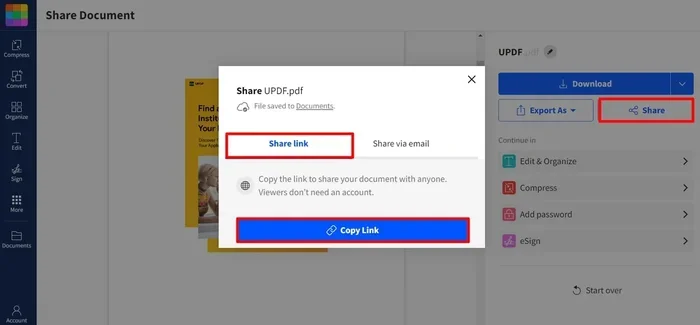
Sometimes you might not want to upload the PDF directly. In that case, sharing a PDF link on Facebook works well. You can paste a link to your PDF hosted on Google Drive, Dropbox, or your website. Facebook will generate a preview of the link, making it easy for group members to access your document.
Pro tip: Some group admins prefer link sharing over direct uploads. This keeps the group’s storage clean and makes it easier for members to access the latest version of your document.
Tips for Optimizing Your PDF Before Uploading
Before you upload a PDF document to Facebook, take a few minutes to optimize it. A well-prepared PDF performs much better than a raw, unoptimized file. Here’s what you should do.
File Size and Format Tips
- Compress your PDF. Use free online tools like SmallPDF or iLovePDF to reduce file size. Aim for files under 10 MB for the smoothest upload experience.
- Check the page count. Very long PDFs can be hard to read on mobile devices. Try to keep your PDF under 20 pages for best results.
- Use standard fonts. Custom fonts sometimes don’t display correctly on all devices. Stick to common fonts like Arial, Times New Roman, or Calibri.
- Save in PDF format. Make sure you export or “Save As” PDF. Other formats won’t upload properly to Facebook.
Making Your PDF Stand Out
- Add a cover page. The first page of your PDF should grab attention. Include a compelling title and a brief description of what’s inside.
- Use high-quality images. If your PDF contains photos or graphics, make sure they look sharp. Blurry images hurt your credibility.
- Include your branding. Add your logo, website URL, and social media handles. This helps people find you after downloading your PDF.
- Proofread carefully. Spelling and grammar mistakes in a PDF look unprofessional. Always review your document before uploading.
Converting Other Files to PDF for Facebook
If your document isn’t already a PDF, you’ll need to convert it. Most word processors like Microsoft Word and Google Docs let you export files as PDFs. Simply go to File, then Export or Download, and choose PDF. This is the easiest way to convert files to PDF for Facebook sharing.
Common Problems When Uploading PDFs to Facebook
Even with careful preparation, you might run into issues when uploading a PDF to Facebook. Don’t worry — most problems have simple solutions. Let’s look at the most common ones.
Troubleshooting Upload Errors
Error 1: File Too Large. Facebook limits PDF uploads to a certain size. If your file exceeds this limit, you’ll get an error message. Solution: Compress your PDF or split it into smaller parts.
Error 2: Unsupported Format. Sometimes a file that ends in “.pdf” isn’t actually a PDF. It might be a renamed document that uses a different format. Solution: Re-export the file as a proper PDF from its original application.
Error 3: Upload Stuck or Freezing. This usually happens with slow internet connections. Solution: Close the app, check your connection, and try again. Switching to a stronger Wi-Fi signal often fixes this.
Error 4: PDF Doesn’t Display Correctly. Some PDFs contain elements Facebook can’t render. Solution: Remove complex elements like embedded videos or interactive forms before uploading.
What to Do When Facebook Blocks Your PDF
Facebook has content policies that sometimes block PDF uploads. If your PDF upload to Facebook gets rejected, check these things:
- Does your PDF contain restricted content? Facebook blocks PDFs with explicit material, copyrighted content, or malicious links.
- Is your file corrupted? Try opening the PDF on your computer first. If it won’t open there, fix the file before re-uploading.
- Have you been flagged for spam? Repeated upload attempts in a short time can trigger Facebook’s spam filters. Wait a few hours and try again.
Alternative Ways to Share PDF Content on Facebook
Direct PDF uploads aren’t the only way to share PDF content on Facebook. Sometimes alternatives work better depending on your goals. Let’s explore a few options.
Using PDF Links Instead of Uploads
Sharing a PDF link on Facebook is a great alternative to direct uploads. You can host your PDF on Google Drive, Dropbox, OneDrive, or your own website. Then simply paste the link in a Facebook post. Facebook automatically creates a preview thumbnail and description for most links.
Benefits of link sharing:
- No file size limits.
- You can update the PDF without re-uploading to Facebook.
- You get analytics on how many people clicked the link.
- It works on all devices without compatibility issues.
Converting PDFs to Images for Facebook
Another option is to convert your PDF to images and post them as a photo carousel. Each page of your PDF becomes a separate image slide. This approach has several advantages:
- Better mobile viewing. Images display natively in the Facebook app without requiring downloads.
- Higher engagement. Photo carousels tend to get more likes and shares than PDF links.
- No file size restrictions. You can include as many pages as Facebook allows for photo uploads.
To convert a PDF to images, you can use free online tools or screenshot each page. Then upload the images as a carousel post on Facebook.
Creating Facebook Notes with PDF Content
Facebook Notes is a lesser-known feature that lets you write longer-form content. While you can’t directly paste a PDF into a Note, you can recreate the content in text format. This works well for articles, guides, and stories that you want to share as readable text on Facebook.
Final Thoughts on Uploading PDFs to Facebook
Uploading a PDF file to Facebook is a skill that anyone can learn. Whether you’re sharing documents on your personal profile, business page, or in groups, the process is straightforward once you know the steps. Remember to optimize your files, choose the right sharing method, and troubleshoot any issues that come up.
PDFs are a powerful way to share valuable content on Facebook. They look professional, preserve formatting, and are easy for readers to download. With the tips in this guide, you can share PDF documents on Facebook with confidence and reach your goals.
Start experimenting with different methods today. Try uploading a PDF to your profile first, then explore business page and group options. You’ll quickly find the approach that works best for you and your audience. Happy sharing!
Frequently Asked Questions
Can I upload a PDF directly to Facebook without using a link?
Yes, you can upload a PDF directly to Facebook. Just click the attachment icon when creating a post on your profile, page, or group, and select your PDF file from your device. Facebook supports direct PDF uploads on all platforms.
What is the maximum PDF file size I can upload to Facebook?
Facebook generally allows PDF uploads up to 25 MB in size. However, this limit can vary depending on your device and the specific feature you’re using. If your file is too large, try compressing it with a free PDF compression tool before uploading.
Can I upload a PDF to a Facebook group if I’m not an admin?
Yes, most Facebook groups allow regular members to upload PDFs. However, some groups restrict file sharing to admins only. Check the group’s posting rules before you try to upload a document.
Why won’t my PDF upload to Facebook even though it’s under the size limit?
Several factors can cause this. Your file might not be a true PDF format, your internet connection might be unstable, or Facebook might be blocking the upload due to content policies. Try converting the file to PDF again, switching to a stronger Wi-Fi connection, and checking for restricted content.
Is it better to upload a PDF directly or share a link to the PDF on Facebook?
It depends on your goals. Direct uploads are convenient and keep everything on Facebook. Sharing links works better for large files, allows you to track clicks, and lets you update the document without re-uploading. For marketing purposes, links often provide better analytics.
Can I upload a password-protected PDF to Facebook?
Yes, you can upload a password-protected PDF to Facebook. However, the file will download as-is, and Facebook does not handle the password protection. Make sure to share the password separately if you want people to be able to open the document.
=== CONCLUSION ===
Uploading a PDF file to Facebook is easy once you know the right steps. Whether you’re using your personal profile, a business page, or a Facebook group, this guide has covered every method you need. From optimizing your file size to troubleshooting common errors, you now have everything required to share PDF documents effectively on Facebook.
Remember to keep your PDFs well-designed and under the size limit. Use captions and descriptions to encourage engagement. And don’t be afraid to try alternative methods like link sharing or image carousels when direct uploads aren’t the best fit.
Start practicing today. The more you upload PDFs to Facebook, the more comfortable you’ll become with the process. Your audience will appreciate the valuable, downloadable content you share. Happy uploading!