How Can I Share My Wi Fi Password With Laptop Using QR Code
Sharing your Wi-Fi password with a laptop using a QR code is one of the fastest and easiest methods available today. Instead of typing long, complex passwords character by character, you can generate a QR code and let your laptop scan it in seconds. This guide walks you through every method, tool, and tip you need to share wireless network passwords effortlessly and securely.
Have you ever stood in front of your laptop, staring at a long Wi-Fi password, trying to type it correctly? You know the feeling. The caps lock is on, you miss a special character, and after three tries, you give up. It happens to all of us. But there is a much simpler way to handle this. You can share your Wi-Fi password with your laptop using a QR code, and it takes less than a minute.
Whether you are setting up a new laptop, helping a friend connect, or just tired of typing long passwords, this method is a game changer. In this article, we will walk you through everything you need to know about how can I share my Wi-Fi password with laptop using QR code. We will cover the basics, the tools you need, step-by-step instructions, and even some expert tips to make the process flawless.
QR code sharing for wireless networks has become incredibly popular because it is fast, accurate, and works across devices. You do not need to be a tech expert. If you can open your phone camera, you can do this. Let us dive in and explore every angle of this simple yet powerful method for Wi-Fi password sharing.
Key Takeaways
- QR code sharing eliminates typing: You can share your Wi-Fi password with a laptop in seconds without manually entering long credentials.
- Multiple free tools exist: Apps and websites like QRWifi, WiFi QR Code Generator, and built-in phone features make this process simple.
- It works on all major operating systems: Windows, macOS, and Chrome OS all support scanning Wi-Fi QR codes natively or through third-party apps.
- Security stays intact: QR codes do not weaken your network security when used correctly.
- You can generate codes from your phone or router: Multiple devices can create the same QR code for the same network.
- Common mistakes are easy to avoid: Simple tips keep the process smooth and error-free every time.
📑 Table of Contents
- What Is a Wi-Fi QR Code and How Does It Work?
- Why Share Wi-Fi Passwords Using QR Codes?
- How Can I Share My Wi-Fi Password With Laptop Using QR Code?
- Best Tools and Apps for Generating Wi-Fi QR Codes
- Step-by-Step: Scanning a Wi-Fi QR Code on Your Laptop
- Quick Tips for Flawless Wi-Fi QR Code Sharing
- Common Mistakes to Avoid When Sharing Wi-Fi Passwords via QR Code
- Expert Insights: The Future of Wi-Fi QR Code Sharing
- Key Takeaways
- Conclusion
What Is a Wi-Fi QR Code and How Does It Work?
A Wi-Fi QR code is a special type of barcode that contains your wireless network credentials. When someone scans it, their device automatically connects to the network without asking for the password. The code stores your network name (SSID), the security type, and the password all in one compact image.
The way it works is surprisingly simple. The QR code encodes your network security key in a standard format that devices understand. When your laptop scans the code, it reads the information and uses it to authenticate with the wireless network. No manual typing required. No copying and pasting. Just scan and connect.
The Science Behind Wi-Fi QR Codes
Wi-Fi QR codes follow a specific format defined by the Wi-Fi Alliance. The format looks something like this:
WIFI:T:WPA;S:YourNetworkName;P:YourPassword;;
Each part of this string has a purpose. The “T” stands for security type, which can be WPA, WEP, or none. The “S” is your network name. The “P” is your password. When your scanning app reads this, it knows exactly how to connect your device.
Why Share Wi-Fi Passwords Using QR Codes?
There are many reasons why QR code Wi-Fi sharing has become the go-to method for connecting devices. Let us look at the biggest benefits.
Speed and convenience top the list. Instead of spending minutes typing a 16-character password with mixed letters, numbers, and symbols, you simply scan a square image. The whole process takes under five seconds.
Accuracy is another huge advantage. When you type a password manually, it is easy to make mistakes. One wrong character and your laptop Wi-Fi connection fails. QR codes eliminate this problem entirely because the password transfers directly from the code to your device.
Security is also preserved. Some people worry that QR codes make passwords less safe. But a QR code for Wi-Fi does not expose your password more than the original network does. As long as you share the QR code privately, your wireless network password stays secure.
It works across platforms. Whether your laptop runs Windows, macOS, or Chrome OS, you can scan a Wi-Fi QR code and connect. This makes it perfect for households with multiple devices or offices with mixed operating systems.
How Can I Share My Wi-Fi Password With Laptop Using QR Code?
Now let us get to the core question. There are several methods to generate and use a Wi-Fi QR code for your laptop. We will cover the three most popular and reliable approaches.
Method 1: Use Your Smartphone to Generate a QR Code
This is the easiest method and works for almost everyone. You need a smartphone and a Wi-Fi QR code generator app. Most modern phones can do this without any extra downloads.
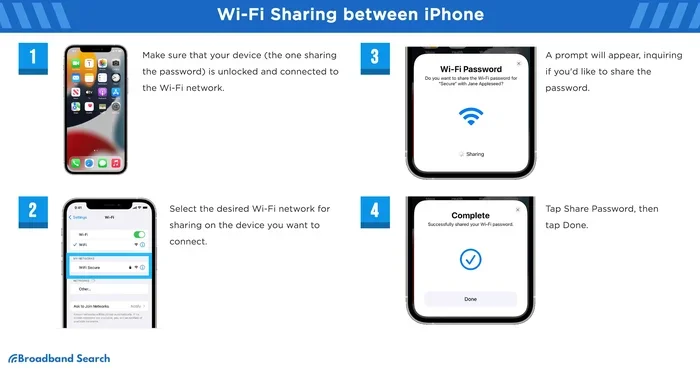
Here is how to do it on an iPhone:
- Open the Settings app on your iPhone.
- Tap on Wi-Fi.
- Find your connected network and tap the “i” icon next to it.
- Tap “Share Password” or look for the QR code option.
- Your phone will display a QR code on the screen.
- Open your laptop camera or a QR scanner and point it at the code.
- Your laptop will prompt you to connect. Click connect.
For Android users, the process is similar:
- Go to Settings, then Wi-Fi.
- Tap on the connected network.
- Look for the “Share” or “QR Code” option.
- A QR code will appear on your screen.
- Scan it with your laptop camera or a scanning app.
This method works great for quick sharing. However, it requires your phone to be near your laptop while scanning. If you need to share the code remotely, you might want to take a screenshot and send it.
Method 2: Use a Free Online QR Code Generator
If you prefer not to install apps, a free online QR code Wi-Fi generator is a great option. Websites like QRWifi, QRCode Monkey, and WiFiQRCode.com let you create a QR code in seconds.
Here is the step-by-step process:
- Open your web browser on any device.
- Go to a trusted Wi-Fi QR code generator site.
- Enter your network name (SSID).
- Select the security type (WPA2 is most common).
- Type in your Wi-Fi network password.
- Click “Generate” or “Create QR Code.”
- Download the QR code image to your device.
- Transfer the image to your laptop.
- Open the image and scan it with your laptop camera.
This method is perfect when you want to save the QR code for future use. You can print it, save it to a folder, or share it digitally. It gives you more control over the Wi-Fi sharing process.
Method 3: Use Your Router’s Built-In QR Code
Many modern routers come with a pre-generated Wi-Fi QR code printed on a sticker on the bottom or back of the device. This is the fastest method because you do not need to create anything.
Simply find the QR code on your router. Open your laptop camera or a scanning app. Point it at the sticker. Your laptop will read the network details and offer to connect. This works for both new and existing networks.
However, keep in mind that router QR codes are often generic and may not include the most recent password if you have changed it. If you have customized your wireless network credentials, you will need to use Method 1 or 2 instead.
Best Tools and Apps for Generating Wi-Fi QR Codes
Not all QR code tools are created equal. Some are free, some have ads, and some offer extra features. Here are the best options for generating Wi-Fi QR codes for laptop sharing.
Top-Rated QR Code Generators
- QRWifi (qrcode-wifi.com): A simple, free website that generates Wi-Fi QR codes instantly. No ads, no sign-up required.
- QRCode Monkey: A versatile QR code generator that supports Wi-Fi codes and allows customization of colors and logos.
- WiFi QR Code Generator by TapMedia: Available for both iOS and Android. It creates codes and lets you save or share them directly.
- Microsoft Lens: A free Microsoft app that scans QR codes and works well on Windows laptops.
- Google Lens: Built into many Android phones and available as a Chrome extension for laptops. Excellent for scanning Wi-Fi QR codes.
Comparison Table: Best Wi-Fi QR Code Tools
| Tool | Platform | Free? | Customization | Best For |
|---|---|---|---|---|
| QRWifi | Web | Yes | No | Quick, simple code generation |
| QRCode Monkey | Web | Yes | Yes | Branded or personalized codes |
| WiFi QR Code Generator | iOS, Android | Yes | Limited | Mobile-first users |
| Microsoft Lens | Windows | Yes | No | Windows laptop scanning |
| Google Lens | Android, Chrome | Yes | No | Cross-platform scanning |
Each tool serves a slightly different purpose. For most people, a simple web-based generator like QRWifi is all you need. If you want to customize the look of your QR code or add a logo, QRCode Monkey is the best choice.
Step-by-Step: Scanning a Wi-Fi QR Code on Your Laptop
Generating the code is only half the process. You also need to know how to scan it on your laptop. The method varies depending on your operating system.
Scanning on Windows 10 and 11
Windows 10 and 11 do not have a built-in QR code scanner in the camera app yet. But you have several great options:
- Use Microsoft Lens: Download the free Microsoft Lens app from the Microsoft Store. Open it, point your webcam at the QR code, and it will detect the Wi-Fi credentials automatically.
- Use Google Chrome: Open Chrome, go to the QR code image, and right-click to open Google Lens. It will read the code and offer to connect.
- Use a browser extension: Extensions like “QR Code Scanner” for Chrome let you scan codes directly from your webcam.
Once the scanner reads the code, Windows will show a prompt asking if you want to connect. Click “Connect” and your laptop joins the network instantly.
Scanning on macOS
Mac users have a slightly easier time. macOS has built-in support for QR code scanning through the Preview app and the camera:
- Use the built-in camera: Open the QR code on your phone screen. Point your Mac’s FaceTime camera at it. A notification will appear asking if you want to join the network.
- Use a third-party scanner: Apps like “QR Scanner for Mac” from the App Store work reliably for this purpose.
- Use your iPhone as a bridge: Open the QR code on your iPhone, hold it near your Mac, and the Mac may detect it automatically depending on your settings.
Scanning on Chrome OS
Chromebooks make scanning QR codes incredibly easy:
- Open the camera app on your Chromebook.
- Point it at the QR code displayed on your phone or printed page.
- A notification will pop up with the network details.
- Click the notification to connect automatically.
Chrome OS has the most seamless QR code scanning experience of all laptop platforms. If you use a Chromebook, you will love how fast this process is.
Quick Tips for Flawless Wi-Fi QR Code Sharing
Here are some practical tips that make the whole process smoother and more reliable:
- Make sure your QR code is clear and well-lit. Blurry or dark codes may not scan correctly. Hold your phone steady and ensure good lighting when displaying the code.
- Test the code before sharing it widely. Scan it yourself first to confirm it works. A small error in the encoded data can prevent connection.
- Use high-resolution images. If you download a QR code and then resize it to be very small, it may become unreadable. Keep the original resolution.
- Print codes on matte paper. Glossy paper can cause glare that interferes with scanning. Matte paper works much better for printed QR codes.
- Update your QR code when you change your password. If you change your wireless network password, regenerate the QR code immediately. Old codes with outdated passwords will not work.
- Use WPA2 or WPA3 security. These are the most widely supported security types for QR code sharing. Avoid using WEP as it is outdated and less secure.
- Keep the QR code private. Anyone who scans the code gets your network password. Do not post it publicly on social media or forums.
Common Mistakes to Avoid When Sharing Wi-Fi Passwords via QR Code
Even though this process is straightforward, some common mistakes can cause frustration. Here is what to watch out for:
Using a Low-Quality or Damaged QR Code
If the QR code image is pixelated, cropped, or damaged, your laptop will not be able to read it. Always use the full, high-resolution version of the code. Do not screenshot a tiny QR code and try to zoom in on it. The scanner needs the complete image to function correctly.
Selecting the Wrong Security Type
When generating a QR code, you must select the correct security type. If your network uses WPA2 but you select “None” in the generator, the QR code will not work. Double-check your router settings to confirm your security type before creating the code.
Forgetting to Save the QR Code
Once you generate a QR code, save it in a safe place. If you close the browser or lose the image, you will need to generate a new one. Consider saving it to a cloud folder or printing a copy for your records.
Sharing the Code Publicly
This cannot be stressed enough. A Wi-Fi QR code contains your network security key. If you post it online or in a public space, anyone can connect to your network. Always share QR codes privately and securely.
Not Testing Before Sharing
Always scan the QR code yourself before giving it to someone else. A quick test confirms that the code works and saves everyone time and frustration.
Expert Insights: The Future of Wi-Fi QR Code Sharing
Industry experts predict that QR code sharing for wireless networks will become even more seamless in the coming years. Major tech companies are working on deeper integration between devices, which means scanning and connecting may become completely automatic in the near future.
Wi-Fi Direct and QR code pairing are two technologies converging to make device setup faster than ever. Some newer routers already support one-tap QR code setup out of the box, meaning you do not even need to enter a password manually during initial setup.
Security experts also note that Wi-Fi password QR codes are generally safe as long as basic precautions are followed. The encryption of the wireless network itself (WPA2 or WPA3) is what keeps your data secure, not the QR code. The QR code is simply a convenient way to transfer the credentials.
According to networking professionals, the biggest advantage of QR code sharing is reducing human error. “Most Wi-Fi connection problems come from mistyped passwords,” says a senior network engineer. “QR codes eliminate that variable entirely, making the connection process nearly foolproof.”
Key Takeaways
- QR code sharing eliminates typing: You can share your Wi-Fi password with a laptop in seconds without manually entering long credentials.
- Multiple free tools exist: Apps and websites like QRWifi, WiFi QR Code Generator, and built-in phone features make this process simple.
- It works on all major operating systems: Windows, macOS, and Chrome OS all support scanning Wi-Fi QR codes natively or through third-party apps.
- Security stays intact: QR codes do not weaken your network security when used correctly.
- You can generate codes from your phone or router: Multiple devices can create the same QR code for the same network.
- Common mistakes are easy to avoid: Simple tips keep the process smooth and error-free every time.
Conclusion
Sharing your Wi-Fi password with a laptop using a QR code is one of the simplest and most efficient methods available today. It saves time, prevents errors, and keeps your wireless network password secure. Whether you use your smartphone, an online generator, or your router’s built-in QR code, the process is quick and straightforward.
With the right Wi-Fi QR code generator and a basic understanding of how scanning works on your laptop, you can connect any device in seconds. The methods we covered work across Windows, macOS, and Chrome OS, making them universally useful.
Remember to keep your QR codes private, test them before sharing, and update them whenever your network password changes. These small habits go a long way in keeping your Wi-Fi network security strong while enjoying the convenience of QR code sharing.
Now that you know exactly how to share your Wi-Fi password with your laptop using a QR code, give it a try. Once you experience how fast and easy it is, you will never go back to typing passwords manually again.
Frequently Asked Questions
Can I use my laptop camera to scan a Wi-Fi QR code?
Yes, most modern laptops have cameras that can scan QR codes. On Windows, you may need to use an app like Microsoft Lens. On macOS, the built-in camera can often detect QR codes directly. Chrome OS laptops have native QR code scanning through the camera app.
Is sharing my Wi-Fi password through a QR code safe?
Yes, it is safe as long as you share the QR code privately. The QR code itself does not weaken your network security. Your wireless network is protected by WPA2 or WPA3 encryption, which remains intact regardless of how you share the password.
Do I need an internet connection to scan a Wi-Fi QR code?
No, you do not need an active internet connection to scan a Wi-Fi QR code. The QR code contains all the credentials needed for your laptop to connect directly to the wireless network. However, you do need the laptop to be connected to a network to download scanning apps if you do not already have one.
Can I share a Wi-Fi QR code with someone who is not in the same room?
Absolutely. You can generate a QR code, save it as an image, and send it digitally through email, messaging apps, or cloud storage. The recipient can then download the image and scan it with their laptop camera to connect to the network.
What should I do if my laptop does not recognize the Wi-Fi QR code?
First, make sure the QR code image is clear and high resolution. Check that the security type in the code matches your network settings. Try using a different scanning app or method. Sometimes restarting your laptop’s camera app or scanner can resolve the issue.
Can I generate a Wi-Fi QR code without an app?
Yes, you can use free websites like QRWifi or QRCode Monkey directly in your browser. These tools do not require any app installation. You simply enter your network details, and the site generates a downloadable QR code image for you.