How Can I Improve My Wi Fi On My Smart Tv Right Now
Improving your Wi Fi on a Smart Tv is easier than you think. With the right setup and a few smart adjustments, you can enjoy buffer-free streaming and faster connection speeds. This guide covers everything from router placement to DNS settings that make a real difference.
Key Takeaways
- Router Placement Matters: Moving your router closer to your TV can significantly boost signal strength.
- Use the 5GHz Band: Switching to 5GHz gives you faster speeds for streaming.
- Update Firmware Regularly: Keeping your router and Smart Tv updated fixes bugs and improves performance.
- Reduce Network Congestion: Limiting connected devices frees up bandwidth for your Smart Tv.
- Try a Wired Connection: Ethernet or a powerline adapter delivers the most stable speeds.
- Change DNS Settings: Switching your DNS can speed up how your TV finds streaming content.
📑 Table of Contents
- Why Your Smart Tv Wi Fi Might Be Slow
- Check Your Current Wi Fi Speed First
- Optimize Your Router Placement
- Switch to the Right Wi Fi Band
- Reduce Network Congestion
- Update Your Router and Smart Tv Firmware
- Use a Wired Connection for the Best Performance
- Change Your DNS Settings for Faster Streaming
- Common Mistakes That Hurt Your Smart Tv Wi Fi
- When to Upgrade Your Equipment
- Quick Tips for Immediate Improvement
- Final Thoughts
Why Your Smart Tv Wi Fi Might Be Slow
You are sitting on the couch. You hit play on your favorite show. And then… the buffering wheel appears. It is frustrating. You paid for fast internet. So why does your Smart Tv Wi Fi feel so slow?
The truth is, many things affect your wireless connection. Your router location, the number of devices on your network, and even your TV settings all play a role. The good news is that most fixes are free and take just a few minutes.
In this guide, we walk you through every step to improve Wi Fi on my Smart Tv. You will learn practical tips that actually work. No tech degree needed. Just clear, simple instructions you can follow right now.
Whether you stream movies, watch live sports, or game on your TV, a strong Wi Fi connection makes all the difference. Let us dive in.
Check Your Current Wi Fi Speed First
Before you change anything, you need to know what you are working with. Testing your speed tells you if the problem is your Wi Fi or your internet plan.
How to Test Your Smart Tv Internet Speed
Most Smart TVs have a built-in network test tool. Here is how to find it:
- Go to your TV settings.
- Look for Network or Connections.
- Select Run Speed Test.
- Write down the download and upload numbers.
If your download speed is below 25 Mbps, streaming in 4K will be tough. For HD streaming, you want at least 10 Mbps. If your speeds are low, the next sections will help you fix that.
You can also test the speed on your phone or computer near the TV. This gives you a baseline. If your phone gets fast speeds but your TV does not, the problem is likely your TV or its connection.
Pro Tip: Run the speed test at different times of day. Internet speeds change based on how many people in your area are online. Evening hours often show slower speeds because everyone is streaming at once.
Optimize Your Router Placement
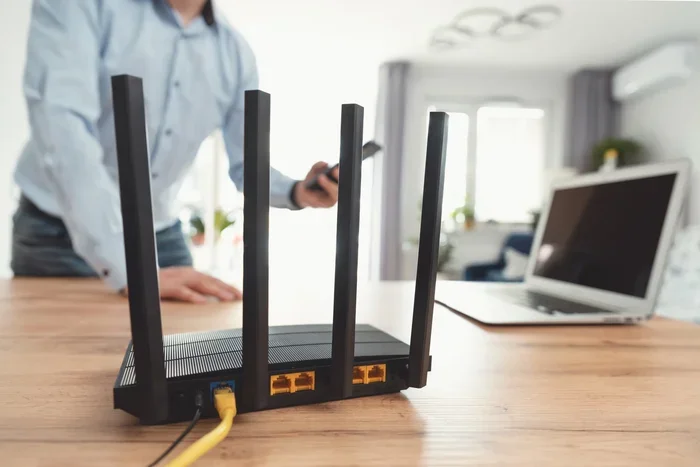
Where your router sits makes a huge difference. Many people hide their router in a closet or behind furniture. That blocks the signal. Your Smart Tv needs a clear path to receive the strongest Wi Fi signal.
Best Places for Your Router
- Central Location: Put your router in the middle of your home. This spreads the signal evenly.
- High Up: Place it on a shelf or mount it on a wall. Signals travel downward better than up through floors.
- Open Space: Keep it away from walls, metal objects, and electronics that cause interference.
- Near Your TV: If possible, move the router closer to where you watch.
Even moving your router a few feet can improve your connection. Walls, mirrors, and even fish tanks weaken the signal. Think of Wi Fi like light. It does not like obstacles in its way.
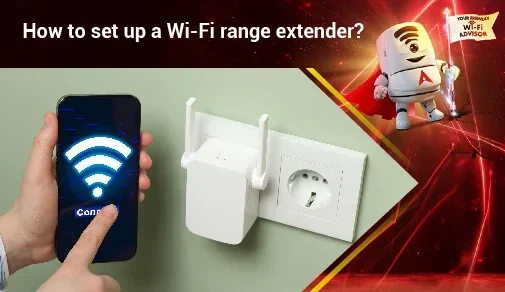
If your router is far from your living room, consider a Wi Fi extender or mesh system. These devices repeat your signal and push it further. They are affordable and easy to set up.
Switch to the Right Wi Fi Band
Most modern routers broadcast two bands: 2.4GHz and 5GHz. Each has its strengths. Understanding the difference helps you get the best performance for your Smart Tv streaming.
2.4GHz vs 5GHz: What Is the Difference?
The 2.4GHz band reaches farther but is slower. It also deals with more interference from other devices like microwaves and baby monitors. The 5GHz band is faster but has a shorter range.
For streaming, 5GHz is almost always better. It delivers the speed you need for 4K content without interruption. Here is a quick comparison:
- 2.4GHz: Longer range, slower speeds, more interference.
- 5GHz: Shorter range, faster speeds, less interference.
Check your router settings to see which band your TV is connected to. If your TV is on 2.4GHz and it is close to the router, switch it to 5GHz. You should notice an immediate improvement in streaming quality.
Some routers use band steering, which automatically assigns devices to the best band. If yours does, make sure it is turned on. This simple setting can save you a lot of trouble.
Reduce Network Congestion
Every device connected to your network uses bandwidth. Your phone, laptop, tablet, and smart home gadgets all compete for the same internet. When too many devices are active, your Smart Tv Wi Fi slows down.
How to Free Up Bandwidth
Start by checking how many devices are connected. Most router admin pages show a list of all connected devices. Look for anything you do not recognize or anything using a lot of data.
Here are easy ways to reduce congestion:
- Pause downloads on other devices while you stream.
- Disconnect devices you are not using.
- Set up Quality of Service (QoS) rules on your router.
- Limit background app updates on phones and computers.
QoS is a powerful feature. It lets you prioritize your Smart Tv over other devices. With QoS enabled, your TV gets the bandwidth it needs even when someone else is browsing the web or gaming online.
If you live with roommates or a large family, network congestion is a common problem. Setting up a guest network for visitors can help keep your main network fast and focused.
Some users find that blocking unwanted devices from their network helps a lot. If you notice unknown devices eating up your bandwidth, removing them can restore your speed quickly.
Update Your Router and Smart Tv Firmware
Firmware updates fix bugs and improve performance. Yet many people never update their router or TV software. This simple step can make a noticeable difference in your connection quality.
How to Update Your Router
Log into your router admin page. Look for a Firmware Update or Software Update section. If an update is available, install it. Your router will restart, and you may see improved stability and speed.
How to Update Your Smart Tv
Go to your TV settings and look for Software Update or System Update. Install any available updates. These often include fixes for network connectivity issues.
Keeping both devices updated also improves security. Outdated firmware can have vulnerabilities that slow down your network or even let unauthorized users access it.
Set your router to update automatically if that option exists. This way, you never miss an important patch. For your Smart Tv, check for updates once a month.
Use a Wired Connection for the Best Performance
Wi Fi is convenient, but nothing beats a wired connection for stability and speed. If you want the best possible streaming experience, consider connecting your Smart Tv directly to your router.
Options for Wired Connections
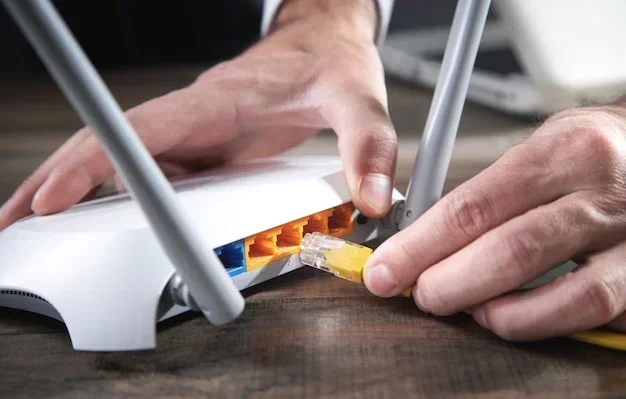
- Ethernet Cable: The most reliable option. Plug it directly from your router to your TV.
- Powerline Adapter: Uses your home’s electrical wiring to carry internet. Great if running a cable is not practical.
- MoCA Adapter: Uses your existing coaxial TV cables for a fast, stable connection.
If your TV does not have an Ethernet port, a powerline adapter is a great workaround. You plug one unit into a wall outlet near your router and connect it with a short cable. Then plug the second unit into an outlet near your TV and connect it to the TV with another cable.
Many people worry that a wired connection is too complicated. In reality, it is simple. You plug in the adapters, and your TV gets a rock-solid internet connection. No more buffering. No more dropped signals.
If you have ever struggled with connecting your PC to Wi Fi without Ethernet, you know how frustrating wireless-only connections can be. A wired setup eliminates that frustration for your TV too.
Change Your DNS Settings for Faster Streaming
DNS (Domain Name System) is like a phonebook for the internet. When you type a streaming service address, DNS translates it into an IP address. Faster DNS means your TV finds content quicker.
How to Change DNS on Your Smart Tv
Go to your TV network settings. Find the DNS option and switch from automatic to manual. Then enter a faster DNS address. Popular options include:
- Google DNS: 8.8.8.8 and 8.8.4.4
- Cloudflare DNS: 1.1.1.1 and 1.0.0.1
- OpenDNS: 208.67.222.222 and 208.67.220.220
After entering the new DNS numbers, save and test your connection. You may notice faster loading times on streaming apps like Netflix, Hulu, and Disney+.
This trick works because your ISP’s default DNS servers are often slow or overloaded. Switching to a public DNS gives you faster lookups and sometimes even better security.
Common Mistakes That Hurt Your Smart Tv Wi Fi
Avoid these common mistakes that slow down your connection:
- Ignoring Interference: Microwaves, baby monitors, and Bluetooth devices all interfere with 2.4GHz signals.
- Using an Old Router: Older routers cannot handle modern streaming speeds. Consider upgrading if yours is more than 5 years old.
- Overloading Your Network: Too many devices streaming at once will slow everything down.
- Skipping Reboots: Restarting your router once a month clears memory and refreshes connections.
- Not Using a Strong Password: Open or weak networks let neighbors use your bandwidth.
Avoiding these mistakes keeps your network running smoothly. Small habits make a big difference over time.
When to Upgrade Your Equipment
Sometimes software fixes are not enough. If you have tried everything and your connection is still poor, it may be time to upgrade your hardware.
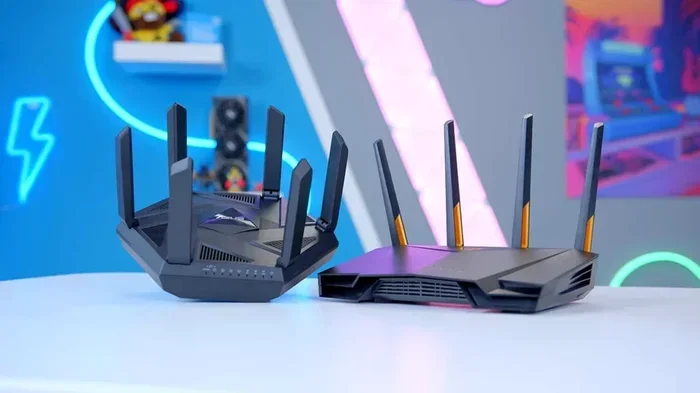
Look for a router that supports Wi Fi 6 (802.11ax). This latest standard offers faster speeds, better range, and improved handling of multiple devices. If you have a large home, a mesh Wi Fi system blankets every room with strong coverage.
For your TV, check if it supports the latest Wi Fi standards. Older TVs with Wi Fi 4 or 5 may not keep up with modern streaming demands. In some cases, a USB Wi Fi adapter can give an older TV a faster connection.
If you are dealing with persistent issues, you might also consider contacting your internet provider. They can check your line quality and suggest a better plan. Sometimes the problem is not your equipment but your internet speed tier.
Quick Tips for Immediate Improvement
Want fast results without a deep dive? Try these quick fixes right now:
- Restart your router and modem. Unplug for 30 seconds, then plug back in.
- Move your router closer to your TV.
- Switch your TV to the 5GHz band.
- Close background apps on your TV.
- Clear your Smart Tv cache and app data.
- Lower your streaming quality temporarily to test if the connection improves.
These steps take less than five minutes and often solve the most common Wi Fi problems. Start here before moving on to more advanced fixes.
Final Thoughts
Improving your Wi Fi on your Smart Tv does not require expensive equipment or technical expertise. Most fixes are free and take just a few minutes. From router placement to DNS changes, each tip in this guide targets a specific problem that slows down your streaming.
Start with the quick wins. Test your speed, move your router, and switch to 5GHz. Then work through the more advanced steps if needed. Update your firmware, reduce congestion, and consider a wired connection for the best results.
Remember, a strong home network benefits every device. When you optimize your Wi Fi for your Smart Tv, everyone in your household enjoys better internet. Your phones, laptops, and tablets all get a faster, more reliable connection too.
Take action today. Pick one or two tips from this guide and try them now. You will be surprised how much better your streaming experience can be. No more buffering. No more frustration. Just smooth, high-quality streaming that makes your movie nights and binge sessions enjoyable again.
Your Smart Tv deserves a fast, stable connection. With the right setup, you will get one. Happy streaming!
Frequently Asked Questions
Why does my Smart Tv keep disconnecting from Wi Fi?
Frequent disconnections are usually caused by a weak signal or outdated firmware. Move your router closer to the TV and update both your router and TV software. If the problem continues, interference from other electronics or an overloaded network may be the cause.
Is it better to use Wi Fi or Ethernet for a Smart Tv?
Ethernet provides a more stable and faster connection than Wi Fi. It eliminates signal drops and interference. However, if running a cable is not possible, optimizing your Wi Fi with the tips in this guide can get you very close to wired performance.
How can I boost my Wi Fi signal to reach my Smart Tv?
Move your router closer to the TV, switch to the 5GHz band, and remove physical obstacles between the router and TV. A Wi Fi extender or mesh system can also push the signal further into your home.
Does a Wi Fi booster really work for Smart TVs?
Yes, a Wi Fi booster or extender can improve signal strength in areas far from your router. Choose a booster that supports the same Wi Fi standard as your router for the best results. Placement is key, so put the booster halfway between your router and TV.
What internet speed do I need for 4K streaming on my Smart Tv?
For smooth 4K streaming, aim for at least 25 Mbps download speed. Netflix and other streaming services recommend 15 Mbps minimum for 4K. If your speed test shows lower numbers, upgrading your internet plan or optimizing your network can help.
Can too many devices slow down my Smart Tv Wi Fi?
Absolutely. Every device connected to your network uses bandwidth. Streaming, gaming, and downloads all compete for the same connection. Reducing the number of active devices or using QoS settings can prioritize your Smart Tv for the best performance.
=== CONCLUSION ===
You now have everything you need to improve Wi Fi on your Smart Tv. Start with the quick tips, work through the optimization steps, and enjoy a better streaming experience. A fast, stable connection transforms how you watch your favorite shows and movies.