How Can I Connect To My Router Settings Right Here
Connecting to your router settings is simpler than most people think. You just need your router’s IP address, a web browser, and your login details. This guide walks you through every step to access your router settings, configure your network, and troubleshoot common problems like a pro.
Have you ever wanted to tweak your home network but did not know where to start? Maybe your Wi-Fi keeps dropping, or you want to change your network name and password. Whatever the reason, knowing how to connect to your router settings puts you in charge of your internet experience. You do not need to be a tech expert. This guide shows you exactly how to do it right here, step by step.
Your router is the brain of your home network. It controls who gets access, how fast your connection runs, and what devices can join. When you learn to access the router admin panel, you unlock a world of customization. You can boost your signal, block unwanted guests, and even set up parental controls. Let us dive in and make this easy for you.
Key Takeaways
- Easy Access: You can reach your router settings using a simple web browser and your default gateway IP address.
- Default Login Info: Most routers use common default usernames and passwords printed on the device label.
- Key Settings You Can Change: Wi-Fi name, password, security mode, DNS, and port forwarding are all accessible from the router dashboard.
- Troubleshooting Tips: Resetting your router, checking cables, and updating firmware can fix most connection issues.
- Security Matters: Always change default credentials and enable WPA3 or WPA2 encryption for a safe network.
- No Special Software Needed: You do not need any extra apps or tools to access your router configuration page.
📑 Table of Contents
What Are Router Settings and Why Do They Matter?
Router settings are the controls that manage how your home network works. Think of them as the control room for your internet. Every router has a built-in dashboard where you can adjust everything from your Wi-Fi password to your network security level.
When you access your router settings, you can do things like:
- Change your Wi-Fi network name (also called SSID)
- Set a new Wi-Fi password
- Update your router firmware
- Manage connected devices
- Adjust DNS settings for faster browsing
- Set up port forwarding for gaming or remote access
- Enable or disable guest networks
- Control bandwidth usage
These settings matter because they directly affect your internet speed, security, and reliability. A poorly configured router can slow down your whole household. On the other hand, a well-tuned router delivers fast, stable connections to every device. Whether you are setting up a new home or fixing a stubborn connection issue, your router configuration page is where the magic happens.
How to Connect to Your Router Settings
Step 1: Find Your Router’s IP Address
The first step is finding your router’s IP address. This is also called the default gateway. It is the web address you type into your browser to reach the login page. Every router has one, and it is usually printed on a sticker on the back or bottom of the device.
Here is how to find it on different devices:
- On Windows: Open the Command Prompt. Type “ipconfig” and press Enter. Look for “Default Gateway.” That is your router IP.
- On Mac: Go to System Settings, then Network. Click on your Wi-Fi connection. Your router IP is listed next to “Router.”
- On iPhone or iPad: Go to Settings, tap Wi-Fi, and tap the “i” icon next to your network. Scroll down to find the router address.
- On Android: Go to Settings, then Network and Internet, then Wi-Fi. Tap your connected network and look for “Gateway.”
The most common router IP addresses are 192.168.0.1, 192.168.1.1, or 10.0.0.1. If none of these work, check your router label or the manual.
Step 2: Open Your Web Browser
You do not need any special software to access your router admin panel. Any web browser works. Chrome, Firefox, Safari, Edge, or even Opera. Just open your browser and type the router IP address into the address bar at the top of the screen.
Make sure you type it correctly. A single wrong number will send you to the wrong page. Press Enter, and you should see a login screen. This is your router dashboard waiting to be explored.
Step 3: Enter Your Login Credentials
Now you need a username and password. Most routers come with default login details. These are also printed on the router label. Common defaults include:
- Username: admin, Password: admin
- Username: admin, Password: password
- Username: admin, Password: 1234
If you changed your credentials before but forgot them, do not worry. You can reset your router to factory settings. Just press and hold the small reset button on the back of the router for about 10 to 15 seconds. This restores the default login info. Keep in mind that resetting also erases all your custom settings, so use this as a last resort.
Step 4: Explore the Router Dashboard
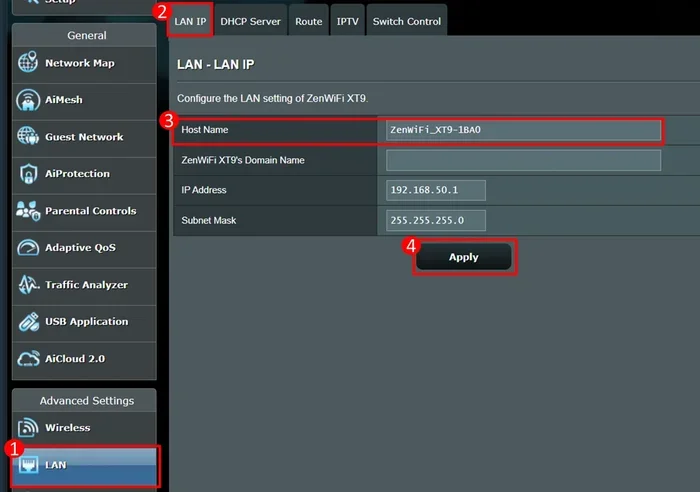
Once you log in, you are inside the router settings menu. The layout depends on your router brand. Brands like Netgear, TP-Link, ASUS, and Linksys each have their own interface. But the core options are similar across all of them.
Look for sections like “Wireless Settings,” “Network Settings,” “Security,” or “Advanced.” Each one lets you adjust different parts of your network. For example, under Wireless Settings, you can change your Wi-Fi name and password. Under Security, you can choose your encryption type like WPA2 or WPA3.
Take your time exploring. You do not need to change everything at once. Start with the basics and build from there. If something looks confusing, write down what you want to change before you touch the settings. This keeps you from getting lost.
Common Router Settings You Should Know About
Wireless Network Name and Password
This is the most common reason people access their router settings. You can rename your Wi-Fi network to something recognizable. You can also set a strong password to keep strangers out. A good password mixes letters, numbers, and symbols. Aim for at least 12 characters.
If you are adding a new device like a laptop or smart TV, you will need the updated password. Changing it regularly also improves your network security. Make it a habit to update your Wi-Fi password every few months.
Network Security and Encryption
Your router lets you choose how your Wi-Fi signal is protected. The options usually include WEP, WPA, WPA2, and WPA3. WPA3 is the newest and most secure. If your router supports it, use it. WPA2 is also solid and works with almost all devices.
Avoid WEP at all costs. It is outdated and easy to crack. Even if your router only offers WEP, consider upgrading to a newer model. Your internet connection settings depend heavily on the security protocol you choose.
DNS Settings
DNS stands for Domain Name System. It translates website names into IP addresses that computers understand. By default, your router uses your internet provider’s DNS servers. But you can switch to faster ones like Google DNS (8.8.8.8) or Cloudflare DNS (1.1.1.1). This can make your browsing feel noticeably faster.
You will find DNS settings under the “WAN” or “Internet” section of your router dashboard. Just enter the new DNS numbers and save. Your devices will start using the new servers within minutes.
Firmware Updates
Router firmware is the software that runs your device. Manufacturers release updates to fix bugs, improve speed, and patch security holes. Keeping your firmware up to date is one of the best things you can do for your network.
Look for a “Firmware Update” or “Router Update” option in the settings. Some routers update automatically. Others require you to download the update file and upload it manually. Check for updates at least once a month.
Connected Devices and Bandwidth
Most router dashboards show a list of devices currently connected to your network. This is handy if you want to see who is using your internet. You might spot a device you do not recognize, which could mean someone is using your Wi-Fi without permission.
If you find an unknown device, you can block it right from the dashboard. You can also set bandwidth limits to make sure no single device hogs all the speed. This is especially useful in households with multiple streamers or gamers.
Troubleshooting: What to Do When You Cannot Connect
Sometimes things do not go as planned. You type the IP address into your browser, and nothing happens. Or you enter the login details and get an error. Here is what to do when you run into trouble.
Check Your Connection
Make sure your device is connected to the router. You can use a Wi-Fi connection or plug in with an Ethernet cable. A wired connection is more reliable when accessing router settings. If you are trying to add Wi-Fi to your PC and it is not showing up, a wired connection to the router is your best bet for accessing the settings page.
Try a Different Browser
Some browsers have settings that interfere with router login pages. If Chrome does not work, try Firefox or Edge. Clearing your browser cache can also help. Sometimes old cached data conflicts with the router dashboard.
Disable VPN or Proxy
If you use a VPN or proxy service, it might block access to your router’s local IP address. Turn it off temporarily and try again. Once you are done with your settings, you can turn it back on.
Restart Your Router
A simple restart fixes more problems than people realize. Unplug your router, wait 30 seconds, and plug it back in. Wait a minute or two for it to fully boot up. Then try accessing the settings again.
Factory Reset
If nothing else works, you can perform a factory reset. Use a paperclip or pin to press the reset button on the back of the router. Hold it for 10 to 15 seconds. The router will reboot and return to its original settings. You will need to set up your Wi-Fi name and password again after this.
Tips for Securing Your Router Settings
Once you have access to your router settings, the first thing you should do is lock things down. Here are some quick tips to keep your network safe.
- Change the default admin password. Most routers use the same default login for all users. Hackers know these defaults. Create a unique, strong password for your router admin account.
- Use WPA3 or WPA2 encryption. Never leave your network open or use WEP. Strong encryption keeps unauthorized users out.
- Disable remote management. This feature lets people access your router settings from outside your home. Unless you need it, turn it off.
- Keep firmware updated. Updates patch security vulnerabilities. An outdated router is an easy target.
- Hide your SSID. You can choose to hide your Wi-Fi network name so it does not show up in the list of available networks. This adds a layer of obscurity.
- Set up a guest network. If friends or visitors need Wi-Fi, give them access to the guest network. This keeps your main network and devices private.
Taking these steps only takes a few minutes. But they make a huge difference in protecting your home network. You do not need to be a cybersecurity expert. Just a few small changes go a long way.
When to Consider Upgrading Your Router
Sometimes the best fix is a new router. Older models may not support the latest Wi-Fi standards or security protocols. If your router is more than five years old, it might be time to look at replacements.
If you are renting a modem-router combo from your internet provider, you might want to buy your own. You can buy a router and install it yourself with just a few simple steps. Owning your own router gives you more control and often better performance. You also save money in the long run by avoiding monthly rental fees.
Before buying a new router, check what your internet plan supports. A gigabit plan needs a router that can handle those speeds. Look for routers that support Wi-Fi 6 or Wi-Fi 6E for the best performance. Brands like ASUS, Netgear, and TP-Link offer excellent options at various price points.
Also, consider your home size. A small apartment may only need a single router. A larger home with multiple floors might benefit from a mesh system or an additional access point. If you already have a router and want to extend coverage, you can add mesh Wi-Fi to an existing router to boost the signal throughout your home without replacing everything.
Your router settings are the foundation of your home network. Taking the time to understand them pays off in faster speeds, better security, and fewer headaches. Whether you are a casual user or a power user, the knowledge you gain from this guide puts you ahead of the curve.
Remember, your router is not just a box that blinks. It is the gateway to everything you do online. Take control of it. Explore the settings, make adjustments, and enjoy a better internet experience. You have everything you need to get started right here.
Final Thoughts
Connecting to your router settings does not have to be scary. With the right steps, it is quick and straightforward. You just need your router’s IP address, a browser, and a few minutes of your time. Once inside, you can customize your network, improve security, and boost performance.
Start with the basics. Change your default password, update your Wi-Fi name, and check for firmware updates. These small wins build confidence. From there, you can explore more advanced settings like DNS, port forwarding, and device management. Every adjustment you make makes your network better.
Keep this guide bookmarked. You will come back to it whenever you need to tweak something. And if you ever get stuck, just follow the troubleshooting steps. You will be back in control of your network in no time.
Your home network is yours to manage. Now you have the knowledge and the tools to do it right. Happy configuring!
Frequently Asked Questions
What is the default IP address for most routers?
The most common default IP addresses are 192.168.0.1, 192.168.1.1, and 10.0.0.1. You can also find your router IP by checking the label on the back of the device or by using the ipconfig command on Windows.
Can I access my router settings from a phone or tablet?
Yes, you can. As long as your phone or tablet is connected to the router’s network, you can open a browser and type in the router IP address. The process is the same as on a computer.
What should I do if I forgot my router admin password?
You can perform a factory reset by pressing the reset button on the back of the router for 10 to 15 seconds. This restores the default login credentials. You will need to reconfigure your Wi-Fi settings after the reset.
Is it safe to change router settings?
Yes, it is safe as long as you know what you are changing. Stick to the settings you understand, and write down any changes you plan to make before you start. Avoid changing advanced settings unless you are confident in what they do.
How often should I update my router firmware?
You should check for firmware updates at least once a month. Many modern routers update automatically, but it is still a good idea to check manually. Updated firmware improves security and performance.
Can I connect to my router settings without being on the same network?
Generally, no. You need to be connected to the router’s network either through Wi-Fi or an Ethernet cable. Some routers offer remote management, but this feature is disabled by default for security reasons.
=== CONCLUSION ===
Learning to connect to your router settings is one of the best things you can do for your home network. It gives you control, improves security, and helps you get the most out of your internet connection. You do not need expensive tools or technical skills. Just a browser, your router IP, and a few minutes of patience.
Start today. Log in, explore the dashboard, and make the changes that matter to you. Your network, your rules. Enjoy the freedom of managing your own router configuration like a pro.
Thank you for reading, and happy networking!