Does Xfinity Mobile Automatically Connect to Xfinity Wifi
Does Xfinity Mobile automatically connect to Xfinity WiFi? The short answer is yes, but with some important caveats. Xfinity Mobile is designed to seamlessly switch between cellular data and Xfinity WiFi hotspots when available. However, your phone settings, account configuration, and location all play a role in how this auto-connect feature behaves in real life.
You walk into a coffee shop, a shopping mall, or even your own living room. Your phone connects to WiFi almost instantly. But have you ever wondered how that actually works with Xfinity Mobile? Does Xfinity Mobile automatically connect to Xfinity WiFi without you lifting a finger? This is a question many Xfinity Mobile users ask, and the answer is more interesting than you might think.
The short answer is yes. Xfinity Mobile is built to automatically detect and connect to available Xfinity WiFi networks. But there are settings, exceptions, and little-known details that can change how this works on your specific device. Whether you are trying to save mobile data, improve speeds, or just understand what your phone is doing in the background, this guide covers everything you need to know about Xfinity Mobile WiFi auto-connect.
Key Takeaways
- Auto-Connect Is Built In: Xfinity Mobile phones are designed to automatically detect and join Xfinity WiFi networks when in range.
- Settings Matter: Your phone’s WiFi preferences can override the default auto-connect behavior, so checking settings is essential.
- Not All Hotspots Are Equal: Xfinity WiFi hotspots at home, in public, and on the go behave differently when auto-connecting.
- Troubleshooting Is Simple: Most connection issues can be fixed by toggling settings, updating the Xfinity app, or resetting network preferences.
- Data Savings Are Real: Auto-connecting to WiFi helps reduce cellular data usage and keeps your bill manageable.
- Security Is Built In: Xfinity WiFi hotspots use encrypted connections, making auto-connect safe for everyday use.
📑 Table of Contents
- What Is Xfinity Mobile and How Does It Work?
- How Does Xfinity Mobile Handle WiFi Connections?
- How to Check and Manage Auto-Connect Settings
- Troubleshooting Common Connection Issues
- Xfinity Mobile WiFi vs. Other Carriers
- Tips for Getting the Best WiFi Experience
- Common Mistakes That Break Auto-Connect
- Is Auto-Connect Safe and Secure?
- Final Thoughts
What Is Xfinity Mobile and How Does It Work?
Xfinity Mobile is a wireless carrier service run by Comcast. It uses Verizon’s cellular network for coverage and Comcast’s own WiFi hotspots for data offloading. This hybrid approach means your phone can switch between cellular data and WiFi hotspots depending on what is available. The goal is simple: give you reliable connectivity while keeping your data usage low.
When you sign up for Xfinity Mobile, you get access to millions of WiFi hotspots across the country. These include hotspots in homes, businesses, and public spaces that are part of the Xfinity WiFi network. Your phone is pre-configured to recognize these networks and connect to them automatically. This is the foundation of the auto-connect feature.
How the Auto-Connect Feature Works
Here is what happens behind the scenes when you turn on your Xfinity Mobile phone:
- Your phone scans for available WiFi networks in the background.
- It checks if the network is an Xfinity WiFi hotspot.
- If it recognizes the network, it connects automatically, even if the screen is locked.
- Once connected, your phone shifts data traffic to the WiFi network.
- When you leave the hotspot range, it switches back to cellular data seamlessly.
This whole process happens in seconds. You rarely notice it happening. That is exactly how it should work. But sometimes things do not go as planned, and that is where understanding the settings becomes important.
How Does Xfinity Mobile Handle WiFi Connections?
Xfinity Mobile uses a technology called WiFi Assistant or WiFi Passpoint to manage connections. This is a standard feature in modern smartphones that allows your phone to connect to WiFi networks securely without you needing to type in a password every time. The system works through something called WPA2-Enterprise, which is a more secure form of WiFi encryption.
Not all WiFi connections are the same. Xfinity has different types of hotspots:
- Home Hotspots: These are the WiFi routers in Xfinity customer homes. They broadcast a separate network that Xfinity Mobile users can join.
- Public Hotspots: Found in cafes, airports, parks, and stores. These are open Xfinity WiFi networks that anyone with Xfinity Mobile can access.
- Xfinity WiFi Passpoints: These are secure networks that require authentication through your Xfinity account. They offer the best speeds and security.
Your phone handles each type slightly differently. Home hotspots and passpoints usually auto-connect without any issues. Public hotspots may require a one-time acceptance of terms before connecting. After that first time, your phone remembers the network and connects automatically next time.
Does the Xfinity App Play a Role?
Yes, the Xfinity app is a big part of the auto-connect experience. The app manages your WiFi profile and stores your login credentials securely. It also keeps your phone updated on new hotspots and network changes. If you have not installed the Xfinity app, you should. It is free and makes managing your connection much easier. You can also use the app to block devices from using your WiFi if you ever need to manage your home network more closely.
How to Check and Manage Auto-Connect Settings
Even though Xfinity Mobile is designed to auto-connect, your phone’s settings can change how this works. Sometimes auto-connect gets turned off by accident. Other times, a software update resets your preferences. Knowing where to look and what to check can save you a lot of frustration.
Checking WiFi Auto-Connect on iPhone
If you are using an iPhone with Xfinity Mobile, here is how you check the auto-connect setting:
- Open the Settings app on your iPhone.
- Tap on WiFi.
- Find the Xfinity WiFi network in your list of saved networks.
- Tap the info icon (the small “i” next to the network name).
- Make sure the Auto-Join toggle is turned on.
If Auto-Join is off, your phone will not connect to Xfinity WiFi automatically. You would need to manually select the network each time. This is one of the most common reasons people think auto-connect is not working.
Checking WiFi Auto-Connect on Android
For Android phones, the steps are slightly different:
- Open Settings and go to Network Internet or Connections.
- Tap on WiFi.
- Find the Xfinity network and tap on it or tap the gear icon.
- Look for the Auto-Connect or Connect automatically option.
- Make sure it is enabled.
Some Android phones also have a WiFi preferences section where you can choose to connect to open networks automatically. This setting can affect how your phone behaves with Xfinity public hotspots.
What If Auto-Connect Still Does Not Work?
If you have checked your settings and auto-connect still does not work, try these steps:
- Toggle WiFi off and back on.
- Restart your phone completely.
- Forget the Xfinity WiFi network and reconnect from scratch.
- Update the Xfinity app to the latest version.
- Check for phone software updates.
- Reset your network settings (this clears all saved WiFi networks).
These steps solve the problem in most cases. If none of them work, there may be a network or account issue that requires contacting Xfinity support.
Troubleshooting Common Connection Issues
Even with the best technology, things can go wrong. Xfinity Mobile auto-connect is reliable, but it is not perfect. Understanding common issues and their fixes helps you stay connected without unnecessary stress.
Your Phone Connects Slowly to Xfinity WiFi
Slow connections are often caused by distance from the hotspot or network congestion. If you are in a crowded area like a stadium or a busy mall, the hotspot may be overloaded. Moving closer to the hotspot usually fixes this. Also, check that your phone is not stuck on an older WiFi band. Switching to the 5GHz band can improve speeds significantly.
Your Phone Connects But Has No Internet
This happens more often than you might think. The phone shows it is connected to the Xfinity WiFi network, but you cannot browse the web or use apps. This is usually a captive portal issue. A captive portal is a login page that appears before you can use the network. Try opening a web browser and visiting any website. The login page should appear. After you accept the terms or log in, your internet should start working.
Your Phone Switches Between WiFi and Cellular Data Constantly
This can be annoying and drain your battery. It usually happens when the WiFi signal is weak but still present. Your phone keeps trying to stay on WiFi even though the connection is too poor to be useful. You can fix this by enabling the “Switch to Mobile Data” feature on your phone. This tells your phone to move back to cellular data when WiFi is too weak. On iPhone, go to Settings, then Cellular, and look for WiFi Assist. On Android, look for Adaptive Connectivity or WiFi Preferences in your settings.
You Cannot Find Xfinity WiFi Networks at All
If your phone is not detecting any Xfinity WiFi networks, the issue might be with your WiFi radio or your account settings. First, make sure WiFi is turned on and your phone is not in Airplane Mode. Next, check that your Xfinity account is active and that your service includes WiFi hotspot access. Sometimes a simple account refresh through the Xfinity app fixes detection issues.
Xfinity Mobile WiFi vs. Other Carriers
How does Xfinity Mobile auto-connect compare to other carriers? This is a fair question, especially if you are considering switching or just curious about the competition.
| Feature | Xfinity Mobile | Other Carriers |
|---|---|---|
| Auto WiFi Connect | Yes, built in | Varies by carrier |
| Hotspot Network Size | Millions of hotspots | Smaller networks |
| Seamless Switching | Yes, cellular to WiFi | Sometimes requires manual |
| Home Hotspot Access | Yes, via Xfinity home WiFi | Rarely available |
| WiFi Security | WPA2-Enterprise | Varies |
| App Support | Xfinity app manages everything | Different apps |
Xfinity Mobile has a clear advantage when it comes to WiFi integration. The combination of a large home WiFi network and public hotspot access is hard to beat. Other carriers offer WiFi calling or WiFi assistants, but few provide the same level of seamless integration that Xfinity does. This is one of the strongest selling points of the Xfinity Mobile service.
If you are interested in setting up your own WiFi network to work alongside Xfinity Mobile, you might want to explore options like adding mesh WiFi to your existing router for better home coverage. Strong home WiFi means your phone auto-connects faster and stays connected longer when you are at home.
Tips for Getting the Best WiFi Experience
Getting the most out of Xfinity Mobile WiFi auto-connect is easy when you follow a few best practices. These tips help you stay connected, save data, and enjoy faster speeds.
Keep Your Xfinity App Updated
The Xfinity app is the central hub for managing your WiFi connections. Updates often include improvements to auto-connect reliability and new features. Make sure automatic app updates are turned on in your phone settings.
Enable WiFi in Public Places
Even if you do not need WiFi right away, keeping it on allows your phone to detect and auto-connect to Xfinity hotspots. Turning WiFi off to save battery is tempting, but it means you miss out on automatic connections that could save your cellular data.
Monitor Your Data Usage
One of the biggest benefits of auto-connecting to Xfinity WiFi is data savings. Keep an eye on your data usage through the Xfinity app. You will likely notice a significant reduction in cellular data consumption when you are regularly connecting to hotspots.
Use WiFi Calling When Available
WiFi calling lets you make calls over WiFi instead of cellular networks. This is especially useful in areas with weak cellular coverage but strong WiFi signals. Check your phone settings to make sure WiFi calling is enabled for the best experience.
Secure Your Home Network
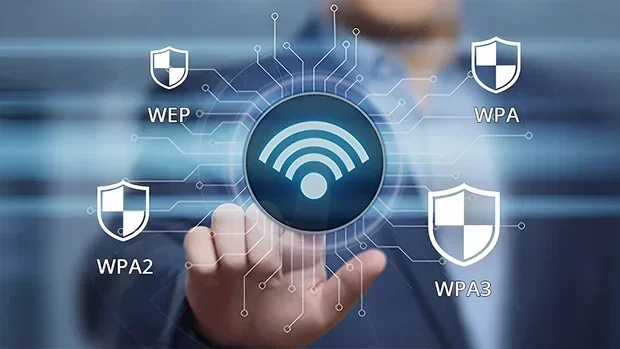
If you have Xfinity home WiFi, make sure your network is properly secured. Use a strong password and enable WPA3 encryption if your router supports it. This protects your network while still allowing your Xfinity Mobile device to auto-connect without issues.
Consider a WiFi Extender for Hard-to-Reach Areas
If certain parts of your home have weak WiFi signals, a WiFi extender can help. Your phone will auto-connect more reliably when the signal is strong. You can also extend your WiFi with an Ethernet cable to improve coverage in distant rooms.
Common Mistakes That Break Auto-Connect
There are a few mistakes that Xfinity Mobile users make that break the auto-connect feature. Avoiding these can save you a lot of troubleshooting time.
- Turning off WiFi completely: This is the most obvious one. If WiFi is off, your phone cannot auto-connect to any network.
- Forgetting the network: Sometimes people remove Xfinity WiFi from their saved networks by accident. This clears the auto-connect profile.
- Ignoring app updates: Outdated apps can cause connection bugs. Always keep the Xfinity app current.
- Disabling background data: Auto-connect needs background data access to scan for networks. If you restrict background data, auto-connect may fail.
- Not accepting terms on public hotspots: Some public Xfinity WiFi networks require you to accept terms once. Skipping this step means your phone will not auto-connect next time.
By avoiding these mistakes, you keep your auto-connect feature running smoothly. It takes just a few minutes to check your settings and make sure everything is configured correctly.
Is Auto-Connect Safe and Secure?
Security is a valid concern when it comes to auto-connecting to WiFi networks. The good news is Xfinity WiFi hotspots use enterprise-grade encryption. Your data is protected when you connect to Xfinity WiFi. The auto-connect process uses secure authentication through your Xfinity account, so you do not need to worry about connecting to fake or rogue networks.
That said, it is always smart to be cautious. Avoid entering sensitive information on public WiFi networks when possible. Use a VPN if you are handling confidential data. For everyday browsing, streaming, and social media, Xfinity WiFi auto-connect is perfectly safe.
Final Thoughts
So, does Xfinity Mobile automatically connect to Xfinity WiFi? Yes, it does. The auto-connect feature is one of the best parts of the Xfinity Mobile experience. It works behind the scenes to keep you connected, save your data, and give you faster speeds whenever a hotspot is available. By understanding how it works and knowing how to manage your settings, you can get the most out of this feature every single day.
Take a few minutes today to check your auto-connect settings. Make sure the Xfinity app is updated. And keep your WiFi turned on when you are out and about. These small steps make a big difference in your daily connectivity experience. Xfinity Mobile was designed to make your life easier, and auto-connect to WiFi is a big part of that promise.
Frequently Asked Questions
Why does my Xfinity Mobile phone not auto-connect to Xfinity WiFi?
This is usually caused by a settings issue. Check that Auto-Join is enabled in your WiFi settings and that the Xfinity app is up to date. Sometimes a simple restart or forgetting the network and reconnecting fixes the problem.
Can I turn off automatic WiFi connection on Xfinity Mobile?
Yes, you can. On iPhone, go to Settings, tap WiFi, find the Xfinity network, and turn off Auto-Join. On Android, go to WiFi settings, find the network, and disable the Connect automatically option. This gives you manual control over when your phone joins a hotspot.
Does Xfinity Mobile auto-connect work outside the home?
Yes, it works anywhere there is an Xfinity WiFi hotspot. This includes public places like cafes, airports, and shopping centers. The Xfinity network has millions of hotspots across the country, so auto-connect works in many locations outside your home.
Is Xfinity WiFi auto-connect free for Xfinity Mobile users?
Yes, Xfinity Mobile users get free access to Xfinity WiFi hotspots as part of their service plan. There is no extra charge for connecting to or using these hotspots. This is included in your monthly Xfinity Mobile bill.
How do I know if my phone is connected to Xfinity WiFi or using cellular data?
Check the top of your phone screen. You will see a WiFi icon if connected to WiFi. On iPhone, the WiFi icon appears in the status bar. On Android, it is similar. You can also open the Xfinity app to see which network your phone is currently using.
Can I use Xfinity WiFi auto-connect while traveling internationally?
Xfinity WiFi hotspots are primarily available in the United States. Auto-connect will not work internationally unless you are in an area with Xfinity WiFi coverage. For international travel, you will rely on cellular data or local WiFi networks.
=== CONCLUSION ===
Does Xfinity Mobile automatically connect to Xfinity WiFi? Absolutely. The auto-connect feature is one of the standout benefits of Xfinity Mobile, giving you seamless access to millions of WiFi hotspots without any manual effort. By keeping your settings configured correctly, your app updated, and your WiFi enabled, you can enjoy fast, reliable connectivity wherever you go. Take control of your connection today and let Xfinity Mobile handle the rest.