Does A Wi Fi Adapter Need A Router Or Can It Work Alone
A Wi-Fi adapter does not need a router to connect to the internet directly, but it still relies on a router or hotspot to access wireless networks. Think of the adapter as the antenna on your device and the router as the source of the signal. Without a router or some form of wireless access point, your adapter has nothing to connect to. This guide breaks down exactly how Wi-Fi adapters work, when you need a router, and when you don’t.
Have you ever plugged a Wi-Fi adapter into your computer and wondered if a router is really necessary? It is a fair question. After all, the whole point of a wireless adapter is to get you online without cables. But the truth is that the relationship between a Wi-Fi adapter and a router is more nuanced than most people think.
In this article, we will walk through everything you need to know. You will learn what a Wi-Fi adapter actually does, why routers are so common in the setup, and whether you can skip the router entirely. We will also cover different types of adapters, setup tips, and common mistakes to avoid. By the end, you will have a clear picture of how your wireless connection really works.
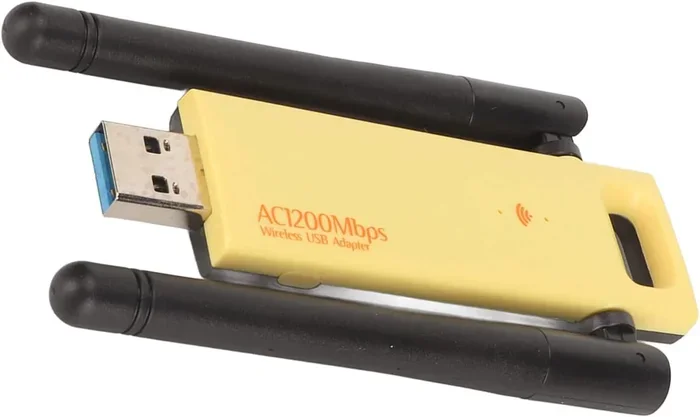
A Wi-Fi adapter is a small hardware component that lets your device communicate with a wireless network. It can be a USB stick, a PCIe card installed inside your desktop, or even a built-in chip on your laptop’s motherboard. The adapter sends and receives radio signals that carry data back and forth between your device and the network. Without it, your computer or phone would have no way to pick up a wireless signal.
Think of the adapter like a radio tuner. A radio tuner picks up radio waves and turns them into music. A Wi-Fi adapter picks up wireless signals and turns them into data your computer can use. But just like a radio needs a station to broadcast, your adapter needs something to broadcast the signal. That is where the router comes in, most of the time.
Key Takeaways
- A Wi-Fi adapter connects your device to wireless networks but usually needs a router or hotspot to do so.
- Some adapters can connect directly to a modem or create an ad-hoc network without a traditional router.
- USB Wi-Fi adapters and internal PCIe cards work the same way but differ in convenience and performance.
- Your internet service provider (ISP) equipment often includes a built-in router, which makes the external router optional.
- Setting up the right adapter and driver combination ensures the best wireless performance.
- Guest networks and public hotspots are examples of Wi-Fi access points that are not traditional routers.
📑 Table of Contents
What Does A Wi-Fi Adapter Do?
A Wi-Fi adapter handles the wireless side of your internet connection. It takes the digital data from your computer and converts it into radio waves. Then it sends those waves through the air. On the receiving end, another adapter (usually inside a router) picks up those waves and converts them back into data. This two-way process happens millions of times per second.
Here are the main jobs a Wi-Fi adapter performs:
- Transmitting data: It sends your requests, downloads, and uploads over the air.
- Receiving data: It picks up data from the network and delivers it to your device.
- Encoding and decoding: It translates digital signals into wireless formats and back.
- Managing connections: It handles authentication, encryption, and network switching.
- Boosting signal strength: Better adapters can maintain stronger connections over longer distances.
The quality of your adapter directly affects your internet speed and connection stability. A cheap or outdated adapter will struggle with fast networks, while a modern one can take full advantage of Wi-Fi 6 or even Wi-Fi 7 speeds. If you have ever wondered why your internet feels slow even though your plan is fast, the adapter might be the bottleneck.
Does A Wi-Fi Adapter Need A Router?
The short answer is: usually, yes. The longer answer is: it depends on your setup. A Wi-Fi adapter needs a wireless access point to connect to the internet. In most homes, that access point is a router. But a router is not the only device that can serve this role.
Here is how it works. Your internet service provider (ISP) delivers internet to your home through a modem. The modem converts the signal from your ISP into a format your devices can use. A router then takes that signal and broadcasts it wirelessly so your adapter can pick it up. In many cases, your ISP provides a modem-router combo unit. This means the router is built right into the modem, and you cannot separate them easily.
So when people ask, “Does a Wi-Fi adapter need a router?” they are really asking, “Does my wireless setup need a device that broadcasts a wireless signal?” And the answer to that is always yes. The wireless access point is essential. Whether that access point is a dedicated router or a combo modem-router unit, something has to create the wireless network your adapter connects to.
When You Do Need A Router
There are clear situations where a router is necessary for your Wi-Fi adapter to work:
- Standard home setup: You have a modem from your ISP and a separate router that broadcasts Wi-Fi.
- Multiple devices: You want several devices to connect to the same network wirelessly.
- Range extension: You need a router to cover a larger area with a strong wireless signal.
- Security features: You want firewalls, guest networks, and parental controls built into your network.
In all of these cases, your Wi-Fi adapter connects to the router, and the router connects to the modem. The chain is modem to router to adapter. Without the router in the middle, there is no wireless network for your adapter to join.
When You Do Not Need A Traditional Router
There are also situations where a traditional router is not required. Here are a few examples:
- Direct modem connection: Some modems have built-in wireless capabilities. In this case, the modem itself acts as the router, and your adapter connects directly to it.
- Mobile hotspot: You can use your phone as a hotspot. Your Wi-Fi adapter connects to your phone’s hotspot instead of a router. This is a great option when you are traveling or troubleshooting.
- Ad-hoc network: Two devices can connect directly to each other wirelessly without a router. This is called an ad-hoc or peer-to-peer connection. It is slower and less secure, but it works for simple file transfers.
- Public Wi-Fi: When you connect to Wi-Fi at a café or airport, your adapter connects to a business-grade access point, not a home router.
So while a router is the most common way to create a wireless network, it is not the only way. Your adapter just needs some form of wireless access point to connect to.
How A Wi-Fi Adapter Connects To A Network
Understanding the connection process helps you troubleshoot issues and set up your network correctly. Here is the step-by-step flow of how a Wi-Fi adapter connects to a network through a router.
First, your modem receives the internet signal from your ISP. It converts that signal into a digital format. Next, the router receives that digital signal and creates a wireless network. The router broadcasts the network name, also known as the SSID. Your Wi-Fi adapter detects that broadcast and lists the available networks on your device. You select your network and enter the password. The adapter and router then perform a handshake, which establishes a secure connection. After that, data flows freely between your device and the internet.
If you want to learn more about connecting your PC without a cable, check out Can I Connect My PC To Wi-Fi Without Ethernet. That article covers alternative ways to get wireless connectivity on your desktop or laptop.
The adapter also handles the encryption side of things. Most modern networks use WPA3 or WPA2 encryption. Your adapter must support the same encryption standard as the router, or the connection will fail. This is one reason why older adapters sometimes cannot connect to newer routers. The standards simply do not match.
Types Of Wi-Fi Adapters
Not all Wi-Fi adapters are the same. Different types offer different speeds, ranges, and features. Choosing the right one depends on your needs and your setup.
USB Wi-Fi Adapters
USB adapters are the most popular type for most users. They plug directly into a USB port and start working right away. They are portable, easy to install, and do not require opening your computer case. A USB adapter is a great choice if you want a quick wireless upgrade for a desktop or an older laptop.
Most USB adapters support dual-band frequencies, which means they can connect to both 2.4 GHz and 5 GHz networks. The 5 GHz band offers faster speeds, while the 2.4 GHz band provides better range. If you are looking for a reliable USB option, make sure to check that your adapter supports the Wi-Fi standard you need, such as Wi-Fi 5 or Wi-Fi 6.
Internal PCIe Wi-Fi Cards
PCIe cards install inside your desktop computer on a motherboard slot. They offer better performance and more stable connections than USB adapters. This is because they connect directly to the motherboard, which means a stronger and more consistent signal. PCIe cards are the go-to choice for gamers and professionals who need reliable wireless connectivity.
However, PCIe cards are not portable. You cannot move them between computers easily. They also require opening your computer case and installing them physically. If you are comfortable with that, a PCIe card is an excellent long-term solution.
Built-In Wi-Fi On Laptops And Motherboards
Most modern laptops and motherboards come with built-in Wi-Fi. This means you do not need a separate adapter at all. The Wi-Fi chip is already installed and integrated into the device. If you are wondering whether your laptop has a built-in adapter, you can check your device manager or network settings.
Sometimes, the built-in Wi-Fi chip becomes outdated. When that happens, you can still add a USB adapter to get better speeds or support for newer standards. If you want to learn more about upgrading your laptop’s wireless capabilities, check out Before Replacing Your Laptop’s Wi-Fi Card for helpful guidance on when and how to make the switch.
Wi-Fi Adapter Comparison
| Type | Pros | Cons | Best For |
|---|---|---|---|
| USB Adapter | Portable, easy setup, affordable | Slightly slower, can block USB ports | Quick upgrades, laptops, desktops |
| PCIe Card | Fast, stable, full-speed performance | Requires installation, not portable | Desktop PCs, gaming, workstations |
| Built-In Wi-Fi | No extra hardware needed, convenient | Limited upgradeability, may be outdated | Modern laptops and motherboards |
Each type has its place. The right choice depends on your computer, your budget, and your wireless needs. If you are trying to decide, a USB adapter is usually the best starting point for most users.
Can A Wi-Fi Adapter Work Without Any Router At All?
This is one of the most common questions people ask. And the answer is: yes, but with limitations. A Wi-Fi adapter can work without a traditional router in a few specific scenarios.
One scenario is the mobile hotspot setup. You can turn your smartphone into a hotspot and connect your computer’s adapter to it. Your phone provides the internet connection, and your adapter picks up that wireless signal. This works great in a pinch, but it uses your phone’s data plan and can drain the battery quickly.
Another scenario is the ad-hoc network. Two Wi-Fi adapters can connect directly to each other without any router in between. This is useful for transferring files between two computers or sharing a single internet connection. However, ad-hoc networks are slow and not very secure. They also require manual setup on both devices.
If you are looking for alternatives to a home router, you might also consider Can I Get Just Wi-Fi At Home, which explores options for getting wireless internet without traditional router hardware.
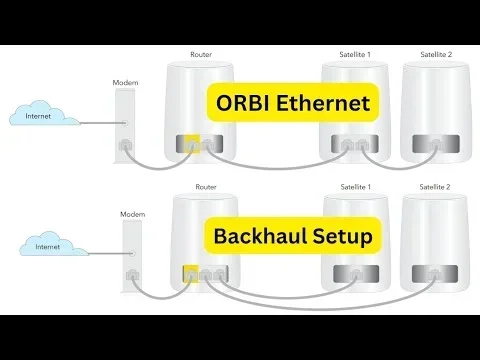
There is also the mesh Wi-Fi system, which replaces your traditional router with a set of nodes that blanket your home in wireless coverage. Your adapter connects to the nearest node, and the nodes talk to each other to route your data. Mesh systems are not traditional routers, but they serve the same purpose in a more modern way.
Tips For Setting Up Your Wi-Fi Adapter
Setting up a Wi-Fi adapter is usually straightforward, but a few tips can make the process smoother and your connection stronger.
- Update your drivers: Always install the latest driver from the manufacturer’s website. Old drivers cause slow speeds and connection drops.
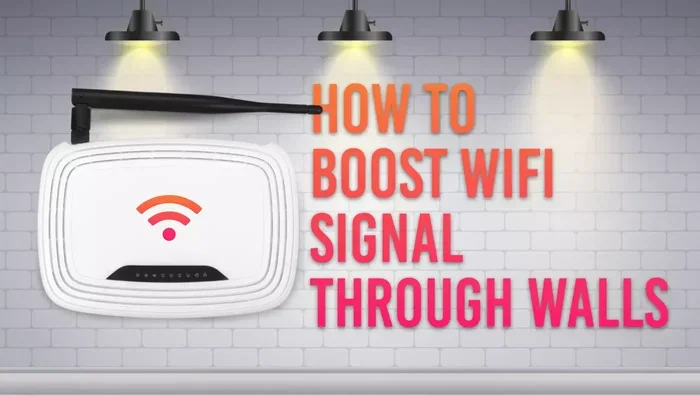
- Place your router wisely: Keep your router in a central location, away from walls and metal objects. This helps your adapter maintain a strong signal.
- Use the 5 GHz band: If your adapter and router both support it, connect to the 5 GHz band for faster speeds. The 2.4 GHz band is better for range but slower.
- Check for interference: Microwaves, baby monitors, and Bluetooth devices can interfere with your Wi-Fi signal. Move these devices away from your router and adapter.
- Restart regularly: A simple restart of your adapter and router can fix many connection issues. Do not skip this step.
If you are setting up a new router and adapter, you might also want to check out Can I Buy A Router And Install Myself for a step-by-step guide on getting your router up and running.
One more thing to keep in mind: your adapter’s performance depends on the wireless standard it supports. A Wi-Fi 6 adapter will not reach its full speed on a Wi-Fi 5 router. And a Wi-Fi 5 adapter will not take advantage of Wi-Fi 6 features. Always try to match the adapter and router to the same standard for the best results.
Common Mistakes People Make With Wi-Fi Adapters
Avoid these common mistakes to get the most out of your Wi-Fi adapter and network setup.
- Using outdated drivers: This is the number one cause of slow or unstable connections. Always keep your drivers updated.
- Placing the adapter in a bad spot: If you use a USB adapter, do not plug it into the back of your computer behind a metal desk. The signal will be weak. Use a front USB port or a USB extension cable.
- Ignoring the router’s role: Even the best adapter will perform poorly if your router is old or placed in a bad location.
- Not updating firmware: Routers and adapters both have firmware that can be updated. Firmware updates often fix bugs and improve performance.
- Expecting USB adapters to match PCIe speeds: USB adapters are convenient but slower than internal cards. Do not expect the same performance from both.
Another mistake is buying the cheapest adapter available. A $10 adapter might seem like a great deal, but it will likely not support modern Wi-Fi standards and will bottleneck your internet speed. Spending a little more on a quality adapter pays off in the long run.
Final Thoughts
So, does a Wi-Fi adapter need a router? The answer is that your adapter needs a wireless access point, and in most homes, that access point is a router. But as we have seen, there are alternatives. You can use a modem with built-in Wi-Fi, a mobile hotspot, or even an ad-hoc connection in a pinch.
The key takeaway is that your Wi-Fi adapter is only one piece of the puzzle. The router, modem, and your internet plan all work together to deliver the wireless experience you rely on every day. Understanding how these pieces fit together helps you troubleshoot problems, make better buying decisions, and get the most out of your wireless network.
If you are shopping for a new adapter or router, take your time. Check the specifications, read reviews, and make sure the devices are compatible with each other. A little research goes a long way toward a fast and reliable internet connection. Your future self will thank you every time you stream, game, or work without interruptions.
Frequently Asked Questions
Can I use a Wi-Fi adapter without any internet service?
Yes, you can use a Wi-Fi adapter without an active internet service. The adapter will still detect wireless networks and connect to them. However, you will not be able to access the internet unless the network you connect to has an active internet connection. The adapter handles the wireless part, but it does not create internet access on its own.
Do I need a router if my modem has built-in Wi-Fi?
No, you do not need a separate router if your modem has built-in Wi-Fi. The modem acts as both the modem and the router in this case. Your Wi-Fi adapter connects to the wireless network broadcast by the modem. This is a common setup for people who want a simpler, all-in-one device. Just check that the modem’s Wi-Fi performance meets your needs, as some modem-router combos are not as powerful as standalone routers.
Can a Wi-Fi adapter improve my internet speed?
A Wi-Fi adapter can improve your speed if your current adapter is outdated or slow. A modern adapter that supports the latest Wi-Fi standards, such as Wi-Fi 6, can deliver faster speeds and better performance. However, the adapter alone will not increase your internet plan speed. Your ISP plan, modem, and router all play a role in determining your actual speed.
What is the difference between a Wi-Fi adapter and a Wi-Fi card?
A Wi-Fi adapter and a Wi-Fi card are essentially the same thing. The term “adapter” is often used for USB Wi-Fi sticks, while “card” usually refers to internal PCIe cards that you install in a desktop computer. Both serve the same purpose of connecting your device to a wireless network. The difference is mainly in form factor and installation method.
Can I connect to Wi-Fi with just a Wi-Fi adapter and no router?
You can connect to Wi-Fi without a traditional router if there is another wireless access point available. For example, you can connect to a mobile hotspot, a public Wi-Fi network, or create an ad-hoc connection between two devices. But you always need some device that broadcasts a wireless signal. A Wi-Fi adapter alone cannot create that signal by itself.
How do I know if my Wi-Fi adapter is working properly?
You can check if your Wi-Fi adapter is working by going to your device’s network settings. On Windows, open Device Manager and look under Network Adapters for your Wi-Fi device. If it shows no errors and you can see available networks, your adapter is working. If you experience slow speeds or dropped connections, updating your drivers or checking your router setup often solves the problem.