Can You Link Samsung Speakers Together For Better Sound
Yes, you can link Samsung speakers together to create a powerful multi-room audio experience. Whether you own Samsung wireless speakers, soundbars, or the Galaxy Home, this guide walks you through every method. You will learn about Bluetooth pairing, SmartThings integration, and wired connections. We also cover common issues and expert tips to get the best sound quality.
Key Takeaways
- Samsung speakers support multiple linking methods: Bluetooth, SmartThings app, and wired connections for flexible setup options.
- Stereo pairing creates immersive sound: Two Samsung speakers work together as left and right channels for a richer listening experience.
- The SmartThings app is your main control hub: You can manage linked speakers, adjust settings, and create multi-room groups from one place.
- Not all Samsung speakers support linking: Check compatibility before attempting to pair older or budget models together.
- Common issues have simple fixes: Most connection problems stem from distance, firmware, or interference from other devices.
- Expert tips boost performance: Placement, firmware updates, and using the right connection method make a big difference in sound quality.
📑 Table of Contents
- Can You Link Samsung Speakers Together For Better Sound?
- Why Link Samsung Speakers Together?
- How to Link Samsung Speakers Together
- Which Samsung Speakers Support Linking?
- Best Practices for Linking Samsung Speakers
- Common Mistakes When Linking Samsung Speakers
- Expert Tips for the Best Sound Experience
- Troubleshooting Common Linking Issues
- Final Thoughts
Can You Link Samsung Speakers Together For Better Sound?
If you love music and want it to fill every room, you have probably wondered about linking Samsung speakers together. The good news is yes, you absolutely can. Samsung has built several options into their speakers and audio devices that let you connect them wirelessly or with wires.
Whether you are setting up a stereo pair in your living room or building a whole-home audio system, Samsung makes it possible. The process is simpler than most people think. In this guide, we will walk you through every method, share tips, and answer the questions you might have along the way.
By the end, you will know exactly how to get the most out of your Samsung speakers. You will understand which methods work best, what to watch out for, and how to fix common problems. Let us dive in and explore how Samsung speaker pairing can transform your listening experience.
Why Link Samsung Speakers Together?
Single speakers are great, but they have limits. A lone wireless speaker can only do so much. When you link speakers together, you unlock a whole new level of sound quality and coverage.
Better Sound Quality
Two speakers working together produce fuller, richer audio than one alone. The bass hits harder, the vocals sound clearer, and the overall soundstage expands. This is especially true when you set up stereo pairing with two identical Samsung speakers.
Wider Coverage
One speaker in your bedroom sounds nice, but your whole house deserves great music too. By linking speakers in different rooms, you can create a seamless multi-room audio setup. Walk from the kitchen to the patio without missing a beat.
Immersive Listening
Movie nights and gaming sessions feel completely different with multiple speakers. The surround effect pulls you into the action. Samsung wireless connectivity makes it easy to position speakers where they sound best without running cables across the room.
How to Link Samsung Speakers Together
Samsung offers several ways to connect speakers. The right method depends on your speaker model, your home setup, and what you want to achieve. Let us look at each option in detail.
Method 1: Bluetooth Stereo Pairing
Bluetooth pairing is the most common way to link two Samsung speakers. This method works with most modern Samsung wireless speakers that support Bluetooth 5.0 or later. Here is how to do it step by step.
- Turn on both Samsung speakers and make sure they are charged.
- Put both speakers in pairing mode. Usually, you hold down the Bluetooth button until the light flashes.
- On your phone or tablet, open the Bluetooth settings.
- Connect the first speaker, then connect the second one.
- Some Samsung speakers have a dedicated “Stereo Pair” button. Press it on both speakers to link them as left and right channels.
This method creates a true stereo experience. One speaker handles the left audio channel and the other handles the right. The result sounds much bigger and more detailed than a single speaker ever could.
Method 2: SmartThings App Control
The Samsung SmartThings app is a powerful tool for managing linked speakers. If your speakers are SmartThings-compatible, this is the best way to control them. The app lets you group speakers, adjust volume, and create custom audio zones.
First, download the SmartThings app on your phone. Add each Samsung speaker to the app by following the on-screen prompts. Once all speakers are connected, you can create a group. This means you can play the same music in multiple rooms or control each speaker independently.
The SmartThings app also supports voice commands through Bixby or Google Assistant. You can say “Play music in the kitchen” and the linked speakers in that room will start playing. It is a hands-free experience that feels futuristic.
Method 3: Wired Connection via HDMI or AUX
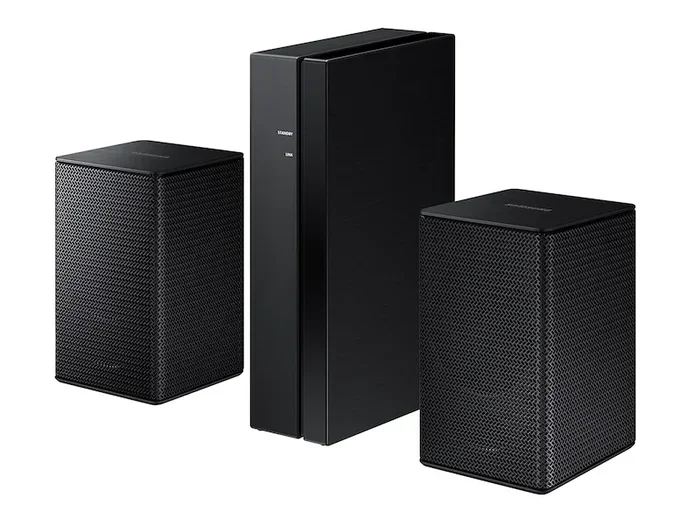
Not all linking happens wirelessly. Some Samsung soundbars and speakers support wired connections for a more stable link. If you have a Samsung soundbar, you can connect it to a wireless rear speaker kit using the included cable.
For older Samsung speakers, an AUX cable provides a direct audio link. While this method limits placement, it eliminates wireless interference. The sound stays crisp and delay-free. This works well for a home theater setup where timing matters.
Method 4: Samsung Multiroom Audio Feature
Samsung’s multiroom audio feature lets you link speakers across different rooms. Each speaker becomes part of a group that you control from one device. You can play different music in different rooms or sync them all to play the same track.
This feature works best with Samsung smart speakers like the Galaxy Home or speakers that connect through the SmartThings ecosystem. It turns your whole house into a concert venue, with each room tuned perfectly.
Which Samsung Speakers Support Linking?
Not every Samsung speaker can be linked together. Compatibility depends on the model, the year of release, and the technology it uses. Here is a breakdown of popular Samsung speakers and their linking capabilities.
| Speaker Model | Bluetooth Pairing | SmartThings Compatible | Multiroom Support |
|---|---|---|---|
| Samsung Galaxy Home | Yes | Yes | Yes |
| Samsung MS750 SoundPlus | Yes | Yes | Yes |
| Samsung MS650 M3 | Yes | Yes | Yes |
| Samsung Q-Series Soundbar | Yes | Yes | Yes |
| Samsung Level Box | Yes | Limited | No |
| Samsung R1 Portable | Yes | No | No |
As you can see, newer models support more linking features. If you have an older Samsung speaker, check the user manual or the Samsung website for compatibility. Wireless speakers from the last three years usually support at least basic Bluetooth pairing.
The Samsung Q-Series soundbar is one of the most popular choices for linking. It supports wireless rear speakers and subwoofers, creating a true home theater experience. Many users pair it with Samsung wireless speakers for surround sound that rivals expensive systems.
Best Practices for Linking Samsung Speakers
Getting two speakers to connect is only half the battle. To get the best experience, you need to follow some proven practices. These tips come from audio experts and experienced Samsung users.
Place Speakers at the Right Distance
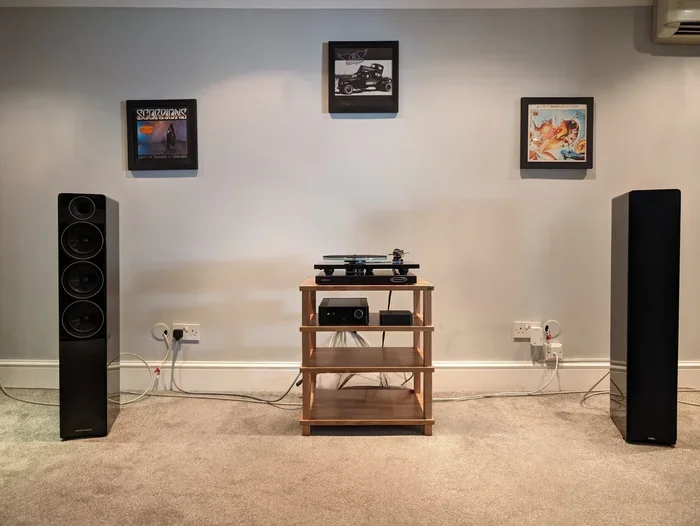
For stereo pairing, place both speakers about 3 to 6 feet apart. This creates a balanced sound field. If you put them too close, the sound can feel muddy. Too far apart, and the stereo effect disappears.
For multi-room setups, keep each speaker within 30 feet of your router for a stable wireless connection. Walls and floors weaken the signal, so open spaces work best.
Keep Firmware Updated
Samsung regularly releases firmware updates that improve speaker connectivity and fix bugs. Check the SmartThings app or the Samsung Members app for updates. An outdated speaker can cause connection drops and poor audio sync.
Avoid Wireless Interference
Other wireless devices can interfere with your speakers. Microwaves, baby monitors, and even your neighbor’s Wi-Fi network can cause static or lag. If you notice connection issues, move the speakers away from other electronics and try again.
Use the Same Model When Possible
Linking two identical Samsung speakers gives the best results. They match in volume, frequency response, and timing. Mixing different models can work, but the sound may not blend as smoothly.
Power Up Both Speakers Equally
Make sure both speakers have similar battery levels or are plugged in. A low battery on one speaker can cause volume imbalance or dropouts. For permanent setups, keep both speakers on their charging docks.
Common Mistakes When Linking Samsung Speakers
Many people run into problems when linking speakers, but most of these issues are easy to avoid. Here are the most common mistakes and how to fix them.
Skipping the Pairing Process
Some users try to play music on two speakers at the same time without properly pairing them. This leads to audio delays and out-of-sync sound. Always follow the official pairing steps for your specific model.
Ignoring the Room Layout
Where you place your speakers matters more than you think. Corners and walls bounce sound around and create echo. Place speakers in open areas, at ear level, and away from large furniture for the cleanest sound.
Using Outdated Apps
The SmartThings app and Samsung speaker firmware need to stay current. An old app version may not support the latest linking features. Update everything before you start setting up your speakers.
Overloading the Network
If you have too many devices on your Wi-Fi network, your speakers may struggle to connect. Limit the number of connected devices or use a dedicated Wi-Fi band for your audio setup.
Expert Tips for the Best Sound Experience
We asked audio enthusiasts and Samsung users for their top tips. Here is what they shared to help you get the most out of your linked Samsung speakers.
Tip 1: Use the Equalizer Settings. The SmartThings app has built-in equalizer controls. Adjust the bass, midrange, and treble to match your room and music taste. A small tweak can make a huge difference.
Tip 2: Create Speaker Groups. In the SmartThings app, group speakers by room or by purpose. You might have a “Living Room Group” and a “Party Group.” This makes switching between setups fast and easy.
Tip 3: Test Different Music Sources. Some streaming apps sound better with linked speakers than others. Try Spotify, Apple Music, and YouTube Music to find which one gives you the best audio sharing experience with your Samsung setup.
Tip 4: Reset Before Troubleshooting. If your speakers refuse to link, a factory reset often fixes the problem. Hold the reset button on each speaker for 5 to 10 seconds, then try pairing again.
Tip 5: Consider a Wired Backup. Wireless is convenient, but a wired connection never fails. Keep an AUX cable handy for situations where Bluetooth drops or the Wi-Fi gets crowded.
Troubleshooting Common Linking Issues
Even with the best setup, you might run into hiccups. Here are the most common problems and their solutions.
Problem: Speakers won’t pair. Make sure both speakers are in pairing mode. Turn off Bluetooth on other devices nearby that might be interfering. Restart both speakers and try again.
Problem: Audio sounds delayed. This is called latency, and it happens with Bluetooth connections. Move closer to the speakers or switch to a wired connection if possible. Updating firmware often reduces latency.
Problem: One speaker is louder than the other. Check the volume balance in your phone’s Bluetooth settings or the SmartThings app. Also make sure both speakers have the same firmware version installed.
Problem: Connection keeps dropping. Distance and interference are the usual culprits. Move the speakers closer together and away from other wireless devices. If the problem persists, a factory reset may help.
Problem: SmartThings app does not detect the speaker. Make sure your phone and speaker are on the same Wi-Fi network. Restart the SmartThings app and the speaker. Remove the speaker from the app and re-add it.
Final Thoughts
Linking Samsung speakers together is one of the best ways to upgrade your home audio setup. Whether you want stereo sound in one room or music throughout your entire house, Samsung gives you the tools to make it happen. The process is straightforward, and the results are impressive.
Start with the method that fits your setup best. Bluetooth stereo pairing is quick and easy for two speakers. The SmartThings app gives you full control for multi-room setups. Wired connections offer reliability when you need it most.
Remember to follow the best practices we shared. Keep your speakers updated, place them thoughtfully, and avoid common mistakes. With a little patience, you will enjoy richer, fuller sound that makes every listening moment better.
Your Samsung speakers are more powerful together than apart. So go ahead, link them up, and turn your home into the best listening space you have ever had. The music will thank you.
Frequently Asked Questions
Can I link Samsung speakers from different series together?
Yes, in most cases you can link Samsung speakers from different series using Bluetooth. However, linking identical models gives the best sound balance and stereo effect. Different models may have slightly different volume levels and audio profiles.
How many Samsung speakers can I link together?
The number depends on your speaker model and the method you use. Bluetooth stereo pairing works with two speakers. The SmartThings app allows you to create groups with up to 10 speakers in some setups. Check your specific model’s manual for exact limits.
Do I need Wi-Fi to link Samsung speakers?
Not always. Bluetooth pairing works without Wi-Fi. However, the SmartThings app and multi-room features require a Wi-Fi connection. For the full experience with multiple speakers, a stable Wi-Fi network is recommended.
Why is there a delay when I link two Samsung speakers via Bluetooth?
Bluetooth has inherent latency, which means there is a slight delay between the two speakers. This is normal and usually not noticeable for music. For video content, the delay can be more apparent. Using a wired connection or Wi-Fi-based linking reduces this delay significantly.
Can I unlink Samsung speakers after pairing them?
Yes, you can unlink them at any time. Go to the Bluetooth settings on your phone and forget the device. For SmartThings groups, open the app, select the group, and remove the speaker. You can then pair them with a different device or use them independently.
Is it better to link Samsung speakers or buy a Samsung soundbar with wireless rear speakers?
It depends on your needs. A soundbar with wireless rear speakers creates a dedicated home theater setup. Linked standalone speakers work better for multi-room music and stereo pairing. Both options deliver excellent sound, so choose based on how you plan to use them most.