Can You Install Programs On A Linux Live USB Easily
Yes, you can install programs on a Linux Live USB, but with some important limitations. By default, a Linux live USB runs in read-only mode, meaning your installed apps disappear when you reboot. However, with persistent storage enabled, you can save programs, files, and settings permanently. This guide walks you through everything you need to know about installing software on a Linux live USB the easy way.
Have you ever wanted to carry a full operating system in your pocket? A Linux Live USB lets you boot a complete computer environment from a simple flash drive. But here is the big question most people ask: can you install programs on a Linux Live USB and keep them? The short answer is yes. The longer answer depends on a few key settings you need to configure beforehand.
Whether you are a student, a traveler, or someone who loves tinkering with technology, understanding how to install software on a live USB opens up a world of possibilities. You get a portable computer that works on any machine. You get privacy. And you get the freedom to carry your favorite tools wherever you go. But there are some catches you need to know about.
In this guide, we will walk through everything step by step. You will learn what a live USB actually is, how persistence works, which distributions give you the best experience, and exactly how to install programs that stay put. By the end, you will feel confident creating your own bootable USB drive with all the software you need.
Key Takeaways
- Installing programs on a Linux Live USB is possible: You just need to enable persistent storage to keep your apps and files saved.
- Read-only mode is the default: Without persistence, any software you install resets after each reboot.
- Not all Linux distros support persistence equally: Ubuntu, Linux Mint, and Fedora offer excellent persistent storage options.
- USB drive speed matters a lot: A fast USB 3.0 drive makes a huge difference in performance when running programs from a live USB.
- You can run full desktop applications: From web browsers to office tools, a live USB can handle everyday software needs.
- Persistence has limits: System-level updates and kernel changes may not persist depending on how you set things up.
📑 Table of Contents
- What Is a Linux Live USB?
- Can You Install Programs on a Linux Live USB?
- How to Enable Persistent Storage on a Linux Live USB
- Best Linux Distributions for a Live USB Setup
- How to Install Programs on Your Live USB
- Performance Tips for Running Programs from a Live USB
- Common Mistakes to Avoid
- Expert Insights: Real-World Use Cases
- Final Thoughts
What Is a Linux Live USB?
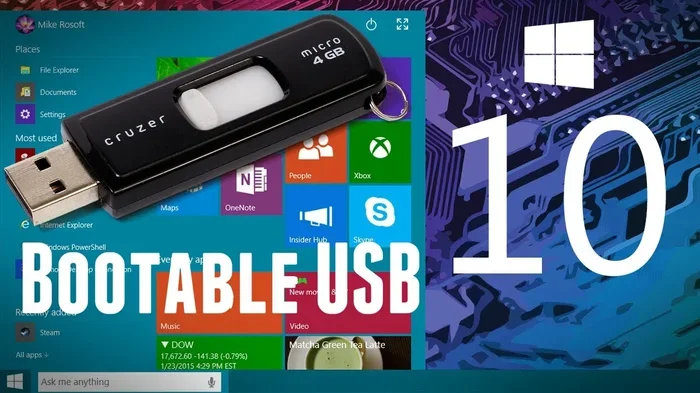
A Linux Live USB is a flash drive that contains a full operating system. You plug it into any computer, boot from it, and you are running Linux without touching the hard drive. Think of it like a portable operating system that lives entirely on the USB stick.
When you boot from a live USB, the system loads into your computer’s RAM. This means the live environment runs entirely in memory. It does not touch your computer’s internal hard drive at all. This is why live USBs are so popular for testing operating systems, recovering broken computers, or using public computers safely.
The most common distributions used for live USBs include Ubuntu, Linux Mint, Fedora, and Debian. Each one comes with a selection of pre-installed software applications. You get a web browser, a text editor, and basic utilities right out of the box. But what if you want more than what comes included?
How Does a Live USB Work?
When you create a live USB, you burn an ISO image onto the flash drive. This ISO file contains the entire operating system. When the computer boots from the USB, it reads the files and loads them into memory. The operating system runs from RAM, which is very fast but temporary.
Here is the key thing to understand. By default, a live USB operates in read-only mode. This means you can use the system, browse the web, and even try to install software. But when you restart the computer, everything you did during that session disappears. The USB drive itself remains unchanged. This is both a feature and a limitation.
For people who want a permanent setup, this default behavior is a problem. That is where persistence comes in. And persistence is exactly what makes it possible to install programs on a Linux Live USB and keep them for good.
Can You Install Programs on a Linux Live USB?
This is the question at the heart of this guide. The answer is yes, but the way you do it matters a lot. Without persistence, any program you install will vanish the moment you reboot. With persistence enabled, your installed software stays exactly where you put it.
Let us break this down into two scenarios. First, the default live mode. In this mode, you can still use the terminal or software center to download and install applications. You can browse the web, download files, and even set up your preferences. But none of it survives a restart. When you power off and boot again, the USB returns to its original state.
Second, the persistent mode. This is where the magic happens. You allocate a portion of the USB drive for permanent storage. Anything you save in that partition, including installed programs, remains after a reboot. This is how power users and professionals carry a fully customized Linux desktop wherever they go.
Why Would You Want to Install Programs on a Live USB?
There are many practical reasons to set up a live USB with your own software. Here are some of the most common use cases:
- Traveling professionals: You can carry your entire work environment on a USB stick. Plug it into any computer and you have your tools ready.
- Privacy and security: A live USB leaves no trace on the host computer. You can work securely without worrying about data being stored on someone else’s machine.
- System recovery: You can boot a broken computer from a live USB, install diagnostic tools, and fix problems without installing anything on the hard drive.
- Testing software: Want to try out a new Linux distribution or test specific applications? A live USB lets you experiment without any commitment.
- Teaching and training: Educators can create a USB with all the software students need and hand them out without worrying about installation on individual computers.
Each of these scenarios benefits greatly from being able to install and save programs on the USB drive. Without persistence, you would have to redo your setup every single time you boot.
How to Enable Persistent Storage on a Linux Live USB
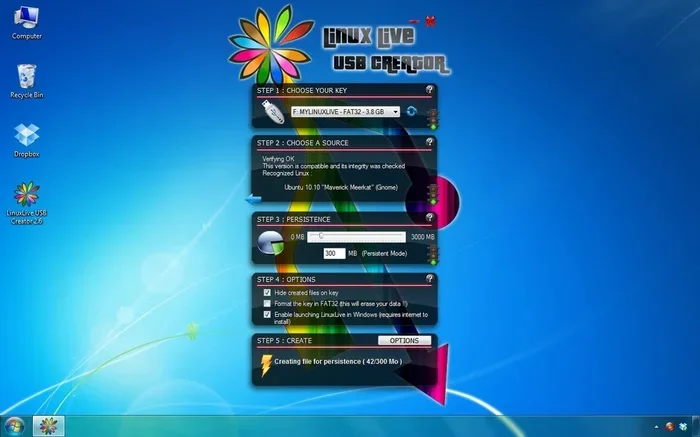
This is the most important section of the entire guide. If you want to install programs on a Linux Live USB and keep them, you must set up persistence correctly. There are several methods depending on the tool you use to create the USB.
Method 1: Using Rufus (Windows)
Rufus is one of the most popular tools for creating bootable USB drives. Here is how to set it up with persistence:
- Download Rufus from the official website and open it.
- Select your USB drive in the device dropdown.
- Click SELECT and choose your Linux ISO file.
- Look for the persistent partition size option. This is usually found under the “Advanced” or “Options” section.
- Set the size you want for persistent storage. A minimum of 4 GB is recommended.
- Click START and wait for the process to complete.
Once the USB is ready, boot from it and look for an option to enable persistence during the initial setup. The exact steps vary depending on the distribution you choose.
Method 2: Using Etcher (Cross-Platform)
BalenaEtcher is a simple, user-friendly tool that works on Windows, Mac, and Linux. However, Etcher does not natively support persistence. To get around this, you need a two-step process:
- Flash the ISO to the USB drive using Etcher.
- After flashing, use a partitioning tool like GParted to create an additional partition on the USB drive.
- Format the new partition as ext4 and label it casper-rw (for Ubuntu-based distros) or persistence.conf (for other distros).
- Boot from the USB and the system will recognize the persistent partition automatically.
Method 3: Using Ventoy (Advanced Users)
Ventoy is a powerful tool that lets you put multiple ISO files on a single USB drive. It supports persistence through a special configuration file:
- Install Ventoy on your USB drive.
- Copy your Linux ISO file to the Ventoy partition.
- Create a file called
ventoy.jsonor use the persistence plugin. - Configure the persistence size and boot parameters.
Ventoy gives you the most flexibility. You can carry multiple Linux distributions on one drive and switch between them easily. This is ideal if you want to test different Linux environments and keep your installed programs organized.
Best Linux Distributions for a Live USB Setup
Not all Linux distributions are created equal when it comes to live USB performance. Some are optimized for running from flash drives and handle program installation better than others. Here are the top choices.
| Distribution | Persistence Support | Ease of Use | Best For |
|---|---|---|---|
| Ubuntu | Excellent | Very Easy | Beginners and general use |
| Linux Mint | Excellent | Very Easy | Users wanting a familiar desktop experience |
| Fedora | Good | Moderate | Advanced users and developers |
| Puppy Linux | Built-in | Easy | Older hardware and minimal setups |
| Tails | Limited | Moderate | Privacy-focused workflows |
Ubuntu is the most popular choice for live USB setups. It has excellent persistence support, a large software repository, and a user-friendly interface. You can install almost any software application through its built-in software center or via the terminal.
Linux Mint is another fantastic option. It is based on Ubuntu but comes with a more polished desktop experience. Many users prefer Mint for its familiar layout and out-of-the-box multimedia support. It handles program installation just as smoothly as Ubuntu.
Puppy Linux deserves special mention. It is designed to run entirely from RAM and from USB drives. It is incredibly fast and lightweight. Even older computers with limited resources can run Puppy Linux from a live USB with impressive speed.
How to Install Programs on Your Live USB
Once you have set up persistence, installing programs is straightforward. The process depends on which distribution you are using, but the general steps are very similar.
Using the Software Center
Most Linux distributions come with a graphical software center. This is the easiest way to find and install programs. Open the software center, search for the application you want, and click install. The program downloads, installs, and appears in your application menu.
Because you have persistence enabled, the installed program stays on the USB drive. When you reboot and boot from the USB again, the program is right there waiting for you. This is the same experience as installing software on a regular computer.
Using the Terminal
For more advanced users, the terminal offers faster and more precise control. Here are common commands for the most popular distributions:
- Ubuntu / Mint: Use
sudo apt install program-nameto install software from the APT repository. - Fedora: Use
sudo dnf install program-namefor DNF package management. - Arch-based distros: Use
sudo pacman -S program-namefor Pacman package management.
These commands download and install programs directly to your persistent storage. They will survive reboots and remain available every time you boot from the USB.
Installing .deb or .rpm Packages
Sometimes you need to install a program that is not in the official repositories. In these cases, you can download the package file directly and install it manually:
- Download the .deb file (for Ubuntu/Mint) or .rpm file (for Fedora) from the developer’s website.
- Open a terminal and navigate to the download folder.
- For .deb files, run
sudo dpkg -i filename.deb. - For .rpm files, run
sudo rpm -i filename.rpm. - Fix any missing dependencies with
sudo apt --fix-broken install(for Ubuntu/Mint).
The program is now installed in your persistent storage and will be available after every reboot.
Performance Tips for Running Programs from a Live USB
Running an operating system and applications from a USB drive comes with performance considerations. Flash drives are slower than internal hard drives or SSDs. But with the right setup, you can get a very usable experience.
Use a USB 3.0 Drive
This is the single most important tip. A USB 3.0 flash drive is dramatically faster than a USB 2.0 drive. The speed difference affects everything from boot time to application loading. If your computer supports USB 3.0, make sure your drive does too. Look for drives labeled SS (SuperSpeed) for the best performance.
Choose a Fast USB Drive
Not all USB drives are created equal. Some cheap drives have very slow read and write speeds. Look for drives from reputable brands with good reviews. A drive with a controller chip designed for high performance will make a noticeable difference in how smoothly your Linux desktop runs.
Close Unnecessary Applications
Since you are running from RAM and a USB drive, system resources are more limited than on a typical computer. Close applications you are not using. This frees up RAM and reduces read/write operations on the USB drive, which extends its lifespan and improves speed.
Avoid Heavy System Updates
While you can install programs, performing full system updates on a live USB is not always recommended. Updates can change kernel files and system libraries, which may not persist correctly. Stick to installing individual applications rather than upgrading the entire operating system on a live USB.
Consider Swap Space
If you plan to run memory-intensive applications, consider adding swap space to your persistent partition. Swap acts as virtual memory and prevents your system from slowing down when RAM gets full. You can create a swap file within your persistent storage during the initial setup.
Common Mistakes to Avoid
Even experienced users sometimes run into problems when setting up a Linux live USB. Here are the most common mistakes and how to avoid them.
- Forgetting to enable persistence: This is the number one mistake. If you do not set up persistence, none of your installed programs or saved files will survive a reboot. Always double-check this setting before you start using your USB.
- Using a slow USB 2.0 drive: A slow drive makes the entire experience frustrating. Programs take forever to load, and the system feels sluggish. Invest in a decent USB 3.0 drive.
- Using a very small USB drive: A 4 GB drive might seem sufficient, but modern Linux distributions and applications take up more space than you think. Aim for at least 16 GB, preferably 32 GB or more.
- Running heavy workloads: A live USB is not designed for intensive tasks like video editing or gaming. It works great for browsing, office work, and light development. Keep your expectations realistic.
- Ignoring USB drive wear: Flash drives have a limited number of write cycles. Running an operating system from a USB drive generates a lot of write operations. Using a high-quality drive rated for heavy use helps extend its lifespan.
Avoiding these mistakes ensures your Linux Live USB works smoothly and reliably every time you boot from it.
Expert Insights: Real-World Use Cases
Many professionals rely on Linux live USBs as part of their daily workflow. IT technicians carry them to diagnose and repair computers. Journalists use them to access the internet securely from unfamiliar machines. Developers use them to test software on clean environments without affecting their main system.
One thing all these users have in common is the need to install specific tools and applications on their USB drives. Being able to install programs on a Linux Live USB transforms a simple bootable drive into a powerful, personalized toolkit. You carry your entire digital workspace with you.
If you rely on internet connectivity for your work, you may also want to check whether your WiFi adapter is compatible with the live Linux environment. Some hardware requires additional drivers that are not included in the default live image. Understanding your hardware compatibility before you travel can save you a lot of headaches.
Similarly, if you need to use a mouse or other peripheral with your live USB setup, most modern mice work out of the box with Linux. However, specialized gaming mice or advanced peripherals might need additional configuration. Knowing the advantages and disadvantages of using different input devices on Linux can help you plan ahead.
For users who work with spreadsheets and data, Linux offers robust office alternatives. You can install LibreOffice or other productivity suites on your live USB and handle most document tasks. However, if you encounter formatting issues with certain files, understanding common troubleshooting steps, such as how to fix a line that wont delete in Microsoft Excel when working with cross-platform files, can be very helpful.
Final Thoughts
So, can you install programs on a Linux Live USB? Absolutely. With persistent storage enabled and the right distribution chosen, you can build a fully functional portable computer on a USB stick. You get to carry your favorite applications, your files, and your settings wherever you go.
The key is understanding how persistence works and setting it up correctly before you start installing software. Choose a distribution that suits your needs, use a fast USB 3.0 drive, and follow the installation steps outlined in this guide. You will have a portable operating system that works on virtually any computer you plug it into.
Start small. Try installing a web browser and a text editor first. Once you see how easy it is, you will want to add more tools and build a complete workspace on your USB drive. The possibilities are truly endless when you know how to make the most of a Linux Live USB.
Whether you are a tech enthusiast exploring new operating systems or a professional who needs a reliable portable setup, learning to install programs on a live USB is a skill worth mastering. It gives you freedom, flexibility, and control over your computing experience like nothing else can.
Frequently Asked Questions
Can I install any program on a Linux Live USB?
You can install most programs available in the Linux software repositories. However, some proprietary applications and drivers may not work in a live environment. Stick to open-source applications for the best compatibility and easiest installation process.
How much USB space do I need for a Linux Live USB with persistence?
A minimum of 16 GB is recommended. The Linux ISO typically takes 2-4 GB, and you should allocate at least 4-8 GB for persistent storage. This gives you enough room for programs, files, and system updates without running out of space.
Will my installed programs work on any computer?
Most programs will work on any computer that can boot from USB. However, hardware-specific drivers and applications may behave differently depending on the computer’s hardware. Always test your live USB on the target machine if possible.
Can I update programs I installed on a Linux Live USB?
Yes, you can update installed programs using your distribution’s package manager. Just run the standard update command for your distro, such as sudo apt update && sudo apt upgrade on Ubuntu-based systems. The updates will be saved in your persistent storage.
Is it safe to use a Linux Live USB on a public computer?
Yes, it is very safe. A live USB does not touch the host computer’s hard drive. All your work stays on the USB stick. When you shut down and remove the drive, no trace of your session remains on the public computer.
Can I run a Linux Live USB alongside my main operating system?
Yes, you can. Your main operating system remains untouched. You simply boot from the USB when you want to use Linux. You can also use both operating systems on the same computer by choosing which one to boot from in the BIOS or UEFI settings.
=== CONCLUSION ===
Installing programs on a Linux Live USB is not only possible but straightforward once you understand the persistence setup. The key takeaway is to always enable persistent storage when creating your bootable USB. Without it, your software installations disappear every time you reboot. With it, you have a fully portable and personalized computing environment that travels with you.
Choose a distribution that fits your needs, use a fast USB 3.0 drive, and start adding the programs you use every day. Whether you need a browser, an office suite, or development tools, your live USB can handle it all. The flexibility and convenience of a portable Linux setup make it one of the most useful skills you can develop as a tech user.
Now that you know the answer to the question, can you install programs on a Linux Live USB, it is time to try it yourself. Create your bootable drive, set up persistence, and start building your portable workspace today. You will be amazed at how powerful a simple flash drive can become.