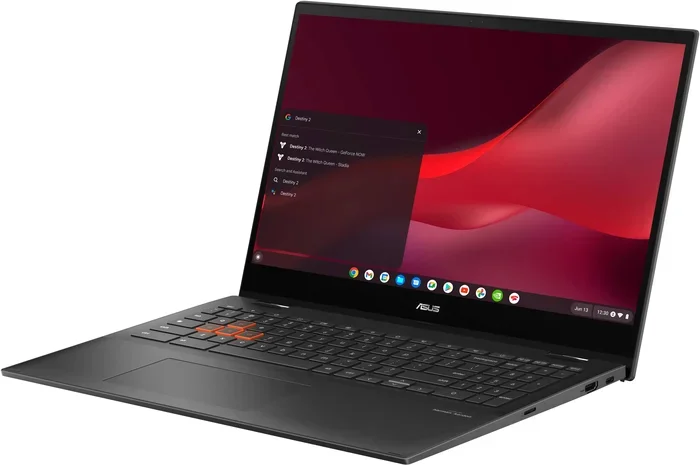
Can You Install A Windows Game On A Chromebook Today
Can you install a Windows game on a Chromebook? The short answer is yes, but it is not always straightforward. You can use Linux support, Steam Proton, cloud gaming services, or compatibility tools like Wine to run Windows games on Chrome OS. Your Chromebook’s hardware, processor type, and available storage all play a big role in determining which method works best for you.
So you just got a Chromebook, and you are wondering if you can finally play those Windows games you love. Maybe you have been eyeing a AAA title on Steam, or perhaps you want to revisit an old PC classic. The good news is that Can You Install A Windows Game On A Chromebook is a question with a real, actionable answer today. Chromebook gaming has come a long way, and the days of being stuck with only browser-based games are long gone.
Whether you own a budget Chromebook or a powerful Intel-based machine, there are several ways to get Windows games running on Chrome OS. Some methods are simple and require no technical knowledge. Others involve a bit of tinkering but open up a whole world of gaming possibilities. In this guide, we will walk you through every option, explain what works, what does not, and help you find the best approach for your specific device.
Before we dive in, let us set realistic expectations. Not every Windows game will run perfectly on every Chromebook. Game compatibility depends on your hardware, the method you choose, and the specific title you want to play. But with the right approach, you can enjoy a surprisingly wide library of Windows games on your Chrome OS device. Let us get into it.
Key Takeaways
- Multiple Methods Exist: You can play Windows games on a Chromebook using Linux (Beta), Steam with Proton, cloud gaming, or compatibility layers like Wine and CrossOver.
- Hardware Matters: Your Chromebook’s processor, RAM, and storage determine which games will run smoothly and which methods are viable.
- Cloud Gaming Is the Easiest Route: Services like GeForce NOW and Xbox Cloud Gaming let you play demanding Windows games without installing anything on your device.
- Linux Gaming Has Improved: The Linux environment on Chrome OS has grown significantly, giving you access to thousands of games through Steam.
- Not All Games Will Work: Game compatibility varies widely, and some Windows titles simply will not run on a Chromebook no matter what method you try.
- Performance Depends on Your Setup: Optimizing settings, closing background apps, and using the right compatibility tool can greatly improve your experience.
📑 Table of Contents
What Happens When You Try to Run Windows Games on a Chromebook
Chromebooks run Chrome OS, which is a Linux-based operating system designed primarily for web browsing and cloud apps. Windows games are built for the Windows operating system, and they do not natively support Chrome OS. This means you cannot simply download a .exe file and double-click to install a game the way you would on a Windows PC.
However, Chrome OS has evolved. Google has added built-in Linux support, and the Chrome browser itself has become a powerful platform for game streaming and emulation. This opens the door to several workarounds and solutions that make Chromebook gaming a genuine possibility. The key is understanding which method fits your device and your gaming needs.
When you attempt to run a Windows game directly on a Chromebook, you will get an error or nothing will happen at all. The system simply does not have the Windows runtime environment that these games need. This is why we need alternative approaches, and that is exactly what the next section covers.
Methods to Play Windows Games on a Chromebook
There are several proven ways to get Windows games running on a Chromebook. Each method has its own strengths and weaknesses. Let us break them down so you can choose the one that fits your situation best.
Using Linux (Beta) on Your Chromebook
Google has built a Linux development environment directly into Chrome OS. This feature, often called Linux (Beta) or Crostini, lets you run a full Linux desktop alongside Chrome OS. Once set up, you can install Linux applications, including game launchers and even some Windows games through compatibility tools.
To enable Linux on your Chromebook, go to Settings, then Advanced, and find the Developers section. Turn on Linux development environment and follow the setup prompts. This creates a Linux terminal where you can install tools and games. It is a great first step for anyone wanting to explore Linux gaming on their Chromebook.
The Linux environment gives you access to open-source game engines and emulators. You can also install Wine, a compatibility layer that helps run some Windows applications on Linux. While this method requires some patience, it is free and does not need powerful hardware to work.
Running Steam with Proton
Steam is the largest PC gaming platform, and it now works on Chromebooks through Linux. Valve, the company behind Steam, developed Proton, a compatibility layer that translates Windows game calls into something Linux can understand. This means many Windows games run on Linux through Steam without any extra work from you.
To get started, you need to install Steam through the Linux environment on your Chromebook. Once Steam is installed, Proton is enabled by default for many games. When you browse the Steam store, look for the Proton compatibility badge on game pages. Games tagged with this badge have been tested and are known to work on Linux systems.
The selection of games that work through Proton grows every day. Valve maintains a dedicated compatibility database where you can check if a specific game runs well on Proton. Some games run perfectly, while others may have minor issues with graphics or sound. Overall, Steam on Chromebook is one of the most reliable ways to play Windows games on a Chromebook.
Cloud Gaming Services
If your Chromebook is not powerful enough to run games locally, cloud gaming is your best friend. Cloud gaming services stream the game from a remote server to your device. The actual game runs on powerful hardware somewhere else, and your Chromebook simply receives the video stream and sends your inputs back.
GeForce NOW is one of the most popular cloud gaming services. It lets you play your existing Steam library through the cloud, and it works directly in the Chrome browser. Xbox Cloud Gaming, part of Game Pass Ultimate, offers a huge library of Windows games that you can stream to your Chromebook. Both services require a solid internet connection but remove the need for powerful local hardware.
Game streaming through the Chrome browser is incredibly convenient. You do not need to install anything beyond the browser app, and you can play demanding titles even on a budget Chromebook. The main requirement is a fast and stable internet connection. If you have good Wi-Fi, cloud gaming can be a game-changer for Chromebook gaming.
Using Wine or CrossOver
Wine is a free, open-source compatibility layer that allows you to run Windows applications on Linux. Since Chrome OS supports Linux, you can install Wine inside the Linux environment and use it to run some Windows games. CrossOver is a paid version of Wine that offers a more user-friendly interface and better support.
Setting up Wine requires some technical knowledge. You need to use the Linux terminal to install Wine, configure it, and then run the Windows game installer. The process is not as simple as clicking “Install,” but many users have had success running older Windows games this way.
CrossOver by CodeWeavers simplifies this process significantly. It provides a graphical interface that guides you through the installation process. However, CrossOver costs money, and not every game is guaranteed to work. It is a solid option if you are willing to pay for convenience and want to run specific Windows compatibility layer applications on your Chromebook.
| Method | Difficulty | Cost | Game Compatibility | Hardware Requirements |
|---|---|---|---|---|
| Linux (Beta) | Medium | Free | Limited | Low to Medium |
| Steam with Proton | Easy | Free | High | Medium to High |
| Cloud Gaming | Very Easy | Subscription | Very High | Low (needs good internet) |
| Wine / CrossOver | Hard | Free or Paid | Medium | Medium |
Chromebook Hardware Requirements for Gaming
Not all Chromebooks are created equal when it comes to gaming. Your device’s Chromebook specs will determine which methods work and how well games perform. Understanding your hardware is the first step before you try to install any Windows games.
Here are the key hardware factors to consider:
- Processor: Intel Core i3, i5, or i7 processors handle gaming much better than basic Celeron or MediaTek chips. An Intel Core i5 is a sweet spot for Chromebook gaming.
- RAM: 8 GB of RAM is the minimum for comfortable gaming. 4 GB will work for lightweight titles and cloud gaming, but you will struggle with more demanding games.
- Storage: Games take up space. An SSD with at least 64 GB of free space is recommended. Many Chromebooks come with eMMC storage, which is slower but still usable for smaller games.
- GPU: Integrated Intel graphics work well for many games through Proton and cloud gaming. Dedicated GPUs are rare on Chromebooks but make a huge difference for local gaming.
Before you attempt to install any games, check your Chromebook’s specifications. You can find this information in the Settings menu under About Chrome OS. Knowing your Chromebook specs helps you set realistic expectations and choose the right gaming method.
Best Windows Games That Work on Chromebooks
Some Windows games are known to work exceptionally well on Chromebooks. These titles have been tested by the community and through Proton compatibility testing. Here are some of the best Windows games on Chromebook that you can try today:
- Minecraft Java Edition: Runs great through Linux on Chrome OS. It is lightweight and runs smoothly on most Chromebooks.
- GTA V: Works well through Steam Proton on Chromebooks with at least 8 GB of RAM and an Intel Core i5 processor.
- Rocket League: Runs perfectly through Proton and is a great choice for Chromebook gaming.
- Civilization VI: Another Proton-friendly title that runs well on moderate Chromebook hardware.
- Stardew Valley: A lightweight game that runs beautifully on almost any Chromebook.
- DOOM (2016): Runs smoothly through Proton and is a great benchmark for Chromebook gaming performance.
These games represent a good mix of genres and performance requirements. If you are new to Chromebook gaming, starting with one of these titles is a great way to test your device’s capabilities. You can find all of these games on Steam and check their Proton compatibility before purchasing.
Common Problems and How to Fix Them
Even with the best methods, you may run into issues when trying to play Windows games on a Chromebook. Here are the most common problems and practical solutions to fix them.
Games Crashing or Not Launching
This is often caused by missing dependencies or incorrect Proton settings. First, make sure your Linux environment is fully updated. Open the terminal and run the update commands for your Linux distribution. Also, check the Proton compatibility database on SteamDB to see if other users have found specific fixes for the game you are trying to play.
Poor Performance and Low Frame Rates
If your games run slowly, try closing all unnecessary browser tabs and background applications. Chromebooks have limited resources compared to dedicated gaming PCs. You can also adjust in-game graphics settings to lower the resolution and turn off demanding features like anti-aliasing and shadows.
Audio or Graphics Glitches
Graphics glitches often happen when a game is not fully compatible with Proton. Try switching Proton versions in Steam’s compatibility settings. Sometimes using an older or newer Proton version fixes the issue. For audio problems, make sure your Linux sound drivers are properly configured and that your Chromebook’s audio output is set correctly.
Installation Errors
If a game installer fails, the issue might be with the Windows compatibility layer you are using. Make sure Wine or CrossOver is properly set up. For Steam games, try verifying the game files through Steam’s properties menu. This can fix corrupted downloads that cause installation failures.
Quick Tips for Better Chromebook Gaming
- Always keep your Chrome OS and Linux environment updated to the latest versions.
- Use an external keyboard and mouse for a better gaming experience.
- Connect to a 5 GHz Wi-Fi network for smoother cloud gaming.
- Close all unnecessary apps before launching a game to free up RAM.
- Check ProtonDB for game-specific compatibility reports before purchasing.
- Consider using a cooling pad if your Chromebook gets warm during extended gaming sessions.
Final Verdict
So, can you install a Windows game on a Chromebook? Absolutely. The options available today are better than ever before. Whether you choose to use Steam with Proton, set up a Linux environment, rely on cloud gaming services, or use compatibility tools like Wine, there is a path forward for every Chromebook user who wants to play Windows games.
The best method depends on your Chromebook’s hardware, the specific games you want to play, and how much effort you are willing to put in. For most users, Steam Proton and cloud gaming services offer the easiest and most reliable experiences. These methods require minimal setup and deliver solid performance across a wide range of titles.
Remember that Chromebook gaming is not about replacing a high-end gaming PC. It is about making the most of your device and enjoying a growing library of games in a portable, affordable package. With the right approach and realistic expectations, your Chromebook can be a genuinely capable gaming device. Start with one of the methods in this guide, pick a game you love, and enjoy the experience.
Frequently Asked Questions
Can all Windows games run on a Chromebook?
No, not all Windows games will run on a Chromebook. Game compatibility depends on your hardware, the method you use, and the specific title. Some games work perfectly through Steam Proton, while others may not run at all. Always check ProtonDB or the game’s store page for compatibility information before you buy.
Is it free to play Windows games on a Chromebook?
Many methods are completely free. Steam with Proton, Linux (Beta), and cloud gaming services like GeForce NOW all offer free options. However, some cloud gaming services require a paid subscription, and CrossOver is a paid tool. The games themselves may also need to be purchased separately.
Do I need a powerful Chromebook to play Windows games?
It depends on the method. Cloud gaming works well on almost any Chromebook since the heavy lifting happens on remote servers. For local gaming through Proton or Linux, you will benefit from a Chromebook with at least 8 GB of RAM and an Intel Core i5 processor or better.
Can I use Xbox Game Pass on a Chromebook?
Yes, through Xbox Cloud Gaming. If you have an active Game Pass Ultimate subscription, you can access Xbox Cloud Gaming directly through the Chrome browser on your Chromebook. This lets you stream hundreds of Windows games without installing anything on your device.
How do I know if a game works with Proton?
Steam marks games with a Proton compatibility badge when they are known to work well on Linux. You can also visit ProtonDB, a community-driven database that provides detailed compatibility reports for thousands of games. Check the rating and user comments to see how well a specific game runs through Proton.
Does gaming on a Chromebook affect battery life?
Yes, gaming uses more processing power and drains your battery faster than normal browsing. Cloud gaming uses less battery than local gaming since the Chromebook is mainly decoding a video stream. To extend battery life, plug in your Chromebook while gaming and close all unnecessary background apps.
=== CONCLUSION ===
The world of Chromebook gaming has opened up dramatically, and the answer to whether you can install a Windows game on a Chromebook is a resounding yes. From Steam Proton to cloud streaming to Linux-based compatibility tools, you now have multiple reliable paths to enjoy your favorite Windows titles on a Chrome OS device. Each method has its own advantages, and the best choice depends on your specific Chromebook, the games you want to play, and your comfort level with technical setup.
Can You Install A Windows Game On A Chromebook is no longer a question with a hesitant maybe. It is a question with clear, practical answers. Start with cloud gaming for the easiest experience, try Steam Proton for local gaming, and explore Linux tools if you enjoy tinkering. Whatever path you choose, you are now equipped with the knowledge to turn your Chromebook into a capable gaming machine. Get out there, pick a game, and start playing.
The future of game compatibility on Chrome OS looks bright, with Google and Valve continuing to invest in making Chromebooks better gaming devices every year. Stay curious, keep experimenting, and most importantly, have fun gaming on your Chromebook.