Can You Factory Reset A Laptop Manually Step By Step
Can You Factory Reset A Laptop Manually is an essential topic that provides valuable insights.
Key Takeaways
- Understanding Can You Factory Reset A Laptop Manually: Provides essential knowledge
📑 Table of Contents
- What Does Factory Resetting a Laptop Actually Mean?
- Why You Might Need to Factory Reset Your Laptop
- How to Factory Reset a Windows Laptop Manually
- How to Factory Reset a Mac Laptop Manually
- Windows vs Mac: Factory Reset Comparison
- What to Do Before You Factory Reset Your Laptop
- Common Mistakes People Make When Factory Resetting
- Quick Tips for a Successful Manual Reset
- When Should You Seek Professional Help?
- Expert Insights on Manual Laptop Resets
- Key Takeaways
What Does Factory Resetting a Laptop Actually Mean?
When you factory reset a laptop manually, you are erasing all personal data, apps, and settings and returning the device to its original factory state. Think of it like hitting a giant undo button on everything you have ever done with the laptop. The operating system goes back to how the manufacturer installed it.
This process goes by many names. Some people call it a hard reset. Others refer to it as restoring factory settings or reinstalling the operating system. No matter what term you use, the result is the same. Your laptop becomes clean, fresh, and free of clutter.
It is important to understand that a factory reset deletes everything. Your photos, documents, downloaded apps, browser bookmarks, and saved passwords all go away. That is why backing up your data first is absolutely essential. We will cover that in detail later in this guide.
Factory Reset vs. System Restore
People often confuse a factory reset with a system restore. They are not the same thing. A system restore rolls your laptop back to a previous point in time. It keeps your personal files intact. A factory reset, on the other hand, wipes everything clean. It removes all user data and reinstalls the operating system from scratch.
Why You Might Need to Factory Reset Your Laptop
There are many reasons why someone would want to reset a laptop manually. Here are the most common situations where a factory reset makes sense:
- Slow performance: Over time, laptops accumulate junk files, unnecessary programs, and registry errors. A reset clears all of that and speeds things up.
- Malware or virus infection: If your laptop is infected and antivirus software cannot fix it, a factory reset is the most thorough way to eliminate the threat.
- Selling or donating the laptop: Before you give away or sell your laptop, you need to erase all your personal information. A factory reset ensures your data stays private.
- Preparing for a fresh start: Sometimes you just want a clean slate. A reset removes bloatware and lets you set up the laptop exactly the way you want.
- Operating system errors: If Windows or macOS is glitching constantly, a reset can fix deep-rooted software problems.
- Forgotten password or locked account: In some cases, you can use the reset process to regain access to a locked laptop.
How to Factory Reset a Windows Laptop Manually
Resetting a Windows laptop manually is a straightforward process. Windows 10 and Windows 11 both have built-in tools that make this easy. You do not need any extra software or disks. Here are the three main methods you can use.
Method 1: Using the Settings Menu
This is the easiest and most common way to factory reset a Windows laptop. Follow these steps carefully:
- Click the Start menu and select Settings.
- Go to System and then click on Recovery.
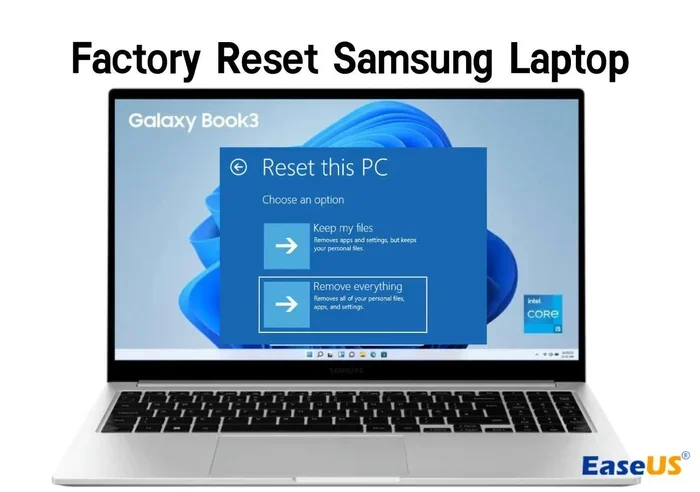
- You will see a section called Reset this PC. Click on it.
- Choose between Keep my files or Remove everything. If you want a full reset, pick Remove everything.
- Click Reset and wait for the process to complete. Your laptop will restart several times during this process.
This method works on both factory reset Windows 10 and factory reset Windows 11 laptops. The steps are nearly identical across both versions.
Method 2: Using the Recovery Partition
Most Windows laptops come with a hidden recovery partition on the hard drive. This partition contains the original factory image. You can use it to restore your laptop to its out-of-the-box state. Here is how:
- Back up all your important files first.
- Restart your laptop and press the boot menu key. This is usually F11, F9, or Esc, depending on your brand.
- Select the Recovery Partition or System Recovery option from the boot menu.
- Follow the on-screen prompts to complete the reset.
Using the recovery partition is a great option if your Windows settings are not working properly. It bypasses the Settings menu entirely and goes straight to the reset process.
Method 3: Using Command Prompt
If you cannot access Windows at all, you can use the Command Prompt to reset your laptop manually. This method is more advanced but very effective:
- Boot your laptop from a Windows installation USB or recovery drive.
- Select Repair your computer when prompted.
- Choose Troubleshoot, then Advanced Options, and then Command Prompt.
- Type the following command and press Enter:
systemreset --factoryreset - Follow the on-screen instructions to complete the reset.
This command triggers the full factory reset process even when you cannot log into Windows. It is a powerful tool for troubleshooting a completely unresponsive laptop.
How to Factory Reset a Mac Laptop Manually
Apple laptops follow a slightly different process, but resetting a Mac manually is just as effective. The steps vary depending on whether you have an Intel-based Mac or an Apple Silicon Mac. Here is how to handle both.
Method 1: Using Recovery Mode on Intel Macs
If you have an older Mac with an Intel processor, follow these steps to factory reset your Mac laptop:
- Back up all your data using Time Machine or iCloud.
- Shut down your Mac completely.
- Press the power button and immediately hold down Command and R keys.
- Keep holding them until you see the Apple logo or a spinning globe.
- Select Disk Utility and click Continue.
- Choose your main drive (usually named Macintosh HD) and click Erase.
- Format the drive as Mac OS Extended (Journaled).
- Quit Disk Utility and select Reinstall macOS.
- Follow the prompts to reinstall the operating system.
This process wipes your Mac clean and installs a fresh copy of macOS. It is the equivalent of a full factory reset mac procedure.
Method 2: Using Recovery Mode on Apple Silicon Macs
Newer Macs with Apple Silicon chips (M1, M2, M3) use a slightly different recovery process:
- Shut down your Mac.
- Press and hold the power button until you see Loading startup options.
- Click Options and then Continue.
- Select Disk Utility and erase your main drive.
- Quit Disk Utility and choose Reinstall macOS.
- Follow the on-screen instructions to complete the reinstallation.
Apple Silicon Macs make the recovery process very simple. The startup options menu is intuitive and easy to navigate.
Windows vs Mac: Factory Reset Comparison
Both Windows and Mac laptops offer built-in factory reset options. Here is a quick comparison of the two:
| Feature | Windows Laptop | Mac Laptop |
|---|---|---|
| Reset Method | Settings menu or recovery partition | Recovery Mode (Command + R) |
| Access Key | F11 or Esc during boot | Command + R during boot |
| Data Wipe Option | Keep my files or Remove everything | Erase disk via Disk Utility |
| Reinstall Process | Automatic after reset | Manual macOS reinstall |
| Time Required | 30 minutes to 2 hours | 45 minutes to 2 hours |
| Internet Required | Sometimes for cloud recovery | Yes, for macOS download |
What to Do Before You Factory Reset Your Laptop
Before you start the reset process, there are several important steps you need to take. Skipping these can lead to lost data or a failed reset. Follow this checklist carefully:
Step 1: Back Up All Your Data
This is the single most important step. Use an external hard drive, USB flash drive, or cloud storage service to save your files. Make sure you back up:
- Documents and spreadsheets
- Photos and videos
- Browser bookmarks and saved passwords
- Installed software license keys
- Email data and contacts
If you skip this step, everything will be permanently deleted. There is no undo button after a factory reset.
Step 2: Sign Out of All Accounts
Before you reset, sign out of iCloud, your Microsoft account, and any other linked services. This prevents activation locks and makes the reset process smoother. For Mac users, signing out of iCloud before erasing the disk is especially important.
Step 3: Deactivate Software Licenses
Some software programs tie their licenses to your hardware. Deactivate them before the reset so you can reactivate them afterward. This applies to programs like Adobe Creative Suite, Microsoft Office, and antivirus software.
Step 4: Charge Your Laptop
Make sure your laptop battery is at least 50% charged before starting. A power outage or dead battery during the reset process can corrupt your operating system. If possible, keep it plugged in throughout the entire process.
Common Mistakes People Make When Factory Resetting
Even though a factory reset is a common task, people still make mistakes. Here are the most frequent errors to avoid:
- Forgetting to back up data: This is the number one mistake. Always, always back up your files before resetting.
- Choosing the wrong reset option: On Windows, selecting Keep my files instead of Remove everything may not fully clean the drive. Choose carefully based on your needs.
- Interrupting the reset process: Do not turn off your laptop while it is resetting. Let the process finish completely, even if it takes a long time.
- Not having a recovery drive: If your recovery partition is corrupted, you may need a USB recovery drive. Create one before you need it.
- Ignoring driver updates after reset: After a fresh reset, your laptop may need updated drivers. Check your manufacturer’s website for the latest downloads.
- Skipping the reinstallation of essential software: A reset removes all programs. Make a list of the software you need before you start so you can reinstall everything quickly.
Quick Tips for a Successful Manual Reset
Here are some expert tips to make your factory reset laptop manually experience as smooth as possible:
- Connect to a stable Wi-Fi network: Both Windows and Mac need internet access during the reset and reinstallation process.
- Use a wired connection if possible: A USB ethernet adapter can provide a more stable connection than Wi-Fi during the reset.
- Have your product key ready: If you need to reinstall Windows, keep your product key handy. It is usually printed on a sticker on the bottom of your laptop.
- Be patient: The reset process can take anywhere from 30 minutes to several hours. Do not rush it.
- Create a recovery USB drive: After you reset your laptop, create a recovery USB drive right away. This will save you a lot of trouble if you ever need to reset again.
- Update everything immediately: Once the reset is complete, run Windows Update or Software Update to get the latest security patches and drivers.
When Should You Seek Professional Help?
Most people can handle a factory reset on their own using the steps in this guide. However, there are situations where professional help is a good idea:
- If your laptop will not boot at all and you cannot access the recovery menu
- If the hard drive is making unusual clicking or grinding noises (this may indicate hardware failure)
- If you have encrypted your drive and do not have the recovery key
- If you are resetting a laptop for a corporate or enterprise environment that has specific security requirements
In these cases, a professional technician can help you safely reset or recover your laptop without causing further damage.
Expert Insights on Manual Laptop Resets
Expert Insight: According to IT professionals, a manual factory reset is always safer than using third-party reset tools. Built-in operating system tools are designed specifically for your hardware and software. Third-party tools may not fully clean the drive or may cause compatibility issues. Always use the official reset tools provided by Microsoft or Apple.
Expert Insight: When preparing a laptop for sale, experts recommend not just a factory reset but also writing zeros to the entire drive. This ensures that no data can be recovered by anyone who uses the laptop after you. On Windows, you can select the Thoroughly clean the drive option during the reset process. On Mac, use Disk Utility’s secure erase feature.
Key Takeaways
- You can factory reset a laptop manually: Both Windows and Mac laptops have built-in tools that let you perform a full factory reset without any extra software or disks.
- Back up your data first: A factory reset erases everything. Always save your important files to an external drive or cloud storage before you begin.
- Multiple methods are available: You can reset through the Settings menu, recovery partition, or Command Prompt on Windows. Mac users can use Recovery Mode.
- The process takes time: Plan for at least 30 minutes to 2 hours depending on your laptop model and the amount of data being wiped.
- Avoid common mistakes: Do not interrupt the process, choose the wrong reset option, or forget to sign out of your accounts first.
- Reinstall everything after the reset: You will need to reinstall your operating system updates, drivers, and all your essential software after a factory reset.
- A manual reset gives you full control: Unlike automated tools, a manual reset lets you choose exactly what gets wiped and how your laptop is restored.
Frequently Asked Questions
Can I factory reset my laptop without a password?
Yes, you can. On Windows, you can access the reset options from the login screen by holding the Shift key and clicking Restart. On Mac, you can use Recovery Mode to erase and reinstall the operating system without needing your password. Both methods allow you to bypass the login screen and perform a full reset.
How long does a manual factory reset take?
The process typically takes between 30 minutes and 2 hours. The exact time depends on your laptop model, the speed of your hard drive, and the amount of data being erased. Solid-state drives (SSDs) complete the reset much faster than traditional hard disk drives (HDDs).
Will a factory reset remove viruses and malware?
Yes, a factory reset is one of the most effective ways to remove viruses and malware. By wiping the drive and reinstalling the operating system, you eliminate all software, including malicious programs. However, if your laptop has a hardware-level infection or compromised firmware, a factory reset may not fully resolve the issue.
Do I need an internet connection to factory reset my laptop?
For most factory resets, you do not need the internet during the actual reset process itself. However, after the reset, you will need internet access to download updates, reinstall drivers, and reactivate your operating system. If you are using a recovery partition, the process is entirely offline. If you are reinstalling from the cloud, you will need a connection.
Can I stop a factory reset once it has started?
You should never interrupt a factory reset once it has begun. Doing so can corrupt your operating system and make your laptop unbootable. If the process seems stuck, wait at least a few hours before taking any action. Laptops can appear frozen during resets while they are actually working in the background.
Is it safe to sell a laptop after a factory reset?
Yes, it is safe as long as you choose the option to remove all data during the reset. For extra security, you can use the thorough data wipe option on Windows or the secure erase feature on Mac. This ensures that no personal data can be recovered by the next user of the laptop.
=== CONCLUSION ===
Can You Factory Reset A Laptop Manually? Absolutely. With the right steps and a little patience, you can restore any laptop to its original factory condition. Whether you are using a Windows laptop or a Mac, the built-in tools make the process straightforward and safe. The key is preparation. Back up your data, sign out of your accounts, and follow the steps carefully. After the reset, take the time to update your system, reinstall your essential software, and set up your laptop the way you want it.
A manual factory reset is one of the best things you can do for your laptop. It fixes performance issues, removes stubborn malware, and gives you a clean start. You do not need to be a tech expert to do it. Anyone can follow the steps in this guide and get great results. So go ahead, take control of your laptop, and give it the fresh start it deserves.