Can Vga Transmit To Hdmi Yes Here Is How You Connect
Yes, VGA can transmit to HDMI, but you need the right adapter or converter to bridge the gap between analog and digital signals. This guide walks you through every step of connecting a VGA output to an HDMI display, from choosing the best adapter to fixing common problems. Whether you are setting up a projector, linking an older laptop to a modern TV, or just exploring video signal conversion, you will find clear answers here.
Have you ever looked at the back of your old computer and wondered if you could connect it to a modern TV or monitor? The answer is yes, VGA can transmit to HDMI, but it is not as simple as plugging one cable into the other. You need a little help in the form of an adapter or converter. In this guide, we will walk you through everything you need to know about making this connection work perfectly.
Many people still have devices with VGA ports. Old laptops, desktop computers, projectors, and even some gaming consoles use VGA. On the other hand, most modern TVs, monitors, and projectors now use HDMI. So how do you bridge the gap? Let us break it down in simple terms so you can get your display up and running fast.
Key Takeaways
- VGA to HDMI is possible: You need an active adapter or converter to change the analog VGA signal into a digital HDMI signal.
- Active adapters are essential: Passive cables alone will not work because VGA and HDMI use completely different signal types.
- Audio may need a separate connection: VGA does not carry audio, so you may need an extra cable for sound.
- Resolution quality depends on your adapter: A good converter supports up to 1080p or higher, while cheap ones may limit quality.
- Common issues are fixable: Problems like no signal, flickering, or no sound usually have simple solutions.
- Check compatibility first: Not all devices work with every adapter, so verify your hardware before buying.
- Explore useful tech accessories: For more ways to simplify your tech setup, check out these helpful gadgets that make life easier.
📑 Table of Contents
Understanding VGA and HDMI Basics
Before you buy any adapter, it helps to understand what each connection type does. VGA stands for Video Graphics Array. It has been around since the 1980s and carries an analog video signal. It only transmits video, not audio. The connector is usually blue and has a trapezoid shape with 15 pins.
HDMI stands for High-Definition Multimedia Interface. It is a modern digital connection that carries both high-definition video and audio through a single cable. HDMI connectors come in several sizes, including standard, mini, and micro. Most people recognize the flat, rectangular shape right away.
Why the Difference Matters
The big difference is analog versus digital. VGA sends a continuous electrical signal that represents the image. HDMI sends discrete digital data packets. This means you cannot just use a plain cable to go from VGA to HDMI. You need a device that actually converts the signal from one format to another. Think of it like translating a book from one language to another. The content is the same, but the format changes.
Key Differences at a Glance
- Signal Type: VGA is analog. HDMI is digital.
- Audio Support: VGA carries no audio. HDMI carries both video and audio.
- Connector Shape: VGA is a blue trapezoid. HDMI is a flat rectangle.
- Maximum Resolution: VGA typically maxes out around 2048 x 1536. HDMI supports 4K and beyond.
- Cable Length: VGA signals degrade over long distances. HDMI holds up better over longer runs.
Understanding these basics makes the rest of the process much easier. Once you know what each port does, choosing the right adapter becomes a lot simpler.
How VGA to HDMI Conversion Works
So how does the actual conversion happen? A VGA to HDMI adapter or converter box takes the analog video signal from your VGA source and converts it into a digital signal that an HDMI display can understand. This process happens in real time, so you see the image on your screen without any noticeable delay.
Active vs. Passive Converters
Here is something many people do not know. There are two types of converters: active and passive. A passive adapter just changes the physical shape of the connector. It does not convert the signal. A passive VGA-to-HDMI cable will not work in most cases because the signals are fundamentally different.
An active converter does the real work. It contains a chip that processes the analog VGA signal and turns it into a digital HDMI output. This is what you need for a successful connection. Active converters often come with their own power source, like a USB cable, because the conversion process requires extra energy.
The Role of the Internal Chip
Inside every active converter is a small processing chip. This chip samples the analog VGA signal thousands of times per second. It then translates those samples into digital data that matches the HDMI format. Better chips produce sharper images and more accurate colors. Cheaper chips may introduce lag or reduce the resolution. This is why the quality of your adapter really matters.
If you want to learn more about how different devices handle signal processing, you might enjoy reading about adding prefixes to numbers on iPhone for tips on managing device identifiers and settings.
Types of VGA to HDMI Adapters and Converters
Not all adapters are the same. Different setups need different solutions. Here is a look at the most common types you will find on the market.
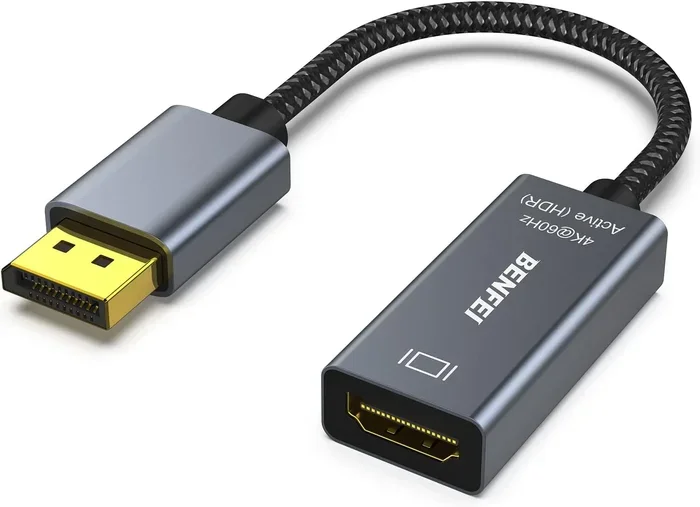
VGA to HDMI Adapter Cable
This is a cable with a VGA plug on one end and an HDMI plug on the other. It contains a built-in active converter chip. These cables are compact and convenient. They work well for short distances and simple setups. However, the built-in chip may not be as powerful as a standalone converter box.
VGA to HDMI Converter Box
A converter box is a small standalone unit. You plug your VGA cable into the box, and then connect an HDMI cable from the box to your display. Most boxes also have a USB port for power. These tend to offer better conversion quality than simple adapter cables. They also often include extra features like upscaling or resolution adjustment.
VGA to HDMI with Audio Extraction
Since VGA does not carry audio, some converters include an audio output. You can plug in a 3.5mm audio cable or even an optical cable to get sound to your display or speakers. This is a great option if you are connecting a laptop to a TV and need both picture and sound.
USB-C to HDMI with VGA Input
Some modern adapters accept both VGA and USB-C inputs. These are versatile devices that let you switch between older and newer devices easily. They are perfect for offices or classrooms where different devices need to connect to the same display.
Quick Comparison Table
| Type | Pros | Cons |
|---|---|---|
| Adapter Cable | Compact, easy to use, affordable | Limited conversion quality, needs power sometimes |
| Converter Box | Better quality, more features, stable signal | Bulkier, costs more |
| Audio-Enabled Converter | Handles video and audio, versatile | More cables, slightly more complex setup |
| USB-C Hybrid Adapter | Works with multiple devices, future-proof | Higher price point |
Choosing the right type depends on your specific needs. If you just need a quick connection for a presentation, an adapter cable works fine. For home entertainment or regular daily use, a converter box gives you better results.
Step-by-Step Guide to Connecting VGA to HDMI
Now let us walk through the actual setup process. Follow these steps and you will have your VGA device connected to your HDMI display in no time.
Step 1: Gather Your Equipment
You will need a few things before you start:
- A device with a VGA output (laptop, desktop, projector)
- An HDMI display (TV, monitor, projector)
- A VGA to HDMI active adapter or converter
- A VGA cable
- An HDMI cable
- A power source for the adapter (USB cable or wall plug)
Step 2: Connect the VGA Cable
Plug the VGA cable into the VGA port on your source device. Twist the screws on the sides to secure it snugly. A loose connection is one of the most common reasons for display problems.
Step 3: Connect to the Adapter
Plug the other end of the VGA cable into the VGA input on your adapter or converter box. Make sure it clicks into place.
Step 4: Connect the HDMI Cable
Take your HDMI cable and plug one end into the HDMI output on the adapter. Plug the other end into the HDMI port on your TV or monitor.
Step 5: Power the Adapter
Connect the power cable to the adapter. Most active converters need external power to work properly. You can use a USB port on your laptop or a wall USB charger.
Step 6: Switch the Display Input
On your TV or monitor, use the remote or the buttons on the device to switch to the correct HDMI input. You should see the VGA signal appear on screen.
Step 7: Adjust Settings
Go to your source device’s display settings. Make sure the resolution matches your HDMI display’s native resolution. This ensures the best picture quality. If you do not see an image, try a different HDMI port or check your cable connections.
Common Problems and How to Fix Them
Sometimes things do not go smoothly. Here are the most common issues people face when connecting VGA to HDMI and how to solve them.
No Signal on the Display
This is the most common problem. It usually means the adapter is not getting power or the cables are not seated properly. Try unplugging everything and plugging it back in. Make sure the adapter is powered on. Switch the display input to the correct HDMI port.
Flickering or Distorted Image
A flickering image often points to a loose cable connection. Check that all cables are tight. It can also mean the adapter is low quality or the VGA cable is too long. Try shortening the VGA cable or upgrading to a better adapter.
No Audio
Remember that VGA does not carry audio. If you need sound, you must connect audio separately. Use a 3.5mm cable from your source device to your display or speakers. Some converters also have a dedicated audio output port.
Low Resolution or Blurry Image
This happens when the adapter does not support high resolutions. Check the specs of your converter. Most quality adapters support 1080p. If you are using a very cheap adapter, it may only support lower resolutions. Upgrading to a better adapter often fixes this.
Adapter Overheating
Some active converters get warm during use. This is normal to a degree. But if the adapter is too hot to touch, it may be defective or underpowered. Make sure you are using the correct power source. If the problem continues, replace the adapter.
Expert Tips for the Best VGA to HDMI Experience
Want to get the most out of your VGA to HDMI setup? Here are some tips from people who do this regularly.
Invest in a Quality Adapter
Cheap adapters save money upfront but often cause headaches later. A good converter from a reputable brand will give you a clearer picture, more stable connection, and longer lifespan. Look for adapters that support at least 1080p resolution.
Keep Cables Short
VGA signals degrade over distance. Try to keep your VGA cable under 10 feet for the best results. If you need a longer run, consider using a signal booster or upgrading to a digital connection entirely.
Update Your Display Drivers
If you are connecting a computer, make sure your graphics drivers are up to date. Updated drivers often improve compatibility with adapters and converters. They can also fix resolution and flickering issues.
Use the Right HDMI Port
Not all HDMI ports on a TV are created equal. Some ports support higher resolutions than others. Check your TV manual and try different ports if you are not getting the best image quality.
Consider Going Fully Digital
If you have the option, consider upgrading your source device to one with a digital output. Modern laptops and desktops often come with HDMI or DisplayPort built in. Going fully digital eliminates the need for adapters and gives you the best possible picture and sound quality.
Speaking of helpful tech tools, if you are looking for ways to simplify your daily tech life, you might enjoy these 10 gadgets designed to make life easier. They include some great display and connectivity solutions.
Do You Really Need VGA to HDMI in 2024?
With so many devices moving to USB-C and wireless display options, you might wonder if VGA to HDMI adapters are still relevant. The answer is yes. Many offices, schools, and conference rooms still rely on older equipment with VGA ports. Projectors in classrooms almost always have VGA inputs. And many people still have perfectly good laptops or desktops that only offer VGA output.
VGA to HDMI adapters fill an important gap. They let you use modern displays with older devices without spending a fortune on new hardware. They are affordable, easy to use, and widely available. For many people, they are an essential part of their tech toolkit.
If you are setting up a temporary display or giving a presentation, a VGA to HDMI adapter is a lifesaver. You do not need to worry about compatibility. Just plug in the adapter, connect your cables, and you are good to go. It is one of the simplest and most affordable tech solutions you can add to your setup.
For more device setup tips and tricks, you can explore guides like adding prefixes to numbers on iPhone for helpful device management tips that complement your connectivity knowledge.
Final Thoughts
The question can VGA transmit to HDMI has a clear and simple answer: yes, it absolutely can. With the right active adapter or converter, you can connect almost any VGA device to any HDMI display. The process is straightforward, and the adapters are affordable and widely available.
Remember the key points. You need an active converter, not a passive cable. Check that your adapter supports your desired resolution. Connect audio separately if needed. And invest in a quality adapter for the best experience. Following these steps will save you time, frustration, and money.
Whether you are connecting an old laptop to a new TV, setting up a classroom projector, or giving a work presentation, knowing how to bridge the gap between VGA and HDMI is a valuable skill. It keeps your older devices useful and lets you take advantage of modern displays. So go ahead, grab the right adapter, and get connected today.
Frequently Asked Questions
Can I plug a VGA cable directly into an HDMI port?
No, you cannot plug a VGA cable directly into an HDMI port. VGA uses an analog signal and a different connector shape. You need an active VGA to HDMI adapter or converter to bridge the two. Without a converter, the connection simply will not work.
Will a VGA to HDMI adapter carry sound?
Most basic VGA to HDMI adapters only carry video. VGA does not support audio at all. If you need sound, look for a converter with a separate audio output or connect audio cables from your source device to your speakers or display independently.
What resolution can I expect from a VGA to HDMI connection?
It depends on your adapter. Most quality adapters support up to 1080p. Some cheaper adapters may only support 720p or lower. Check the product specifications before you buy to make sure the adapter meets your resolution needs.
Do I need a powered adapter for VGA to HDMI conversion?
Yes, most active VGA to HDMI converters require external power. They usually draw power through a USB cable connected to your computer or a wall charger. Without power, the conversion chip cannot process the signal properly.
Can I use a VGA to HDMI adapter with a gaming console?
It depends on the console. Some older consoles have VGA outputs, and an adapter can work with them. However, modern gaming consoles typically use HDMI or digital outputs natively. Always check your console’s specifications before purchasing an adapter.
Is there a wireless alternative to VGA to HDMI adapters?
Yes, wireless display solutions like Chromecast, Miracast, or Apple AirPlay can replace wired VGA to HDMI connections. These let you stream your screen to a modern display without any cables. However, they may introduce slight latency, which can matter for presentations or gaming.